Whimsical
officialLet AI take control of your visual workspace for brainstorming, flowcharts, mind maps, wireframes, and technical diagrams.
What can you do with Whimsical MCP?
Ask your AI to turn text into visual diagrams, search your workspace, and brainstorm visually in Whimsical.
- Create flowcharts and diagrams — Ask your AI to turn a technical process into a flowchart or sequence diagram in a new Whimsical file via
create_diagram. - Search workspace files — Ask your AI to find and read Whimsical files across your workspace using
search_files, returning links or summaries. - Generate mind maps and wireframes — Ask your AI to create a mind map or wireframe outline for planning and brainstorming directly in Whimsical.
Documentation
Learn
Whimsical MCP
Whimsical's MCP (Model Context Protocol) server connects your Whimsical workspace to AI tools like Claude, ChatGPT, and Cursor. It gives them secure access to read and write content in your workspace, so you can work together to:
- Visualize complex processes on a Whimsical board.
- Map your SOPs with flowcharts.
- Generate wireframes from prompts or code.
- Code working prototypes from your Whimsical wireframes.
- And more!
Step 1: Set up your MCP client
Follow the instructions below for your specific client to add Whimsical’s MCP server.
Claude
Whimsical is a verified connector in Claude’s Connector Directory, so you can either find it directly in the directory or jump straight to https://claude.ai/directory/connectors/whimsical.
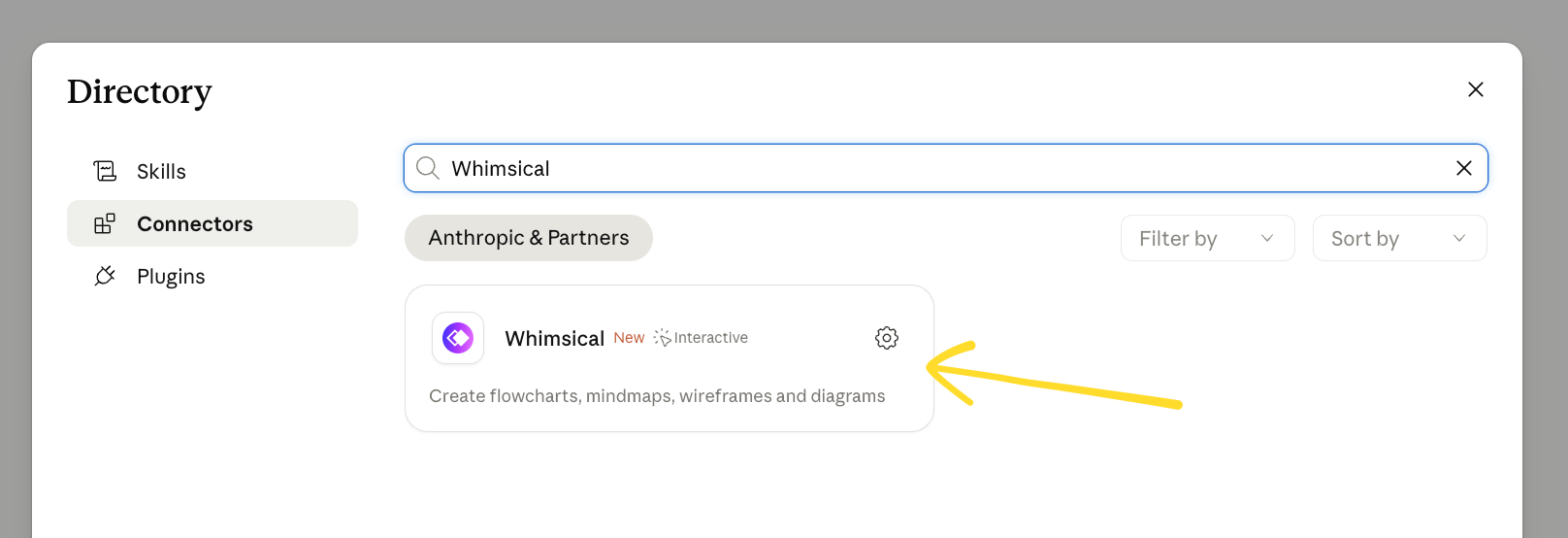
Once opened, click Connect and complete the Whimsical authentication. After that, Claude will be able to access and work with your Whimsical content.
ChatGPT
You can use the dedicated Whimsical plugin for ChatGPT.
- Open ChatGPT and go to Settings → Plugins
- Search for Whimsical, or use this direct link.
- Click Connect and complete the authorization steps.
Once connected, type @Whimsical in any chat to use it. For more details, see our full guide to the Whimsical app for ChatGPT.
Cursor
- Add Whimsical directly from Cursor’s plugin directory: https://cursor.directory/plugins/whimsical
- Or, open Cursor → Settings → Cursor Settings.
- Go to Tools & MCP.
- Click Add custom MCP or + New MCP server.
- Enter the following configuration and save:
{ "mcpServers": { "whimsical-remote": { "url": "https://mcp.whimsical.com/mcp" } } }
Other clients
With so many other tools now supporting MCP servers, you can configure them to use Whimsical’s MCP server with the following values:
- Name:
whimsical-remote - URL:
https://mcp.whimsical.com/mcp
Step 2: Authentication
The MCP server requires OAuth authentication with your Whimsical account, so all you need is a Whimsical account.
Step 3: Verify the connection
- Send a prompt like “What Whimsical tools do you have available?” If the MCP is connected, you’ll get a list of tools such as
create_diagram,search_filesetc. - You can always check directly on the MCP settings page in Claude, ChatGPT, or Cursor
Step 4: Prompt your MCP client
Start a new chat and ask it to do things in Whimsical. To get started, you can ask it “What can you do with Whimsical MCP?”. 👌
Create process or sequence diagrams
Ask your AI to turn technical processes into visual diagrams in Whimsical. Try prompts like “Create a flowchart of a typical OAuth flow”, “Create a diagram of how Slack decides to send a notification”, or “Generate a sequence diagram showing how API requests are processed”.
You’ll see:
- MCP server creates a new file in your workspace
- Generates a flowchart or sequence diagram based on the provided context
- Provides a preview of the created content directly in the chat where you can see and interact with the output
Search and reference your Whimsical files
Your AI can search and read Whimsical files so you can reference them in context. Try “Find the system architecture diagram I made last month” or “Summarize the user flow we mapped out in Whimsical”.
You’ll see:
- MCP server searches all files in your workspace
- Finds a matching file (or files)
- Returns links to the matching files, or embeds them directly in the chat
- Generates the summary you requested
Plan and brainstorm visually
Use your AI to create mind maps, wireframe outlines, and planning documents directly in Whimsical. Try “Create a mind map of the key features for this project” or “Make a wireframe outline for a new settings page”.
You’ll see:
- MCP server creates a new file in your workspace
- Generates a mind map or wireframe based on the provided context
- Provides an embed and link direct in the chat where you can see and interact with the output
This article covers Whimsical's remote MCP - the recommended option for most people.
Remote MCP connects AI tools such as ChatGPT, Claude, and Cursor to Whimsical via our hosted MCP server. There's nothing to install, and it works anywhere your AI assistant supports remote MCP servers.
If you'd rather run MCP locally, you can use our desktop MCP instead. It runs through the Whimsical desktop app and can give AI coding tools access to files and code on your machine — useful for agents like Claude Code, Codex, and Copilot. The Whimsical desktop app has to be open for it to work.
To set up the desktop MCP, just reach out to our support team.