Paste MCP
Find and use copied context from your Mac clipboard history and pinboards. Local MCP server for Paste, the clipboard manager for Mac. Search clipboard items, use them as context, save AI output to pinboards.
Documentation
Paste MCP



Local MCP server for Paste. Give Claude, Codex, Cursor, and other AI tools access to your Mac's clipboard history and pinboards — without anything leaving your device.
Your assistant can search your clipboard items, pull one into context, or save its output to a pinboard.
Install
Use add-mcp to connect Paste to all your installed AI apps:
npx add-mcp @pasteapp/mcp
The first time an app uses Paste, it'll ask you to authenticate and allow access.
Alternatively, connect Paste to each app manually:
Claude Code
claude mcp add paste -- npx -y @pasteapp/mcp
Codex
codex mcp add paste -- npx -y @pasteapp/mcp
Cursor

VS Code

Connect from Paste
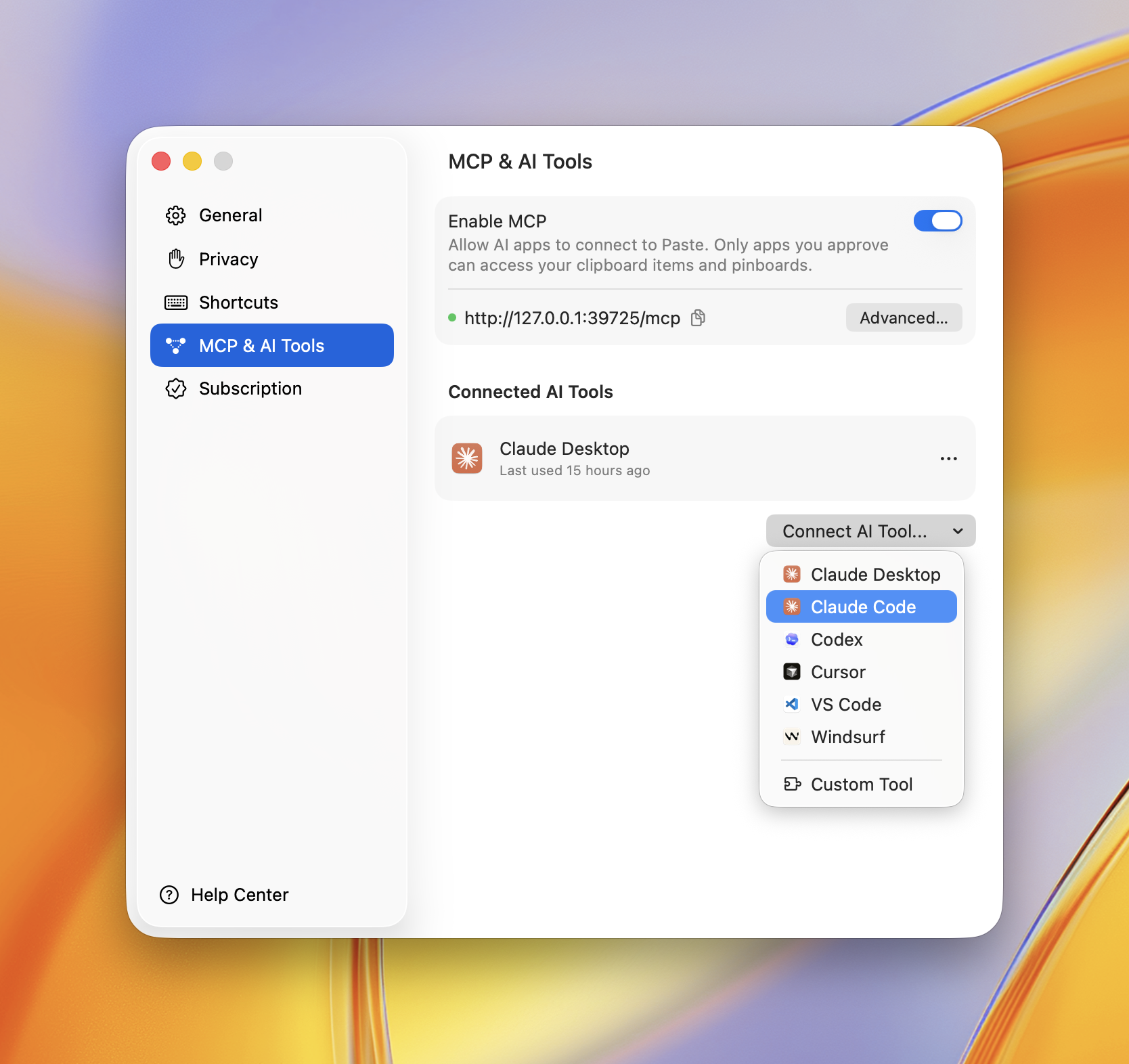
You can also connect any app right inside Paste. Open Settings → MCP & AI Tools, click Connect AI Tool, and choose your app — Paste does the rest.
Privacy Policy
Paste MCP runs locally on your Mac — it bridges your AI app to Paste's on-device server and sends nothing to Paste's own servers. Your clipboard items only reach the AI apps you approve, and you can revoke access anytime in Settings → MCP & AI Tools.
Full policy — what data is processed, how it's stored, sharing, retention, and contact: https://pasteapp.io/privacy.
Troubleshooting
The AI tool says Paste isn't available. Make sure Paste is running and MCP is enabled in Settings → MCP & AI Tools.
Tools don't show up after connecting. Fully quit and reopen your AI app so it relaunches the server.
npx errors or "command not found".
Confirm Node.js 18+ is installed: node --version.
Requirements
Contributing
Issues and pull requests welcome — see the issue tracker.