Whimsical

official

Let AI take control of your visual workspace for brainstorming, flowcharts, mind maps, wireframes, and technical diagrams.

What can you do with Whimsical MCP?

  • Create flowcharts from descriptions — Ask the AI to generate a flowchart in your workspace using create_diagram, e.g. from a process or logic description.
  • Generate sequence diagrams — Use create_diagram to turn API flows or system interactions into sequence diagrams.
  • Build mind maps for brainstorming — Have the AI create a mind map via create_diagram to explore features, ideas, or project plans.
  • Produce wireframe outlines — Request a wireframe with create_diagram to sketch page layouts or UI concepts.
  • Search your workspace files — Find diagrams or docs by name or topic using search_files and get links or embeds back.
  • Read and summarize Whimsical files — Ask the AI to retrieve and summarize content from a specific file in your workspace.

Documentation

Learn

SearchK

Loading…Open app

Categories

  • Getting started
    • What is Whimsical?
    • Getting started with flowcharts
    • Getting started with mind maps
    • Getting started with wireframes
    • What can you do with Whimsical?
    • Using Whimsical Boards
    • Getting started with Whimsical AI
    • AI-assisted mind mapping
    • Working with Whimsical's infinite canvas
    • 5 ways to create a new file
    • How to create a new workspace
    • Customizing file and folder icons
    • Mentions in Whimsical files
    • Customizing diagram shapes
    • Getting started with sequence diagrams
    • Using the command menu
  • Whimsical boards
    • Commenting in Whimsical files
    • Getting started with flowcharts
    • Getting started with mind maps
    • Getting started with wireframes
    • Using Whimsical Boards
    • Mentions in Whimsical files
    • Customizing diagram shapes
    • Using sections on the Whimsical canvas
    • Sketch on the canvas with freehand drawing
    • Annotating files for more detail
    • Text-to-object pasting options
    • Adding and displaying links in Whimsical files
    • Linking to sections and objects
    • How to draw a line
    • How to filter selected objects
    • Presenting in Whimsical
    • Voting on sticky notes
    • Using the timer in boards
    • Working with the grid and auto-alignment
    • Working with connectors
    • Does Whimsical have cloud architecture icons?
    • Using tables in Whimsical
    • Using sticky notes in boards
    • Optimizing performance in larger boards
    • Using spellcheck
    • Setting custom thumbnails
    • How overlays work in Wireframe mode
    • Why are the colors of some board items toned down?
    • How to add emojis
    • Hiding cursors while collaborating
    • Measure between objects in Boards
    • Uploading files to Whimsical
    • Getting started with sequence diagrams
    • Working with Mermaid code in Whimsical
    • Keeping boards tidy with alignment, distribution, and auto-layout
  • Whimsical docs
    • Getting started with docs
    • Markdown support in Whimsical
    • Collapsing text with toggles
    • Embedding external content into Whimsical
    • Changing page width and text size in docs
    • Syntax highlighting in code blocks
  • AI
    • Whimsical app for ChatGPT
    • Whimsical connector for Claude
    • Getting started with Whimsical AI
    • AI-assisted mind mapping
    • AI Supplementary Terms
    • MCP
    • Whimsical MCP
    • Whimsical MCP - supported tools
  • FAQs
    • Customizing file and folder icons
    • How to draw a line
    • How to filter selected objects
    • Markdown support in Whimsical
    • Does Whimsical have cloud architecture icons?
    • Embedding external content into Whimsical
    • How overlays work in Wireframe mode
    • Moving and copying files
    • Using Whimsical on mobile
    • Does Whimsical have a dark mode?
    • File version history
    • Why are the colors of some board items toned down?
    • Does Whimsical support offline mode?
    • Teams, workspaces & sections explained
    • Does Whimsical work on iPad?
    • Free viewers commenting in workspaces
    • Whimsical desktop app
    • Is Whimsical available in other languages?
    • Inverting the zoom direction in Whimsical so it works more like Sketch
    • Troubleshooting issues and reporting bugs
    • How to add emojis
    • Team FAQs
    • How to restore deleted files from the trash
    • Searching in your Whimsical workspace
    • Organizing files in your workspace
    • I’ve upgraded but still don’t have access to the paid features
    • Why can't I edit my files?
    • Reporting content in Whimsical
    • Does Whimsical have an affiliate or referral program?
    • Collaborating with others in real time
    • Sharing files and managing access permissions
    • Hiding cursors while collaborating
    • How to switch between workspaces
    • Sharing feedback and feature requests
  • Keyboard shortcuts
    • Keyboard shortcuts for Windows (PC)
    • Keyboard shortcuts for Mac
  • Account settings
    • Notification inbox
    • How to change or reset your password
    • Inverting the zoom direction in Whimsical so it works more like Sketch
    • Customizing your notifications in Whimsical
    • How to verify your Whimsical account
    • How to delete your account
    • Adding your name and avatar to your account
    • Changing your account email address, or adding a new one
  • Subscription & billing
    • Updating the credit card details on your account
    • How billing works in workspaces
    • Updating your billing information
    • I’ve upgraded but still don’t have access to the paid features
    • How to cancel your subscription
    • Pricing and discounts
    • Where are my invoices
    • Understanding your Whimsical invoice
    • Sales tax and VAT
  • Managing workspaces
    • How to create a new workspace
    • Teams, workspaces & sections explained
    • Free viewers commenting in workspaces
    • Requesting file access
    • Workspace discovery settings
    • Sorting files and folders
    • Changing workspace members’ roles
    • Adding and removing members
    • Team FAQs
    • Creating and managing teams
    • Requesting workspace editor access
    • Linking between files
    • Member roles in Whimsical
    • How to delete a workspace
    • How to upgrade your workspace
    • Guest access
    • Changing your workspace name, logo, or URL
    • Collaborating with others in real time
    • Offboarding users
    • Sharing files and managing access permissions
    • How to switch between workspaces
    • Consolidating workspaces
    • Uploading files to Whimsical
    • Organizing your work with tabbed folders
    • SAML
    • Setting up SAML session expiry
    • Security
    • Prevent new workspace creation
  • Files & organisation
    • Customizing file and folder icons
    • Moving and copying files
    • File version history
    • How to restore deleted files from the trash
    • Searching in your Whimsical workspace
    • Organizing files in your workspace
    • Why can't I edit my files?
  • Imports & exports
    • Text-to-object pasting options
    • Exporting content from Whimsical
    • Embedding Whimsical files
    • Importing to Whimsical
    • Working with Mermaid code in Whimsical
  • Integrations
    • Whimsical app for ChatGPT
    • Whimsical connector for Claude
    • Embedding & integrating boards with Jira Issues
    • Integrating Whimsical with Google Docs
    • Embedding files in ClickUp views
    • Embedding files in Asana
    • Embedding Whimsical files
    • Creating Jira & Confluence Smart Links for Whimsical Files
    • Embedding files in Guru
    • Embedding files in Trello
    • Embedding & integrating boards in Notion
    • Integrating Whimsical and GitHub
    • Embedding files in Zendesk
    • Support Whimsical embeds in your app with EmbedKit
    • Whimsical previews and notifications in Slack
    • Embedding files in Canva
    • Integrating Whimsical and Linear
    • Embedding files in Nuclino
    • Embedding files in Monday
    • Embedding files in Medium
    • Embedding files in Slab
    • Embedding files in Coda
    • Whimsical API (Beta)
    • MCP
    • Whimsical MCP
    • Whimsical MCP - supported tools
  • Security, SAML & SCIM
    • Reporting content in Whimsical
    • SAML
    • SAML SSO in Whimsical
    • SAML SSO with Okta
    • SAML SSO with Auth0
    • SAML SSO with OneLogin
    • SAML SSO with Microsoft Entra ID (Azure AD)
    • SAML SSO with Google Workspace (previously G-Suite)
    • SAML SSO with Active Directory Federation Services (ADFS)
    • SAML SSO with other identity providers
    • Setting up SAML session expiry
    • Managing email changes with SAML and SCIM
    • SCIM
    • Setting up SCIM with Okta
    • Setting up SCIM with JumpCloud
    • Setting up SCIM with Entra ID (Azure AD)
    • SCIM provisioning with Groups in Okta
    • SCIM user provisioning in Whimsical
    • SCIM provisioning with Groups in Entra ID (Azure AD)
    • Security
    • Setting up Two-factor Authentication (2FA)
    • Prevent new workspace creation
    • Whitelisting Whimsical domains
    • Signing in with your Whimsical account on multiple devices
  • Color themes & templates
    • Customizing file and folder icons
    • Custom colors and themes
    • Creating and using templates
  • Releases
  • Terms & policies
    • AI Supplementary Terms
    • Terms of Service
    • Privacy Notice
    • Data Processing Addendum
    • Subprocessor List
    • Cookie Policy
    • Security Policy
    • Acceptable Use Policy
    • Master Services Agreement
    • Regional Privacy Notice Supplement
  • Contact us

Whimsical statusStatusContact Us

  • Learn
  • Integrations
  • Whimsical MCP

Whimsical MCP

Whimsical's MCP (Model Context Protocol) server connects your Whimsical workspace to AI tools like Claude, ChatGPT, and Cursor. It gives them secure access to read and write content in your workspace, so you can work together to:

  • Visualize complex processes on a Whimsical board.
  • Map your SOPs with flowcharts.
  • Generate wireframes from prompts or code.
  • Code working prototypes from your Whimsical wireframes.
  • And more!

Step 1: Set up your MCP clientCopied!Link to this section

Follow the instructions below for your specific client to add Whimsical’s MCP server.

ClaudeCopied!Link to this section

Whimsical is a verified connector in Claude’s Connector Directory, so you can either find it directly in the directory or jump straight to https://claude.ai/directory/connectors/whimsical.
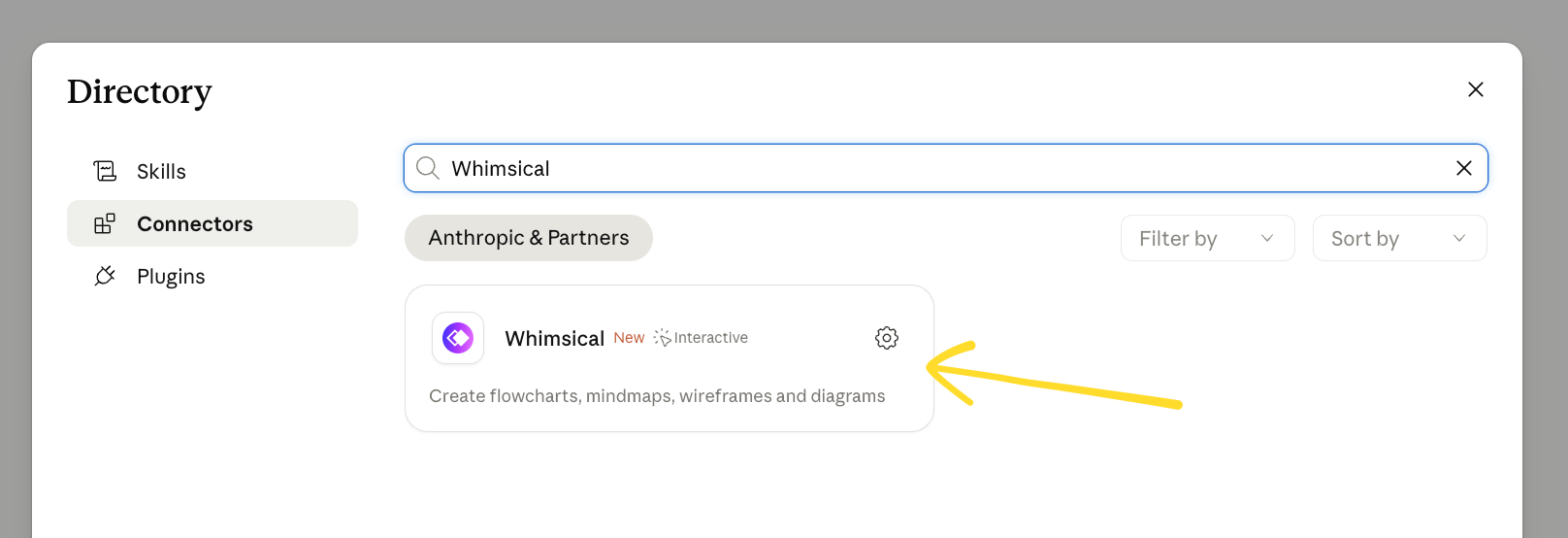
Once opened, click Connect and complete the Whimsical authentication. After that, Claude will be able to access and work with your Whimsical content.

ChatGPTCopied!Link to this section

You can use the dedicated Whimsical app for ChatGPT.

  1. Open ChatGPT and go to Settings → Apps (or open Apps from the sidebar).
  2. Search for Whimsical, or use this direct link.
  3. Click Connect and complete the authorization steps.

Once connected, type @Whimsical in any chat to use it. For more details, see our full guide to the Whimsical app for ChatGPT.

CursorCopied!Link to this section

  1. Open Cursor → Settings → Cursor Settings.
  2. Go to Tools & MCP.
  3. Click Add custom MCP or + New MCP server.
  4. Enter the following configuration and save:

{ "mcpServers": { "whimsical-remote": { "url": "https://mcp.whimsical.com/mcp" } } }

Other clientsCopied!Link to this section

With so many other tools now supporting MCP servers, you can configure them to use Whimsical’s MCP server with the following values:

  • Name: whimsical-remote
  • URL: https://mcp.whimsical.com/mcp

Step 2: AuthenticationCopied!Link to this section

The MCP server requires OAuth authentication with your Whimsical account, so all you need is a Whimsical account.

Step 3: Verify the connectionCopied!Link to this section

  • Send a prompt like “What Whimsical tools do you have available?” If the MCP is connected, you’ll get a list of tools such as create_diagram, search_files etc.
  • You can always check directly on the MCP settings page in Claude, ChatGPT, or Cursor

Step 4: Prompt your MCP clientCopied!Link to this section

Start a new chat and ask it to do things in Whimsical. To get started, you can ask it “What can you do with Whimsical MCP?”. 👌

Create process or sequence diagramsCopied!Link to this section

Ask your AI to turn technical processes into visual diagrams in Whimsical. Try prompts like “Create a flowchart of a typical OAuth flow”, “Create a diagram of how Slack decides to send a notification”, or “Generate a sequence diagram showing how API requests are processed”.

You’ll see:

  • MCP server creates a new file in your workspace
  • Generates a flowchart or sequence diagram based on the provided context
  • Provides a preview of the created content directly in the chat where you can see and interact with the output

Search and reference your Whimsical filesCopied!Link to this section

Your AI can search and read Whimsical files so you can reference them in context. Try “Find the system architecture diagram I made last month” or “Summarize the user flow we mapped out in Whimsical”.

You’ll see:

  • MCP server searches all files in your workspace
  • Finds a matching file (or files)
  • Returns links to the matching files, or embeds them directly in the chat
  • Generates the summary you requested

Plan and brainstorm visuallyCopied!Link to this section

Use your AI to create mind maps, wireframe outlines, and planning documents directly in Whimsical. Try “Create a mind map of the key features for this project” or “Make a wireframe outline for a new settings page”.

You’ll see:

  • MCP server creates a new file in your workspace
  • Generates a mind map or wireframe based on the provided context
  • Provides an embed and link direct in the chat where you can see and interact with the output

This article covers Whimsical's remote MCP - the recommended option for most people.

Remote MCP connects AI tools such as ChatGPT, Claude, and Cursor to Whimsical via our hosted MCP server. There's nothing to install, and it works anywhere your AI assistant supports remote MCP servers.

If you'd rather run MCP locally, you can use our desktop MCP instead. It runs through the Whimsical desktop app and can give AI coding tools access to files and code on your machine — useful for agents like Claude Code, Codex, and Copilot. The Whimsical desktop app has to be open for it to work.

To set up the desktop MCP, just reach out to our support team.

Summary

  1. Whimsical MCP
  2. Step 1: Set up your MCP client
  3. Claude
  4. ChatGPT
  5. Cursor
  6. Other clients
  7. Step 2: Authentication
  8. Step 3: Verify the connection
  9. Step 4: Prompt your MCP client
  10. Create process or sequence diagrams
  11. Search and reference your Whimsical files
  12. Plan and brainstorm visually