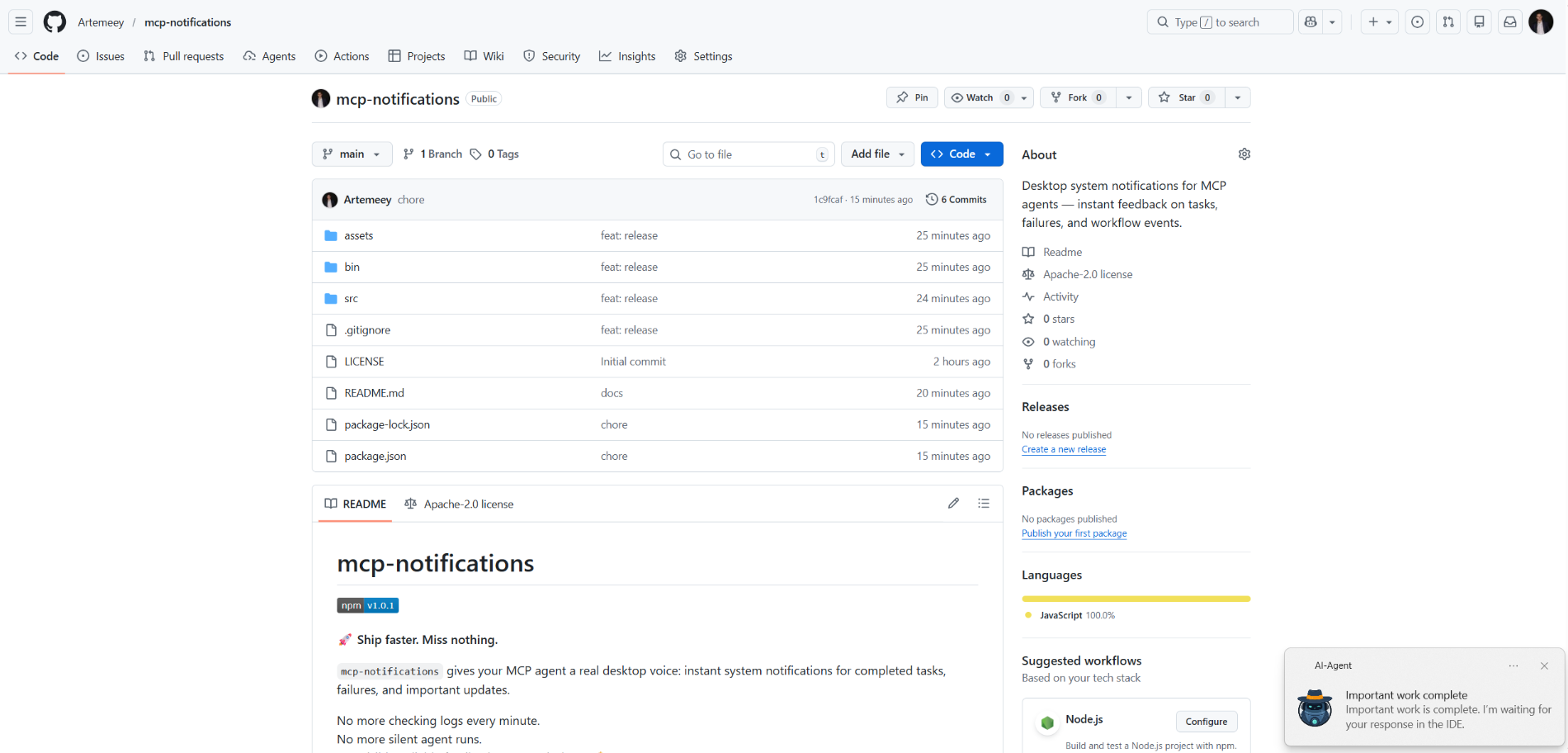
mcp-notifications
공식MCP 에이전트용 데스크톱 시스템 알림 — 작업, 실패, 워크플로 이벤트에 대한 즉각적인 피드백.
Notifications MCP(으)로 무엇을 할 수 있나요?
- Send a desktop notification — 작업이 완료되면 에이전트가 사용자 지정 제목과 메시지로
send_notification을 호출하도록 요청하세요. - Include an audible alert —
play_sound: true로 설정하면 알림 전달 시 시스템 사운드가 재생됩니다. - Customize the notification source on Windows —
app_id를 전달하여 토스트에 표시되는 앱 이름을 제어하거나,MCP_NOTIFICATIONS_APP_ID환경 변수를 통해 전역으로 설정할 수 있습니다. - Use a custom icon —
icon경로를 제공하여 알림의 기본 이미지를 대체하세요.
문서
mcp-notifications

🚀 더 빠르게 배포하세요. 아무것도 놓치지 마세요.
mcp-notifications을(를) 사용하면 MCP 에이전트가 완료된 작업, 실패, 중요한 업데이트에 대해 데스크톱 알림을 보낼 수 있습니다.
이는 콘솔 AI 에이전트에 특히 유용한데, 기본적으로 알림 기능이 내장되어 있지 않은 경우가 많기 때문입니다.
더 이상 매분 채팅을 확인할 필요가 없습니다.
더 이상 조용한 에이전트 응답이 없습니다.
데스크톱에서 눈에 보이는 안정적인 피드백을 받으세요. 🔔
이 도구가 해결하는 일반적인 문제
여러 AI 에이전트에 작업을 지시한 후, 누가 이미 응답했는지 계속 확인하며 기다리는 경우가 있습니다.
mcp-notifications을(를) 사용하면 더 간단해집니다. 에이전트가 사용자 입력이 필요하거나 작업이 완료되었을 때 데스크톱으로 알려줄 수 있습니다.
팀이 이 도구를 설치하는 이유
- ⚡ MCP 워크플로우에서 즉각적인 피드백을 받을 수 있습니다.
- 🧠 집중력 향상: 에이전트가 작업하는 동안 주요 업무에 집중할 수 있습니다.
- 🖥️
node-notifier을(를) 통한 네이티브 OS 알림. - 🧵 논블로킹 동작: 알림 전송이 백그라운드에서 대기열로 처리됩니다.
전역 설치
요구 사항:
- Node.js
>=20 - npm
>=10
npm i -g @topvisor/mcp-notifications
실행 파일 이름 (MCP 구성에서 사용):
mcp-notifications
mcp-notifications은(는) MCP 서버 진입점(stdio)이며, 일회성 알림 명령이 아닙니다.
설정: Codex
~/.codex/config.toml에 다음을 추가하세요:
[mcp_servers.notifications]
enabled = true
command = "mcp-notifications"
args = []
구성 업데이트 후 Codex를 다시 시작하세요.
설정: Claude Agent
Claude 클라이언트 구성 파일에 MCP 서버 구성을 추가하세요:
{
  "mcpServers": {
    "notifications": {
      "command": "mcp-notifications",
      "args": []
    }
  }
}
그런 다음 Claude 클라이언트를 다시 시작하세요.
AI 에이전트 알림 지침
알림에는 수동 및 자동 두 가지 접근 방식이 있습니다.
워크플로우에 더 적합한 방식을 선택하세요.
수동
알림을 받고 싶은 작업에서 에이전트에게 명시적으로 요청하세요. 예시:
Count files in the project; after the task is fully complete, notify me with sound.
특정 채팅 내에서 소리, 주제, 빈도 규칙을 정의할 수도 있습니다. 예시:
Notify me about your replies without sound, include the reply text, and use title: "Large Refactoring"
자동
자동 알림은 전역적으로 또는 프로젝트별로 구성할 수 있습니다.
에이전트 응답에 대한 자동 알림을 활성화하는 지침 예시:
Send `send_notification` after your replies (actual task time >5 seconds or many steps); `play_sound: false`; `app_id: '{put your chat name here}'`
시간은 대략적인 임계값이며 모델 동작에 따라 달라지므로, 이 지침을 자신의 선호도에 맞게 조정하세요.
스킬에서
특정 스킬에서도 알림을 활성화할 수 있습니다. 검토 스킬의 예시:
After the review, run `send_notification` with a short summary; `play_sound: true`; `app_id: 'Reviewer {put task id here}'`
도구
send_notification
입력:
titlestring(필수)messagestring(필수)play_soundboolean(선택 사항, 기본값:false)iconstring(선택 사항, 이미지 파일의 절대 또는 상대 경로)app_idstring(선택 사항, 알림 소스에 대한 Windows 앱 사용자 모델 ID)
예시:
{
  "title": "Codex",
  "message": "Deployment completed successfully",
  "play_sound": true,
  "icon": "/opt/mcp-notifications/icons/custom.png",
  "app_id": "Topvisor.Codex"
}
app_id (Windows)
app_id은(는) Windows 알림에 표시되는 소스를 제어합니다.app_id이(가) 설정되지 않은 경우, Windows에서SnoreToast을(를) 소스로 표시할 수 있습니다.- 각 도구 호출에서
app_id을(를) 전달하거나, 서버의 환경 변수로MCP_NOTIFICATIONS_APP_ID을(를) 설정할 수 있습니다.
백엔드 선택
환경 변수 MCP_NOTIFICATIONS_BACKEND을(를) 통해 알림 전송 방식을 선택할 수 있습니다:
auto(기본값): WSL에서 사용 가능한 경우powershell을(를) 사용하고, 그렇지 않으면node-notifier을(를) 사용합니다.powershell:powershell.exeWindows 알림 전송을 강제합니다 (WSL에 권장).node-notifier:node-notifier패키지를 강제합니다.
Codex에서 테스트할 채팅 프롬프트
채팅에서 다음 메시지를 직접 사용하세요:
Check send_notification
Send a notification without sound: title "Test", message "Check"
Send a notification with sound: title "Test", message "Check"
Send a notification with app_id "Topvisor.Codex": title "Test", message "Check"
Send 3 test notifications in a row without sound
로그/응답에서 예상되는 도구 결과:
Notification queued
동작 방식
- ✅ 표준 시스템 알림 채널을 사용합니다.
- 🔊
play_sound: true일 때 표준 시스템 알림 소리를 사용합니다. - 🤖 번들로 제공되는 Topvisor 로봇 이미지를 기본 알림 아이콘으로 사용합니다.
- 🧰 백그라운드 큐에서 알림이 전달되는 동안 빠르게 반환합니다.
예시
AI 에이전트가 사용자를 기다리고 있습니다: