MCP Feedback Enhanced
AI支援開発におけるインタラクティブなユーザーフィードバックとコマンド実行のためのMCPサーバーで、Webとデスクトップの両方のインターフェースをサポートします。
ドキュメント
MCP Feedback Enhanced
🌐 Language / 語言切換: English | 繁體中文 | 简体中文
Original Author: Fábio Ferreira | Original Project ⭐ Enhanced Fork: Minidoracat UI Design Reference: sanshao85/mcp-feedback-collector
📢 Maintenance Status (2026-08)
The project is maintained again. Please upgrade to v2.6.1 — it fixes a command execution vulnerability:
uvx mcp-feedback-enhanced@latestWhat changed in v2.6.1:
- 🔒 Command execution removed — fixes #219 (unauthenticated WebSocket could execute arbitrary programs). The old blocklist only caught shell metacharacters, but since execution used
shell=Falsemetacharacters were never the risk —cat,curl,wget,pythonpassed straight through, and auto-command was enabled by default. The feature is gone for good. See SECURITY.md.- 🔒 Cross-Site WebSocket Hijacking fixed (reported privately as
GHSA-cmr5-gpm3-79vf,GHSA-2wx7-r4rh-f663): browsers are not restricted by the same-origin policy when opening a WebSocket, so a malicious page could make your browser connect to the local/ws.Originis now validated beforeaccept(), and cross-origin attempts are rejected with 403.- 🐛 Fixed the Starlette breaking change that made the Web UI return 500 (#213, #217, #221, #228).
- 🐛 Fixed image serialization (#154 and related) by switching to standard
mcp.types.ImageContent.Current maintenance scope: security issues, and compatibility breaks that make installs unusable (dependency updates, upstream breaking changes). Anything beyond that will be decided from community feedback — see the pinned discussion.
One thing worth stating plainly: the original selling point was "consolidate multiple round-trips into a single Cursor request to save quota". Cursor moved to token-based usage pricing in June 2025, so that premise no longer holds (see #115, #200). The positioning is now "insert human checkpoints into long-running tasks" — not a quota-saving tool.
Also note MCP and its clients now natively support Elicitation (server-initiated requests for user input) and MCP Apps (tools returning interactive UI). If native capabilities cover your needs, just use those — if there's something native can't do, please say so in the discussion. That's what will decide what gets fixed next.
🎯 Core Concept
This is an MCP server that establishes feedback-oriented development workflows, providing Web UI and Desktop Application dual interface options, perfectly adapting to local, SSH Remote environments, and WSL (Windows Subsystem for Linux) environments. By guiding AI to confirm with users rather than making speculative operations, it inserts human checkpoints into long-running tasks, reducing drift and rework.
🌐 Dual Interface Architecture Advantages:
- 🌐 Web UI: No GUI dependencies required, suitable for local, remote and WSL environments (the primary maintained interface)
- 🖥️ Desktop Application: A Tauri shell that loads the same Web UI, supporting Windows, macOS, Linux (maintenance-only since v2.8.0, no new features, scheduled for removal in v3 — see "Desktop application maintenance status" below)
- 📦 Unified Functionality: Both interfaces provide exactly the same functional experience
Supported Platforms: Cursor | Cline | Windsurf | Augment | Trae
🔄 Workflow
- AI Call →
mcp-feedback-enhancedtool - Interface Launch → Auto-open desktop application or browser interface (based on configuration)
- Smart Interaction → Prompt selection, text input, image upload, auto-submit
- Real-time Feedback → WebSocket connection delivers information to AI instantly
- Session Tracking → Auto-record session history and statistics
- Process Continuation → AI adjusts behavior or ends task based on feedback
🌟 Key Features
🖥️ Dual Interface Support
- Desktop Application: Cross-platform native application based on Tauri, supporting Windows, macOS, Linux
- Web UI Interface: Lightweight browser interface suitable for remote and WSL environments
- Environment Adaptation: In WSL the interface opens in the Windows browser automatically; SSH Remote needs port forwarding (see FAQ)
- Unified Feature Experience: Both interfaces provide exactly the same functionality
📝 Smart Workflow
- Prompt Management: CRUD operations for common prompts, usage statistics, intelligent sorting
- Auto-Timed Submit: 1-86400 second flexible timer, supports pause, resume, cancel with new pause/resume button controls
- Session Management & Tracking: Local file storage, privacy controls, history export (supports JSON, CSV, Markdown formats), real-time statistics, flexible timeout settings
- Connection Monitoring: WebSocket status monitoring, auto-reconnection, quality indicators
- AI Work Summary Markdown Display: Support for rich Markdown syntax rendering including headers, bold text, code blocks, lists, links and other formats for enhanced content readability
🎨 Modern Experience
- Responsive Design: Adapts to different screen sizes, modular JavaScript architecture
- Audio Notifications: Built-in multiple sound effects, custom audio upload support, volume control
- System Notifications (v2.6.0): System-level real-time alerts for important events (like auto-commit, session timeout)
- Smart Memory: Input box height memory, one-click copy, persistent settings
- Multi-language Support: Traditional Chinese, English, Simplified Chinese, instant switching
🖼️ Images & Media
- Full Format Support: PNG, JPG, JPEG, GIF, BMP, WebP
- Convenient Upload: Drag & drop files, clipboard paste (Ctrl+V)
- Unlimited Processing: Support for any size images, automatic intelligent processing
🌐 Interface Preview
Web UI Interface (v2.5.0 - Desktop Application Support)
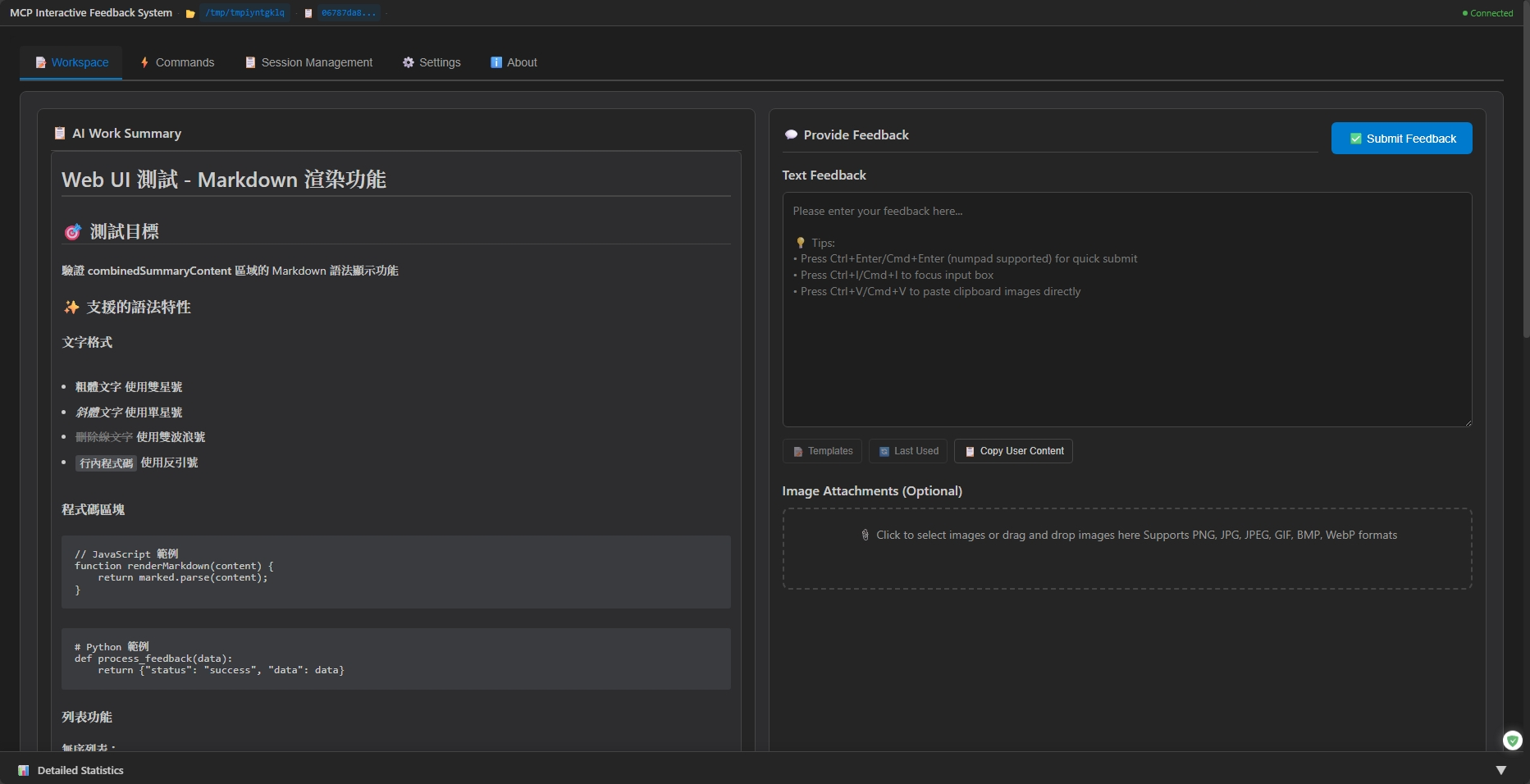
📱 Click to view complete interface screenshots
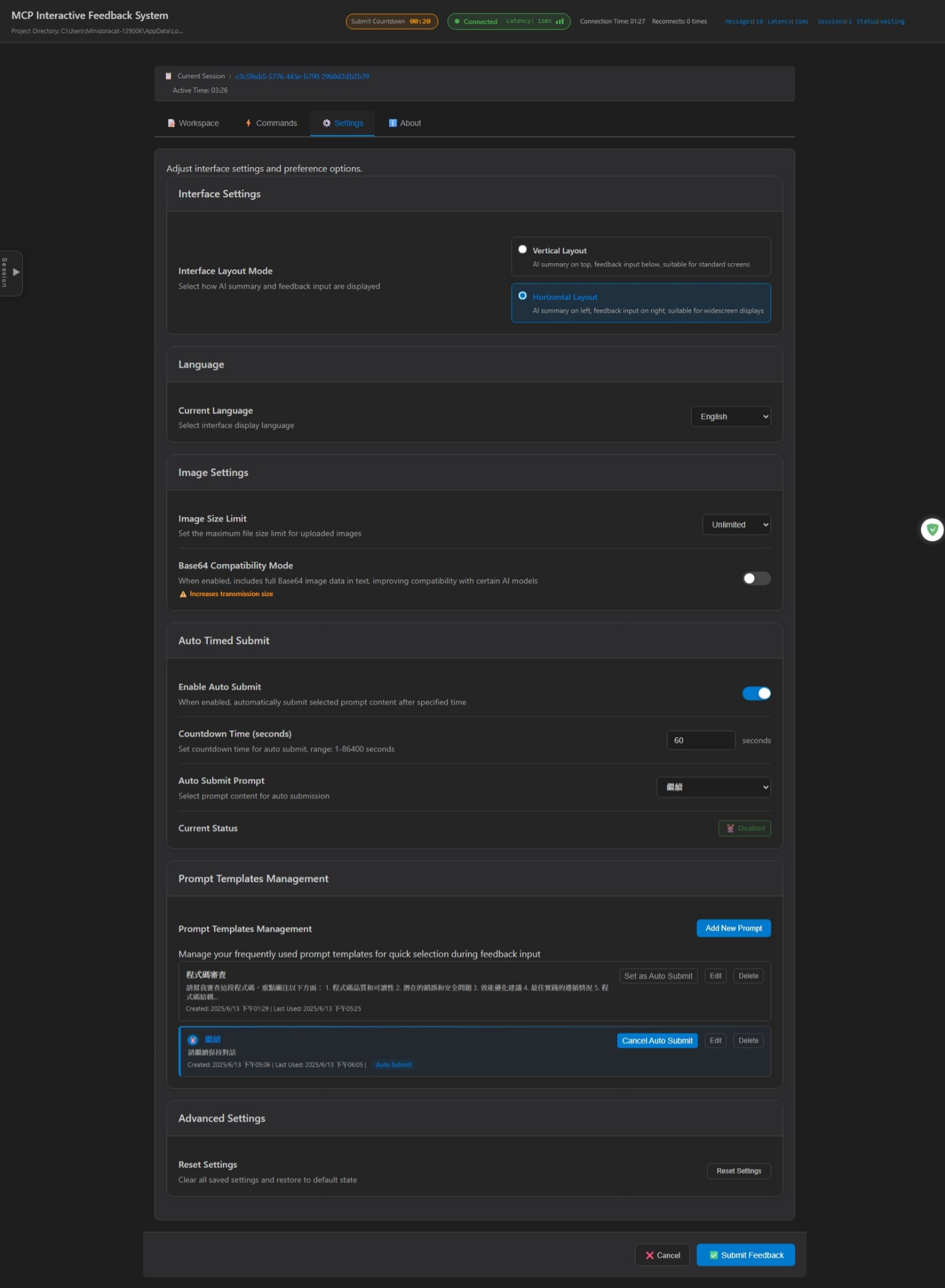
Web UI Interface - Supports desktop application and Web interface, providing prompt management, auto-submit, session tracking and other smart features
Desktop Application Interface (v2.5.0 New Feature)
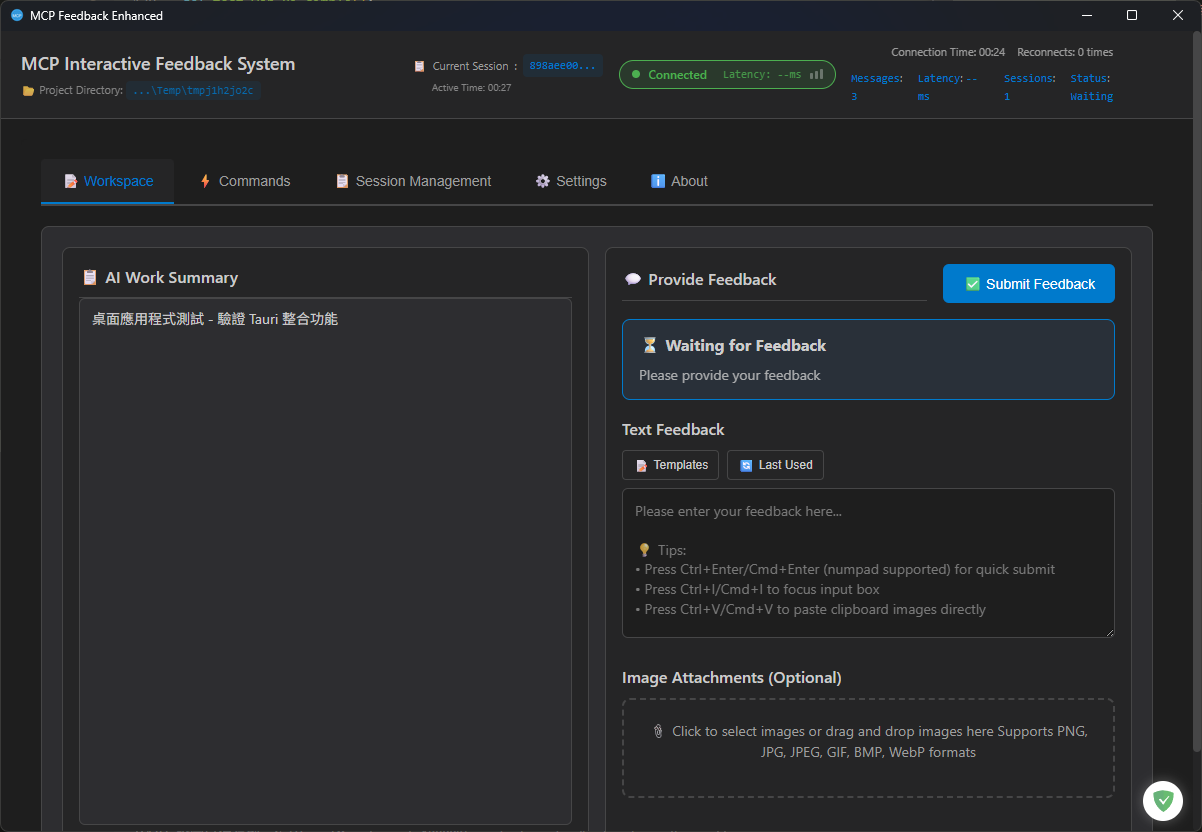
Desktop Application - Native cross-platform desktop application based on Tauri framework, supporting Windows, macOS, Linux with exactly the same functionality as Web UI
Shortcut Support
Ctrl+Enter(Windows/Linux)/Cmd+Enter(macOS):Submit feedback (both main keyboard and numeric keypad supported)Ctrl+V(Windows/Linux)/Cmd+V(macOS):Direct paste clipboard imagesCtrl+I(Windows/Linux)/Cmd+I(macOS):Quick focus input box (Thanks @penn201500)
🚀 Quick Start
1. Installation & Testing
# Install uv (if not already installed)
pip install uv
2. Configure MCP
Basic Configuration (suitable for most users):
{
  "mcpServers": {
    "mcp-feedback-enhanced": {
      "command": "uvx",
      "args": ["mcp-feedback-enhanced@latest"],
      "timeout": 600,
      "autoApprove": ["interactive_feedback"]
    }
  }
}
Advanced Configuration (requires custom environment):
{
  "mcpServers": {
    "mcp-feedback-enhanced": {
      "command": "uvx",
      "args": ["mcp-feedback-enhanced@latest"],
      "timeout": 600,
      "env": {
        "MCP_DEBUG": "false",
        "MCP_WEB_HOST": "127.0.0.1",
        "MCP_WEB_PORT": "8765",
        "MCP_LANGUAGE": "en"
      },
      "autoApprove": ["interactive_feedback"]
    }
  }
}
Desktop Application Configuration (v2.5.0 new feature - using native desktop application):
{
  "mcpServers": {
    "mcp-feedback-enhanced": {
      "command": "uvx",
      "args": ["mcp-feedback-enhanced@latest"],
      "timeout": 600,
      "env": {
        "MCP_DESKTOP_MODE": "true",
        "MCP_WEB_HOST": "127.0.0.1",
        "MCP_WEB_PORT": "8765",
        "MCP_DEBUG": "false"
      },
      "autoApprove": ["interactive_feedback"]
    }
  }
}
⚠️ Desktop application maintenance status (since v2.8.0)
The desktop application is maintenance-only: no new features (always-on-top, staying resident, keeping the window after submit), only security fixes and "cannot launch at all" compatibility fixes; it is scheduled for removal in v3, and the release notes will name the last version that still ships the desktop binaries. Why: it is a thin Tauri shell around the Web UI, yet it accounts for ~80% of the package size, needs three-platform CI plus code signing, and most reported issues are platform-compatibility problems that cannot be reproduced in CI (antivirus false positives, glibc, Gatekeeper, high DPI, multi-monitor).
- To keep using desktop mode: change the
argsin your IDE's MCP configuration frommcp-feedback-enhanced@latestto a pinned version (e.g.mcp-feedback-enhanced@2.8.0) and keepMCP_DESKTOP_MODE=true. Since 2.8.0, if the desktop shell cannot start (quarantined by antivirus, glibc too old, blocked by Gatekeeper, exits with an error right after launch), that call automatically opens the browser instead and prints the URL to stderr rather than waiting silently until the timeout; restarting the MCP server retries the desktop shell. Do not pin to 2.6.0 or earlier (unauthenticated command execution, see SECURITY.md).- To switch to web mode: remove
MCP_DESKTOP_MODE. The functionality is identical, the tab stays open after submit and refreshes on the next call. If you want a standalone window, open the feedback page in Chrome/Edge and choose "Install as app" — but that is a browser feature, not an equivalent of the desktop shell: the backend is still started by the MCP call, once the app window is closed the next call opens a normal browser tab rather than the app window, the app must be reinstalled if the port changes, and notification permission must be granted again; use an OS-level tool for always-on-top.
Configuration File Examples:
- Desktop Mode: examples/mcp-config-desktop.json
- Web Mode: examples/mcp-config-web.json
3. Prompt Engineering Setup
For optimal results, add the following rules to your AI assistant:
# MCP Interactive Feedback Rules

follow mcp-feedback-enhanced instructions
⚙️ Advanced Settings
Environment Variables
| Variable | Purpose | Values | Default |
|---|---|---|---|
MCP_DEBUG | Debug mode | true/false | false |
MCP_WEB_HOST | Web UI host binding | IP address or hostname | 127.0.0.1 |
MCP_WEB_PORT | Web UI port (0 lets the OS pick a free port, which can change on every start) | 0, 1024-65535 | 8765 |
MCP_DESKTOP_MODE | Desktop application mode | true/false | false |
MCP_LANGUAGE | Force the Web UI language (also used for error messages returned to the AI) | zh-TW/zh-CN/en | Not set |
MCP_WEB_HOST Explanation:
127.0.0.1(default): Local access only — keep this setting0.0.0.0: Binds all interfaces. ⚠️ Not recommended: the Web UI and/wsendpoint have no authentication, so anyone who can reach the port can read session content (including project paths and AI summaries) and submit feedback. Use SSH port forwarding instead (see Common Issues).
MCP_LANGUAGE Explanation:
-
Accepted values are exactly
zh-TW(Traditional Chinese),zh-CN(Simplified Chinese) anden(English); surrounding spaces are ignored. Any other value (such asja,EN,zh_TWor an empty string) is ignored and treated as not set -
Web UI language (feedback page and waiting page):
MCP_LANGUAGE: the page opens in this language. The language picker still works, but only for the current page — the choice is not saved, and refreshing or reopening the page goes back toMCP_LANGUAGE. While it is set, the language saved inui_settings.jsonis neither used nor changed- Language saved from the UI (
languagein~/.config/mcp-feedback-enhanced/ui_settings.json) - Browser language
- Traditional Chinese (
zh-TW)
Without
MCP_LANGUAGE, switching the language in the UI is saved toui_settings.json. -
Language of error messages returned to the AI:
MCP_LANGUAGE- System environment variables (
LANG,LC_ALL,LC_MESSAGES,LANGUAGE) - System locale
- Traditional Chinese (
zh-TW)
The language picked in the Web UI does not affect error messages.
Testing Options
# Version check
uvx mcp-feedback-enhanced@latest version       # Check version

# Interface testing
uvx mcp-feedback-enhanced@latest test --web    # Test Web UI (auto continuous running)
uvx mcp-feedback-enhanced@latest test --desktop # Test desktop application (v2.5.0 new feature)

# Debug mode (the test subcommand sets MCP_DEBUG=true itself; debug logs go to stderr)
uvx mcp-feedback-enhanced@latest test --web

# Specify language for testing (the language picker only applies to the current page and is not saved)
MCP_LANGUAGE=en uvx mcp-feedback-enhanced@latest test --web    # Force English interface
MCP_LANGUAGE=zh-TW uvx mcp-feedback-enhanced@latest test --web  # Force Traditional Chinese
MCP_LANGUAGE=zh-CN uvx mcp-feedback-enhanced@latest test --web  # Force Simplified Chinese
Developer Installation
git clone https://github.com/Minidoracat/mcp-feedback-enhanced.git
cd mcp-feedback-enhanced
uv sync
Local Testing Methods
# Functional testing
make test-web                                            # Web UI testing (continuous running)
make test-desktop-func                                   # Desktop application functional testing

# Or use direct commands
uv run python -m mcp_feedback_enhanced test --web       # Web UI testing with the project .venv (continuous running)
uvx --no-cache --with-editable . mcp-feedback-enhanced test --web   # Web UI testing (continuous running)
uvx --no-cache --with-editable . mcp-feedback-enhanced test --desktop # Desktop application testing

# Desktop application build (v2.5.0 new feature)
make build-desktop                                       # Build desktop application (debug mode)
make build-desktop-release                               # Build desktop application (release mode)
make test-desktop                                        # Test desktop application
make clean-desktop                                       # Clean desktop build artifacts

# Unit testing
make test                                                # Run all unit tests
make test-fast                                          # Fast testing (skip slow tests)
make test-cov                                           # Test and generate coverage report

# Code quality checks
make check                                              # Complete code quality check
make quick-check                                        # Quick check and auto-fix
Testing Descriptions
- Functional Testing: Test complete MCP tool functionality workflow
- Unit Testing: Test individual module functionality
- Coverage Testing: Generate HTML coverage report to
htmlcov/directory - Quality Checks: Include linting, formatting, type checking
🆕 Version History
📋 Complete Version History: RELEASE_NOTES/CHANGELOG.en.md
Latest Version Highlights (v2.6.0)
- 📊 Session Export Feature: Support exporting session records to multiple formats for easy sharing and archiving
- ⏸️ Auto-commit Control: Added pause and resume buttons for better control over auto-commit timing
- 🔔 System Notifications: System-level notifications for important events with real-time alerts
- ⏱️ Session Timeout Optimization: Redesigned session management with more flexible configuration options
- 🌏 I18n Enhancement: Refactored internationalization architecture with full multilingual support for notifications
- 🎨 UI Simplification: Significantly simplified user interface for improved user experience
🐛 Common Issues
🌐 SSH Remote Environment Issues
Q: Browser cannot launch or access in SSH Remote environment A: Use SSH port forwarding (secure, nothing exposed):
- Use default configuration (
MCP_WEB_HOST:127.0.0.1) - Set up SSH port forwarding:
- VS Code Remote SSH: Press
Ctrl+Shift+P→ "Forward a Port" → Enter8765 - Cursor SSH Remote: Manually add port forwarding rule (port 8765)
- VS Code Remote SSH: Press
- Open in local browser:
http://localhost:8765
⚠️ Older READMEs recommended
MCP_WEB_HOST=0.0.0.0to expose the service directly. No longer recommended: the Web UI and/wsendpoint have no authentication, so binding publicly lets anyone on the network read your session and submit feedback.
For detailed solutions, refer to: SSH Remote Environment Usage Guide
Q: Why am I not receiving new MCP feedback? A: Likely a WebSocket connection issue. Solution: Directly refresh the browser page.
Q: Why isn't MCP being called? A: Please confirm MCP tool status shows green light. Solution: Repeatedly toggle MCP tool on/off, wait a few seconds for system reconnection.
Q: Augment cannot start MCP A: Solution: Completely close and restart VS Code or Cursor, reopen the project.
🔧 General Issues
Q: How to use desktop application?
A: v2.5.0 introduces cross-platform desktop application support. Set "MCP_DESKTOP_MODE": "true" in MCP configuration to enable:
{
  "mcpServers": {
    "mcp-feedback-enhanced": {
      "command": "uvx",
      "args": ["mcp-feedback-enhanced@latest"],
      "timeout": 600,
      "env": {
        "MCP_DESKTOP_MODE": "true",
        "MCP_WEB_PORT": "8765"
      },
      "autoApprove": ["interactive_feedback"]
    }
  }
}
Configuration File Example: examples/mcp-config-desktop.json
Q: How to use legacy PyQt6 GUI interface?
A: v2.4.0 completely removed PyQt6 GUI dependencies. To use legacy GUI, specify v2.3.0 or earlier: uvx mcp-feedback-enhanced@2.3.0
Note: Legacy versions don't include new features (prompt management, auto-submit, session management, desktop application, etc.).
Q: "Unexpected token 'D'" error appears
A: Debug output interference. Set MCP_DEBUG=false or remove the environment variable.
Q: Chinese character garbled text
A: Fixed in v2.0.3. Update to latest version: uvx mcp-feedback-enhanced@latest
Q: Image upload failure A: Check file format (PNG/JPG/JPEG/GIF/BMP/WebP). System supports any size image files.
Q: Web UI cannot start A: Check firewall settings or try using different ports.
Q: UV Cache occupies too much disk space
A: Due to frequent use of uvx commands, cache may accumulate to tens of GB. Regular cleanup recommended:
# View cache size and detailed information
python scripts/cleanup_cache.py --size

# Preview cleanup content (no actual cleanup)
python scripts/cleanup_cache.py --dry-run

# Execute standard cleanup
python scripts/cleanup_cache.py --clean

# Force cleanup (attempts to close related programs, solving Windows file occupation issues)
python scripts/cleanup_cache.py --force

# Or directly use uv command
uv cache clean
For detailed instructions, refer to: Cache Management Guide
Q: AI models cannot parse images A: Various AI models (including Gemini Pro 2.5, Claude, etc.) may have instability in image parsing, sometimes correctly recognizing and sometimes unable to parse uploaded image content. This is a known limitation of AI visual understanding technology. Recommendations:
- Ensure good image quality (high contrast, clear text)
- Try uploading multiple times, retries usually succeed
- If parsing continues to fail, try adjusting image size or format
🙏 Acknowledgments
🌟 Support Original Author
Fábio Ferreira - X @fabiomlferreira Original Project: noopstudios/interactive-feedback-mcp
If you find it useful, please:
Design Inspiration
sanshao85 - mcp-feedback-collector
Contributors
penn201500 - GitHub @penn201500
- 🎯 Auto-focus input box feature (PR #39)
leo108 - GitHub @leo108
- 🌐 SSH Remote Development Support (
MCP_WEB_HOSTenvironment variable) (PR #113)
Alsan - GitHub @Alsan
- 🍎 macOS PyO3 Compilation Configuration Support (PR #93)
fireinice - GitHub @fireinice
- 📝 Tool Documentation Optimization (LLM instructions moved to docstring) (PR #105)
Community Support
- Discord: https://discord.gg/Gur2V67
- Issues: GitHub Issues
☕ Support Development
MCP Feedback Enhanced is free and open source. If it saves you time, you can support its development on Ko-fi:

📄 License
MIT License - See LICENSE file for details
📈 Star History
🌟 Welcome to Star and share with more developers!