Wavegrain
Curated TikTok slideshows and Instagram carousels for your brand on autopilot. Agents read your brand, make slideshows in its voice with your photos, edit slides, schedule them and export, within a credit limit you set.
Barındırılan MCP Sunucusu
npx add-mcp 'https://wavegrain.com/api/mcp'Claude Code, Codex, Cursor ve daha fazlasına kurulur
Dokümantasyon
Real slides Wavegrain made for test brands, in different formats.
Send a post you like. Get yours.
Wavegrain studies the format of a slideshow that works: the hook, the slide order, the layout and the fonts. Then it makes new slides in that format, with your brand's words and photos.
A post you like, as its layout
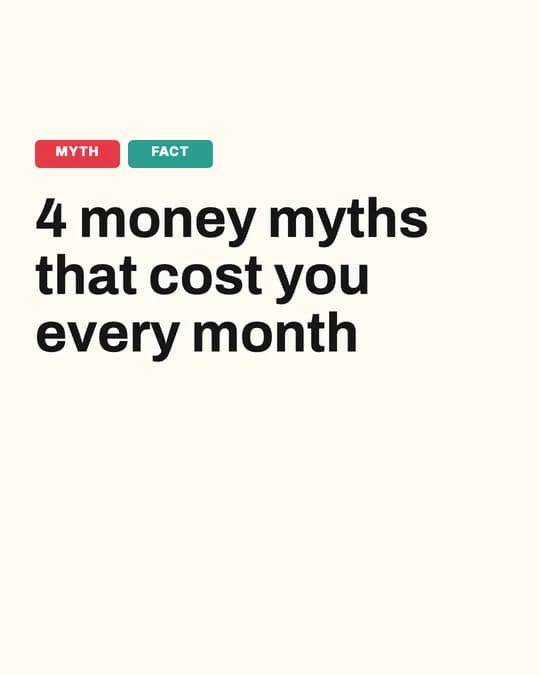
Slides Wavegrain made in that format
Connect your own AI to Wavegrain
Connect your own AI, such as Claude or ChatGPT, to your Wavegrain account. Your AI reads the post you like, writes the words and picks the photos. Wavegrain keeps your style, makes the slides and checks them. Your AI cannot buy anything, it posts only after you confirm, and it approves posts only if you turn that on in Settings.
It connects through MCP, the Model Context Protocol. MCP is the plug that lets an AI use another app's tools.
Ask in plain words
- “Copy and create this slideshow for my brand: <link>”

- “Make a 6-slide carousel about morning routines for my active brand.”

- “Plan a week of posts for my brand and put them on my Wavegrain Calendar.”

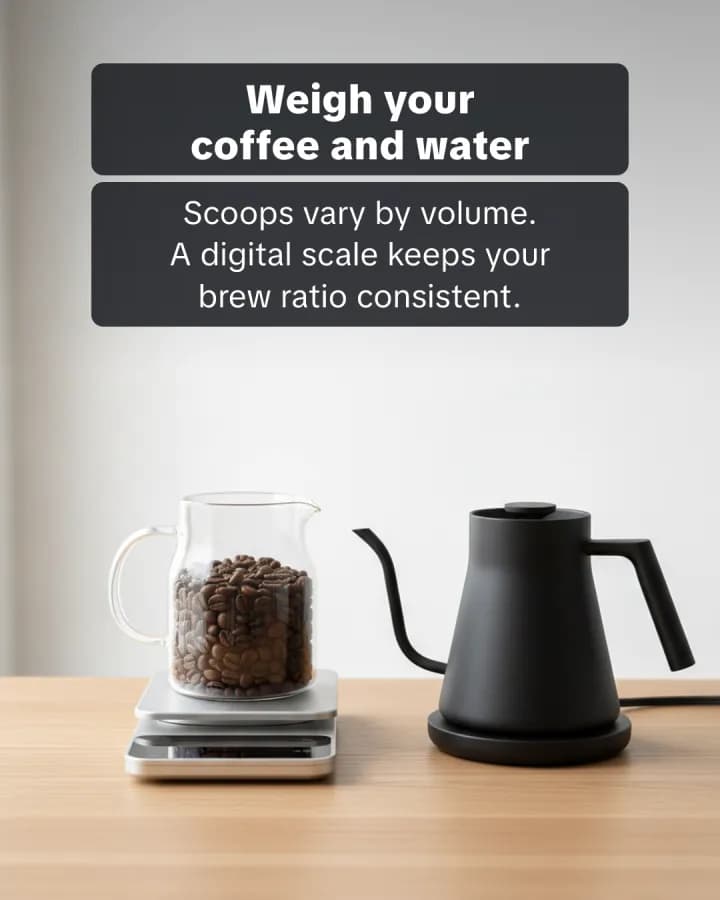

- “Change the headline on slide 2 of my latest slideshow, then export it.”

Works with
- Claude
- ChatGPT
- Claude Code
- Codex
- Cursor
- Any MCP client
Safe by design
- Your AI cannot buy anything. Checkout stays on the website.
- It posts only after you confirm in the chat, or at the planned time once you approved the post and turned on automatic posting.
- Each connection gets only the permissions you tick.
- Revoke a key or a connected app in Settings at any time. It stops working at once.
Set it up
The server is available to every account. Create an account, then open Settings, AI agents and API. The Claude app and ChatGPT sign in there with no key; other tools use an access key.
Tailored slideshows
A tailored slideshow copies the look of a post you like: its layout, fonts and colours. The words and photos are new and fit your brand. Your AI makes it and changes it for you, so it has no slide editor. A normal slideshow uses a Wavegrain format, and you edit each slide yourself.
Server address
https://wavegrain.com/api/mcp
The server uses the Streamable HTTP transport and answers POST requests only. Every request carries your access key in an Authorization: Bearer header. A key in the address is never read.
Connect with an access key, or sign in
- In Wavegrain, open Settings, AI agents and API.
- Name the key, tick the permissions it may use, and pick when it expires: 7, 30, 90 or 365 days.
- Set its daily credit limit. It starts at 50 credits a day, and you can change it later.
- Copy the key. It starts with
wg_pat_and is shown only once. Save it in an environment variable namedWAVEGRAIN_MCP_TOKEN, so it is not written into a shared config file.
Hosted apps such as claude.ai and ChatGPT cannot send a key. They sign in with OAuth instead: add the server address as a custom connector, sign in to Wavegrain, and choose the permissions and the daily credit limit on the consent page. Sign-in is new. If it fails, tell us.
Set up your client
Step-by-step guides: Wavegrain for Claude, Wavegrain for ChatGPT, Wavegrain for Cursor. To post TikTok slideshows from a chat, see the TikTok MCP server.
Claude Code
Run this in a terminal. Save your key in the WAVEGRAIN_MCP_TOKEN environment variable first. To swap in a new key later, run claude mcp remove --scope user wavegrain first.
claude mcp add --transport http --scope user wavegrain https://wavegrain.com/api/mcp --header "Authorization: Bearer $WAVEGRAIN_MCP_TOKEN"
Codex
Run this in a terminal. Codex reads the key from the WAVEGRAIN_MCP_TOKEN environment variable each time it starts.
codex mcp add wavegrain --url https://wavegrain.com/api/mcp --bearer-token-env-var WAVEGRAIN_MCP_TOKEN
Cursor
Add this to ~/.cursor/mcp.json and keep any servers already in it. Cursor reads the key from the WAVEGRAIN_MCP_TOKEN environment variable.
{
  "mcpServers": {
    "wavegrain": {
      "url": "https://wavegrain.com/api/mcp",
      "headers": {
        "Authorization": "Bearer ${env:WAVEGRAIN_MCP_TOKEN}"
      }
    }
  }
}
Permissions and tools
Each key holds up to four permissions, and you can let one key or app approve posts in Settings. A tool that needs a permission the key does not hold is refused before it runs.
read
Look at your brands and each brand's brief, formats, slideshows, Calendar, image collections, credits, tailored styles, usage per brand, free slots for a week of posts, connected accounts with their daily limits, what a slideshow would cost, and where each post stands. Reading is free.
list_brandsList brandsget_brandGet a brandget_brand_briefGet a brand brieflist_formatsList slideshow formatsget_formatGet a slideshow formatlist_slideshowsList slideshowsget_slideshowGet a slideshowlist_calendarList the calendarlist_collectionsList image collectionslist_creatorsList AI creatorslist_collection_imagesList a collection's imagesget_creditsGet creditslist_stylesList tailored stylesget_styleGet a stylelist_fontsList fontsfetch_referenceFetch a reference postsearch_imagesSearch imagesget_tailored_slideshowGet a tailored slideshowlist_tailored_versionsList tailored versionsplan_weekPlan a week of postsget_brand_usageGet a brand's usagelist_accountsList accounts and groupsget_post_statusGet a post's statusget_post_eventsGet a post's historysearch_inspirationSearch the Inspiration libraryget_generation_statusGet a slideshow's progressestimate_costEstimate creditsget_checkout_linkGet a link to buy creditsget_connect_linkGet a link to connect an accountlist_review_linksList client review linkslist_automationsList automationsget_playbookGet the slideshow playbook
write
Change saved work without spending credits: slide text, photos and order, captions, styles, uploads and saving images to your library and collections, Calendar slots (one or a week at once), account groups, brand settings and brand change proposals, saved formats, exports, and cancelling a post that has not started.
schedule_slideshowsSchedule slideshowsmove_scheduledMove planned postsupdate_captionChange a post captioncancel_queued_postCancel a queued postunschedule_slideshowUnschedule a slideshowexport_slideshowExport a slideshowcreate_styleCreate a tailored styleedit_styleEdit a tailored stylecopy_styleCopy a tailored stylepin_stylePin a style to a brandunpin_styleUnpin a style from a brandcreate_uploadUpload an imagesave_imagesSave images to the libraryopen_uploadOpen a drop zone for photosimport_imageImport an image from a URLedit_tailored_slideshowEdit a tailored slideshowrestore_tailored_versionRestore a tailored versioncreate_account_groupCreate an account groupset_account_groupsPut an account in groupsupdate_group_settingsChange group settingscreate_brandMake a brand from a descriptionupdate_brand_settingsChange brand settingspropose_brand_changePropose a brand changepropose_group_changePropose a group changesave_formatSave a slideshow formatrename_slideshowRename a slideshowedit_slidesEdit slidesdelete_slideshowDelete a slideshowupdate_collectionRename a collectiondelete_collectionDelete a collectionedit_collection_imagesRemove or move collection imagesrevoke_review_linkTurn off a review linkpause_automationPause an automationskip_automation_runSkip an automation's next run
generate
Spend your normal credits to make brands, slideshows and images, within the limit each call names and the key's daily limit. Topic ideas and photo or web image search need it too, because they make Wavegrain pay for the work, though they cost you no credits.
copy_postCopy a postgenerate_slideshowMake a slideshowcreate_brand_from_websiteMake a brand from a websitecreate_tailored_slideshowMake a tailored slideshowremove_backgroundCut out a photogenerate_imageMake an AI imageresume_automationResume an automationsuggest_topicsSuggest topics
post
Post a slideshow now or at a time to your connected accounts, after you confirm a summary of what goes where. Never ticked by default. Network choices such as TikTok visibility stay yours. LinkedIn is not used for now.
post_slideshowPost a slideshowconfirm_post_slideshowPost the confirmed slideshow
approve
Approve finished slideshows for posting. Off for every key and app until you turn it on for that one in Settings. You see each approval as approved by agent on the Calendar and can withdraw it until the post goes out.
approve_slideshowsApprove slideshowsretry_deliveryRetry a failed postcreate_review_linkMake a client review link
What the agent knows about your brand
- The agent starts with your brand brief (
get_brand_brief): one short page with your positioning, voice, audience, colours, fonts, CTA cards, image collections, saved formats and pinned styles. - The brief also says what your own slideshows show: which ones you approved, exported or posted, which headlines you rewrote and which slides you marked not interested. Wavegrain uses the same learnings when it writes a script for that brand, in the app too.
- A key reads only your own brands. The more you fill in on the brand page, the better the agent writes.
Credits and limits
- An agent spends the same credits you spend in the app. There is no separate MCP price.
- Every paid call names the most it may spend. If the cost could be higher, or above your balance or the key's daily limit, the call is refused and nothing is spent.
- Each new tailored slideshow costs 1 credit, and changes to it are free. Real photos are free. An AI image costs 1 to 4 credits, and your AI asks you first. In quick mode, where Wavegrain also writes the words from a post link, a copy costs 2 credits.
- Each key may send 120 requests a minute, and one account 240 across all its keys.
- Scheduling only puts a slideshow on your Wavegrain Calendar. An approved slideshow posts by itself at its time while your automatic posting is on. An agent posts only with the posting permission you tick on its key, and only after you confirm a summary of what goes where in the chat.
- An agent approves a post only if you let that key approve in Settings. You can withdraw its approval until the post goes out.
Example prompts
- Copy and create this slideshow for my brand: <link>
- Make a 6-slide carousel about morning routines for my active brand. Spend at most 10 credits.
- Plan a week of posts for my brand and put them on my Wavegrain Calendar.
- Change the headline on slide 2 of my latest slideshow, then export it.
Clients that show MCP prompts also offer four starters: copy_slideshow, make_post_in_style, replicate_inspiration and plan_a_week.
Keep your account safe
- Wavegrain stores only a fingerprint of each key, so a lost key cannot be shown again. Make a new one instead.
- Revoke a key or a connected app in Settings at any time. It stops working at once.
- Give a key only the permissions it needs. Leave "Spend credits" unticked if the agent should not spend credits, and posting unticked if it should not post.
Help
Questions or problems: email support@wavegrain.com. The full developer docs, with every tool's inputs and outputs and guides for n8n, Make and Zapier, are on Wavegrain for developers. How Wavegrain handles your data is in the privacy notice.