Autodesk Revit MCP Server
เซิร์ฟเวอร์ Autodesk Revit MCP
เอกสาร
English | 简体中文 | Español | हिन्दी | العربية | Português (BR) | Русский | 日本語 | Deutsch | Français | Bahasa Indonesia | Türkçe | 한국어 | Tiếng Việt | Italiano | Polski | 繁體中文
Ask your AI about the Revit model you have open. By default, write tools are blocked until you approve a plan.
Open-source MCP server and native add-in for Revit 2024 – 2027. Works with Claude, Codex and other MCP clients.




Get started | Example workflows | Tools | Documentation | Download
Status: on the dev branch, not yet released.
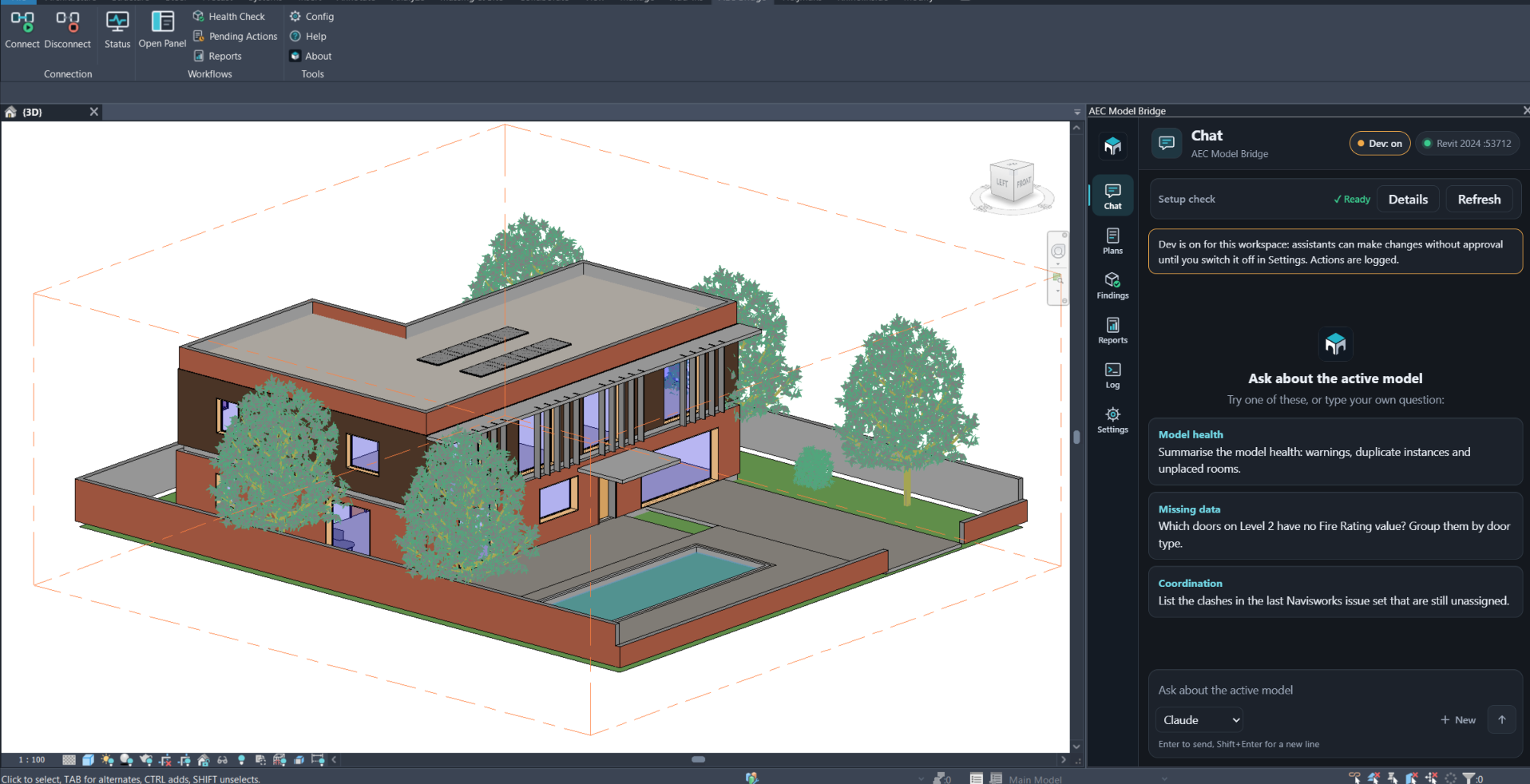
AEC Model Bridge is the open-source Revit MCP server that lets Claude, Codex, Cursor and other AI assistants read and edit your open Revit model. By default you approve every change first. It has two parts: a Python MCP server and a native Revit add-in. Read-only tools inspect the model straight away. Model changes need an approved plan by default. See the approval flow.
Who it is for. BIM coordinators and managers who want an AI assistant to check model quality, find affected elements and prepare parameter fixes, while a person stays in control of every change. You do not need to write scripts.
Status and limits. This is pre-release software.
- Nothing in this product has been verified in a live Revit session yet. The Python server is tested with mock providers, and CI compiles the add-in for Revit 2024 to 2027 but does not start Revit. Treat every Revit behaviour described here as UNVERIFIED until a person has checked it. The ordered list is in the release checklist.
- This page describes the dev branch. The latest GitHub release may not include everything described here.
- Try it on a copy of a project first. Approving a plan changes the open model.
- Some limits are known and listed under How approval works and in docs/security.md.
- The dev branch registers more tools (241 in mock mode at the time of writing; see the dev branch).
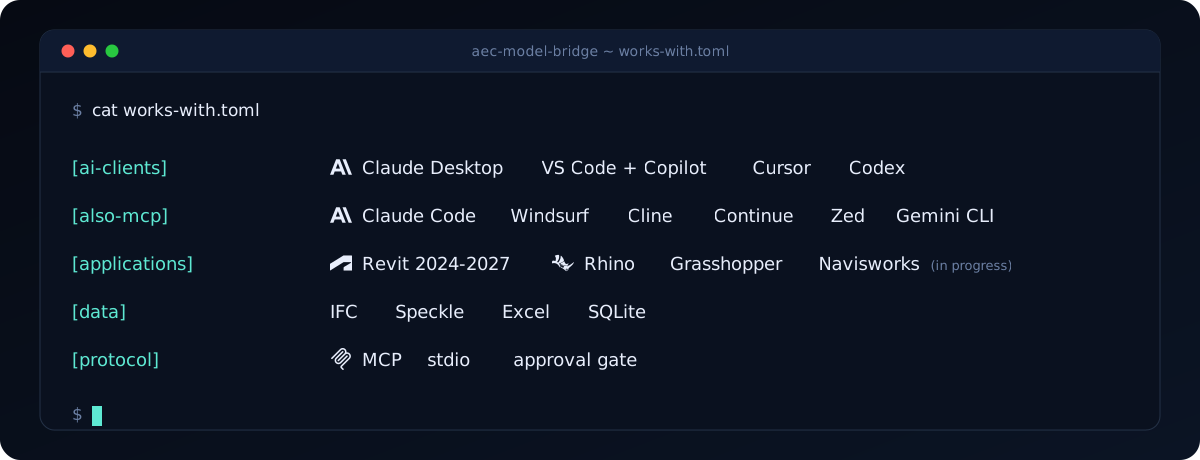
Setup is documented for Claude Desktop, VS Code with GitHub Copilot, Cursor and Codex. The server is a standard MCP stdio server, so other clients such as Claude Code, Windsurf, Cline, Continue, Zed and Gemini CLI should work too. The compatibility page lists what is documented and what is untested.
The same server also inspects IFC files, automates Rhino and Grasshopper, and connects to Speckle. Integration status shows which providers are available and which are still in progress.
Example workflows
For BIM coordinators: check model quality, review the affected elements, approve a parameter fix, then check the result and export a report. These examples use tools in the current catalog.
| Workflow | Example request | Tools used |
|---|---|---|
| Model review | "Show the active document, list its warnings and find affected elements." | revit_get_document_info, revit_get_warnings, revit_get_elements_by_type |
| Parameter updates | "Find walls on Level 02, show their Comments values, and propose a batch update." | revit_get_elements_by_type, revit_get_element_parameters, revit_batch_set_parameters |
| Drawing production | "Prepare a sheet list from this CSV, then propose creating the sheets and placing the views." | revit_batch_create_sheets_from_csv, revit_place_viewport_on_sheet |
| IFC review | "Show this IFC file's storeys, inspect the wall properties and report schema validation issues." | ifc_get_spatial_structure, ifc_get_properties, ifc_validate |
For a first run in Revit, try:
Read the active model's warnings. Group them by description and show the
affected element IDs. Then suggest which issues to investigate first.
Then try a parameter correction, replacing the level and value for your project:
Find walls on Level 02 and show their current Comments values. Propose setting
Comments to "Coordination reviewed" for the elements I choose. After I approve
the plan in Revit, apply it and read the values back to confirm the result.
For edits, the assistant creates a plan with plan_actions. You review it in
the Revit panel, and only then does execute_plan apply it. IFC review runs
without Revit.
The snapshot QA/QC and report modules need a compatible saved snapshot. The
handoff from Revit to these modules currently needs the filename and workspace
to match. If you leave out snapshot_id, most of these modules now refuse in
bridge mode with a clear message, and return generated sample data only in mock
mode. Not every module has that guard yet (model_bloat does not), so always
pass snapshot_id. For live inspection, use the direct Revit tools above.
Planned fixes and demo.
Quick start
In 60 seconds, without Revit (mock mode)
- Install uv.
- Add the server to your client with the JSON under Manual setup and set
"MCP_REVIT_MODE": "mock". The one-click buttons below start inbridgemode, which needs Revit. - Restart the client and ask it to list the AEC Model Bridge tools.
- Ask it to read the active document. Mock mode returns generated sample data, never your model, so the answers are a way to see the tools and the approval flow before you connect Revit.
- For your own model, install the Revit add-in
(install steps) and switch the mode to
bridge.
One-click install



The buttons need uv
and nothing else. The server uses ~/Documents/AEC Model Bridge as its
workspace unless you set your own. For Claude Desktop, download the .mcpb
file from the latest release and open it. Live Revit work still needs Revit and
the add-in. Mock mode needs neither.
Manual setup
For live Revit automation you need Windows, a licensed Revit 2024 to 2027,
Python 3.11 or newer, uv, and the Revit add-in
(install steps). Then add this to your
claude_desktop_config.json (Codex, Cursor and VS Code use the same values;
the two directory variables are optional and default to the workspace above):
{
  "mcpServers": {
    "aec-model-bridge": {
      "command": "uvx",
      "args": [
        "--from",
        "git+https://github.com/Sam-AEC/aec-model-bridge#subdirectory=packages/mcp-server-revit",
        "aec-model-bridge"
      ],
      "env": {
        "MCP_REVIT_MODE": "bridge",
        "MCP_REVIT_WORKSPACE_DIR": "C:\\RevitProjects",
        "MCP_REVIT_ALLOWED_DIRECTORIES": "C:\\RevitProjects"
      }
    }
  }
}
Want to look at the tools first, without Revit? Set "MCP_REVIT_MODE": "mock".
The server then starts on any machine, lists every tool with its schema and
returns canned responses. It does not touch a model. A Dockerfile for the same mock
mode is in the repository root (docker build -t aec-model-bridge ., then
docker run -i --rm aec-model-bridge).
Using VS Code? The extension source and local install steps register the MCP server and show the Revit connection status. It has not been published to the Marketplace.
Tools at a glance
| Area | Tools | What they do |
|---|---|---|
| Revit | 103 | Read the model, create and edit elements, parameters, views, sheets, schedules, exports, worksharing |
| Approval | 6 | Plan, review, approve, execute and roll back model changes |
| Modules | 34 | Snapshot inspection, parameter grids, QA/QC checks, recipes, reports, selections |
| Rhino and Grasshopper | 19 | Geometry, layers, materials, boolean operations |
| Speckle | 17 | Projects, models, versions, send and receive |
| Navisworks | 15 | Model tree, viewpoints, clash tests (in progress) |
| IFC | 7 | Read IFC files without Revit: structure, properties, validation |
| Graph, snapshots, exports, jobs | 18 | Semantic graph audits, snapshot diffs, SQLite export, background jobs |
219 tools are listed in the default setup (counted from the current server in mock
mode). The Autodesk Data tools appear when APS credentials are configured. The
tool reference lists every tool. Each tool carries
MCP annotations (readOnlyHint, destructiveHint, idempotentHint,
openWorldHint), so clients can tell reads from writes.
Advanced Revit automation
Alongside model queries and parameter updates, Revit tools create building elements, views, sheets, schedules, tags and dimensions, and export IFC, DWG, images and Navisworks files. See the tool reference for supported operations and inputs.
For anything the tool catalog does not cover, revit_invoke_method,
revit_reflect_get and revit_reflect_set work with public Revit API members.
revit_execute_python runs IronPython inside Revit. These advanced tools have
the same permissions as the Revit process. Use them only with MCP clients and
prompts you trust.
How it works
The MCP client talks to one Python hub. The hub sends each call to the provider that owns the tool. Providers for desktop apps talk to a small add-in inside that app over localhost.

Diagram source: architecture.mmd. Regenerate the images with python scripts/render_diagrams.py.
Teal boxes work today. The amber dashed boxes are in progress. Indigo shapes are data and external services.
How approval works
In plain words:
- Two modes you will use.
look_onlylets the assistant read but refuses every tool that changes the model.ask_first(the default, also writtenrequired) lets it draft changes, but nothing runs until a person approves. A third value,auto, switches the check off and is meant only for controlled pipelines. - Only a person approves. Approving, rejecting and rolling back plans are
not offered to AI clients. A person approves in the Revit panel or with the
aec-model-bridge-approvecommand. - Nothing applies on its own. A change runs only if it matches an approved action of an approved plan, once.
- Undo is per action. Revit's Ctrl+Z undoes one action per press.
The hub stops any tool call that changes the model unless it carries an
approved plan. The AI proposes a plan, you review it, and the add-in runs it on
Revit's main thread. The panel's Plans list shows each pending plan's tools,
arguments and, when one was captured, the before-value. For the full review of
a plan, including any reasoning and warnings the assistant attached, run
aec-model-bridge-approve show <plan_id>; the panel does not show that review
text. Parameter and model-edit actions each run in their own named
transaction; some actions (save, sync, scripts) do not, so Ctrl+Z does not
cover them.


Diagram source: approval-flow.mmd. Regenerate the images with python scripts/render_diagrams.py.
If a plan turns out wrong, undo it with Revit's Ctrl+Z. Each parameter write is
its own named transaction, so one plan can take several presses. A one-step undo
for a whole plan is planned, not built. A second route is a revert plan: the
assistant drafts one with plan_revert from the proof of an executed plan, and
you approve it like any other plan. rollback_plan also writes the recorded
before-values back in reverse order and can skip an action when no before-value
was recorded, but it is for people only and has no panel button or command-line
command yet, so do not count on it. None of these paths is verified in a live
Revit session yet (UNVERIFIED). Operations that cannot be reversed, such as
file output, are not undone by any of them and do not get a second confirmation
yet (planned). The panel's Plans list shows pending plans only; aec-model-bridge-approve show <plan_id>
works for a plan in any state, while proofs/ bundles exist only for plans that
were executed (or attempted). The lifecycle is in
ADR 0008.
For unattended pipelines you can set MCP_REVIT_APPROVAL_MODE=auto. That turns
the human check off, so use it only in a controlled environment.
Supported Revit versions
| Revit version | Add-in target | Build tools |
|---|---|---|
| 2024 | .NET Framework 4.8 | .NET 8 SDK and .NET Framework 4.8 developer pack |
| 2025 | .NET 8 for Windows | .NET 8 SDK |
| 2026 | .NET 8 for Windows | .NET 8 SDK |
| 2027 | .NET 10 for Windows | .NET 10 SDK |
These are the build targets. CI compiles the add-in for all four years, but no year has been verified in a live Revit session yet.
You also need Windows 10 or 11, Python 3.11 or later, and a licensed Revit installation for the version you use. Mock mode runs the server without Revit, which is useful for development and tests.
Other integrations
| Integration | Status |
|---|---|
| Revit | Available. Native C# add-in. |
| IFC (IfcOpenShell) | Available. Reads IFC files without Revit running. |
| Rhino and Grasshopper | Available. Connects to the Rhino add-in on localhost:3004. |
| Speckle | Available. Needs a Speckle client ID in your environment. |
| Navisworks Manage | In progress. The provider and its tools are registered. The Navisworks add-in is not finished. |
| Power BI | In progress. The provider and tool exist but are not registered in the hub. |
| Excel, Parquet and DuckDB | Planned. |
Product names and logos belong to their owners. The banner uses them only to show what this project works with.
Install the Revit add-in
Easiest (Windows): download AECModelBridge-Setup-<version>.exe from the latest release, double-click it, pick your Revit versions and restart Revit. It installs the add-in and the bundled Python server. If you tick the box, it also sets up Claude Desktop and VS Code, and it backs up your current settings first. Uninstall it from Windows Settings. The steps below are for building from source.
You install two parts: the Python MCP server and the Revit add-in. Live Revit automation needs both.
1. Install the MCP server
git clone https://github.com/Sam-AEC/aec-model-bridge.git
cd aec-model-bridge

py -m venv .venv
.\.venv\Scripts\Activate.ps1
python -m pip install -e packages/mcp-server-revit
2. Install the Revit add-in
Set the version to match your Revit installation. If Windows blocks the
downloaded scripts, right-click each .ps1 file, open Properties, and select
Unblock before running them.
$RevitVersion = Read-Host "Revit year (2024, 2025, 2026, or 2027)"

.\scripts\package.ps1 -RevitVersion $RevitVersion
.\scripts\install.ps1 -RevitVersion $RevitVersion
The installer places version-specific binaries in:
C:\ProgramData\AECModelBridge\bin\<year>
The add-in manifest is installed per user in:
%APPDATA%\Autodesk\Revit\Addins\<year>
Use -AllUsers with install.ps1 to install the manifest under
C:\ProgramData\Autodesk\Revit\Addins\<year> instead.
To prepare binaries for every supported version in one pass:
.\scripts\package.ps1 -RevitVersion All
Each GitHub release
has a ready-made package per Revit year, for example
aec-model-bridge-revit-2026-<version>.zip. Unzip it and run
.\install.ps1 -RevitVersion 2026 instead of building from source. For a double-click
Windows installer, scripts/build-installer.ps1 builds one with Inno Setup.
The full guide, with troubleshooting, is in docs/install.md.
Connect Claude Desktop to Revit
Add the server to your MCP client configuration. For Claude Desktop, that is
the mcpServers section of claude_desktop_config.json. Codex, Cursor, VS
Code and other MCP clients use the same command, args and env values in
their own config format.
Use the Python executable from your virtual environment, and choose a workspace folder the server may access:
{
  "mcpServers": {
    "aec-model-bridge": {
      "command": "C:\\path\\to\\aec-model-bridge\\.venv\\Scripts\\python.exe",
      "args": ["-m", "revit_mcp_server.mcp_server"],
      "env": {
        "MCP_REVIT_MODE": "bridge",
        "MCP_REVIT_WORKSPACE_DIR": "C:\\RevitProjects",
        "MCP_REVIT_ALLOWED_DIRECTORIES": "C:\\RevitProjects"
      }
    },
    "aec-model-bridge-revit-2026": {
      "command": "C:\\path\\to\\aec-model-bridge\\.venv\\Scripts\\python.exe",
      "args": ["-m", "revit_mcp_server.mcp_server"],
      "env": {
        "MCP_REVIT_MODE": "bridge",
        "MCP_REVIT_HOST_VERSION": "2026",
        "MCP_REVIT_WORKSPACE_DIR": "C:\\RevitProjects",
        "MCP_REVIT_ALLOWED_DIRECTORIES": "C:\\RevitProjects"
      }
    }
  }
}
Leave out MCP_REVIT_HOST_VERSION to target the newest open Revit instance.
Set it to a year such as 2024 or 2026 to lock a client entry to that Revit
version. MCP_REVIT_BRIDGE_URL overrides the endpoint for advanced setups.
VS Code users can start from .vscode/mcp.json. Hermes
Desktop users can start from docs/examples/hermes-desktop.json after replacing the
placeholder Python path. Clients that support MCP Bundles can install the
.mcpb file from the
latest release.
The Revit add-in is still required, because the server talks to the running
desktop application.
Check the connection
Restart Revit after installing the add-in, open a model, and run:
$registry = Get-ChildItem "$env:LOCALAPPDATA\AECModelBridge\registry\revit-*.json" | Select-Object -First 1
$switch = Get-Content $registry.FullName -Raw | ConvertFrom-Json
Invoke-RestMethod "$($switch.endpoint)/health"
The response should report healthy and the running Revit version. In Revit,
look for the AEC Bridge ribbon tab. Its Workflows panel has Open Panel,
Health Check, Pending Actions and Reports. Its Tools panel has Config, Help
and About.
Security
- The Revit bridge listens on localhost only.
- The server reads and writes only inside the folders in
MCP_REVIT_ALLOWED_DIRECTORIES. - Mutating tools need an approved plan unless you turn approval off, and
look_onlymode refuses them outright. - Approval is recorded with the channel (panel or command line) and your operating-system account. It does not prove who is typing, so do not give an AI client a shell on the account you approve plans with.
- Tool calls are written to an audit log, and secrets are redacted.
Details are in docs/security.md. To report a vulnerability, follow SECURITY.md.
FAQ
What is an MCP server for Revit?
The Model Context Protocol (MCP) is an open standard that lets AI assistants call tools in other software. An MCP server for Revit publishes Revit operations as tools. The assistant picks the tools, and the add-in runs them inside Revit.
Which AI assistants work with it?
Any MCP client that can start a local stdio server. Setup is documented for
Claude Desktop, VS Code with GitHub Copilot, Cursor and Codex, and for clients
that read a standard mcpServers configuration. Windsurf, Cline, Roo Code,
Continue, Zed, Claude Code and Gemini CLI should work the same way but have not
been tested. See compatibility. The panel chat can also
use an Anthropic API key, or the claude or codex command-line tools if they
are installed. See ADR 0012.
Can the AI change my model without asking?
Not in the default mode. Tools that change the model are blocked until a plan
is approved by a person, in the Revit panel or with the
aec-model-bridge-approve command. Read-only tools run without approval. In
look_only mode nothing that changes the model runs at all. If you set
MCP_REVIT_APPROVAL_MODE=auto, approval is skipped.
Does it send my model to the cloud?
The server and the add-in run on your machine, and the bridge listens on localhost. The AI assistant sees what the tools return, and those results go to the model provider behind your client. Cloud providers, such as Speckle, only run when you configure them and call their tools.
Does it work with IFC files without Revit?
Yes. The IFC provider reads files with IfcOpenShell. It can return file metadata, the spatial structure, element properties and bounding boxes, run queries by class, GUID, name or property, and validate the schema. It does not edit IFC files.
Can I use it without Revit installed?
Only in mock mode, which is meant for development and tests. Live model work needs Revit 2024 to 2027 and the add-in.
Releases and versions
AEC Model Bridge follows Semantic Versioning. Releases are tagged vX.Y.Z on
GitHub, and a root VERSION file holds the version number. See
docs/versioning.md for the release process and
CHANGELOG.md for what changed in each version.
Development
# Python tests
python -m pytest packages/mcp-server-revit/tests

# Build one Revit version, for example 2026
.\scripts\build-addin.ps1 -RevitVersion 2026 -Configuration Release

# Build all supported versions
.\scripts\package.ps1 -RevitVersion All
CI builds the Python server and the add-in targets for Revit 2024 through 2027. See CONTRIBUTING.md before opening a pull request.
Documentation
- Installation guide
- Tool reference
- Architecture
- Configuration reference
- Security
- MCP clients and registry
- Versioning and releases
- Release checklist
- First check after install
- Demo runbook
- Proof bundles and revert plans
- Privacy
- Roadmap
- All documentation
- Contributing and Code of Conduct
- Contributors
Built with
AEC Model Bridge stands on open-source work. It is independent and is not affiliated with or endorsed by any project named here.
- Model Context Protocol Python SDK (MIT) for the MCP server
- IfcOpenShell (LGPL-3.0-or-later) for IFC files
- specklepy (Apache-2.0) for Speckle
- pydantic, httpx, NetworkX, openpyxl and PyYAML (MIT or BSD)
- Anthropic Python SDK (MIT) for the built-in agent chat
- Serilog, IronPython and Microsoft WebView2 in the Revit add-in
- Autodesk Revit and Navisworks and McNeel Rhino are separate products that you license yourself. This project does not include their code.
Licence texts and the full list of packages are in THIRD_PARTY_NOTICES.md. Licences were read from package metadata; rows that could not be verified are marked as such.
Project and license
Maintained by A. Sam Mohammad. LinkedIn | Issues
GPL-3.0-or-later with the Revit Linking Exception, or a commercial license.