FreeCAD MCP
A server to interact with FreeCAD models using the Model Context Protocol (MCP).
FreeCAD MCP
This repository is a FreeCAD MCP that allows you to control FreeCAD from Claude Desktop.
Demo
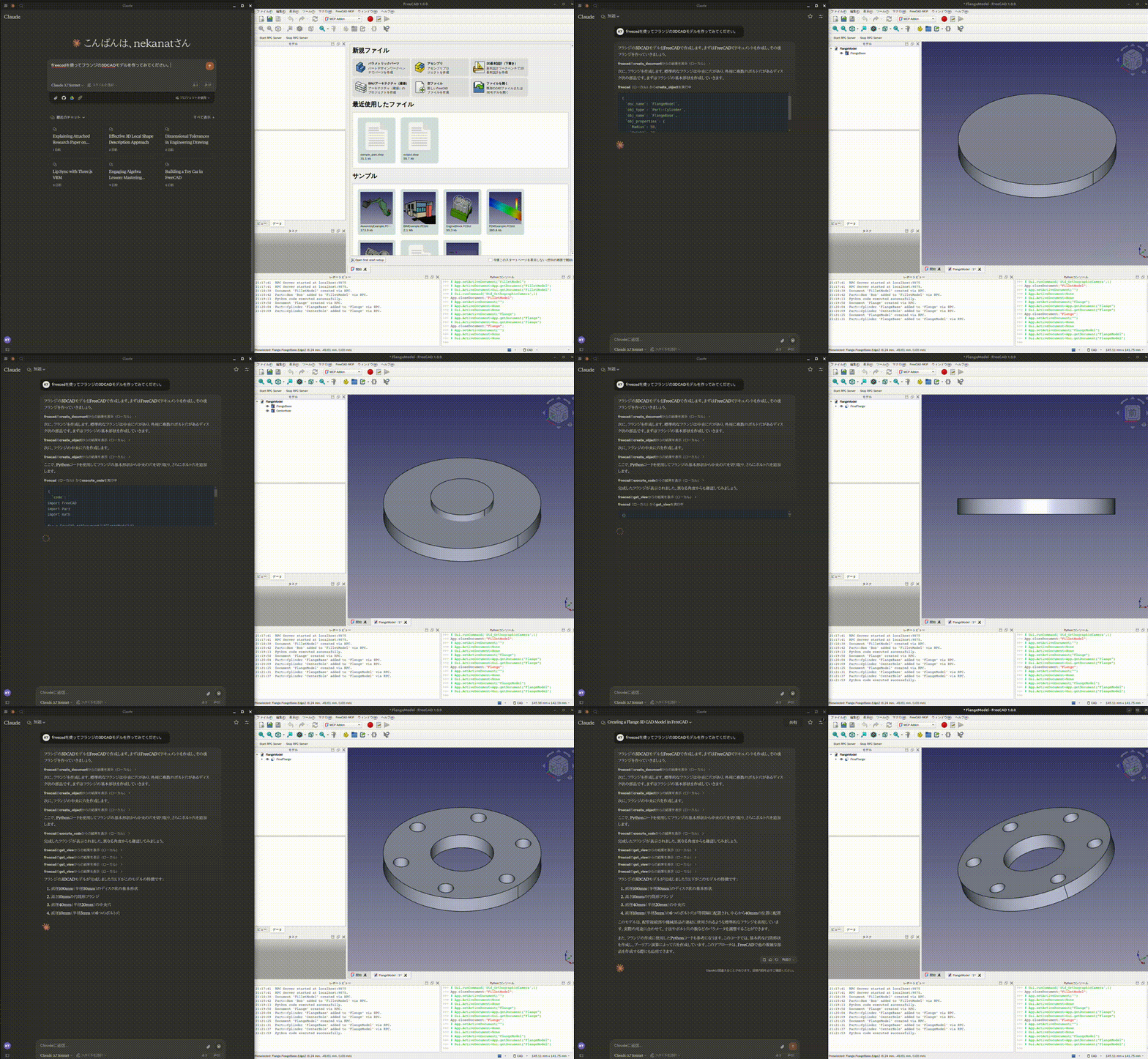
Design a flange

Design a toy car

Design a part from 2D drawing
Input 2D drawing

Demo

This is the conversation history. https://claude.ai/share/7b48fd60-68ba-46fb-bb21-2fbb17399b48
Install addon
FreeCAD Addon directory is
- Windows:
%APPDATA%\FreeCAD\Mod\ - Mac:
~/Library/Application\ Support/FreeCAD/Mod/ - Linux:
- Ubuntu:
~/.FreeCAD/Mod/or~/snap/freecad/common/Mod/(if you install FreeCAD from snap) - Debian:
~/.local/share/FreeCAD/Mod
- Ubuntu:
Please put addon/FreeCADMCP directory to the addon directory.
git clone https://github.com/neka-nat/freecad-mcp.git
cd freecad-mcp
cp -r addon/FreeCADMCP ~/.FreeCAD/Mod/
When you install addon, you need to restart FreeCAD. You can select "MCP Addon" from Workbench list and use it.

And you can start RPC server by "Start RPC Server" command in "FreeCAD MCP" toolbar.

Auto-Start RPC Server
By default, the RPC server must be started manually each time FreeCAD opens. To start it automatically:
- Open the FreeCAD MCP menu (switch to the MCP Addon workbench first)
- Check Auto-Start Server
The setting is saved to freecad_mcp_settings.json and persists across sessions. On the next FreeCAD launch, the RPC server will start automatically once the application finishes loading.
You can disable it at any time by unchecking Auto-Start Server in the same menu.
Setting up Claude Desktop
Pre-installation of the uvx is required.
And you need to edit Claude Desktop config file, claude_desktop_config.json.
For user.
{
"mcpServers": {
"freecad": {
"command": "uvx",
"args": [
"freecad-mcp"
]
}
}
}
If you want to save token, you can set only_text_feedback to true and use only text feedback.
{
"mcpServers": {
"freecad": {
"command": "uvx",
"args": [
"freecad-mcp",
"--only-text-feedback"
]
}
}
}
For developer. First, you need clone this repository.
git clone https://github.com/neka-nat/freecad-mcp.git
{
"mcpServers": {
"freecad": {
"command": "uv",
"args": [
"--directory",
"/path/to/freecad-mcp/",
"run",
"freecad-mcp"
]
}
}
}
Remote Connections
By default the RPC server does not accept remote connections and listens on localhost. To control FreeCAD from another machine on your network:
1. Enable remote connections in FreeCAD
In the FreeCAD MCP toolbar:
-
Check Remote Connections — the RPC server will bind to
0.0.0.0(all interfaces) on the next restart. For security reasons, it only accepts connections from the IP addresses or CIDR subnets specified in the Allowed IPs field. By default this is127.0.0.1. -
Click Configure Allowed IPs and enter a comma-separated list of IP addresses or CIDR subnets that are allowed to connect, e.g.:
192.168.1.100, 10.0.0.0/24127.0.0.1is always the default. Invalid entries are rejected with an error dialog. Restart the RPC server after changing these settings.
2. Point the MCP server at the remote host
Pass the --host flag with the IP address or hostname of the machine running FreeCAD:
{
"mcpServers": {
"freecad": {
"command": "uvx",
"args": [
"freecad-mcp",
"--host", "192.168.1.100"
]
}
}
}
The --host value is validated on startup — it must be a valid IPv4/IPv6 address or hostname.
Tools
create_document: Create a new document in FreeCAD.create_object: Create a new object in FreeCAD.edit_object: Edit an object in FreeCAD.delete_object: Delete an object in FreeCAD.execute_code: Execute arbitrary Python code in FreeCAD.insert_part_from_library: Insert a part from the parts library.get_view: Get a screenshot of the active view.get_objects: Get all objects in a document.get_object: Get an object in a document.get_parts_list: Get the list of parts in the parts library.
Contributors
Made with contrib.rocks.
เซิร์ฟเวอร์ที่เกี่ยวข้อง
Scout Monitoring MCP
ผู้สนับสนุนPut performance and error data directly in the hands of your AI assistant.
Alpha Vantage MCP Server
ผู้สนับสนุนAccess financial market data: realtime & historical stock, ETF, options, forex, crypto, commodities, fundamentals, technical indicators, & more
Dev.to MCP Server
An MCP server for the Dev.to API to search, browse, read, and create content on the platform.
Trustwise
Advanced evaluation tools for AI safety, alignment, and performance using the Trustwise API.
MCP Dev Utils
A modular and extensible MCP server with essential utilities for developers.
Photoshop MCP Server
An MCP server for integrating with and automating Adobe Photoshop using the photoshop-python-api.
Screeny
A macOS-only server that enables LLMs to capture screenshots of specific application windows, providing visual context for development and debugging.
Authless Remote MCP Server
A remote MCP server deployable on Cloudflare Workers that does not require authentication.
AIO-MCP Server
An MCP server with integrations for GitLab, Jira, Confluence, and YouTube, providing AI-powered search and development utility tools.
Godot RAG
Provides Godot documentation to a RAG model using a vector database.
Auto API - YApi
A tool to retrieve API interface information from YApi, with authentication configurable via environment variables.
Yellhorn MCP
An MCP server that integrates Gemini 2.5 Pro and OpenAI models for software development tasks, allowing the use of your entire codebase as context.