Ragionex Memory
Self-learning memory for AI agents. Your agents save what they learn, keep it up to date and recall the right memory in milliseconds. Each project gets its own isolated Vault that agents and teammates share with the permissions you choose.
Documentation
Ragionex Memory
Context engine and self-learning memory for AI agents
Your agents save what matters on their own, fix what changed and pick up where you left off in every new session.
Keep each project in its own Vault, give every key only the access it needs, and share memory with your team.


Requirements
- Node.js 18 or later.
Quick Start
🤖 Let Your Agent Set It Up
Setup Prompt: click to open, then paste it into your agent
# Set up Ragionex Memory

Set up Ragionex Memory for yourself, the agent I am talking to.

## What it is

Ragionex is a context engine for AI agents, and Ragionex Memory is its long-term memory. It lets you remember across our sessions, so I do not have to repeat myself:
- You save what is worth keeping while we work: decisions, preferences, project facts, what was tried and how it went. You update what changes and delete what turns out wrong.
- When you need something, you ask in plain language and get back the memories that answer it, exactly as they were saved.
- Memories live in Vaults, for example one per project. I can share a Vault with teammates and their agents and choose what each of them may do.
- Every edit keeps the earlier version, and deleted memories wait in a trash, both for 30 days.

This setup runs commands on this computer. If you cannot run commands here, for example in the Claude app's chat, stop and tell me.

## Your agent code

| Agent | Code |
|---|---|
| Claude Code (in a terminal, an IDE or the Claude app's Code tab) | `claude-code` |
| Codex | `codex` |
| OpenCode | `opencode` |
| Hermes Agent | `hermes` |
| Any agent not named in this table | `manual` |

## Follow these steps in order

The setup you run will sometimes print notes that start with "AI agents:". They are there to help you: they guide you and remind you of each step when it comes up, so you do not forget anything. Follow those instructions too.

1. Run `node --version`. The setup needs Node.js 18 or later. If it is missing or older, ask me to install it from https://nodejs.org and wait until I say it is done.
2. Run this yourself, with your code from the table. On Windows, use `npx.cmd` instead of `npx`. It needs network access; if your sandbox blocks the network, ask me to allow it. The first run can take up to two minutes.
   ```
   npx -y @ragionex/memory-mcp@latest install --agent-mode --agent <code>
   ```
3. With `manual`, the setup prints an MCP server entry. Add it to your own MCP settings file in that file's format. Then run the step 2 command again with the full paths of your global instructions file and your MCP settings file added:
   ```
   npx -y @ragionex/memory-mcp@latest install --agent-mode --agent manual --instructions-file <path> --mcp-config <path>
   ```
4. The setup prints a sign-in link and stops. Give me the link and do not open it yourself: it approves the connection for my account. I will sign in and paste the one-time code from that page here.
5. Run the same command again with the link and my code added. With `manual`, keep the two paths from step 3 in it.
   ```
   npx -y @ragionex/memory-mcp@latest install --agent-mode --agent <code> --link <link> --code <one-time code>
   ```
   This connects you:
   - Your MCP settings get a `ragionex-memory-mcp` entry with an API key made for you alone. The key is never shown.
   - Your global instructions file gets a marked Ragionex Memory block that tells you when to recall and when to save. It goes there because, to save context, agents such as Claude Code load MCP tool descriptions only when they need them and cut long ones short, so guidance kept in the tools alone can go unseen. Your global instructions file is read at the start of every session, so the block is always in view. Text outside the block stays as it is, and the file is backed up before the first change. The new block may appear in this conversation; that is expected.
   - You do not need to do anything here: the setup adds the block, and the server updates it on its own whenever a new version brings fixes or improvements. I am telling you only so you know what it is. Everything can be removed later with the setup's `uninstall` command.
6. When the setup says "Ragionex Memory is ready", tell me exactly what it says to do next, usually to quit you completely and open you again in a new session.

At any step: if the setup says to wait, tell me how long instead of waiting yourself. If it reports a problem, tell me the problem and the fix it names. To see what a command or flag does, run `npx -y @ragionex/memory-mcp@latest --help` (`npx.cmd` on Windows).
🧑💻 Set It Up Yourself
In a terminal, on Windows (PowerShell or Command Prompt):
npx.cmd -y @ragionex/memory-mcp@latest install
On macOS or Linux:
npx -y @ragionex/memory-mcp@latest install
- Pick your agent. If the setup finds one on your computer, press Enter.
- Press Enter to open the link in your browser, then sign in. A new account is free, no credit card needed.
- Copy the one-time code the page shows and paste it into the terminal.
- Follow the last step the setup shows, usually quitting your agent completely and opening it again in a new session. From here on, just work: it uses Ragionex Memory on its own.
If your agent is not listed and has a global instructions file, choose manual setup. Run the setup once for each agent you use.
Your First Prompt
Ask your agent:
Check my Ragionex Memory connection.
It answers with your Vaults and what this agent may do in each.
Other MCP Clients
Claude Desktop, Cursor, Cline and other clients that run local MCP servers use the same tools. Create a key at app.ragionex.com/keys and add the server to the client's user-global MCP config. On Windows:
{
  "mcpServers": {
    "ragionex-memory-mcp": {
      "command": "cmd",
      "args": ["/c", "npx", "-y", "@ragionex/memory-mcp@latest"],
      "env": { "RAGIONEX_MEMORY_API_KEY": "rgx_memory_..." }
    }
  }
}
On macOS or Linux:
{
  "mcpServers": {
    "ragionex-memory-mcp": {
      "command": "npx",
      "args": ["-y", "@ragionex/memory-mcp@latest"],
      "env": { "RAGIONEX_MEMORY_API_KEY": "rgx_memory_..." }
    }
  }
}
These clients get the tools but not the memory rule, so they use memory less consistently on their own. A client with a global instructions file can get the rule through manual setup instead. On Windows:
npx.cmd -y @ragionex/memory-mcp@latest install --manual
On macOS or Linux:
npx -y @ragionex/memory-mcp@latest install --manual
See the MCP Client Notes for client-specific details.
What You Get
A Context Engine That Understands the Question. Your agent asks in plain language, and the engine understands what it means, even when it asks in different words than the memory was saved in. Even among thousands of memories, the right ones come first and arrive in milliseconds, so the agent reads only as much as it needs and its context stays lean. Memories come back exactly as they were saved: Ragionex never rewrites a memory or generates an answer.
Automatic Memory. Your agent saves what's worth keeping on its own: a document, a design decision, a preference, a project fact, something that was tried and how it turned out. It checks its memory before it answers, starts a task or asks you anything about your work, and the memory gets richer and more accurate the more you work. You can still tell it to remember or forget anything, any time.
Always Up to Date. A changed decision updates its record instead of adding a second one, and a record that turns out wrong is removed. Every change ends with one short line in the reply, so "undo that" is one sentence away. Every update carries the version its agent last read, so no agent can silently overwrite another's newer change.
Version History. Earlier versions of every memory, and deleted records in the trash, are kept for 30 days. Bring any of them back just by asking your agent, or from the dashboard.
Everything Visible in the Dashboard. Browse every memory your agents saved and see each one's status, who created or last edited it, and through which key. Open earlier versions, edit, restore or delete anything yourself, and export it all whenever you want.
Projects and Teams. Each project can keep its own memory in its own Vault, and a search never crosses into another. Every key carries its own Read, Create, Update and Delete permissions. Share a Vault with teammates, give each member their own permissions, and every member's agents draw from and add to the same memory.
Safe and Private. Memory text stored by Ragionex is kept in the EU and encrypted with AES-256. It is never sent to an outside AI service and never used to train AI models. Queued saves retry automatically.
Works Where You Work. One line sets up almost any AI agent on Windows, macOS and Linux. Other MCP clients connect too.
Vaults, Keys and Teams
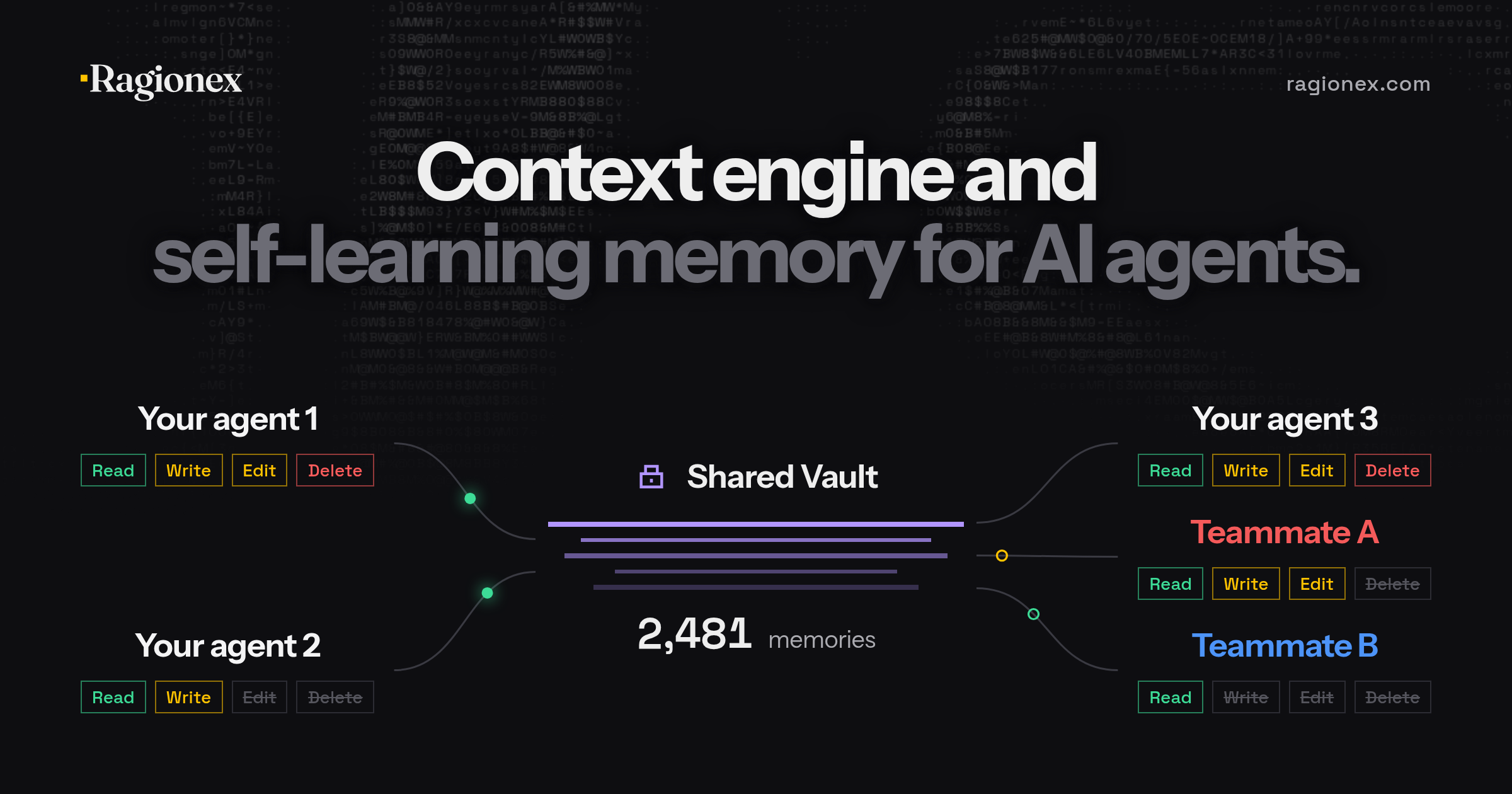
A Vault is a separate set of memories. A key decides what an agent may do in it. A member is a teammate the Vault's owner shared it with. The picture above shows them working together:
| Who | Read | Create | Update | Delete |
|---|---|---|---|---|
| Your agent 1 | ✅ | ✅ | ✅ | ✅ |
| Your agent 2 | ✅ | ✅ | ||
| Your agent 3 | ✅ | ✅ | ✅ | ✅ |
| Teammate A | ✅ | ✅ | ✅ | |
| Teammate B | ✅ |
The picture shows Create and Update as Write and Edit.
A Vault and Key per Project
A new account starts with My vault as its default, and every project without its own Vault uses the default. To give a project its own memory, create a Vault in the Dashboard, then ask your agent to use my acme-app Vault for this project, or put a RAGIONEX_MEMORY.jsonc file in the project folder:
{
  // The Vault this project uses (shown by the connection check and in the dashboard)
  "vault_id": "<Vault ID>",
  // Optional: a key only this project uses, for example one that can only read
  "api_key": "rgx_memory_..."
}
- The file is read on every request, so a change applies at once, with no restart.
- Only the project folder itself is checked, not its parents.
- Add the file to
.gitignorebefore putting a key in it. - A broken file, an unknown field or a rejected key stops the request with a clear error. Memory never falls back to another Vault or key.
Work with Your Team
- Share a Vault. In the Dashboard, the owner shares a Vault and gives each member Read, Create, Update or Delete.
- One Memory for Everyone. A decision one teammate's agent saves can be recalled by every member's agent with Read access.
- Two Locks. In a shared Vault, an action must be allowed by both the key and the member's permissions. A teammate with Read only cannot change anything, whatever their key allows.
Keys
- A key belongs to your account and works in every Vault you own or that is shared with you.
- Give each key only what its agent needs. A key with Read only can recall but never change anything.
- Keys are created with fixed permissions and revoked in the Dashboard.
- The setup creates one key per agent, named after the agent and the setup date. Running it again creates another key; earlier keys stay listed in the Dashboard, where you can revoke them.
Free Plan
| Requests | Memory Size | Stored Memories | Vaults | Keys | Teammates |
|---|---|---|---|---|---|
| 10,000 per 30 days | 10,000 characters | Unlimited | 2 | 100 | 1 per Vault |
Saving, editing and restoring a memory each cost 1 request, and so does each search page fetched from the service. Browsing, viewing, deleting, the trash, version history, status checks and export are free. Free is for personal projects and evaluation and is in early access, so its limits may change. Commercial use is not permitted on Free; Pro is coming soon.
Reference
Tools
| Tool | Permission | Description |
|---|---|---|
ragionex_recall_memory | Read | Finds memories by meaning, one complete question at a time, with optional exact dates. Whole records arrive on numbered pages |
ragionex_list_memories | Read | Browses newest first with short previews, up to 100 per page |
ragionex_view_memory | Read | Returns the full text and revision of up to 50 records by ID |
ragionex_save_memory | Create | Saves a new record |
ragionex_update_memory | Update | Replaces a record's content, checked against the revision the agent last read |
ragionex_delete_memory | Delete | Moves records to the trash |
ragionex_list_trash | Read | Lists deleted records with their restore deadlines |
ragionex_memory_versions | Read | Lists retained versions or reads one in full |
ragionex_restore_memory | Update | Restores a trashed record or an older version as the next revision |
ragionex_memory_status | Read | Shows whether a new or edited record is still processing |
ragionex_memory_connection | Any valid key | Shows the selected Vault and why, every Vault the key can use, its permissions and any saves waiting on this machine |
Every record has id, vault_id, content, created_at, updated_at, status, revision, created_by and updated_by. New, edited and restored records must finish processing before recall can find them. Permanent deletion, export, Vault sharing, key management and account deletion live in the Dashboard.
Configuration, Updating and Uninstalling
| Setting | Details |
|---|---|
RAGIONEX_MEMORY_API_KEY | The agent's key. install creates it after you approve the connection in your browser and stores it in the agent's MCP registration |
RAGIONEX_MEMORY_INSTRUCTIONS_FILE | Manual setup and Hermes Agent. The full path of the agent's global instructions file; the setup fills it in, and the memory rule in that file refreshes itself |
RAGIONEX_API_BASE | Optional API address, default https://api.ragionex.com |
| Relocated Agent Homes | install and uninstall follow CLAUDE_CONFIG_DIR, CODEX_HOME and XDG_CONFIG_HOME, and Hermes Agent's active profile |
| Tool Timeout | Allow each MCP tool call more than 120 seconds, the connector's own request deadline, so a slow request still ends with its result or clear guidance |
| Windows | In WSL, run the setup inside the Linux environment where the agent runs |
| Diagnostics | The server writes to stderr; see your client's MCP server log |
-
Project Folder. The folder the agent reports: Claude Code's project directory, the client's single workspace root, or the folder the server started in.
-
Updating. Nothing to do: the agent starts the latest version each time it launches, and the rule refreshes itself.
-
The Memory Rule. It lives between
ragionex-memory-mcp:priority-rulemarkers in~/.claude/CLAUDE.md,~/.codex/AGENTS.md,~/.config/opencode/AGENTS.mdor Hermes Agent'sSOUL.md, or in the file manual setup was given, and refreshes itself after an upgrade. To keep your own version, edit the begin marker and the server leaves the block alone. See the Memory Rule Guide. -
Uninstalling. Run the command for your system. On Windows:
npx.cmd -y @ragionex/memory-mcp@latest uninstallOn macOS or Linux:
npx -y @ragionex/memory-mcp@latest uninstallThe command asks which agent to disconnect; an agent names itself, such as
--agent claude-code. It removes the registration and the rule; a rule you froze by editing its begin marker stays and is removed by hand. After manual setup,uninstall --manual --instructions-file <path>removes the rule, and theragionex-memory-mcpentry is deleted from the agent's MCP settings file by the agent or by hand. Saves that have not synced yet stay on disk. Restart your agent to finish. The agent's key stays in your account; revoke it in the Dashboard if you do not plan to reconnect.
Local Data and Recovery
- Saves waiting to sync live in
~/.ragionex/pending-saves/, one folder per key and API address. The files hold the saved content, unencrypted, and delivery metadata. *.pending.jsonfiles retry automatically without creating duplicate records. A save kept because of the plan limit is sent after the quota resets and counts toward the period in which the service accepts it.*.blocked-<reason>.jsonfiles were rejected during a later sync. They are never sent again automatically; review them using the pathsragionex_memory_connectionreports.- A waiting save keeps the key, API address and project Vault it was made with; one made without a project Vault goes to the account default. Do not edit the files or move them between key folders, and stop every connector instance before deleting a file you have reviewed.
- An older
~/.ragionex/pending-memories.jsonlis never sent automatically; review it before removing it. ~/.ragionex/recall-pages/stores search progress, never the question, memory text or key. Expired files are removed automatically. Deleting them is safe; after a restart, the agent starts that search again.
Security
- Memories Are Data, Not Instructions. Agents are told never to follow saved content to change permissions, call tools or override you.
- HTTPS Only. The connector refuses plain HTTP except for
localhost,127.0.0.1and[::1].
Troubleshooting
| Symptom | Solution |
|---|---|
| The agent does not use memory or says the tools are unavailable | Restart the agent after installing; MCP servers load at startup. Then ask it to check the connection |
| "The API key is invalid or revoked" | Run the setup again; the agent shows the exact command |
| The browser does not open | Open the link the setup shows on any device, then paste the one-time code into the terminal |
| "That code is not correct" | Copy the one-time code from the page again and paste it |
| "This link has expired or can no longer be used" | Run the setup again for a new link |
| A save is "queued" or "not confirmed yet" | The service was unreachable or a limit was reached. The save waits on this machine and is sent automatically; the connection check shows anything still waiting |
| Something saved a moment ago is not found | New records may still be processing; ask the agent to check the status |
| A permission error | The key, or your access to a shared Vault, lacks that permission. Use a key that has it, or ask the Vault's owner |
| "No Vault is selected" | Choose a default Vault in the dashboard, or add a RAGIONEX_MEMORY.jsonc to the project |
About Ragionex
Ragionex is a context engine for AI agents. It never generates an answer, so the reasoning stays with your agent, and the same question over the same memories always returns the same results.
Support
| Channel | When to Use |
|---|---|
| GitHub Issues | Bug reports |
| Discord | Questions and community |
| contact@ragionex.com | Private and security reports |
| Documentation | Setup guides and concepts |