AnySnap
Codex-style app snapshots for any MCP agent on macOS and Windows: a hotkey captures the front window's screenshot plus its full text (including content scrolled off-screen), file paths, terminal working directory and browser tabs.
Documentation
AnySnap
English · 简体中文





A Codex-style "app snapshot" for any AI agent on macOS (and Windows). Press left ⌘ + right ⌘ to capture the frontmost window: AnySnap saves a screenshot plus the window's full text from the accessibility tree — including content scrolled off-screen — and useful context the picture can't show (file paths, a terminal's working directory, the other browser tabs …). Agents read it through an MCP server or a CLI, so it works with Claude Desktop, Claude Code (with any model backend, e.g. DeepSeek), Codex and others.
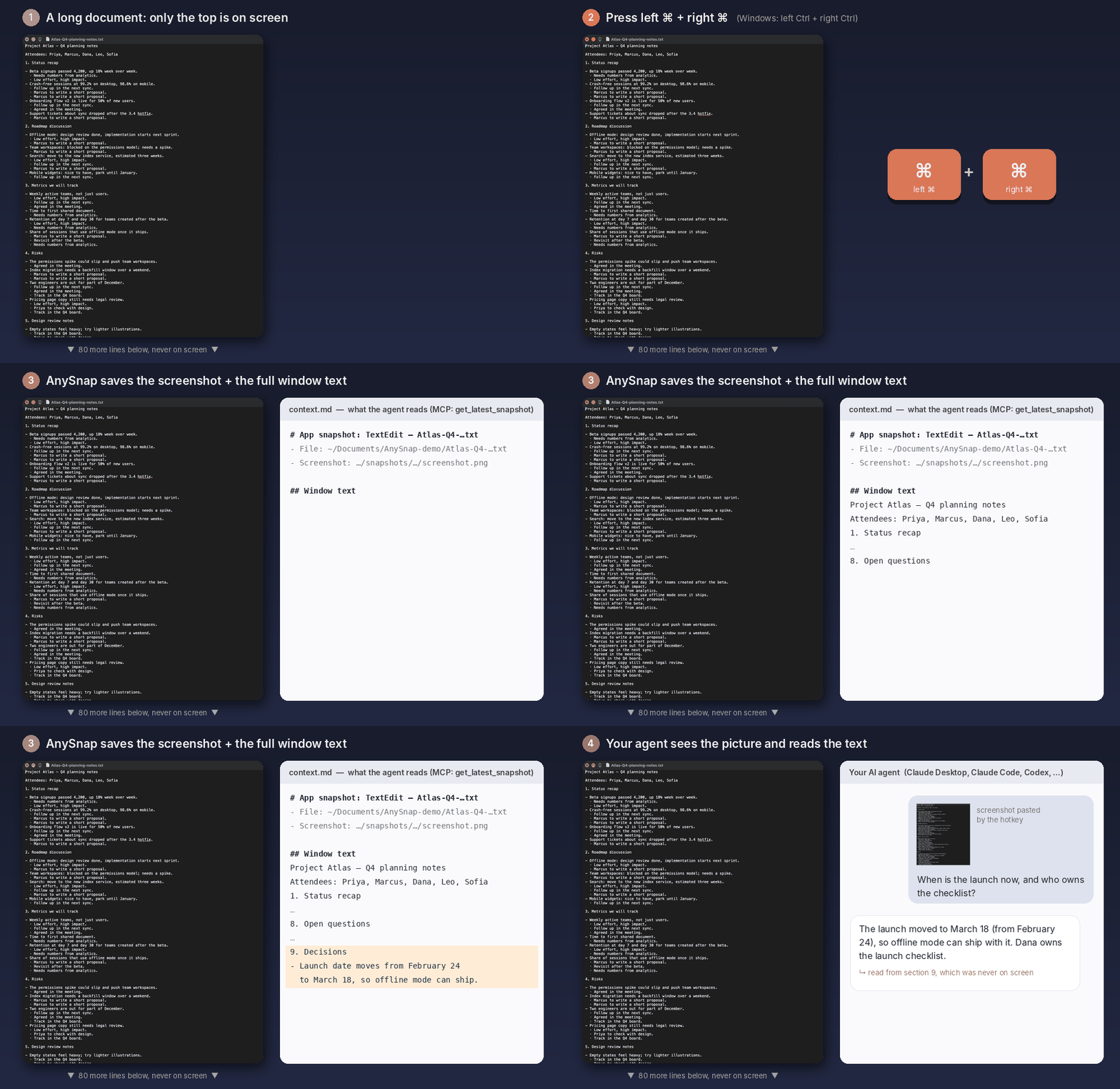
Same feature as Codex "App Snapshot"
AnySnap reproduces the App Snapshot feature of the Codex app and makes it available to other AI agents:
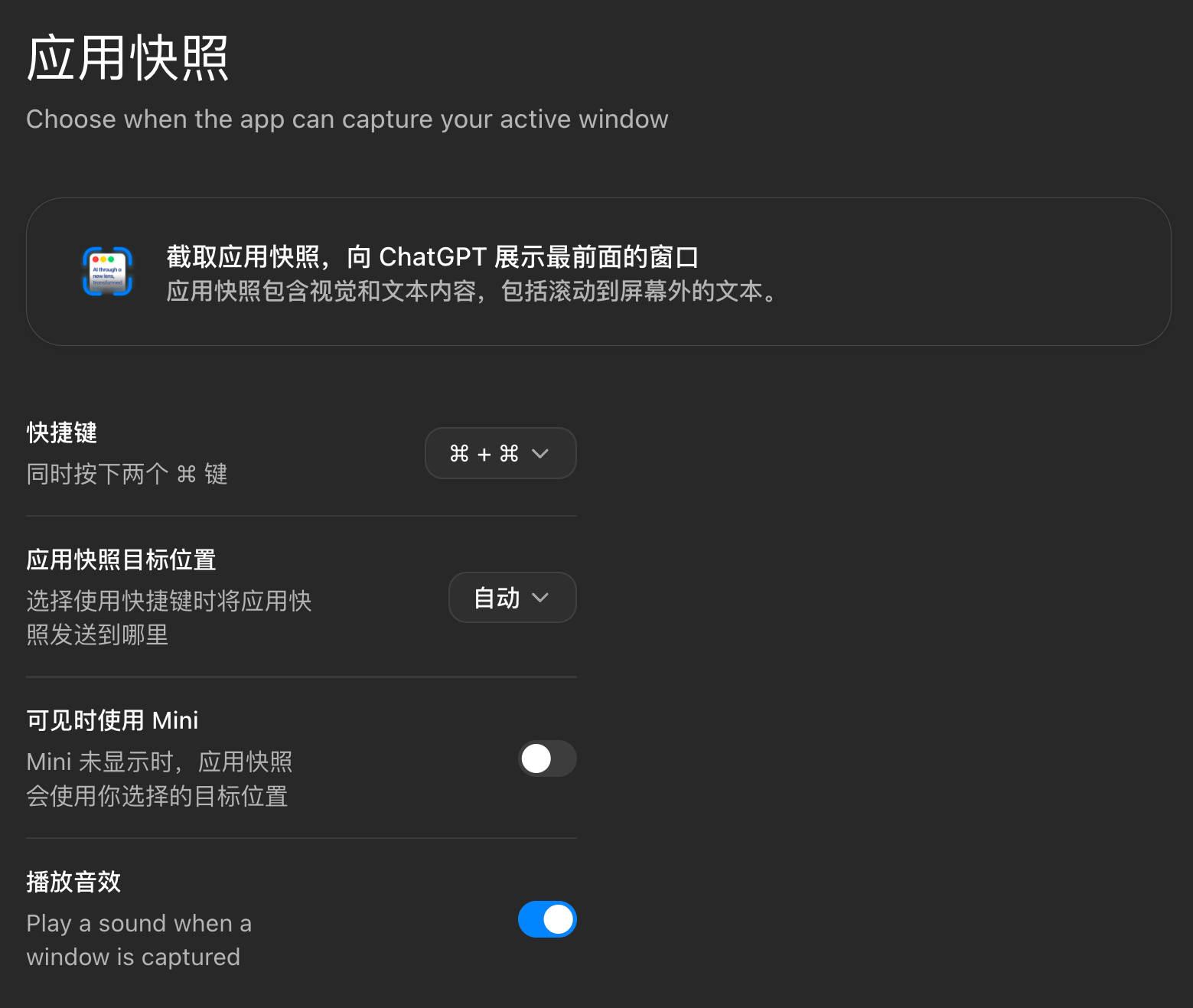
The App Snapshot settings in the Codex app (screenshot, for comparison)
| Codex App Snapshot | AnySnap | |
|---|---|---|
| Hotkey to capture the frontmost window | ⌘ + ⌘ | Left ⌘ + right ⌘ (configurable) |
| Screenshot + window text, including text scrolled off-screen | ✅ | ✅ |
| Choose where snapshots are sent | ✅ | ✅ Claude Desktop / clipboard / save only |
| Shutter sound | ✅ | ✅ |
| "Mini" window | ✅ | — |
| Works with | Codex / ChatGPT | Claude Desktop, Claude Code (any backend, e.g. DeepSeek), Codex, and any agent that supports MCP or a CLI |
AnySnap is an independent project and is not affiliated with or endorsed by OpenAI. Codex and ChatGPT are trademarks of OpenAI.
Features
- Press left ⌘ + right ⌘ (configurable) to capture the frontmost window, with an optional shutter sound
- Besides the screenshot, reads the window's full text, including content scrolled off-screen; falls back to OCR when Accessibility permission is not available
- Records context a screenshot can't show:
| Where | Extra context |
|---|---|
| Finder | Folder path, full paths of the selected files + size / modified date / type |
| Apps with an open file (Preview, Word, TextEdit …) | Full path of the file |
| Browsers (Chrome / Edge / Brave / Arc / Safari) | URL, plus titles and URLs of the other tabs in the window |
| Terminal / iTerm2 | Working directory and the running program |
| PDF readers | Current page |
| Excel / PowerPoint | Active sheet / current slide |
| Code editors | Cursor line |
- Where snapshots go: send to Claude Desktop (only the screenshot appears in the chat box; the AI fetches the full text through MCP automatically) / copy to clipboard / save only
Screenshots
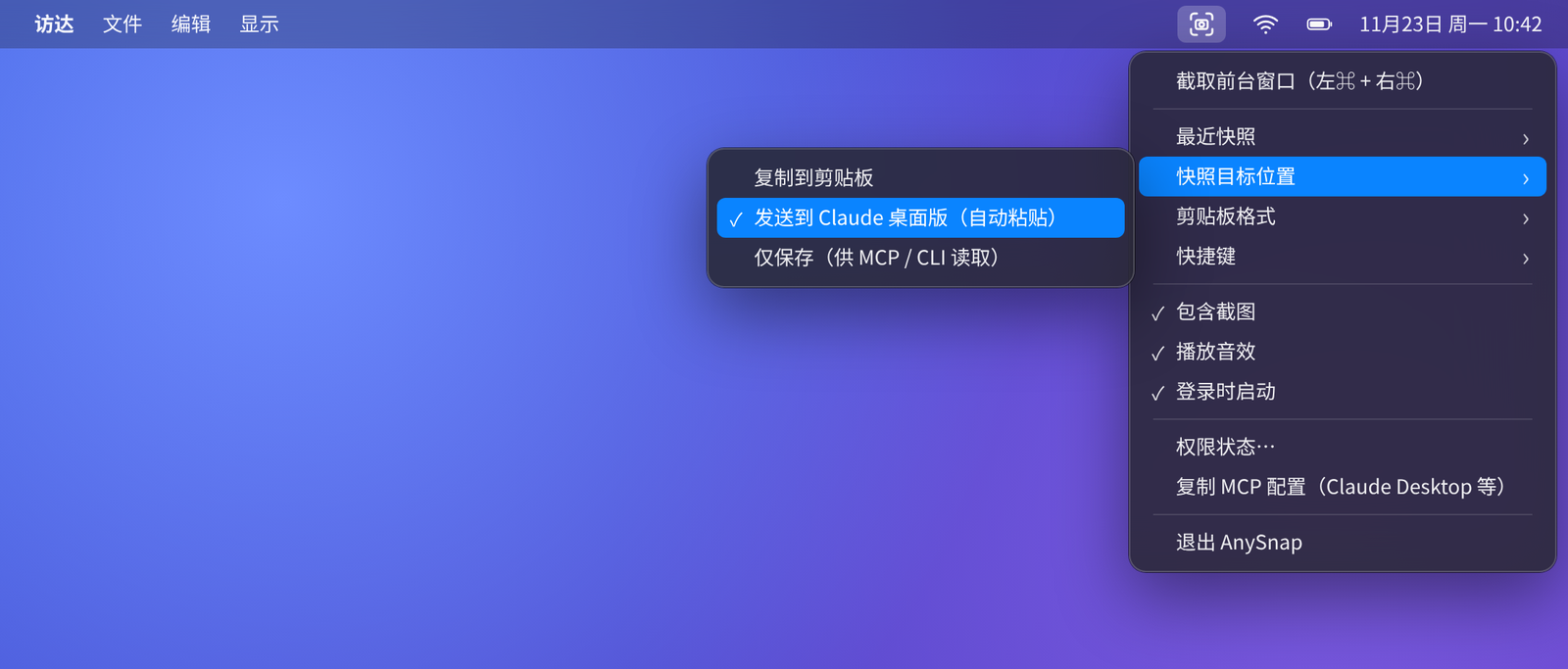
Menu bar menu — choose where snapshots go
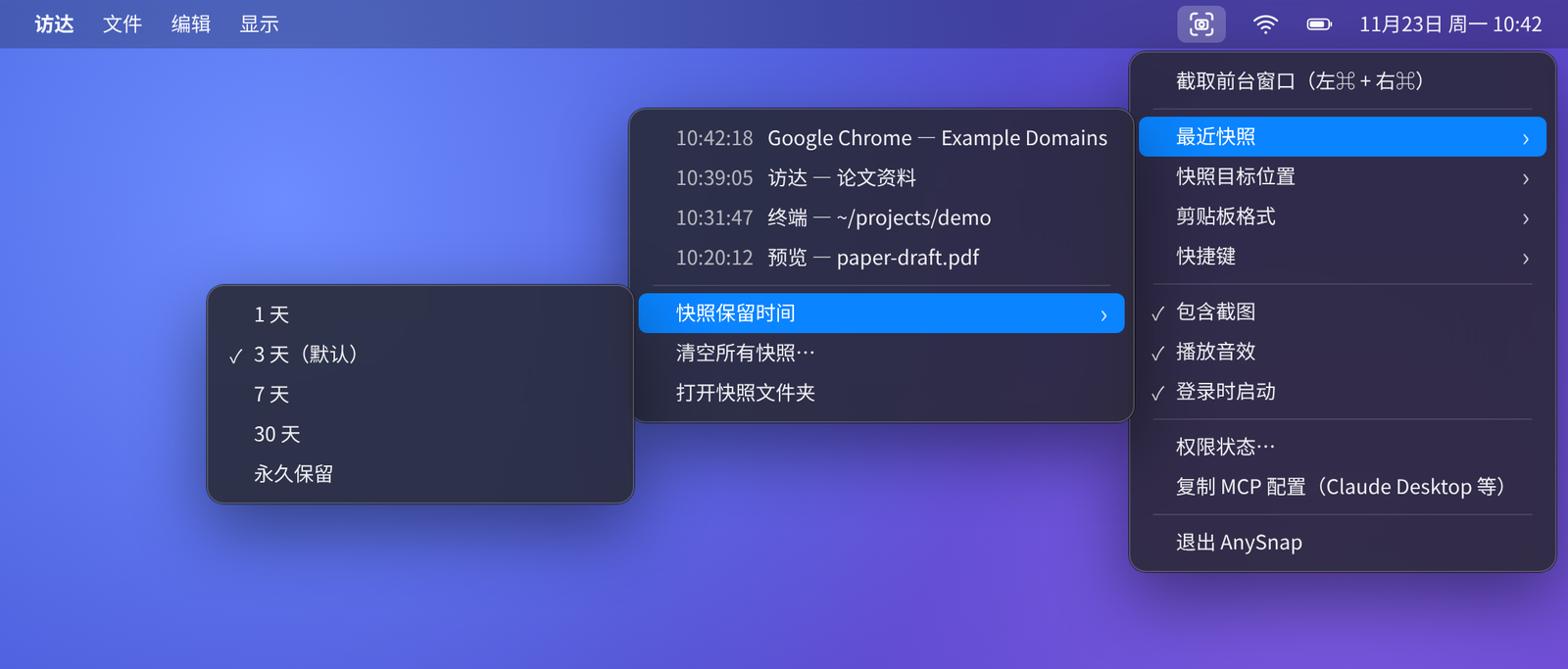
Recent snapshots, retention period (3 days by default) and "delete all"
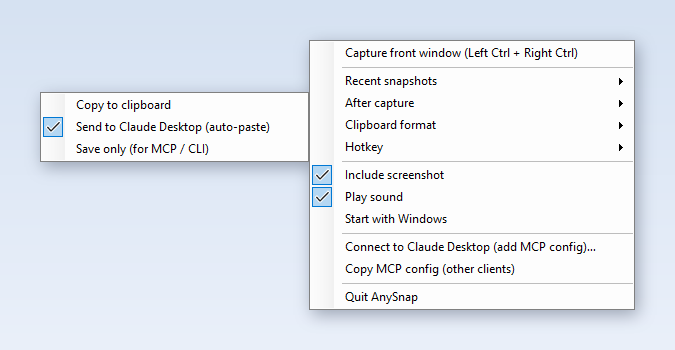
Windows: the tray menu (real screenshot from the automated Windows test run)
How it works
┌────────────── AnySnap.app (menu bar) ──────────────┐
│ hotkey → capture frontmost window → save → deliver │
└────────────────────────────────────────────────────┘
          │ ~/Library/Application Support/AnySnap/snapshots/<id>/
          │   screenshot.png / context.md / meta.json
          ▼
   anysnap (CLI, also an MCP server)
   ├─ Claude Desktop ── MCP
   ├─ Claude Code (Anthropic / DeepSeek / … backends) ── MCP or `anysnap latest --context`
   └─ Codex / other harnesses ── MCP or the CLI
Install
Download (easiest)
Requires macOS 14+ (Apple silicon or Intel).
- Download
AnySnap-<version>-macOS.zipfrom the latest release and unzip it. - Move AnySnap.app into the
Applicationsfolder inside your home folder (~/Applications; create it if needed), so the paths below work as written. - Open it. The app is not notarized by Apple, so macOS blocks the first launch: go to System Settings → Privacy & Security, scroll down and click Open Anyway (or run
xattr -dr com.apple.quarantine ~/Applications/AnySnap.apponce).
Every release is signed with the same (self-signed) "AnySnap Release" certificate, so macOS keeps the permissions below when you update.
Build from source
Requires macOS 14+ and Xcode or the Command Line Tools (xcode-select --install).
git clone https://github.com/qzuser123-eng/AnySnap.git && cd AnySnap
chmod +x scripts/*.sh
./scripts/make-dev-cert.sh   # optional, once: sign with a stable certificate so rebuilds keep permissions
./scripts/install.sh         # build, install to ~/Applications and launch
After the first launch, allow AnySnap in System Settings → Privacy & Security:
- Accessibility: global hotkey and reading window text
- Screen Recording: window screenshots
Then quit and reopen AnySnap from the menu bar. When it first reads Finder, Terminal, a browser or Office, macOS asks once whether AnySnap may control that app. The menu bar item Permission status… shows what is granted.
Windows (preview)
AnySnap also runs on Windows 10 / 11 (x64 and ARM64) as a small tray app. It does the same thing: press left Ctrl + right Ctrl to capture the front window's screenshot plus its full text (via Windows UI Automation, including content scrolled off-screen), and agents read it through the same MCP tools.
- Download
AnySnap-<version>-Windows-x64.zip(or-arm64) from the latest release and unzipAnySnap.exeto a permanent folder, e.g.%LOCALAPPDATA%\Programs\AnySnap. - Run it. The exe is not code-signed, so SmartScreen may warn: click More info → Run anyway. AnySnap appears in the notification area of the taskbar (it may be under the ^ overflow arrow).
- Right-click the tray icon → Connect to Claude Desktop (add MCP config)…, then quit Claude Desktop completely and reopen it. For other agents use Copy MCP config, or:
claude mcp add -s user anysnap -- "$env:LOCALAPPDATA\Programs\AnySnap\AnySnap.exe" mcp
codex mcp add anysnap -- "$env:LOCALAPPDATA\Programs\AnySnap\AnySnap.exe" mcp
No extra Windows permissions are needed. The tray menu has the same options as the macOS menu (where snapshots go, clipboard format, hotkey incl. a custom one, keep-for days, start with Windows). Snapshots are stored in %LOCALAPPDATA%\AnySnap\snapshots.
What it reads: full document text (Notepad and other editors), the whole page plus URL and tabs in Chrome / Edge, the folder and the selected files' full paths in File Explorer, and OCR for windows without accessible text. Every change is tested automatically on a Windows machine on GitHub Actions (Notepad, Explorer, Edge, Chrome, the hotkey, the clipboard, MCP); it hasn't been used much by real users yet, so feedback is very welcome. Not on Windows yet: a terminal's working directory and Office document details.
Connect your agents
Claude Desktop: edit ~/Library/Application Support/Claude/claude_desktop_config.json, then quit (⌘Q) and reopen Claude. Or run ANYSNAP_ADD_CLAUDE_MCP=1 ./scripts/install.sh to add it automatically (a backup is made first):
{
  "mcpServers": {
    "anysnap": {
      "command": "/Users/<you>/Applications/AnySnap.app/Contents/Helpers/anysnap",
      "args": ["mcp"]
    }
  }
}
Claude Code (Anthropic, DeepSeek or other backends):
claude mcp add -s user anysnap -- ~/Applications/AnySnap.app/Contents/Helpers/anysnap mcp
Codex CLI: codex mcp add anysnap -- ~/Applications/AnySnap.app/Contents/Helpers/anysnap mcp
Harnesses without MCP: add to their system prompt or AGENTS.md:
When the user says "look at this window" or "what I just captured", run
anysnap latest --contextto read the snapshot; read the screenshot path in its output if you need the image.
MCP tools
| Tool | What it does |
|---|---|
get_latest_snapshot | Latest snapshot (the AI calls it automatically when you send a screenshot, to get the full text) |
capture_window | Capture the frontmost window now (the AI client's own window is skipped); app targets a specific app |
list_snapshots / get_snapshot | Browse earlier snapshots |
Text-only models (e.g. DeepSeek) should pass include_screenshot: false. Captures requested through MCP / CLI are performed by the running AnySnap.app, so they use AnySnap's own permissions.
CLI
anysnap capture            # from a terminal, skips the terminal itself and captures the window behind it
anysnap capture --app Safari --context
anysnap latest --json
anysnap list
anysnap doctor             # check permissions
Menu bar options
| Option | Description |
|---|---|
| Hotkey | Left + right ⌘ (default), left + right ⌥, double-tap ⌘, or record any shortcut |
| Snapshot destination | Send to Claude Desktop / copy to clipboard / save only |
| Clipboard format | Auto: screenshot only for Claude, a path reference for terminals, screenshot + context.md for other apps |
| Recent snapshots | Copy an earlier snapshot again, retention period, delete all snapshots |
| Include screenshot / Play sound / Launch at login | Toggles |
Privacy
- Snapshots (screenshots and window text) stay on your Mac and are deleted after 3 days by default (1 / 7 / 30 days or forever are available); at most 100 are kept, and you can delete all of them at once
- Password managers (1Password, Bitwarden, KeePassXC, Keychain Access, Passwords …) are never captured
- Note: once connected through MCP, an AI can call
capture_windowto capture your current window without you pressing the hotkey. If you don't want that, only add AnySnap to an agent's MCP config when you need it - No network access, no uploads: snapshots leave your Mac only through the agents you configure
Development
AUTO_INSTALL=1 ./scripts/watch-build.sh   # rebuild, reinstall and relaunch on every source change
python3 scripts/make-icon.py              # regenerate the app icon
See AGENTS.md for the code layout.
Known limitations
- Text quality depends on each app's accessibility support. Native apps, Safari, Chrome and Electron apps work well; apps that draw their own UI (some games, Java apps) may expose no text, in which case AnySnap falls back to OCR.
- From macOS 27.3, ordinary apps can't simply be added to the Accessibility list; full-text capture needs that permission, otherwise only OCR of the visible area is available.
- "Send to Claude Desktop" activates Claude and simulates ⌘V, so Claude's input box needs to have focus.
Feedback
Feedback is very welcome! Report a bug or suggest a feature in Issues, or ask questions and share ideas in Discussions.
License
MIT © 2026 qzuser