MCPJungle
A self-hosted MCP Server registry for private AI agents, supporting both PostgreSQL and SQLite databases.
Documentation
MCPJungle
Run all your MCP servers behind one endpoint



MCPJungle is a self-hosted MCP gateway for developers and teams who want to manage multiple MCP servers without scattered client configurations, duplicated setup, or inconsistent access control.
Use it locally to keep your personal MCP setup clean, or run it as shared infrastructure for a team with centralized discovery, access control, and observability.
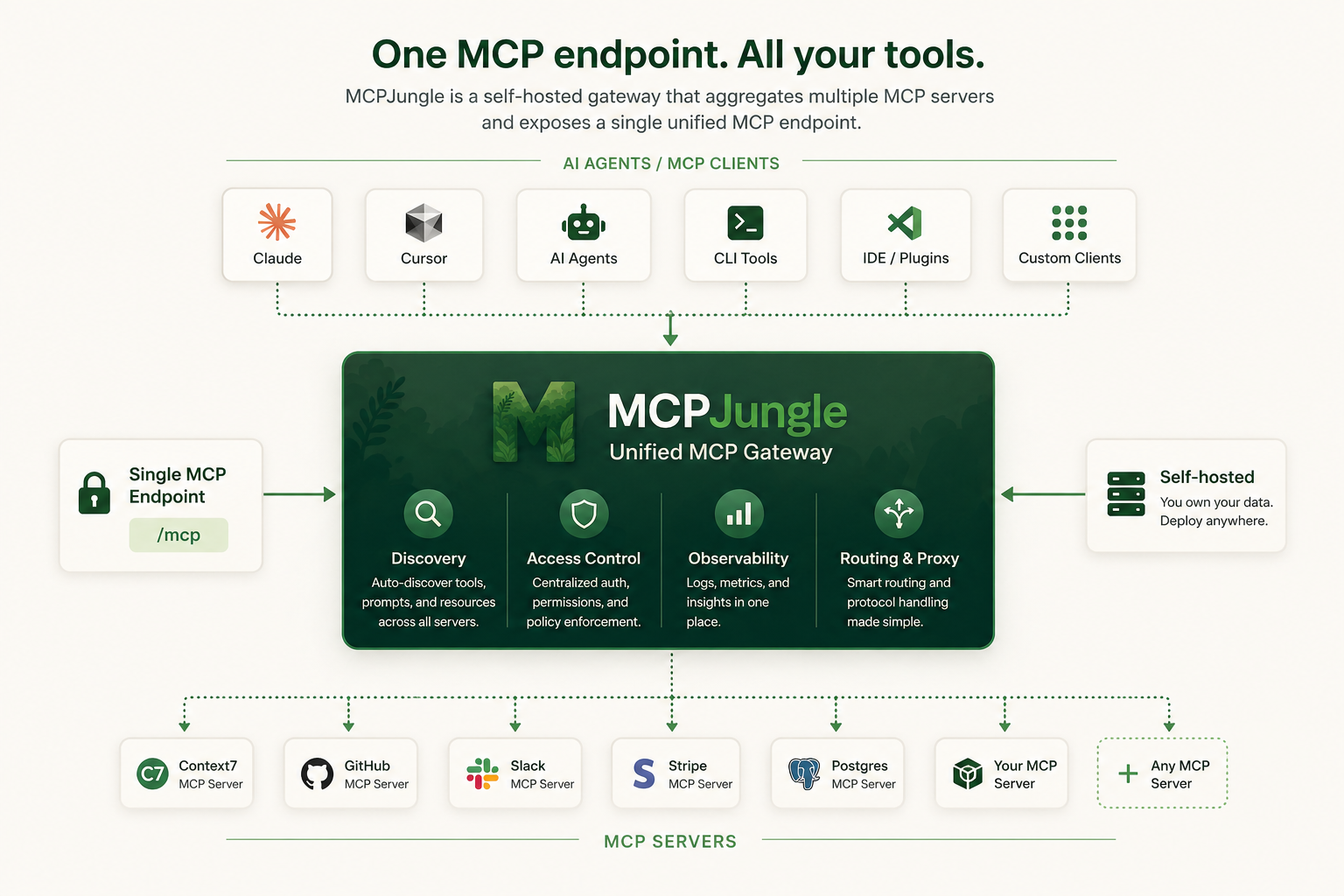
Instead of wiring every MCP server into every AI client, register your servers once in MCPJungle and let Claude, Cursor, Codex, or your own Agents connect to a single MCP endpoint.
Why MCPJungle?
MCP is powerful, but managing many MCP servers gets messy fast.
Without a gateway:
- 🔌 Every client needs its own MCP server configuration
- 🧩 Tools, prompts, and resources are scattered across different servers
- 🔐 Access control is duplicated or missing
- 👥 Teams have no shared view of available MCP tools
- 🛠️ Local setups become hard to reproduce
MCPJungle gives you a single control point:
- 🌐 One MCP endpoint for Claude, Cursor, Copilot, and custom agents
- 🗂️ One place to register and manage MCP servers
- 🔎 Unified discovery for tools, prompts, and resources
- 🎛️ Optional tool groups to expose only the tools a client should see
- 📊 Simple access-control and observability hooks for shared deployments
Start with a local setup. Scale to a shared team gateway when you need it.
Documentation
Mcpjungle documentation has a new home: https://docs.mcpjungle.com.
Please prefer the docs site over this README for the latest guides, reference, and operational details.
Your AI Clients can also access the docs using its MCP server https://docs.mcpjungle.com/mcp!
Quickstart
This quickstart guide will show you how to:
- Start the mcpjungle server locally using
docker compose - Add an MCP server in mcpjungle
- Connect your Claude Desktop to mcpjungle to access your MCP tools
Start the server
Fetch the docker-compose.yaml and start the mcpjungle server:
curl -O https://raw.githubusercontent.com/mcpjungle/MCPJungle/refs/heads/main/docker-compose.yaml
docker compose up -d
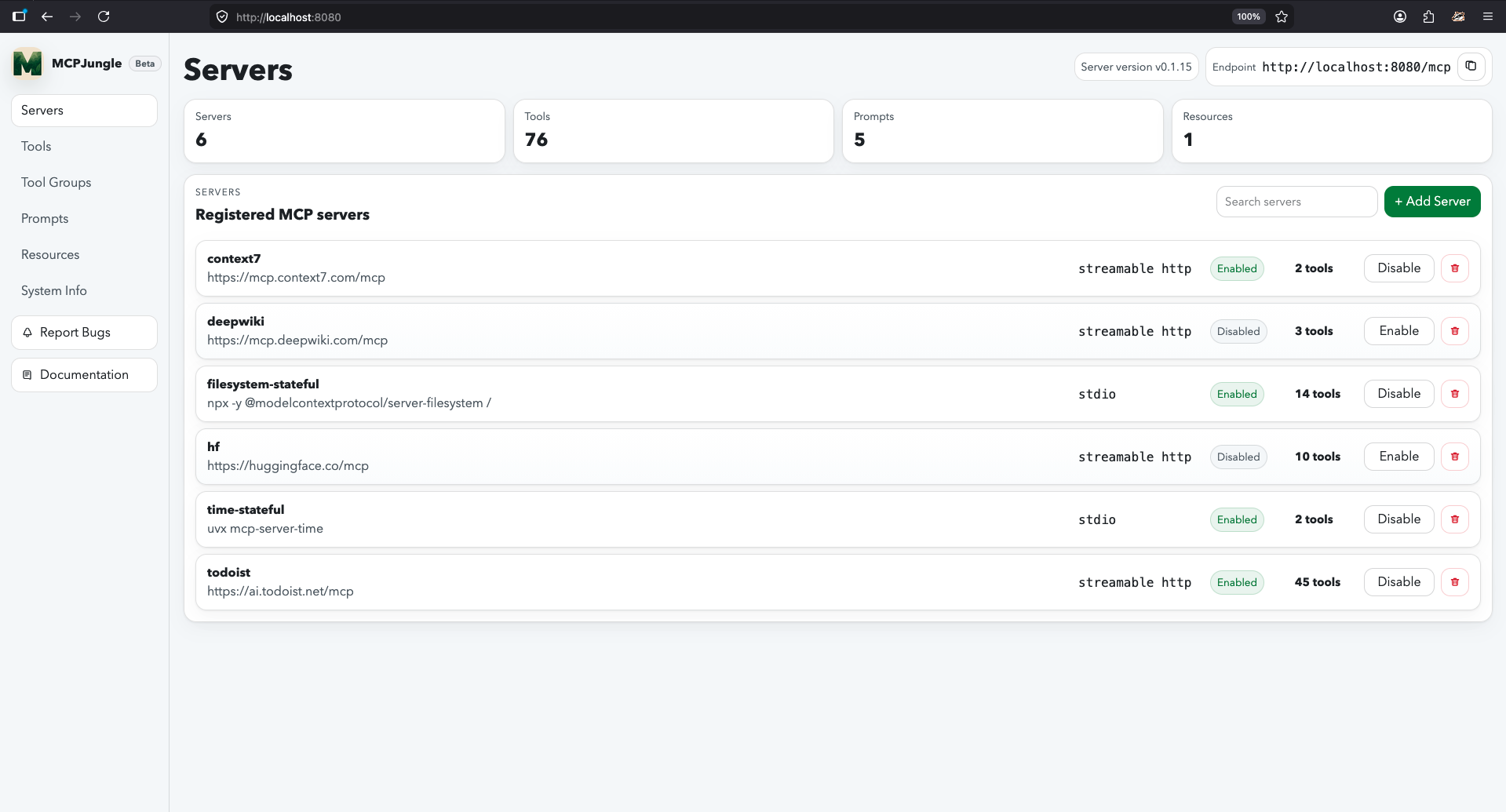
This exposes mcpjungle's streamable http mcp server at http://localhost:8080/mcp by default.
Add an MCP server
- Download the
mcpjungleCLI on your local machine either using brew or directly from the Releases Page.
brew install mcpjungle/mcpjungle/mcpjungle
- Add the context7 MCP server to mcpjungle using the CLI:
mcpjungle register --name context7 --url https://mcp.context7.com/mcp
You should see output similar to this:

Connect to mcpjungle
In your Claude Desktop, add the configuration for mcpjungle MCP server:
{
  "mcpServers": {
    "mcpjungle": {
      "command": "npx",
      "args": [
        "mcp-remote",
        "http://localhost:8080/mcp",
        "--allow-http"
      ]
    }
  }
}
Once you have added the configuration, try asking claude something simple:
Use context7 to get the documentation for `/lodash/lodash`
Claude will then attempt to call the context7__get-library-docs tool via MCPJungle, which will return the documentation for the Lodash library.
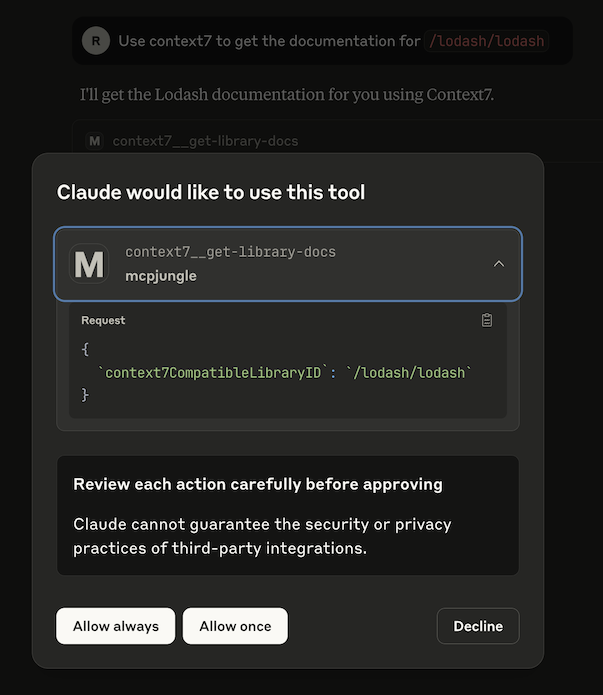
You now have a working MCP setup with a single unified endpoint!
Next, explore the complete documentation at docs.mcpjungle.com and the public roadmap.
Legacy README reference
📋 Table of Contents
- Installation
- Usage
- Limitations
- Contributing
Installation
MCPJungle is shipped as a stand-alone binary.
You can either download it from the Releases Page or use Homebrew to install it:
brew install mcpjungle/mcpjungle/mcpjungle
Verify your installation by running
mcpjungle version
[!IMPORTANT] On MacOS, you will have to use homebrew because the compiled binary is not Notarized yet.
MCPJungle provides a Docker image which is useful for running the registry server (more about it later).
docker pull ghcr.io/mcpjungle/mcpjungle
Usage
MCPJungle has a Client-Server architecture and the binary lets you run both the Server and the Client.
Server
The MCPJungle server is responsible for managing all the MCP servers registered in it and providing a unified MCP gateway for AI Agents to discover and call tools provided by these registered servers.
The gateway itself runs over streamable http transport and is accessible at the /mcp endpoint.
Running inside Docker
For running the MCPJungle server locally, docker compose is the recommended way:
# docker-compose.yaml is optimized for individuals running mcpjungle on their local machines for personal use.
# mcpjungle will run in `development` mode by default.
curl -O https://raw.githubusercontent.com/mcpjungle/MCPJungle/refs/heads/main/docker-compose.yaml

docker compose up -d

# docker-compose.prod.yaml is optimized for orgs deploying mcpjungle on a remote server for multiple users.
# mcpjungle will run in `enterprise` mode by default, which enables enterprise features.
curl -O https://raw.githubusercontent.com/mcpjungle/MCPJungle/refs/heads/main/docker-compose.prod.yaml

docker compose -f docker-compose.prod.yaml up -d
[!NOTE] The
enterprisemode used to be calledproductionmode. The mode has now been renamed for clarity. Everything else remains the same.
This will start the MCPJungle server along with a persistent Postgres database container.
You can quickly verify that the server is running:
curl http://localhost:8080/health
If you plan on registering stdio-based MCP servers that rely on npx or uvx, use mcpjungle's stdio tagged docker image instead.
MCPJUNGLE_IMAGE_TAG=latest-stdio docker compose up -d
[!NOTE] If you're using
docker-compose.yaml, this is already the default image tag. You only need to specify the stdio image tag if you're usingdocker-compose.prod.yaml.
This image is significantly larger. But it is very convenient and recommended for running locally when you rely on stdio-based MCP servers.
For example, if you only want to register remote mcp servers like context7 and deepwiki, you can use the standard (minimal) image.
But if you also want to use stdio-based servers like filesystem, time, github, etc., you should use the stdio-tagged image instead.
[!NOTE] If your stdio servers rely on tools other than
npxoruvx, you will have to create a custom docker image that includes those dependencies along with the mcpjungle binary.
Production Deployment
The default MCPJungle Docker image is very lightweight - it only contains a minimal base image and the mcpjungle binary.
It is therefore suitable and recommended for production deployments.
For the database, we recommend you deploy a separate Postgres DB cluster and supply its endpoint to mcpjungle (see Database section below).
You can see the definitions of the standard Docker image and the stdio Docker image.
Running directly on host
You can also run the server directly on your host machine using the binary:
mcpjungle start
This starts the main registry server and MCP gateway, accessible on port 8080 by default.
Shutting down
It is important that the mcpjungle server shuts down gracefully to ensure proper cleanup.
The recommended way to stop the server process is to send a SIGTERM signal to it.
Database
The mcpjungle server relies on a database and by default, creates a SQLite DB file mcpjungle.db in the current working directory.
This is okay when you're just testing things out locally.
If you do not provide PostgreSQL configuration or a custom SQLite path, mcpjungle uses ./mcpjungle.db.
You can optionally set a custom file path for the SQLite DB file:
mcpjungle start --sqlite-db-path ./.mcpjungle.db

# or
export SQLITE_DB_PATH=/path/to/.mcpjungle.db
mcpjungle start
NOTE: Deleting that SQLite file removes all registered server data and other MCPJungle state stored in it.
For more serious deployments, mcpjungle also supports Postgresql. You can supply the DSN to connect to it:
# You can supply the database DSN as an env var
export DATABASE_URL=postgres://admin:root@localhost:5432/mcpjungle_db

#run as container
docker run ghcr.io/mcpjungle/mcpjungle:latest

# or run directly
mcpjungle start
You can also supply postgres-specific env vars or files if you don't prefer using the DSN:
# host is mandatory if you're using postgres-specific env vars
export POSTGRES_HOST=localhost
export POSTGRES_PORT=5432

export POSTGRES_USER=admin
export POSTGRES_USER_FILE=/path/to/user-file

export POSTGRES_PASSWORD=secret
export POSTGRES_PASSWORD_FILE=/path/to/password-file

export POSTGRES_DB=mcpjungle_db
export POSTGRES_DB_FILE=/path/to/db-file

mcpjungle start
Client
Once the server is up, you can use the mcpjungle CLI to interact with it.
MCPJungle currently supports MCP servers using stdio and Streamable HTTP Transports.
[!NOTE] Support for SSE (server-sent events) also exists but is currently not mature.
Let's see how to register them in mcpjungle.
Registering streamable HTTP-based servers
Let's say you're already running a streamable http MCP server locally at http://127.0.0.1:8000/mcp which provides basic math tools like add, subtract, etc.
You can register this MCP server with MCPJungle:
mcpjungle register --name calculator --description "Provides some basic math tools" --url http://127.0.0.1:8000/mcp
If you used docker compose to run the server, and you're not on Linux, you will have to use host.docker.internal instead of your local loopback address.
mcpjungle register --name calculator --description "Provides some basic math tools" --url http://host.docker.internal:8000/mcp
The registry will now start tracking this MCP server and load its tools.

You can also provide a configuration file to register the MCP server:
cat ./calculator.json
{
  "name": "calculator",
  "transport": "streamable_http",
  "description": "Provides some basic math tools",
  "url": "http://127.0.0.1:8000/mcp"
}

mcpjungle register -c ./calculator.json
All tools provided by this server are now accessible via MCPJungle:
mcpjungle list tools

# Check tool usage
mcpjungle usage calculator__multiply

# Call a tool
mcpjungle invoke calculator__multiply --input '{"a": 100, "b": 50}'

[!NOTE] A tool in MCPJungle must be referred to by its canonical name which follows the pattern
<mcp-server-name>__<tool-name>. Server name and tool name are separated by a double underscore__.eg- If you register a MCP server
githubwhich provides a tool calledgit_commit, you can invoke it in MCPJungle using the namegithub__git_commit.Your MCP client must also use this canonical name to call the tool via MCPJungle.
The config file format for registering a Streamable HTTP-based MCP server is:
{
  "name": "<name of your mcp server>",
  "transport": "streamable_http",
  "description": "<description>",
  "url": "<url of the mcp server>",
  "bearer_token": "<optional bearer token for authentication>",
  "headers": {
    "<custom http header>": "<value>"
  }
}
Registering STDIO-based servers
Here's an example configuration file (let's call it filesystem.json) for a MCP server that uses the STDIO transport:
{
  "name": "filesystem",
  "transport": "stdio",
  "description": "filesystem mcp server",
  "command": "npx",
  "args": ["-y", "@modelcontextprotocol/server-filesystem", "."]
}
You can register this MCP server in MCPJungle by providing the configuration file:
# Save the JSON configuration to a file (e.g., filesystem.json)
mcpjungle register -c ./filesystem.json
The config file format for registering a STDIO-based MCP server is:
{
  "name": "<name of your mcp server>",
  "transport": "stdio",
  "description": "<description>",
  "command": "<command to run the mcp server, eg- 'npx', 'uvx'>",
  "args": ["arguments", "to", "pass", "to", "the", "command"],
  "env": {
    "KEY": "value"
  }
}
You can also watch a quick video on How to register a STDIO-based MCP server.
[!TIP] If your STDIO server fails or throws errors for some reason, check the mcpjungle server's logs to view its
stderroutput.
Environment variables in JSON config files
When you use a JSON config file to register a mcp server or create other entities like tol groups, the CLI can resolve environment variable placeholders in string values before sending the request to the server.
- Only placeholders written as
${VAR_NAME}are resolved. - Placeholders can appear anywhere inside a string value, for example
prefix-${VAR_NAME}-suffix. - Resolution happens in the CLI process, so the environment variable must be available where you run the command.
- If a referenced environment variable is not set, the command fails with an error.
- This applies to string fields across the JSON config, including nested objects and string arrays.
Example MCP server config:
{
  "name": "affine-main",
  "transport": "streamable_http",
  "description": "AFFiNE workspace MCP server",
  "url": "https://app.affine.pro/api/workspaces/${AFFINE_WORKSPACE_ID}/mcp",
  "bearer_token": "${AFFINE_API_TOKEN}",
  "headers": {
    "X-Workspace": "${AFFINE_WORKSPACE_ID}"
  }
}
Example STDIO config:
{
  "name": "my-stdio-server",
  "transport": "stdio",
  "command": "uvx",
  "args": ["my-server", "--workspace", "${WORKSPACE_ID}"],
  "env": {
    "API_TOKEN": "${API_TOKEN}"
  }
}
Caveat ⚠️
When running mcpjungle inside Docker, you need some extra configuration to run the filesystem mcp server.
By default, mcpjungle inside container does not have access to your host filesystem.
So you must:
- mount the host directory you want to access as a volume in the container
- specify the mount path as the directory in the filesystem mcp server command args
The docker-compose.yaml provided by mcpjungle mounts the current working directory as /host in the container.
So you can use the following configuration for the filesystem mcp server:
{
  "name": "filesystem",
  "transport": "stdio",
  "command": "npx",
  "args": ["-y", "@modelcontextprotocol/server-filesystem", "/host"]
}
Then, the mcp has access to /host, ie, the current working directory on your host machine.
See DEVELOPMENT.md for more details.
Running CLI commands from a Docker or Kubernetes deployment
If your MCPJungle server is running in a remote Docker container or Kubernetes cluster, you can also execute the mcpjungle binary directly inside the container:
docker exec -it <container_name> /mcpjungle
kubectl -n <namespace> exec -it po/<pod_name> -- /mcpjungle
[!NOTE] The standard image does not include a shell. Run
/mcpjungledirectly viadocker execorkubectl exec.
This is useful for running CLI commands from the same environment where the server is running.
Deregistering MCP servers
You can remove a MCP server from mcpjungle.
mcpjungle deregister calculator
mcpjungle deregister filesystem
Once removed, this mcp server and its tools are no longer available to you or your MCP clients.
Configuring a custom registry URL
By default, the CLI connects to the mcpjungle server at http://127.0.0.1:8000.
If your server is running on a different host or port (e.g., a remote deployment), you can configure the registry URL in two ways:
Option 1: Use the --registry flag
mcpjungle --registry http://my-server:9000 list tools
Option 2: Set it in the config file
Create or edit ~/.mcpjungle.conf:
registry_url: http://my-server:9000
This avoids having to pass the --registry flag on every command.
Cold-start problem & Stateful Connections
By default, MCPJungle always creates a new connection with the upstream MCP server when a tool is called.
When the tool call is complete, the connection is closed.
This keeps the system clean and avoids memory leaks.
But sometimes this can cause a latency overhead. For eg- a new process is spawned every time you call a tool of a STDIO-based mcp server. If the server takes several seconds to start up, this slows down the tool call and the overall interaction.
To solve this, MCPJungle also supports stateful connections.
You can set the session_mode to stateful (default is stateless) in you MCP server configuration:
{
  "name": "filesystem",
  "transport": "stdio",
  "command": "npx",
  "args": ["-y", "@modelcontextprotocol/server-filesystem", "."],
  "session_mode": "stateful"
}
mcpjungle will create a new connection with this mcp server the first time you call one of its tools.
This connection is not closed when the tool call is complete. Subsequent tool calls to this server reuse the same connection, avoiding the cold-start overhead.
The connection is only closed when:
- mcpjungle server is stopped
- the mcp server is deregistered from mcpjungle
- the connection times out after a period of inactivity. You can set the number of seconds using the
SESSION_IDLE_TIMEOUT_SECenv var to configure this globally in mcpjungle server (default value is -1, which means no timeout).
When possible, it is recommended that you use stateless connections (default setting).
Integration with other MCP Clients
Assuming that MCPJungle is running on http://localhost:8080, use the following configurations to connect to it:
Claude
{
  "mcpServers": {
    "mcpjungle": {
      "command": "npx",
      "args": [
        "mcp-remote",
        "http://localhost:8080/mcp",
        "--allow-http"
      ]
    }
  }
}
Cursor
{
  "mcpServers": {
    "mcpjungle": {
      "url": "http://localhost:8080/mcp"
    }
  }
}
You can watch a quick video on How to connect Cursor to MCPJungle.
Copilot
Follow Copilot's doc on configuraing a MCP server manually.
Your mcp.json config file should look like this after adding mcpjungle to it:
{
  "servers": {
    "mcpjungle": {
      "url": "http://localhost:8080/mcp"
    }
  }
}
[!NOTE] You may have to click on
Startfor Copilot to actually start interacting with mcpjungle.
Enabling/Disabling Tools
You can disable and re-enable a specific tool or all the tools provided by an MCP Server.
If a tool is disabled, it is not available via the MCPJungle Proxy or any of the Tool Groups, so no MCP clients can view or call it.
You can disable and enable Prompts as well.
# disable the `get-library-docs` tool provided by the `context7` MCP server
mcpjungle disable tool context7__get-library-docs

# re-enable the tool
mcpjungle enable tool context7__get-library-docs

# disable all tools in context7
mcpjungle disable tool context7

# disable the whole `context7` MCP server (disables all tools & prompts)
mcpjungle disable server context7

# re-enable `context7`
mcpjungle enable server context7

# disable a prompt
mcpjungle disable prompt "huggingface_Model Details"

# disable all prompts in context7
mcpjungle disable prompt context7
A disabled tool is still accessible via mcpjungle's HTTP API, so humans can still manage it from the CLI (or any other HTTP client).
[!NOTE] When a new server is registered in MCPJungle, all its tools & prompts are enabled by default.
Prompts
Mcpjungle supports Prompts.
When you register a new MCP server, if it provides prompts, they're registered in mcpjungle too.
Here are some examples of how you can interact with Prompts using the CLI:
# list all prompts provided by the huggingface mcp
$ mcpjungle list prompts --server huggingface

# Retrieve the "Model Details" prompt, supply custom arguments
$ mcpjungle get prompt "huggingface__Model Details" --arg model_id="openai/gpt-oss-120b"
Tool Groups
As you add more MCP servers to MCPJungle, the number of tools available through the Gateway can grow significantly.
If your MCP client is exposed to hundreds of tools through the gateway MCP, its performance may degrade.
MCPJungle allows you to expose only a subset of all available tools to your MCP clients using Tool Groups.
You can create a new group and only include specific tools that you wish to expose.
Once a group is created, mcpjungle returns a unique endpoint for it.
You can then configure your MCP client to use this group-specific endpoint instead of the main gateway endpoint.
Creating a Tool Group
You can create a new tool group by providing a JSON configuration file to the create group command.
You must specify a unique name for the group and define which tools to include using one or more of the following fields:
included_tools: List specific tool names to include (e.g.,["filesystem__read_file", "time__get_current_time"])included_servers: Include ALL tools from specific MCP servers (e.g.,["time", "deepwiki"])excluded_tools: Exclude specific tools (useful when including entire servers)
Example 1: Cherry-picking specific tools
Here is an example of a tool group configuration file (claude-tools-group.json):
{
  "name": "claude-tools",
  "description": "This group only contains tools for Claude Desktop to use",
  "included_tools": [
    "filesystem__read_file",
    "deepwiki__read_wiki_contents",
    "time__get_current_time"
  ]
}
This group exposes only 3 handpicked tools instead of all available tools.
Example 2: Including entire servers with exclusions
You can also include all tools from specific servers and optionally exclude some:
{
  "name": "claude-tools",
  "description": "All tools from time and deepwiki servers except time__convert_time",
  "included_servers": ["time", "deepwiki"],
  "excluded_tools": ["time__convert_time"]
}
This includes ALL tools from the time and deepwiki servers except time__convert_time.
Example 3: Mixing approaches
You can combine all three fields for maximum flexibility:
{
  "name": "comprehensive-tools",
  "description": "Mix of manual tools, server inclusion, and exclusions",
  "included_tools": ["filesystem__read_file"],
  "included_servers": ["time"],
  "excluded_tools": ["time__convert_time"]
}
This includes filesystem__read_file plus all tools from the time server except time__convert_time.
You can create this group in mcpjungle:
$ mcpjungle create group -c ./claude-tools-group.json

Tool Group claude-tools created successfully
It is now accessible at the following streamable http endpoint:

    http://127.0.0.1:8080/v0/groups/claude-tools/mcp
You can then configure Claude (or any other MCP client) to use this group-specific endpoint to access the MCP server.
The client will then ONLY see and be able to use these 3 tools and will not be aware of any other tools registered in MCPJungle.
[!TIP] You can run
mcpjungle list toolsto view all available tools and pick the ones you want to include in your group.
You can also watch a Video on using Tool Groups.
[!NOTE] The exclusion is always applied at the end. So if you add a tool to
included_toolsand also list it inexcluded_tools, it will be excluded from the final group.
Limitation 🚧
Prompts are currently not supported in Tool Groups. We're working to fix this issue 🛠️
Managing tool groups
You can currently perform operations like listing all groups, viewing details of a specific group and deleting a group.
# list all tool groups
mcpjungle list groups

# view details of a specific group
mcpjungle get group claude-tools

# delete a group
mcpjungle delete group claude-tools
Working with tools in groups
You can list and invoke tools within specific groups using the --group flag:
# list tools in a specific group
mcpjungle list tools --group claude-tools

# invoke a tool from a specific group context
mcpjungle invoke filesystem__read_file --group claude-tools --input '{"path": "README.md"}'
These commands provide group-scoped operations, making it easier to work with tools within specific contexts and validate that tools are available in your groups.
[!NOTE] If a tool is included in a group but is later disabled globally or deleted, then it will not be available via the group's MCP endpoint.
But if the tool is re-enabled or added again later, it will automatically become available in the group again.
Limitations 🚧
- Currently, you cannot update an existing tool group. You must delete the group and create a new one with the modified configuration file.
- In
enterprisemode, currently only an admin can create a Tool Group. We're working on allowing standard Users to create their own groups as well.
Authentication
MCPJungle currently supports authentication if your Streamable HTTP MCP Server accepts static tokens for auth.
This is useful when using SaaS-provided MCP Servers like HuggingFace, Stripe, etc. which require your API token for authentication.
You can supply your token while registering the MCP server:
# If you specify the `--bearer-token` flag, MCPJungle will add the `Authorization: Bearer <token>` header to all requests made to this MCP server.
mcpjungle register --name huggingface --description "HuggingFace MCP Server" --url https://huggingface.co/mcp --bearer-token <your-hf-api-token>
Or from your configuration file
{
  "name": "huggingface",
  "transport": "streamable_http",
  "url": "https://huggingface.co/mcp",
  "description": "hugging face mcp server",
  "bearer_token": "<your-hf-api-token>"
}
If you need to supply a custom value for the Authorization header or add additional custom headers, you can use the headers field in the config file:
{
  "name": "sourcegraph",
  "transport": "streamable_http",
  "url": "https://sourcegraph.mycompany.com/.api/mcp",
  "headers": {
    "Authorization": "token <your-sourcegraph-token>",
    "Custom-Header": "custom-value"
  }
}
Support for Oauth flow is coming soon!
Enterprise Features 🔒
If you're running MCPJungle in your organisation, we recommend running the Server in the enterprise mode:
# enable enterprise features by running in enterprise mode
mcpjungle start --enterprise

# you can also specify the server mode as environment variable (valid values are `development` and `enterprise`)
export SERVER_MODE=enterprise
mcpjungle start

# Or use the enterprise-mode docker compose file as described above
docker compose -f docker-compose.prod.yaml up -d
By default, mcpjungle server runs in development mode which is ideal for individuals running it locally.
In Enterprise mode, the server enforces stricter security policies and will provide additional features like Authentication, ACLs, observability and more.
After starting the server in enterprise mode, you must initialize it by running the following command on your client machine:
mcpjungle init-server
This will create an admin user in the server and store its API access token in your home directory (~/.mcpjungle.conf).
You can then use the mcpjungle cli to make authenticated requests to the server.
Access Control
In development mode, all MCP clients have full access to all the MCP servers registered in MCPJungle Proxy.
enterprise mode lets you control which MCP clients can access which MCP servers.
Suppose you have registered 2 MCP servers calculator and github in MCPJungle in enterprise mode.
By default, no MCP client can access these servers. You must create an MCP Client in mcpjungle and explicitly allow it to access the MCP servers.
# Create a new MCP client for your Cursor IDE to use. It can access the calculator and github MCP servers
mcpjungle create mcp-client cursor-local --allow "calculator, github"

MCP client 'cursor-local' created successfully!
Servers accessible: calculator,github

Access token: 1YHf2LwE1LXtp5lW_vM-gmdYHlPHdqwnILitBhXE4Aw
Send this token in the `Authorization: Bearer {token}` HTTP header.
Mcpjungle creates an access token for your client.
Configure your client or agent to send this token in the Authorization header when making requests to the mcpjungle proxy.
[!TIP] You can also supply a custom access token for your mcp clients and user accounts using the
--access-tokenflag. This is useful when you want to manage tokens yourself, perhaps through a central identity server.
For example, you can add the following configuration in Cursor to connect to MCPJungle:
{
  "mcpServers": {
    "mcpjungle": {
      "url": "http://localhost:8080/mcp",
      "headers": {
        "Authorization": "Bearer 1YHf2LwE1LXtp5lW_vM-gmdYHlPHdqwnILitBhXE4Aw"
      }
    }
  }
}
A client that has access to a particular server this way can view and call all the tools provided by that server.
[!NOTE] If you don't specify the
--allowflag, the MCP client will not be able to access any MCP servers.
Creating mcp clients from the config file
You can also create an MCP client by providing a JSON configuration file:
{
	"name": "foobar",
	"allowed_servers": ["deepwiki", "time"],
	"access_token": "my_secret_token_123",
    "access_token_ref": {
        "file": "/path/to/token-file.txt",
        "env": "ENV_VAR_NAME"
    }
}
When creating a client from a config file, you must provide a custom access token because mcpjungle cannot print the generated token to the console.
Supplying custom access tokens in config files
There are 3 ways to provide the access token from configuration file:
- Directly in the
access_tokenfield: Only use this for testing purposes. Not recommended for production, especially if you're committing the config file to version control. - From a file using the
access_token_ref.filefield: The file should contain only the token string. - From an environment variable using the
access_token_ref.envfield: The env var should contain the token string.
You can also use ${VAR_NAME} placeholders elsewhere in the same JSON config file. For example:
{
  "name": "${MCP_CLIENT_NAME}",
  "allowed_servers": ["${PRIMARY_SERVER}", "time"],
  "access_token_ref": {
    "env": "CLIENT_TOKEN_ENV_NAME"
  }
}
Creating user accounts
In addition to MCP clients, you can also create User accounts in mcpjungle for human users.
A user has a very limited set of privileges compared to an admin in the enterprise mode. For example, they can view and use MCP servers, but they don't have write permissions in mcpjungle.
# Auto-generates a secret for user
mcpjungle create user bob
# Specify a custom access token for user
mcpjungle create user alice --access-token alice_token_123
# Create user from config file
mcpjungle create user --conf /path/to/user-config.json
The config file format for creating a user is similar to that of an MCP client:
{
    "name": "charlie",
    "access_token": "charlies_secret_token",
    "access_token_ref": {
        "file": "/path/to/token-file.txt",
        "env": "ENV_VAR_NAME"
    }
}
Again, when using the config file, you must provide a custom access token.
Just like other JSON config files in MCPJungle, user config files also support ${VAR_NAME} placeholders in string fields.
OpenTelemetry
MCPJungle supports Prometheus-compatible OpenTelemetry Metrics for observability.
- In
enterprisemode, OpenTelemetry is enabled by default. - In
developmentmode, telemetry is disabled by default. You can enable it by setting theOTEL_ENABLEDenvironment variable totruebefore starting the server:
# enable OpenTelemetry metrics
export OTEL_ENABLED=true

# optionally, set additional attributes to be added to all metrics
export OTEL_RESOURCE_ATTRIBUTES=deployment.environment.name=enterprise

# start the server
mcpjungle start
Once the mcpjungle server is started, metrics are available at the /metrics endpoint.
Current limitations 🚧
We're not perfect yet, but we're working hard to get there!
1. MCPJungle does not support OAuth flow for authentication yet
This is a work in progress.
We're collecting more feedback on how people use OAuth with MCP servers, so feel free to start a Discussion or open an issue to share your use case.
Contributing 💻
We welcome contributions from the community!
- For contribution guidelines and standards, see CONTRIBUTION.md
- For development setup and technical details, see DEVELOPMENT.md
Join our Discord community to connect with other contributors and maintainers.