DreamFactory MCP
An MCP server for integrating with the DreamFactory API to manage and access data sources.
Documentation
DreamFactory MCP
A Model Context Protocol (MCP) server for DreamFactory integration with Claude.
Overview
DreamFactory is a secure, self-hosted enterprise data access platform that provides governed API access to any data source, connecting enterprise applications and on-prem LLMs with role-based access and identity passthrough.
Desktop Extension Installation (Claude Desktop Only)
The easiest way to start using DreamFactory's MCP Server is by going to this repository's releases and downloading the most recent Desktop Extension file. Desktop Extensions are a new file format created by Anthropic (the company behind Claude.ai). Once downloaded, double-click the DXT file to start installation. Note you'll need to install Claude Desktop before doing so. After starting installation you'll see this prompt:
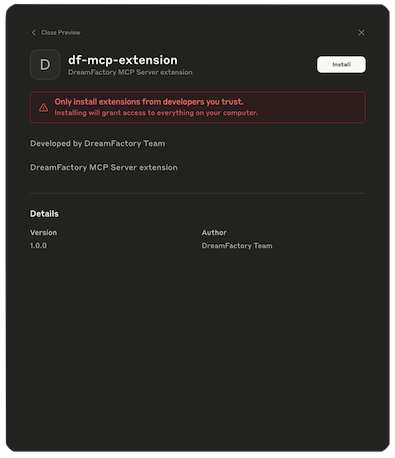
Click the Install button and you'll see:
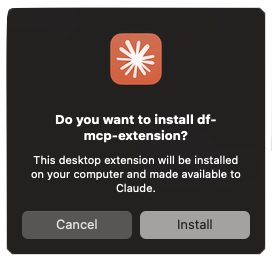
Click Install and if all goes well you'll be prompted to input a DreamFactory API key and service URL:
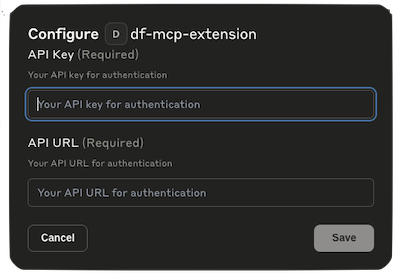
If you don't have this information readily available, just click Cancel. You can add it later by clicking on the Extensions tab inside Settings and then clicking Configure:

In either case, before you can use the DreamFactory MCP Server you'll need to manually enable it by flipping the Disabled switch to Enabled:

Manual Installation
-
Clone this repository and then install dependencies:
cd df-mcp npm install -
Build the project:
npm run build
Setting up Claude Desktop
-
Install Claude Desktop from https://claude.ai/download.
-
Open Claude Desktop and navigate to Settings.
-
In the Settings menu, go to the "Developer" section.
-
Click on "Edit Config" to modify Claude's configuration.
-
Add the following configuration to enable the DreamFactory MCP server:
{ "mcpServers": { "add": { "command": "node", "args": [ "/Users/dreamfactory/Documents/df-mcp/build/index.js" ], "env": { "DREAMFACTORY_URL": "https://example.dreamfactory.com/api/v2/<service-name>", "DREAMFACTORY_API_KEY": "" } } } } -
Important: Modify the path in the
argsarray to match your local installation path if different from/Users/dreamfactory/Documents/df-mcp/. -
Add your DreamFactory URL and API key to the
DREAMFACTORY_URLDREAMFACTORY_API_KEYenvironment variables as required. -
Save the configuration and restart Claude Desktop.
Note About Claude Desktop, NodeJS and NVM
DreamFactory MCP requires Node 22.10.0 or newer. Even if you are running Node 22.10 or newer, you may encounter a confusing issue if you're running NVM (Node Version Manager) which hampers installation. Sometimes these issues are further complicated if you're additionally using other developer tools such as Laravel Herd which make additional changes to Node paths.
If the MCP server log indicates the wrong version of Node is being used by Claude Desktop, you can easily force it to use the desired version by creating a shell script that looks something like this:
#!/bin/zsh
source ~/.zshrc
exec /Applications/Herd/config/nvm/versions/node/v22.17.1/bin/node
Call the script node-for-claude.sh or similar, and place it in /usr/local/bin. Then make it executable:
$ chmod +x node-for-claude.sh
Finally, update the claude_desktop_config.json file to point to this script:
{
  "mcpServers": {
        "df-mcp": {
            "command": "/usr/local/bin/node-for-claude.sh",
            "args": [
                "/Users/wjgilmore/Software/df-mcp/build/index.js"
            ],
            "env": {
               "DREAMFACTORY_URL": "<URL>",
                "DREAMFACTORY_API_KEY": "<API_KEY>"
            }
        }
  }
}
Usage
Once configured, the DreamFactory MCP server will be available to Claude Desktop. You can use DreamFactory's capabilities through Claude's interface.
Docker MCP Setup for Claude Desktop
Building the Docker Image
docker build -t df-mcp .
Configure Claude Desktop
Add this configuration to your Claude Desktop config file:
Location:
- macOS: ~/Library/Application Support/Claude/claude_desktop_config.json
- Windows: %APPDATA%\Claude\claude_desktop_config.json
- Linux: ~/.config/Claude/claude_desktop_config.json
Configuration
{
  "mcpServers": {
    "dreamfactory-mcp": {
      "command": "docker",
      "args": [
        "run",
        "--rm",
        "-i",
        "--env", "DREAMFACTORY_URL=https://your-dreamfactory-instance.com/api/v2/<service-name>",
        "--env", "DREAMFACTORY_API_KEY=your-api-key-here",
        "dreamfactory-mcp:latest"
      ]
    }
  }
}
Restart Claude Desktop
After updating the configuration, restart Claude Desktop to load the MCP server.
Testing the Docker Container
Run the included test script to validate the Docker setup:
./test-docker.sh
This will verify that the container builds correctly, responds to MCP commands, and all tools are properly registered.
Development
- Source code is located in the
srcdirectory - Built files are in the
builddirectory - Use
npm startto run the built server directly
Security
Found a security issue? Email us at security@dreamfactory.com.