Create Image
The Create Image showcase uses existing library clips as creative references. These clips suggest visual directions, while prompts are starting points and do not guarantee matching output or identify a clip's producing model. Text prompts and permitted reference images provide starting inputs. Describe a subject, composition, color, material and light for a still frame, or describe movement and camera direction when preparing a video scene. Existing library clips illustrate creative directions such as characters, product design and worlds. They are reference material, not promises of matching results or evidence that a particular suggested model produced the example clip. The pricing page lists Starter, Creator and Pro monthly subscriptions with 100, 300 and 1,000 credits per billing period respectively. The cost for an individual generation is displayed before you submit it.
Documentation
Frame one image, or set a story in motion.
IMAGE CREATION
Get composition, texture and light in place.
Explore characters, product visuals, covers and atmosphere. Focus on a single frame before deciding what comes next.
Start with
A text prompt; reference images with compatible models
Describe
Subject, composition, color, material and light
VIDEO CREATION
Bring action, pacing and camera movement together.
Explore character stories, product films and scenes. Choose a video model that supports your text or reference image in the workspace.
Start with
Text, or your own image with a compatible model
Describe
Subject movement, camera direction, changing surroundings and atmosphere
Every detail.Entirely imagined.
From light and texture to expression and atmosphere. Create images that feel real.
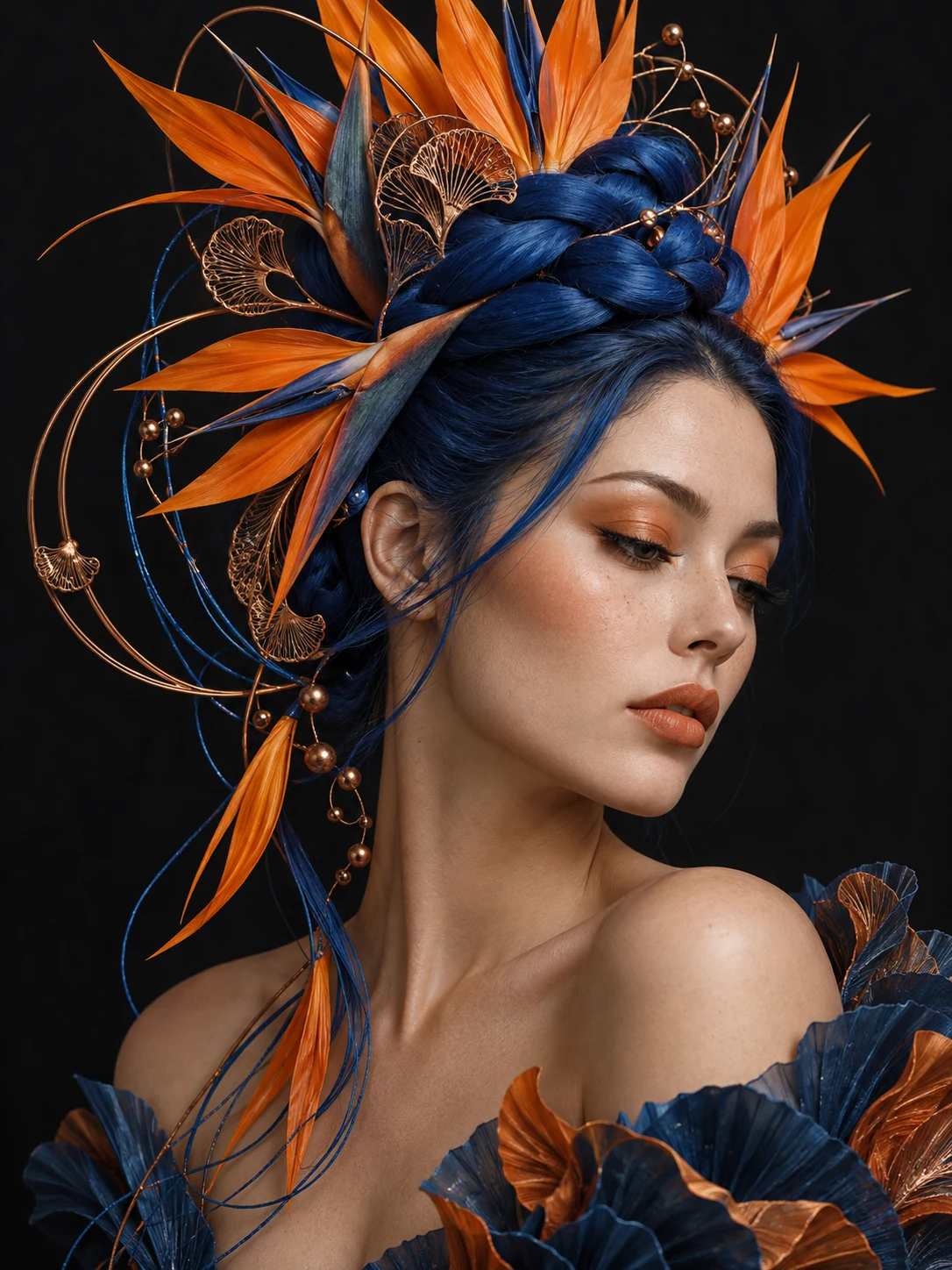
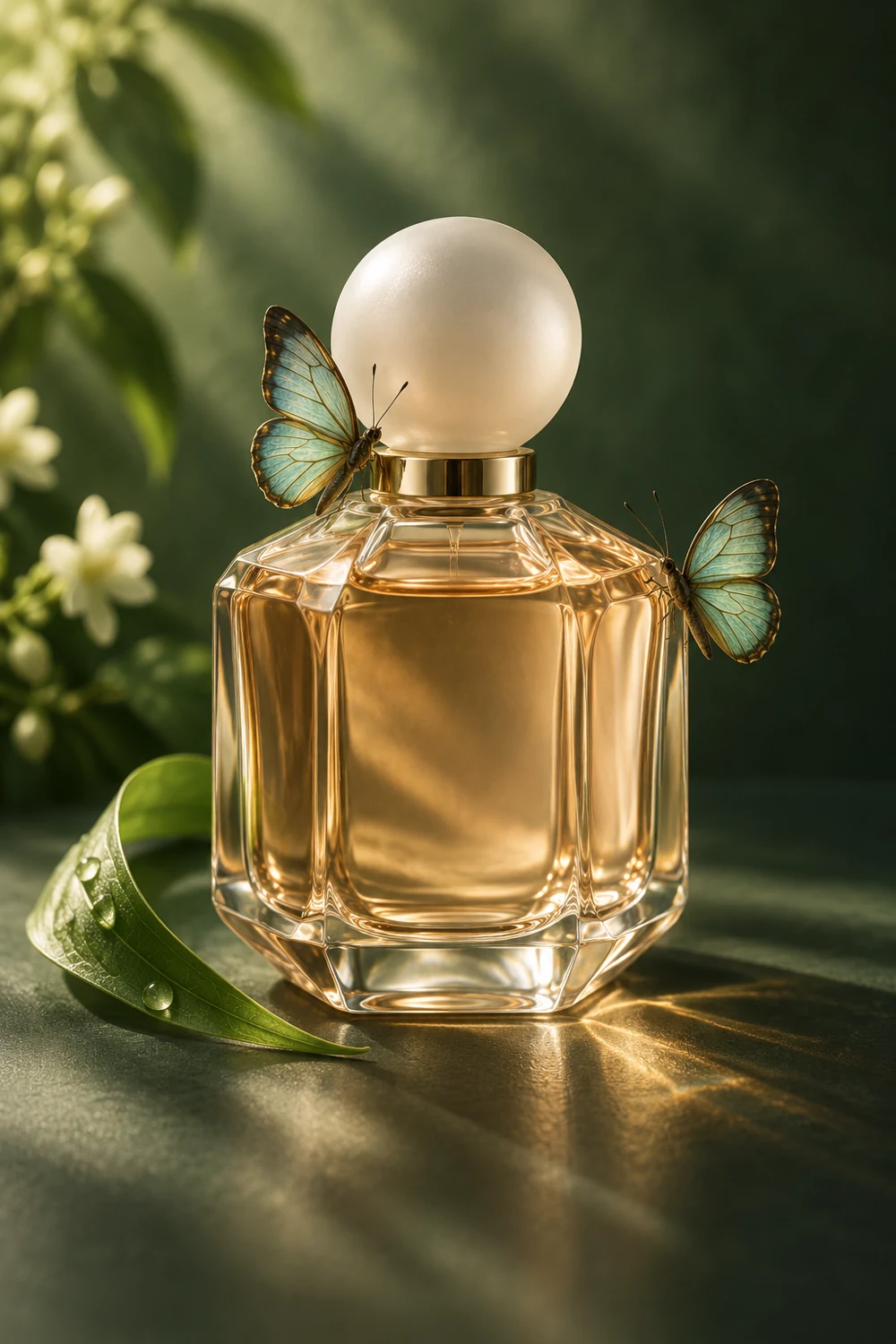
Portraits, products, and ideas brought to life.
One image.A scene in motion.
Start with a reference. Bring your story to life.
Character & movement
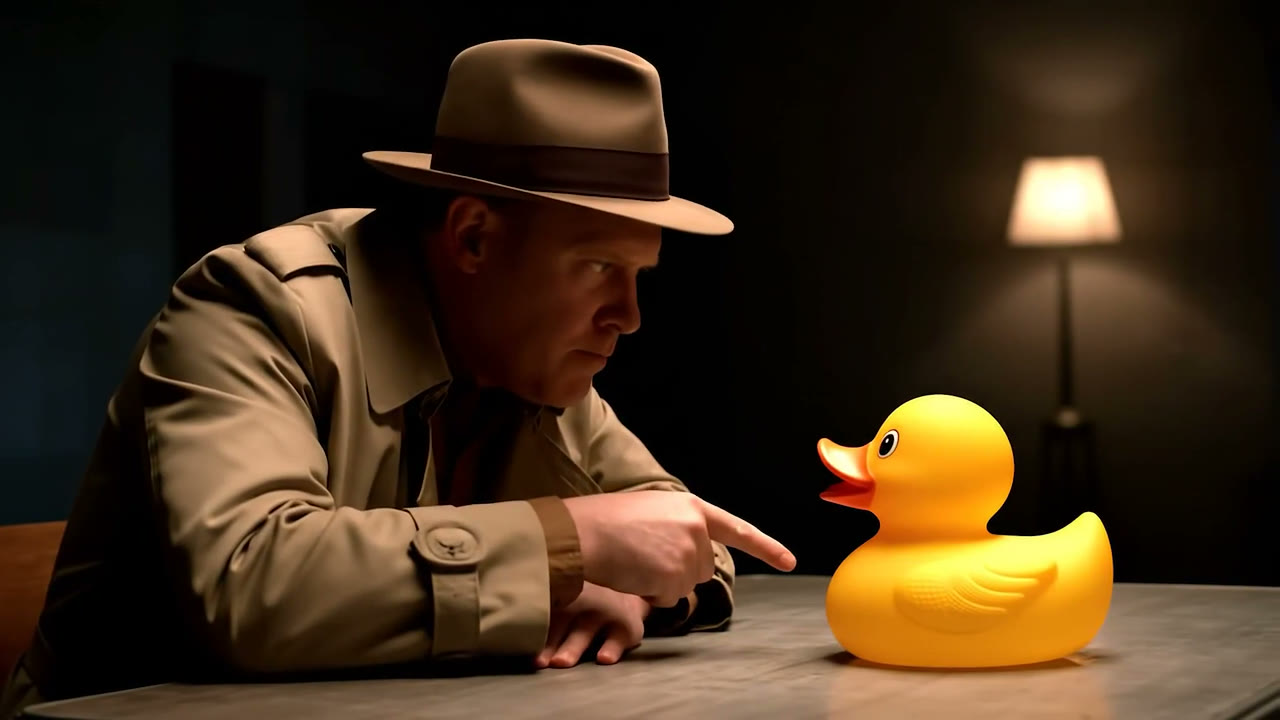
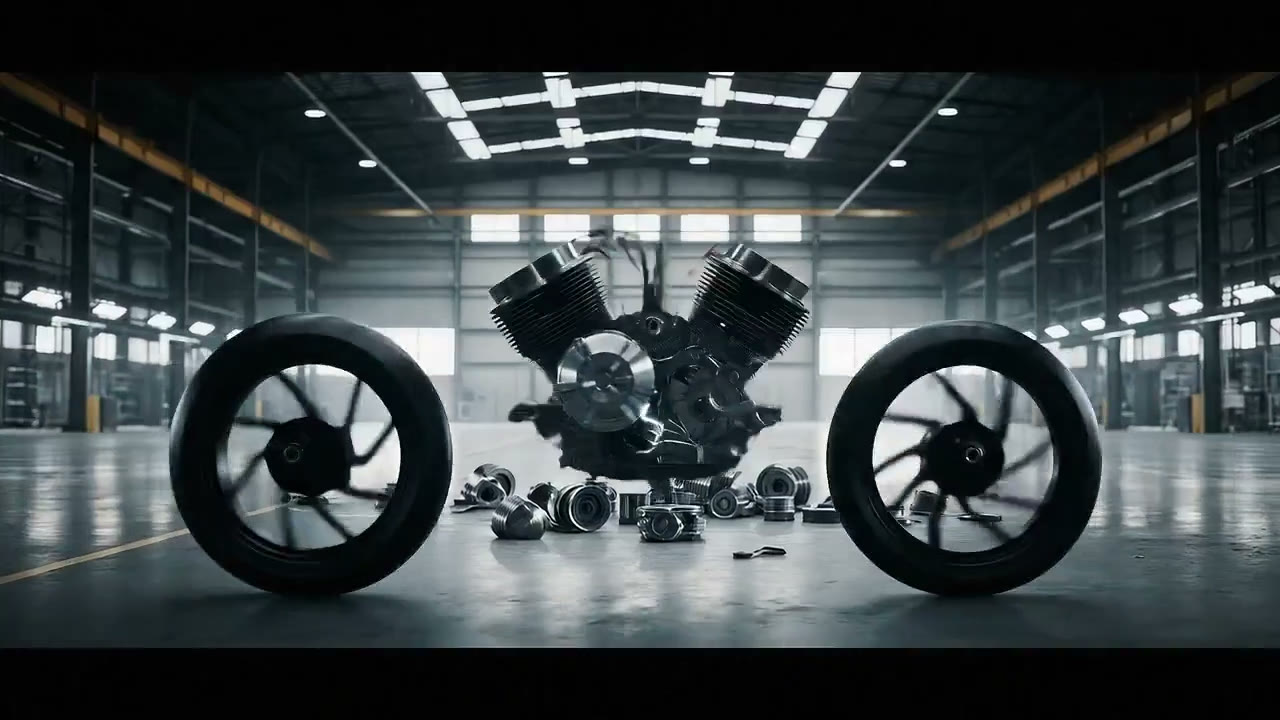
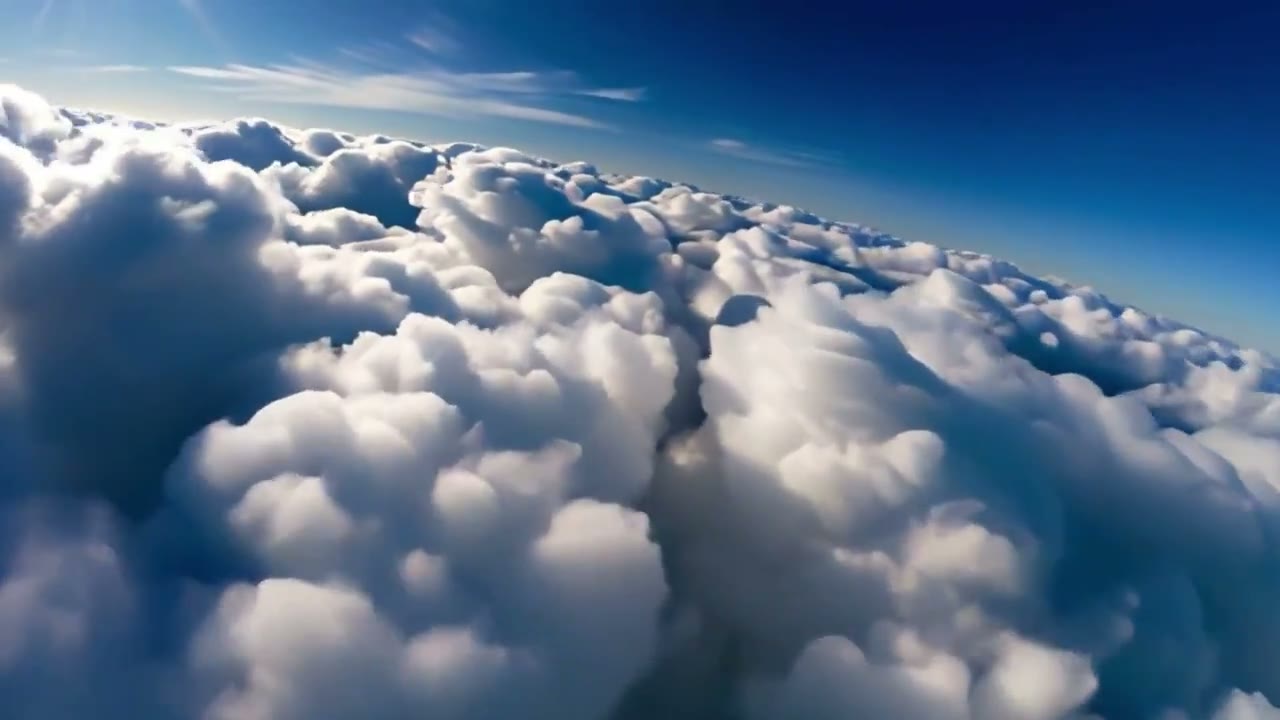
Curated motion examples for visual reference. Output depends on the selected model and prompt.
Keep creating.
The tools for your next idea.
Image Generator Describe an idea and explore image directions.Image to Video Add motion to a permitted reference image.Video Generator Build a scene from a text prompt.Explore All Tools Browse editing, enhancement and creative tools.
A clear starting point for your next creation.
Find a visual direction, then describe it, choose a model and generate in the workspace. Refine each step before moving on.
- 01
Find your visual direction
Start with a character, product or style reference. Look at the subject, lighting, composition and camera movement, then bring an idea into the workspace. Explore creative directions - 02
Make the idea specific
Describe your subject, setting and light. For reference-led work, upload an image you have permission to use and choose a compatible model. Adjust the available settings. Start with an image - 03
Review, then generate
Check your model, input and displayed credit cost before submitting. Follow task progress in My Library, then preview and download completed results. Open video workspace
Example links only prefill your input. They do not generate or charge credits. Check available models, settings and the displayed cost before submitting.
A few things to know.
Can I create both images and videos?
Yes. Choose image or video in the creative workspace. Available models, options and generation costs are shown before you submit.
Can I start with a reference image?
Yes. Upload an image you have permission to use, then select a compatible model and describe the result you want.
Where can I find my creations?
Sign in to view your generation history in My Library. From there, you can review and download completed images and videos.
Does choosing an example generate or charge credits?
No. Inspiration links only bring a prompt and generation type into the workspace. Choose a model, review settings and actively submit to generate. Check the displayed cost first.
Were these clips generated using the suggested prompts?
There is no one-to-one correspondence. Existing library clips illustrate visual directions, and prompts were written as starting points. They do not guarantee matching results or imply a specific model produced a clip.
Do all models support the same inputs and settings?
No. Text, reference images, aspect ratios and video duration depend on the selected model. Review available options after switching models. Unsupported combinations cannot be submitted.