Talk with Your Database
Interaja com bancos de dados PostgreSQL, MySQL, MariaDB e SQLite usando SQLAlchemy.
Documentação
Converse com seu banco de dados usando MCP
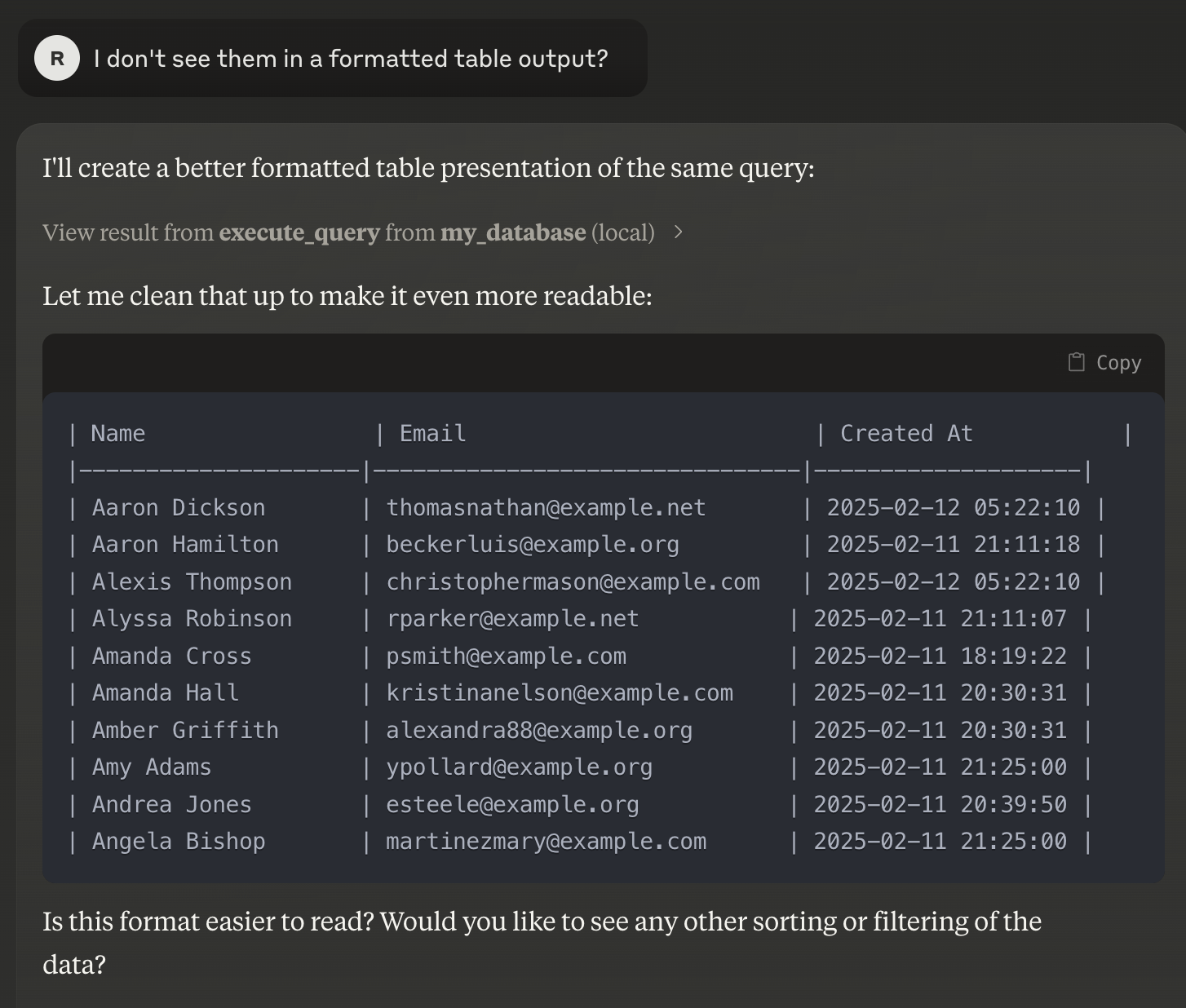
Este guia explica como configurar e executar seu servidor MCP para interagir com seu banco de dados PostgreSQL usando o Claude Desktop. Também deve funcionar com MySQL, MariaDB, SQLite, pois usa sqlalchemy internamente. Este projeto é construído sobre https://github.com/runekaagaard/mcp-alchemy
Nota: Este guia pressupõe que você tenha um entendimento básico de Docker, variáveis de ambiente e uso de CLI.
Pré-requisitos
- Docker Compose: Instruções de instalação
- Claude Desktop: Baixar aqui
- uv: Um gerenciador de pacotes Python moderno e de alto desempenho. Se não estiver instalado, siga as instruções abaixo.
1. Configurar Variáveis de Ambiente
- Copie e Renomeie o Arquivo de Ambiente
Duplique o arquivo.env.examplefornecido e renomeie-o para.env:cp .env.example .env
2. Configurar o Claude Desktop
- Baixe e Instale o Claude Desktop
Visite a página de download do Claude Desktop e instale o aplicativo.
3. Iniciar o Banco de Dados PostgreSQL com Dados de Exemplo
- Execute o Docker Compose
Certifique-se de que o Docker Compose esteja instalado e execute:docker-compose up -d- Este comando iniciará um banco de dados PostgreSQL em
localhost:5432e o preencherá com dados de exemplo.
- Este comando iniciará um banco de dados PostgreSQL em
4. Instalar uv (se ainda não estiver instalado)
- Instalar
uv
Execute o seguinte comando para instalaruv:curl -LsSf https://astral.sh/uv/install.sh | sh
5. Configurar e Iniciar o Servidor MCP
-
Criar/Atualizar a Configuração do Servidor MCP
Salve a seguinte configuração JSON no arquivo de configuração do seu servidor MCP (ajuste os caminhos se necessário):{ "mcpServers": { "my_database": { "command": "uv", "args": [ "--directory", "/directory/where/this/app/is/located/app/", "run", "server.py" ], "env": { "DB_URL": "postgresql://postgres:password@localhost:5432/mydatabase" } } } }- Dica: Se o
uvestiver instalado em um local não padrão, atualize o valor de"command"para refletir o caminho completo para o executável.
- Dica: Se o
-
Iniciar o Servidor MCP
Com a configuração em vigor, o servidor MCP iniciará automaticamente sempre que o Claude Desktop for iniciado.
6. Aproveite sua Configuração
- Abra o Claude Desktop.
- A ferramenta chamará automaticamente o seu servidor MCP, permitindo que você interaja com seu banco de dados sem problemas.
Resumo
- Configurar Variáveis de Ambiente: Copie
.env.examplepara.env. - Instalar e Executar o Claude Desktop: Baixe do Claude Desktop.
- Iniciar o PostgreSQL com Docker Compose: Execute
docker-compose uppara iniciar o banco de dados com dados de exemplo. - Instalar
uv: Execute o comando de instalação fornecido, se necessário. - Configurar o Servidor MCP: Atualize o arquivo de configuração e garanta que os caminhos e as variáveis de ambiente estejam corretos.
- Iniciar e Aproveitar: Inicie o Claude Desktop para começar a interagir com seu banco de dados via MCP.
Se você encontrar algum problema ou precisar de mais assistência, consulte a documentação relevante ou entre em contato com sua equipe de suporte.
Boa codificação!