Kapture
Una extensión de Chrome DevTools que permite la automatización del navegador a través del Protocolo de Contexto de Modelo (MCP) para aplicaciones de IA.
Documentación
Kapture - Automatización de Navegador vía Chrome DevTools
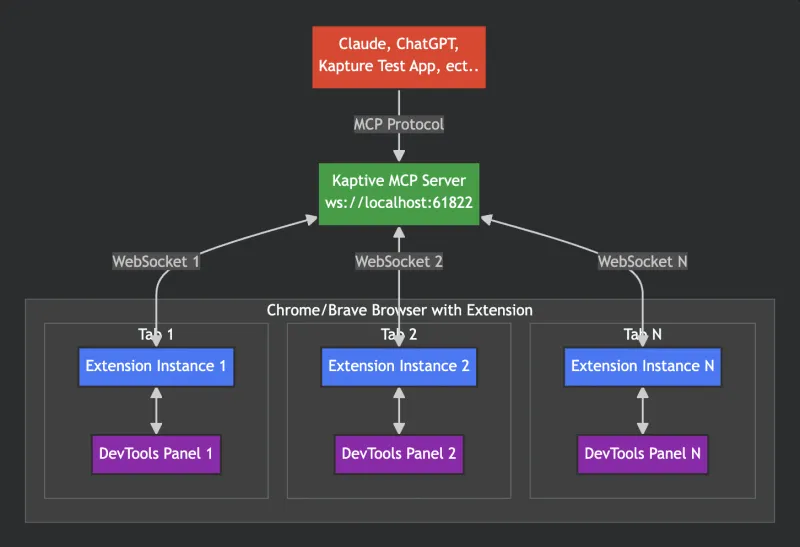
Kapture es una Extensión de Chrome DevTools que permite la automatización de navegadores a través del Protocolo de Contexto de Modelos (MCP). Permite que aplicaciones de IA como Claude controlen navegadores web mediante una arquitectura de tres capas.
✨ Característica Clave: ¡Múltiples clientes de IA pueden conectarse al mismo servidor! Claude Desktop, Cline y otros clientes MCP pueden controlar pestañas del navegador a través de una única instancia del servidor.
Disponible en Chrome Web Store
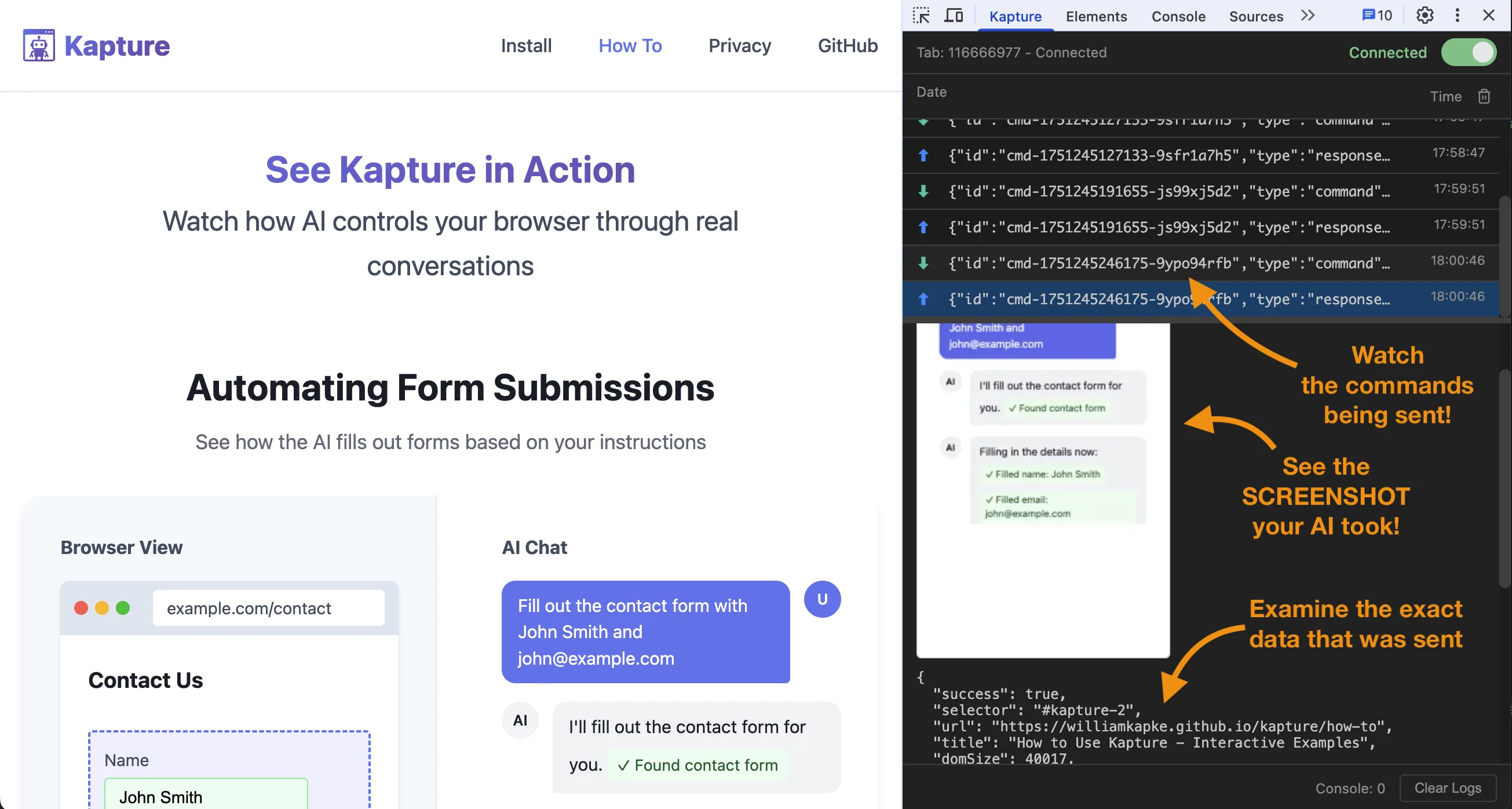
Descripción General
Kapture conecta asistentes de IA con navegadores web a través de:
- Servidor MCP: Maneja la comunicación del protocolo MCP
- Extensión de Chrome: El service worker en segundo plano ejecuta comandos de automatización del navegador (no es necesario tener DevTools abierto)
- Puente WebSocket: Comunicación en tiempo real entre el servidor y las extensiones
- Soporte Multi-Cliente: Múltiples clientes de IA pueden conectarse simultáneamente vía WebSocket
Arquitectura
Inicio Rápido
1. Instalar Dependencias
# Server
cd server
npm install
npm run build

# Test App (optional)
cd test-app
npm install
2. Instalar la Extensión de Chrome
Opción A: Instalar desde Chrome Web Store (Recomendado)
- Visita la página de Kapture en Chrome Web Store
- Haz clic en "Añadir a Chrome"
- Confirma la instalación
Opción B: Cargar Desempaquetada (Modo Desarrollador)
- Abre Chrome y navega a
chrome://extensions/ - Activa el "Modo desarrollador"
- Haz clic en "Cargar descomprimida"
- Selecciona la carpeta
extension
3. Iniciar el Servidor MCP
Configura tu cliente de IA y ábrelo. Iniciará el servidor MCP automáticamente.
O
Ejecuta la Aplicación de Prueba:
cd test-app
npm run dev
El servidor se inicia en el puerto 61822.
# Server
cd server
npm start

# Test App
cd test-app
npm start
4. Conectar una Pestaña
- Abre cualquier sitio web en Chrome
- Haz clic en el ícono de la barra de herramientas de Kapture y activa el interruptor de conexión
- La extensión se conecta al servidor en el puerto 61822 (la insignia muestra ✓ cuando está conectada)
Alternativamente, conéctate desde el panel "Kapture" en DevTools, o carga una página con ?kapture-connect=true en la URL para conectarte automáticamente.
Uso con Claude Desktop
Añade a la configuración de tu Claude Desktop:
Opción 1: Usando el comando bridge (Recomendado)
Este comando único inicia el servidor y maneja la traducción de stdio a WebSocket:
{
  "mcpServers": {
    "kapture": {
      "command": "npx",
      "args": ["-y", "kapture-mcp@latest", "bridge"]
    }
  }
}
Opción 2: Conexión WebSocket Directa (Avanzado)
Para casos de uso avanzados donde necesitas control manual del servidor:
- Inicia el servidor manualmente:
npx kapture-mcp
- Configura Claude Desktop para conectarse vía WebSocket:
{
  "mcpServers": {
    "kapture": {
      "transport": "websocket",
      "url": "ws://localhost:61822/mcp"
    }
  }
}
Nota: Este enfoque requiere gestionar manualmente el ciclo de vida del servidor. Usa la Opción 1 (comando bridge) para la mayoría de los casos de uso.
🚀 Ejecuta Múltiples Asistentes de IA Simultáneamente
Kapture soporta múltiples clientes MCP conectándose al mismo servidor. Puedes ejecutar Claude Desktop, Cline y otros clientes MCP simultáneamente a través de una única instancia del servidor.
Cómo Funciona
- Todos los clientes MCP se conectan vía WebSocket a
ws://localhost:61822/mcp - Todos los clientes MCP comparten acceso a las mismas pestañas del navegador
- Las notificaciones se transmiten a todos los clientes conectados
Detección Inteligente de Servidor
Al ejecutar npx kapture-mcp, el comando detecta automáticamente si ya hay un servidor en ejecución:
- Sin servidor existente: Inicia un nuevo servidor en el puerto 61822
- Servidor ya en ejecución: Muestra información de conexión y sale correctamente
Esto previene errores y confusión cuando múltiples clientes intentan iniciar servidores.
Configuración de Múltiples Clientes
Cada cliente debe usar la misma configuración de comando bridge:
Claude Desktop:
{
  "mcpServers": {
    "kapture": {
      "command": "npx",
      "args": ["-y", "kapture-mcp@latest", "bridge"]
    }
  }
}
Cline/VS Code:
{
  "cline.mcpServers": {
    "kapture": {
      "command": "npx",
      "args": ["-y", "kapture-mcp@latest", "bridge"]
    }
  }
}
Otros Clientes MCP:
Usa el mismo patrón de configuración con "command": "npx" y "args": ["-y", "kapture-mcp@latest", "bridge"].
Consulta la guía completa de múltiples asistentes →
Beneficios de Múltiples Asistentes de IA:
- Flujos de Trabajo en Paralelo: Ten a Claude Desktop investigando mientras Cline desarrolla código
- Tareas Especializadas: Usa diferentes clientes de IA para diferentes tipos de automatización
- Colaboración en Equipo: Múltiples miembros del equipo pueden usar sus herramientas de IA preferidas simultáneamente
- Pruebas y Desarrollo: Prueba scripts de automatización con una IA mientras desarrollas con otra
Luego pide a Claude que interactúe con páginas web:
- "Navega a example.com y toma una captura de pantalla"
- "Haz clic en el botón de búsqueda"
- "Rellena el campo de correo electrónico con test@example.com"
Herramientas MCP Disponibles
navigate- Navegar a una URLback- Botón de retroceso del navegadorforward- Botón de avance del navegadorreload- Recargar la página actual (similar a presionar F5)click- Hacer clic en elementos (usa el primer elemento que coincida, devuelve un selector único)hover- Pasar el cursor sobre elementos (usa el primer elemento que coincida, devuelve un selector único)fill- Rellenar campos de entrada estableciendo el valor directamente (usa el primer elemento que coincida, devuelve un selector único)type- Escribir una cadena como pulsaciones de teclas individuales (eventos de teclado reales; funciona en entradas "falsas" que ignoran element.value)insertText- Insertar una cadena completa de una vez (dispara eventos de entrada pero no eventos por tecla; bueno para texto masivo y editores como Google Docs)clear- Limpiar un campo de texto mediante seleccionar todo + Retroceso (eventos de teclado reales; funciona en entradas "falsas")select- Seleccionar opciones de listas desplegables (solo HTML<select>, usa el primer elemento que coincida, devuelve un selector único)keypress- Enviar eventos de teclado a la página o a elementos específicos (soporta teclas modificadoras)scroll- Desplazar un elemento a la vista (selector/xpath) o a una coordenada absoluta x/y del documentoelements- Consultar todos los elementos que coincidan con un selector CSS o XPath con filtrado opcional de visibilidadconsole_logs- Obtener el contenido de la consola de la pestaña (mensajes de consola, excepciones no capturadas, entradas generadas por el navegador)watch_console- Observar la consola en tiempo real durante un tiempo de espera requerido (ms), luego devolver todo lo registrado durante la ventananetwork_monitor- Activar/desactivar la monitorización de red para una pestaña (booleanoenabled). Mientras esté activada, los metadatos de cada solicitud se capturan en un búfer por pestaña. Los observadores se rastrean por identidad del cliente: la activación es idempotente, la monitorización permanece activa hasta que todos los observadores la desactiven (oforce:true), y los clientes desconectados se liberan automáticamente. El búfer se limpia cuando la monitorización se detiene por completo. Actívala antes del tráfico que deseas observar — la captura no tiene historial. (Extensión 1.1.0+)network_requests- Listar las solicitudes capturadas; cada una lleva unrequestId, unseqmonotónico, yhasPostDatacuando la solicitud tenía un payload. Consulta incrementalmente pasando elcursorde la llamada anterior comosince.network_body- Obtener los cuerpos de una solicitud porrequestId(la monitorización debe estar activa): el payload POST derequestBodyy elbodyde la respuesta. Truncado amaxBytes(predeterminado 65536) conbodyTruncated:truemientrassizeinforma la longitud completa; devuelvebodyErrorsi el cuerpo de la respuesta fue desalojado o está en streaming (text/event-streamno se puede leer vía CDP).evaluate- Ejecutar JavaScript en la página y devolver el resultado. Desactivado por defecto: solo disponible después de activar el interruptor "Permitir ejecución de JS" en el popup de la extensión o en el panel de DevTools para una pestaña conectada. El permiso se restablece al desconectar.compose- Ejecutar una secuencia de comandos contra una pestaña en una sola llamada. El script es un comando por línea como<tool>?<query-string>(máswait?t=<ms>); se ejecuta en orden, se detiene en el primer error, devuelve un array de respuestas por comando.
Nota sobre Selectores: Las herramientas que aceptan un parámetro selector (click, hover, fill, type, insertText, clear, select, keypress, scroll, screenshot, dom) solo operarán en el primer elemento que coincida con el selector CSS. La respuesta de la herramienta incluye el selector único del elemento real que se usó, que puede incluir un ID generado automáticamente si el elemento no tenía uno.
Soporte XPath: Todas las herramientas que aceptan un parámetro selector también aceptan un parámetro xpath como alternativa. Esto es particularmente útil para:
- Encontrar elementos por contenido de texto:
xpath: "//button[contains(text(), 'Submit')]" - Relaciones complejas entre elementos:
xpath: "//div[@class='container']//span[2]" - Cuando los selectores CSS son insuficientes
Usa selector O xpath, no ambos. Si se proporcionan ambos, selector tiene prioridad.
Herramienta de Pulsaciones de Teclas
La herramienta keypress simula eventos de teclado. Acepta:
key(requerido): La combinación de teclas a presionar. Puede ser:- Tecla única:
"a","Enter","Tab","Escape"," "(espacio),"Shift","Control" - Con modificadores:
"Control+a","Shift+Tab","Alt+F4","Meta+Shift+p" - Nombres de modificadores:
Control(oCtrl),Shift,Alt,Meta(oCmd/Command) - Nota: Al enviar solo una tecla modificadora (ej.,
"Shift"), se trata como presionar esa tecla sola - Los modificadores duplicados se ignoran (ej.,
"Shift+Shift+a"es igual a"Shift+a")
- Tecla única:
selectoroxpath(opcional): Apuntar a un elemento específico. Si no se proporciona, envía a document.body
Ejemplos:
// Press Enter
{ "key": "Enter", "selector": "#login-form" }

// Select all text (Ctrl+A)
{ "key": "Control+a", "selector": "#username" }

// Zoom in (Ctrl+Plus)
{ "key": "Control++", "selector": "body" }

// Zoom out (Ctrl+Minus)
{ "key": "Control+-", "selector": "body" }

// New tab (Ctrl+T)
{ "key": "Control+t" }

// Close tab (Ctrl+W or Cmd+W on Mac)
{ "key": "Meta+w" }
Recursos MCP
kapture://tabs- Listar todas las pestañas del navegador conectadaskapture://tab/{tabId}- Obtener información detallada sobre una pestaña específicakapture://tab/{tabId}/console- Obtener registros de consola de una pestaña específica (con soporte de paginación)kapture://tab/{tabId}/screenshot- Capturar capturas de pantalla de una pestaña o elementokapture://tab/{tabId}/dom- Obtener contenido HTML de una pestaña o elementokapture://tab/{tabId}/elementsFromPoint- Obtener elementos en coordenadas específicaskapture://tab/{tabId}/elements?selector={selector}&visible={true|false|all}- Consultar todos los elementos que coincidan con un selector CSS o XPath con filtrado opcional de visibilidad
Desarrollo
Desarrollo del Servidor
cd server
npm run dev    # Development with hot-reload
Aplicación de Prueba
cd test-app
npm run dev    # Run Electron test app
Desarrollo de la Extensión
Después de hacer cambios:
- Ve a
chrome://extensions/ - Haz clic en actualizar en la extensión Kapture
Componentes Clave
Servidor (/server/src):
mcp-server-manager.ts- Implementación del protocolo MCP (una instancia de servidor por cliente)browser-websocket-manager.ts- Servidor WebSocket para conexiones de extensióntab-registry.ts- Seguimiento de pestañastool-handler.ts+tools.yaml- Definiciones de herramientas MCP y despacho
Extensión (/extension):
background.js+modules/- Service worker: posee conexiones WebSocket y ejecuta comandos (vía APIschrome.debuggerychrome.tabs)page-helpers.js- Script de contenido que maneja comandos DOM (dom,elements,fill,select, ...)modules/background-console.js- Recuperación de consola vía CDP (lee el búfer de consola por página de Chrome; sin almacenamiento de registros en la extensión)popup.js- Popup de la barra de herramientas con interruptor de conexiónpanel.js- Panel de DevTools (interruptor de conexión, visor de mensajes WebSocket)
Características del Panel de DevTools
- Interruptor de Conexión - Conectar/desconectar la pestaña inspeccionada
- Estado de Conexión - Indicador de conexión al servidor en tiempo real
- Visor de Mensajes - Vista en vivo de mensajes WebSocket entre la extensión y el servidor
- Configuración de Keepalive - Intervalo de ping configurable
El panel es opcional — las conexiones y comandos son manejados por el service worker en segundo plano, por lo que la automatización funciona con DevTools cerrado.
Solución de Problemas
Problemas de Conexión
- La extensión se conecta al servidor en el puerto 61822
- Verifica que el servidor esté ejecutándose (
curl http://localhost:61822/) - Revisa la insignia del ícono de la barra de herramientas: ✓ = conectado, ↻ = reintentando
- Revisa la consola del service worker en segundo plano (
chrome://extensions/→ Kapture → service worker) - Revisa los registros del servidor en la terminal
La Extensión No Aparece
- Asegúrate de que la extensión esté cargada y habilitada
- Cierra y vuelve a abrir DevTools
- Recarga la extensión en
chrome://extensions/
Tiempos de Espera de Comandos
- El tiempo de espera predeterminado es de 5 segundos
- Algunos comandos aceptan un parámetro de tiempo de espera personalizado
- Verifica que los selectores de elementos sean correctos
Seguridad
- Los comandos DOM se ejecutan en el mundo aislado del script de contenido; los comandos de entrada/navegación/captura de pantalla usan
chrome.debugger(CDP) - Cada pestaña tiene un ID único que evita interferencias entre pestañas
- Sin acceso directo al sistema de archivos desde la extensión
- El registro de pestañas aplica el aislamiento de comandos
Licencia
MIT