Local MCP (LMCP)
143 lokale Tools für Claude, Cursor & ChatGPT — Mail, iMessage, Teams, Slack, WhatsApp & Dateien. 100 % lokal, keine API-Schlüssel.
Dokumentation
LMCP — Context and Actions for Your AI


Give your AI the context to get things done. LMCP connects compatible assistants to your apps and accounts through the Model Context Protocol (MCP). Bring together relevant information from email, messages, calendars and files, then use tools to turn that context into useful action — with less searching and copying between apps.
Use it with Claude, ChatGPT, Codex, Cursor and other compatible MCP clients. Available integrations and connection methods vary by assistant, platform and permissions.
Download for Mac or Windows → · Explore the product · Setup guides
This repository contains release information, documentation and the npm wrapper. The core binary is proprietary; documentation and scripts have their own license — see LICENSE.
More than one app's view of your information
An email, a message and a document may each contain only part of the answer. With compatible tools and access you authorize, your assistant can find those pieces across apps and accounts and use them together.
| What you ask | How connected context helps |
|---|---|
| “Tell me everything I still owe the architect — I can't remember her name.” | Search relevant messages, email and files to identify the person and assemble outstanding requests with their sources. |
| “Help organize my day so I can meet my commitments.” | Combine calendar events, tasks and relevant messages to propose a realistic plan and make supported updates when authorized. |
| “Prepare replies to customer orders using the inventory and plan dispatch.” | Read accessible order and inventory information, draft replies and use supported scheduling tools. Review proposed actions before authorizing execution. |
These illustrate workflows an assistant can build from available tools, not guaranteed autonomous outcomes. Sources must be accessible; assistant capabilities and each tool's permissions still apply.
Apps and tools
Explore email, calendars, contacts, messages, tasks, files, documents, browser automation and other integrations. Examples include Apple Mail, Outlook, Microsoft Teams, Slack, WhatsApp, Signal, Google Drive, OneDrive, Microsoft 365, Notes, Reminders, Microsoft To Do, OmniFocus, Notion and ServiceNow.
Not every integration is available on both operating systems. Apple-native tools require macOS; connected services may need their own sign-in or permissions. Some tools use locally cached or synced data rather than a complete cloud account.
For current tools, requirements and platform coverage, use the tool reference and guides rather than a fixed count in this README.
See it work
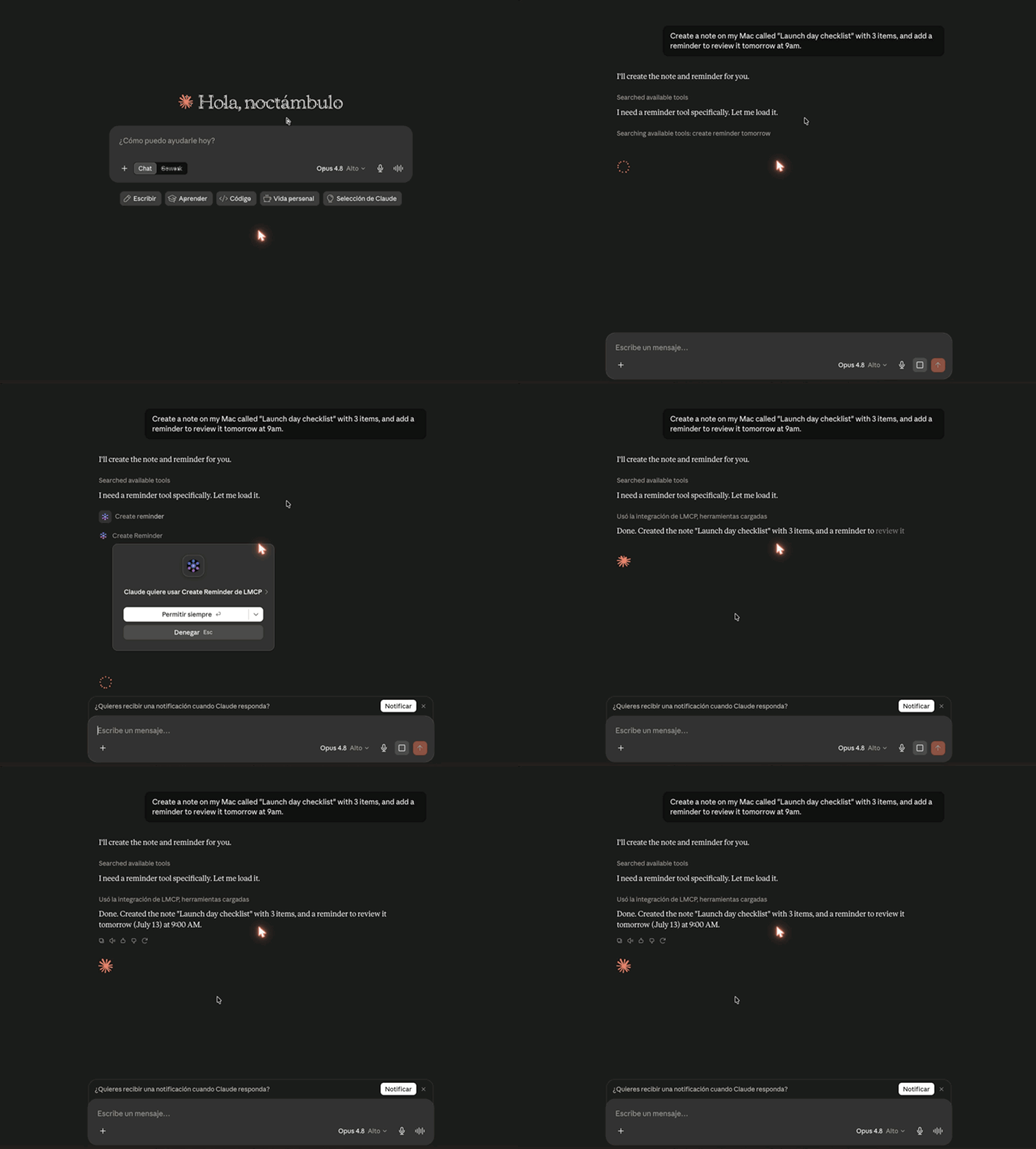
The recording shows a Mac workflow through Cloud Data Forwarding, not every platform or integration.
Install and connect
- Download LMCP for your operating system. Follow the installer and onboarding steps.
- Select your assistant and enable the compatible integrations you want to use.
- Grant required permissions or sign in where needed, then follow the assistant-specific setup guide.
Supports macOS 13+ and Windows 10+ (64-bit). Linux, iOS and Android are not supported yet; join the waitlist on the download page.
Choose one installation path:
- Signed installer for Mac (
.pkg) or Windows: download page. - macOS terminal:
curl -fsSL 'https://www.local-mcp.com/install?ref=github-releases' | bash - Windows PowerShell:
irm https://www.local-mcp.com/install-windows?ref=github-releases | iex(per-user, no administrator rights or Node.js needed). - Claude Desktop extension: one-click
.mcpbat www.local-mcp.com/install/mcpb. - npm (requires Node.js):
npx -y local-mcp@latest setupconfigures the compatible clients it detects.
Details for agents and each path: llms-install.md. After installing, fully restart your AI client; MCP tools load at startup.
Local desktop/CLI clients and web assistants connect differently. The installer configures the compatible local clients it detects. Web assistants (ChatGPT, Claude.ai, Grok, Perplexity) connect through https://www.local-mcp.com/mcp as a custom connector with OAuth. They need the local app installed and Cloud Data Forwarding enabled in LMCP (off by default); with forwarding off, the connector exposes only setup_install. Follow the web AI guide and the current guides.
An endpoint alone is not a verified connection: complete authorization and check that tools are available in your client.
How it works
Your assistant → MCP → available tools → relevant apps and accounts → context and actions.
Compatible tools execute on your computer. Some read native data, local caches or synced files; others connect to services requiring authentication and a network connection. Your assistant chooses tools for your request within the access you grant — it does not automatically gain access to every account.
Local tools, clear data boundaries
- Local execution does not mean a cloud AI receives no data. Your chosen assistant or connected service may receive content needed for your request, including when a desktop client uses a cloud model.
- Cloud Data Forwarding is optional, off by default, and lets supported web assistants reach tools on your computer. Review its data flow and provider policies before enabling it.
- Permissions, preview and confirmation support vary by tool. Review behavior and authorize actions before execution; do not assume a universal confirmation dialog.
- Locally available read operations may work offline. Cloud models, connected services, sending and remote updates can require a network connection.
See Privacy and Security. Compliance depends on your complete workflow and provider agreements, not only on where a tool runs.
Learn more
- Apple Mail with Claude
- ChatGPT, Claude.ai, Grok and Perplexity on the web
- Microsoft Teams without Graph API
- WhatsApp on Mac
- Recipes and workflows
Releases and support
See GitHub Releases for this repository's history and the download page for current installers. Mac and Windows can have different release versions; a GitHub tag alone is not a fleet-wide deployment signal.
- Report a problem through LMCP's available feedback tools or open an issue. Include OS and app version, and remove sensitive content from logs.
- Request a feature through the available feedback tools or GitHub Issues.
- Contact ctpo@colibird.co for support; see SECURITY.md for vulnerabilities.
- For current availability and commercial terms, see the website and LICENSE. This README does not promise permanent pricing or future features.
If LMCP helps you, star the repository to help others discover it.