HomeLab Monitor
自托管家庭实验室仪表板内的只读MCP服务器——可查看主机、Docker容器、GPU/VRAM、systemd服务、AI模型、告警和磁盘。
文档
 HomeLab Monitor







One page for your whole home lab & AI rig — GPU truth (any vendor), tokens/sec, power cost by the hour, uptime, training runs, containers, disks. No agents, no separate metrics stack, no cloud.
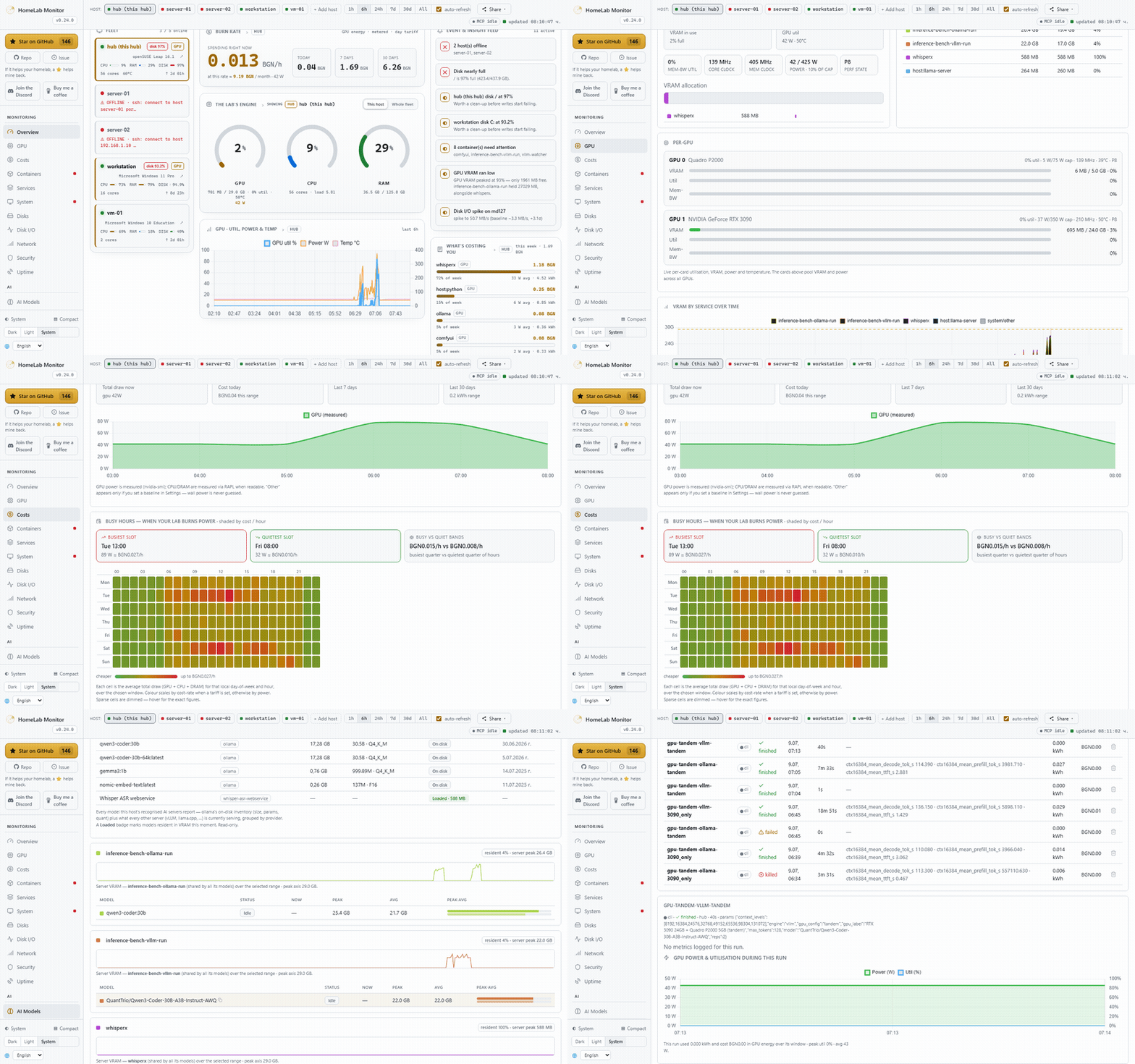
Your home lab grew into a couple of machines, a Pi, and a GPU that's mysteriously always busy — and lately it's running models too. HomeLab Monitor gives you one self-hosted page that answers the real questions: what's that GPU actually doing, which model is holding it, what's it costing you to run, which container is eating RAM, what's filling your disks, and is anything down — across every box over SSH: Linux, a Pi, even Windows. Readable from your phone over the VPN.
Get started
# Grab the compose file and go. No GPU required — the GPU panels just light up when one's present.
curl -fsSLO https://raw.githubusercontent.com/SikamikanikoBG/homelab-monitor/main/docker-compose.yml
docker compose up -d
Open http://<your-host>:9800 and you're done. Full options (from source, GPU toolkit, Windows/WSL2) → Install docs.
🆕 What's new — every release is written up in full, with the reasoning behind it: latest release · changelog. The dashboard also shows you the notes once, in-app, after it updates itself.
What you get
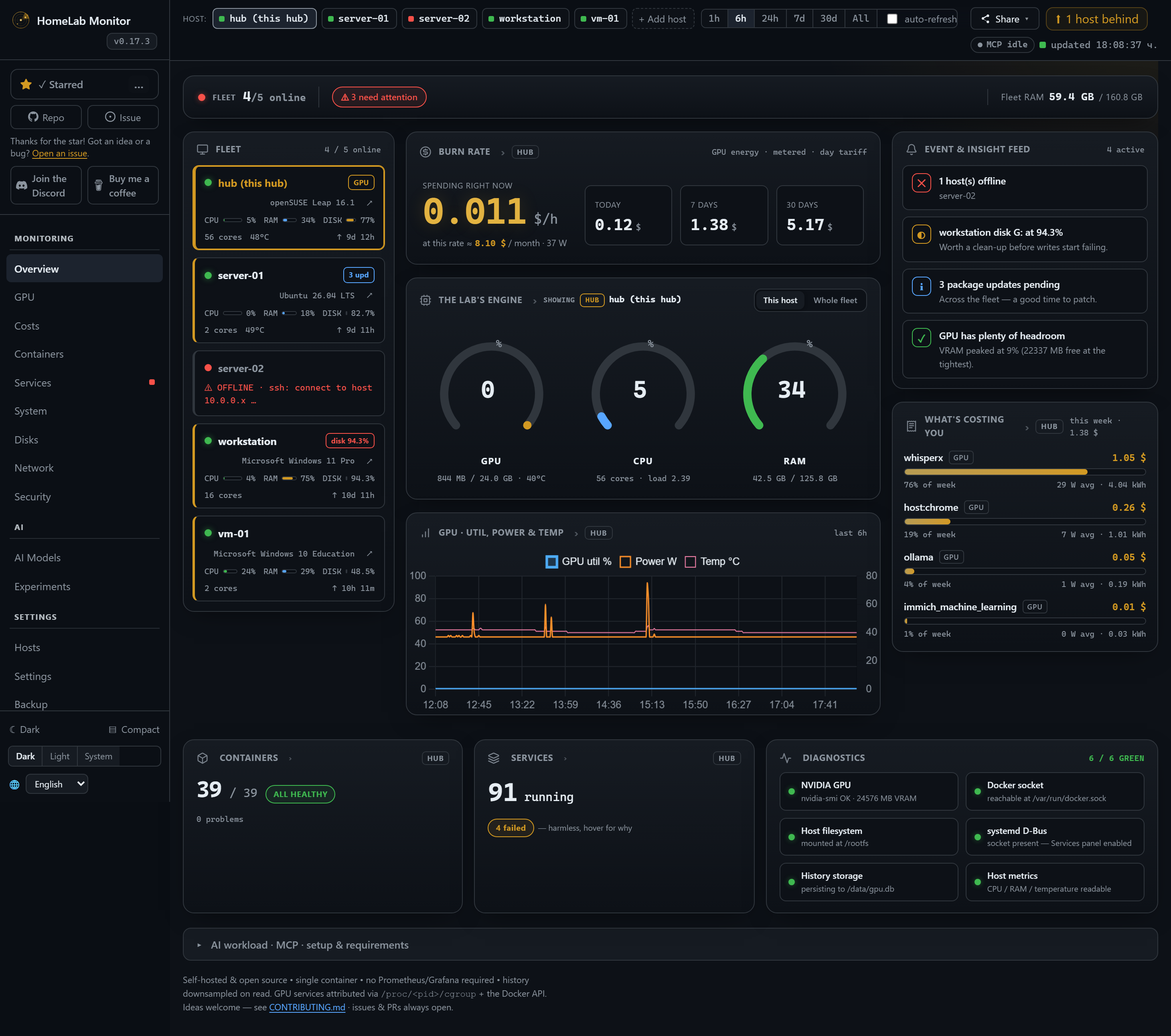
One page, every box, the questions you actually have. The classics are all here — and a whole AI cockpit builds on top of them.
A front page for your lab — and a wall screen. The Overview opens with a Launchpad: the apps you actually open, as tiles with their real logos, pinned straight from a container row with the address already filled in, grouped and dragged into the order you want. Pins live on the hub, not in one browser — pin it on the laptop and it's there on the phone and on the wall. The whole board fits the screen: it measures its own overrun after every paint and gives ground in order — trimming lists, tightening the fleet rail, folding pins behind a +N more — rather than clipping a card in half or running past the fold. Verified from 4K down to 1366×768. And ⛶ Display (or /?display=1, all a dedicated kiosk box needs) drops every scrap of chrome and fills the monitor: you choose which panels the wall shows, and on Chromium-based browsers it opens full-screen on whichever screen you point it at.
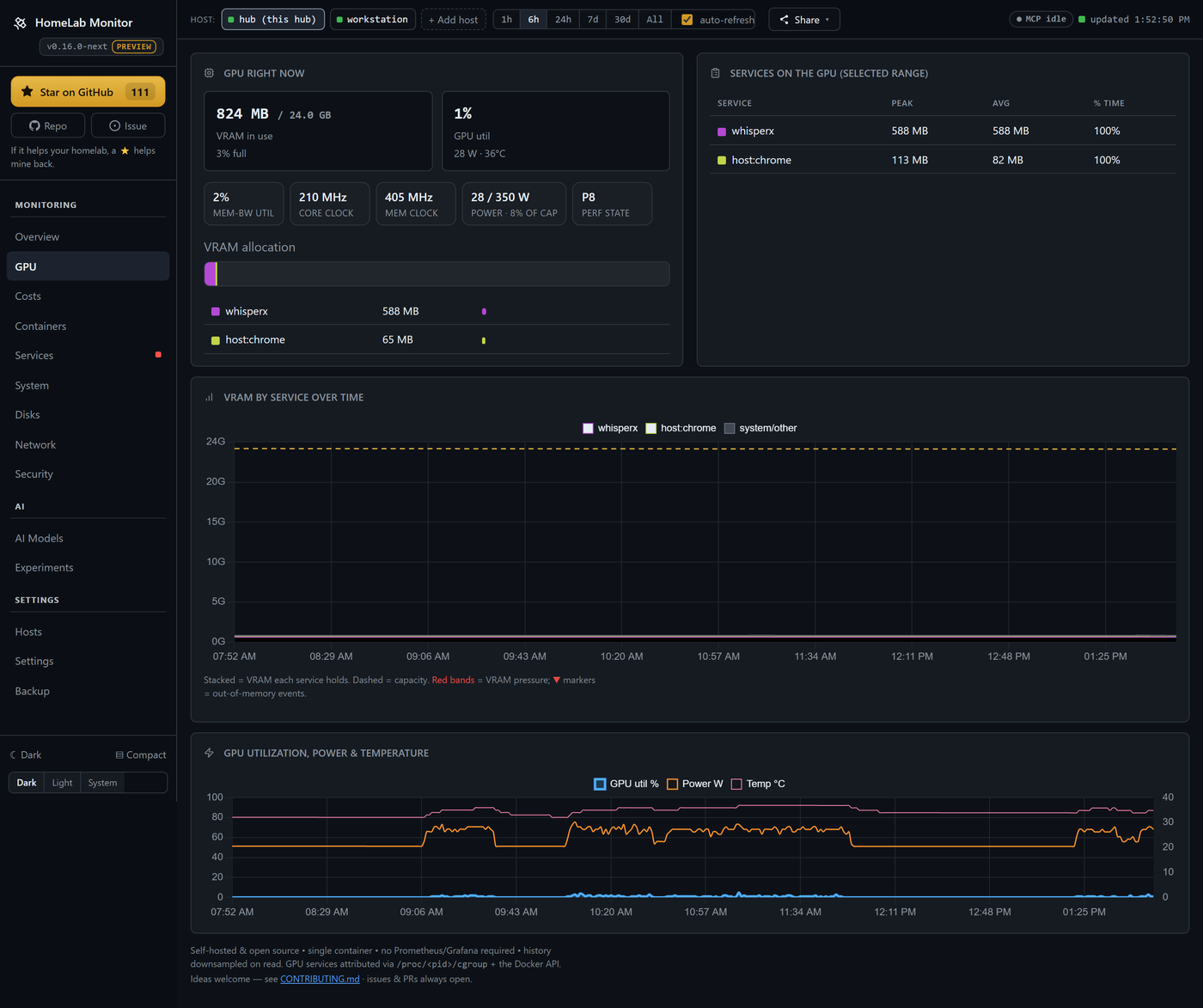
Your GPU, demystified — and the same tab on every box. A card pinned at "100% util" can still be throttling, memory-bandwidth-bound, or quietly drooping its clocks. The GPU tab decodes nvidia-smi's throttle reasons, and shows memory-bandwidth util, core/mem clocks, power-vs-limit, p-state — and fan speed — for every machine in the fleet, not just the one running the container. Multi-GPU boxes get one panel per card on a shared scale per metric, so a taller temperature line really is a hotter card; thermal-throttle windows are shaded right on the sparkline. You can see which card a service is sitting on (a 3×3090 box shows a model's 63 GB split 22.5 / 22.1 / 18.8 across the cards, not one pooled number), what each service cost in energy, and get alerted when a card throttles, overheats or loses a fan — sustained, per card, with per-host thresholds, because a box running a deliberately lowered power limit is supposed to sit at its cap. And it's no longer NVIDIA-only: AMD GPUs are read on Linux straight from the kernel's amdgpu interface (no ROCm), and AMD and Intel GPUs on Windows hosts — so your card shows up with its name, utilisation and VRAM, no vendor tools required. Anything a driver won't report says so, instead of drawing a confident zero.
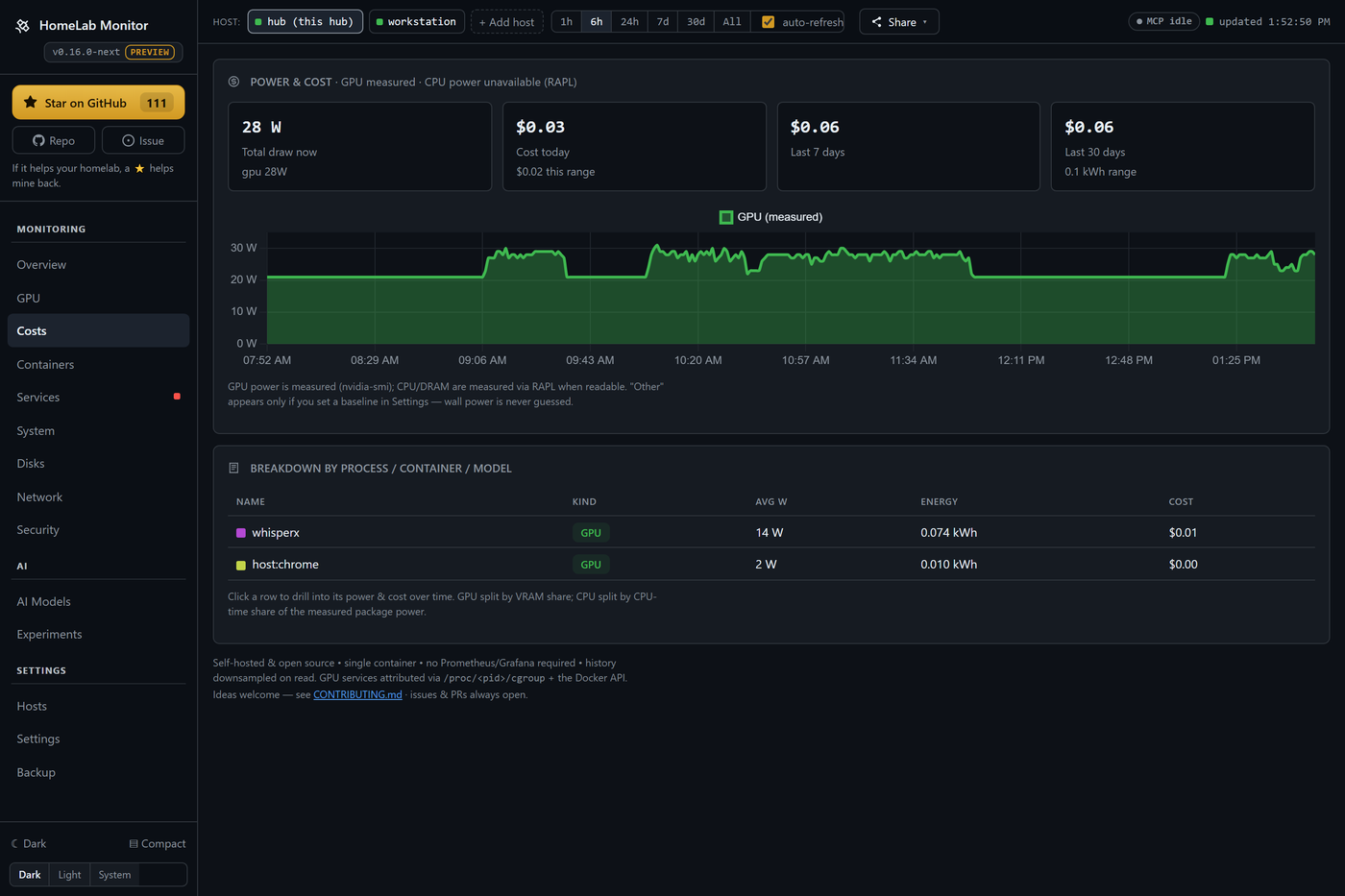
What it costs — down to the process. Power becomes money: per machine, then per component (GPU measured via nvidia-smi, CPU/DRAM via RAPL), then per process, container or model — click any row to see what it drew and what it cost over any window. Day & night tariffs (Economy 7, Heures Creuses, …), or just pick your country for a sensible estimate. Every watt is measured or a baseline you set; wall power is never guessed. And a busy-hours heatmap turns months of samples into one picture of when your lab costs you money — a 7×24 day-of-week × hour grid that shows which hour of the week is priciest at a glance.
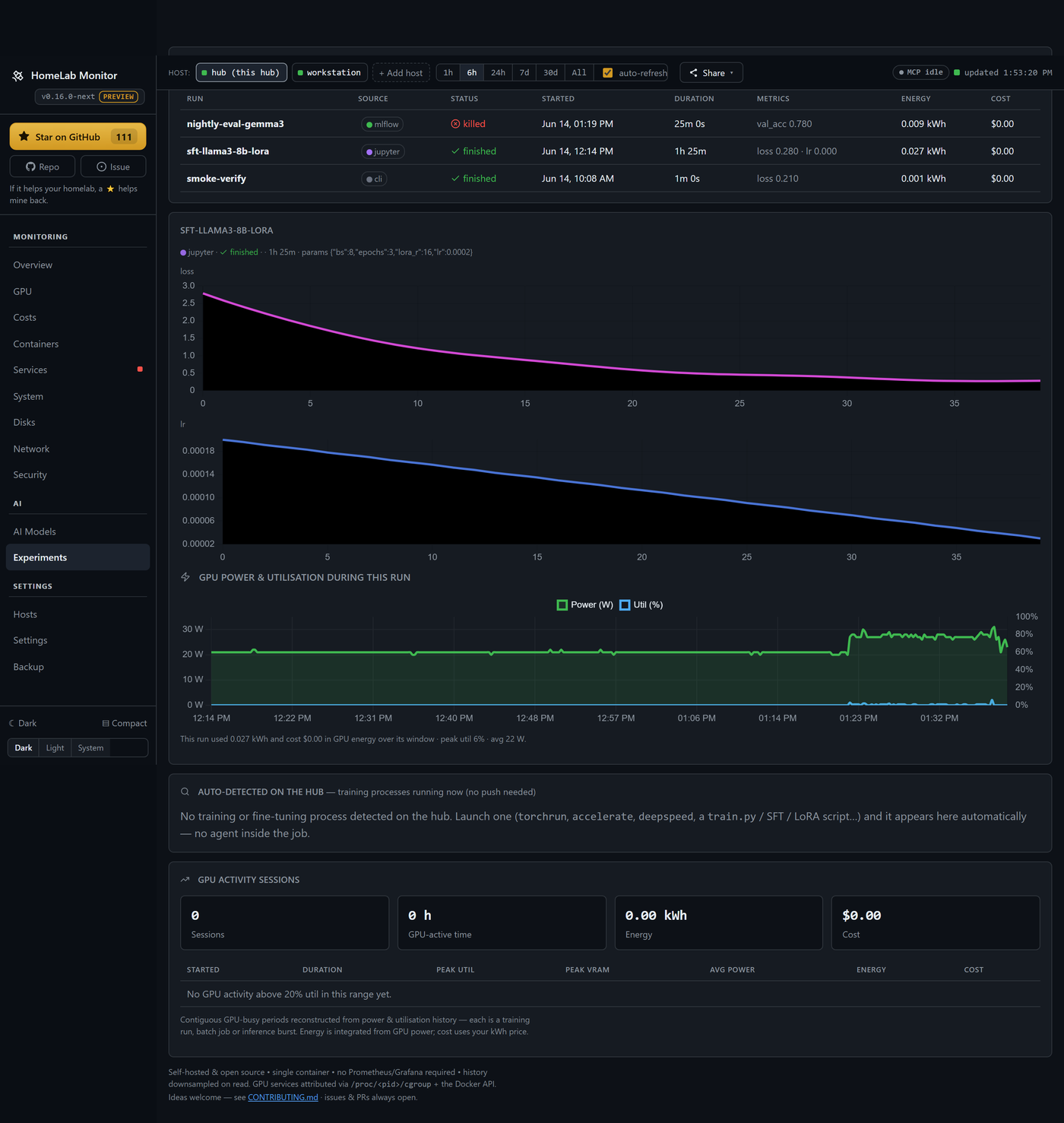
Your training runs, priced. Push a run from Jupyter, Colab or Kaggle with a one-file client (or mirror it from MLflow), and it comes back with the loss curve and the real GPU energy it burned, on the same timeline. Create, name, expire and revoke API keys yourself.
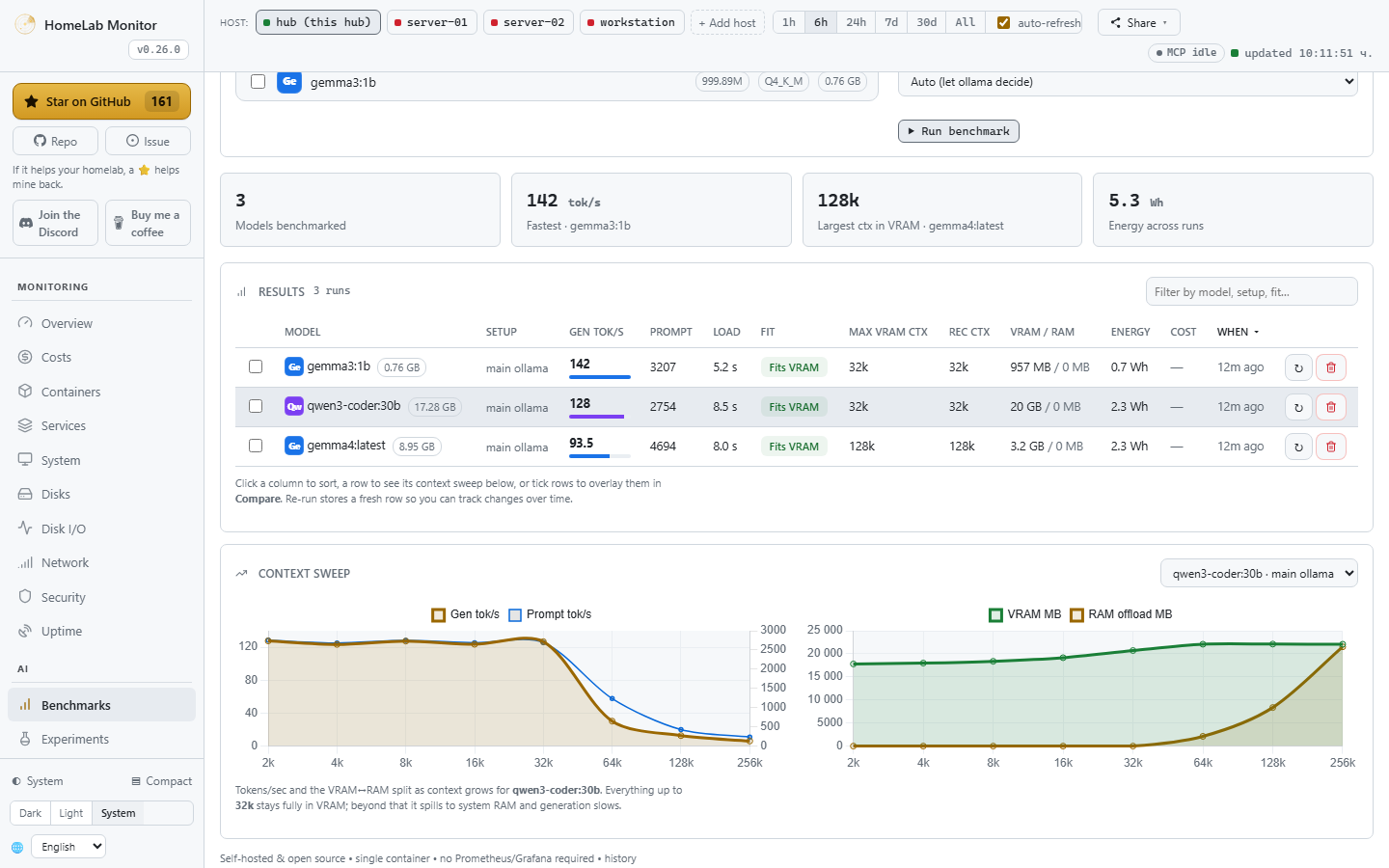
"Will it fit?" — measured, not guessed. The Benchmark Lab loads each of your local ollama models and sweeps a ladder of context sizes on your actual cards, recording generation & prompt tokens/sec, load time, how much spilled from VRAM into system RAM, and the largest context that still fits fully in VRAM — the cap worth setting. Pick which GPU(s) to test (via a throwaway pinned ollama container — your main one is never touched), overlay stored runs to compare cards, and every run comes back with the energy it burned and what it cost. Results are stored: benchmark once, re-run only when something changes.
And the rest of the lab, the way it always was:
- Containers, honestly — health plus RAM and VRAM in separate columns (real resident RAM, not page cache), and click one to tail its logs in a side drawer. Every box in the fleet gets the same controls — logs, start/stop/restart, restart policy, pin — over the same SSH connection the probe already uses, and the whole tab works on a phone.
- systemd services — local or remote, your own units highlighted, failures first.
- WizTree-style disk treemaps — on any box in the fleet. Click into the folders filling a disk on the hub or on any Linux host you've added; a remote is scanned over the same SSH connection everything else uses, so there's still nothing to install on it. Plus network I/O with per-container top talkers and a mini-htop for who's eating CPU and RAM.
- It moves like a live dashboard. Utilisation, RAM, temperature and power update every couple of seconds over a push stream instead of a fixed poll — and it does that while making fewer requests than before, because the expensive history query is fetched only as often as its own chart buckets can change, and a tab you're not looking at stops costing anything at all. Sampling and storage cadence are untouched, so history stays exactly as dense (and costs stay exactly as accurate) as they were.
- Multi-machine over SSH — paste one key per box; Linux, a Pi, even Windows. No agents, no installs. The GPU tab works per host too: a remote multi-GPU rig shows every card's VRAM, utilisation, power and temperature, and the processes holding the memory.
- Uptime monitoring, in the box — watch any HTTP endpoint or TCP port (your services, a NAS, a remote site) straight from the container: heartbeat strip, 24h/7d uptime %, latency, and smart per-check alerts — anti-flap confirm, recovery with downtime, and an optional slow-response warning. No extra uptime service to self-host — it's already in the box.
- Push alerts — Discord, ntfy.sh and Telegram, edge-triggered so they don't spam.
Full tab-by-tab tour → Features.
Multi-machine, in two sentences
Open the Hosts tab, paste the hub's auto-generated SSH key onto each remote, and the hub starts polling it — no agents, just SSH + Python 3 (PowerShell on Windows). The hub pipes a small self-contained probe over SSH; nothing persists on the remote. The same connection is what lets you open a remote's GPU cockpit and scan its disks from the hub — still with nothing installed on the far end.
Onboarding, Windows setup, and the security model → Multi-machine docs.
Configuration
Set these under environment: in docker-compose.yml (all optional):
| Variable | Default | Meaning |
|---|---|---|
SAMPLE_INTERVAL | 10 | Seconds between stored samples. This is the storage cadence — every energy and cost figure is integrated against it, so changing it changes how history is priced |
FAST_INTERVAL | 2 | Seconds between live-value refreshes on screen. Reads only cheap counters and stores nothing, so it costs no history and no accuracy. 0 turns the push stream off and the dashboard falls back to polling |
RETENTION_DAYS | 180 | How long history is kept |
PRESSURE_FREE_MB | 2048 | Free VRAM below this counts as "pressure" |
PORT | 9800 | Dashboard port |
MCP_PORT | 9810 | Port for the built-in read-only MCP server |
ENABLE_MCP | 1 | Set 0 to run the dashboard without the MCP server |
ENABLE_CONTROLS | 1 | Set 0 to remove the start/stop/restart buttons from the Containers and Services tabs |
ALLOW_SELF_UPDATE | 1 | Set 0 to disable in-app updating |
WATCH_CONTAINERS | — | Extra containers to scan for OOM (comma-separated) |
WATCH_SERVICES | — | systemd units to always show, even vendor ones (comma-separated) |
CHECK_UPDATES | true | Set false to disable the daily GitHub-releases check (no outbound calls) |
CHECK_OS_UPDATES | true | Set false to stop reporting pending OS package updates |
PUBLIC_STATUS | — | Set to enable the public status page (also a Settings toggle, which needs no restart) |
DB_PATH | /data/gpu.db | Where history is stored inside the container |
HOST_ROOT | /rootfs | Mount point of the read-only host root |
DOCKER_SOCK | /var/run/docker.sock | Docker socket to read containers from |
History lives in ./data/gpu.db (a bind mount), so it survives restarts and upgrades. Alerts, the systemd D-Bus mount, and per-server tuning → Configuration docs.
Under the hood
The hub stitches nvidia-smi (plus AMD GPUs via the in-kernel amdgpu sysfs interface, and AMD/Intel on Windows hosts via the built-in GPU perf counters), the Docker API, model-server APIs (Ollama, vLLM, llama.cpp, A1111, …), systemd D-Bus, and /proc + /sys into one sampled view, persisted to SQLite and downsampled on read so a six-month range loads as fast as the last hour. Single page, vendored Chart.js, no build step.
- 30+ recognised model servers → Model servers
- Standard
/metricsendpoint to scrape into whatever dashboards you already run → Metrics export - The full data pipeline + caller attribution → How it works
Connect an AI agent (MCP)
Your homelab is now legible to AI agents — point a client at one URL and it can see every host, container, GPU and disk. Read-only, no extra setup.
HomeLab Monitor isn't just a dashboard for you anymore; it's context for your AI agent too. A read-only MCP server is built into the same container (served on :9810) — so Claude, Claude Code, or any MCP client connects in one line and explores your whole lab through 19 named tools, with the same coverage you see on the dashboard: hosts, containers, systemd services, GPU and who's driving it, per-process RAM, AI model servers, installed models, costs, experiment runs, model benchmarks, disk treemaps, history and alerts.
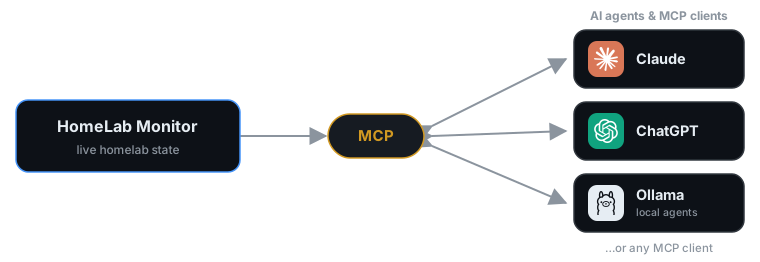
Connect any MCP client — Claude, ChatGPT, or an agent on your own local Ollama models — and it reads your homelab's live state. Read-only: both directions are just question and answer.
# the dashboard is on :9800; the MCP server rides along on :9810
claude mcp add --transport http homelab http://YOUR-HUB:9810/mcp
Once connected, skip the tab-hunting and just ask — the agent picks the right tools:
- "My GPU's been pinned for an hour — which model server is loaded, and who's actually calling it?"
- "What's eating
/backup? Give me the biggest folders and flag anything that looks like runaway logs." - "Which host is lowest on RAM right now, and what's the top process holding it?"
- "I want to reboot and run an OS upgrade this weekend — which box needs it most, and what's a safe order given what's running on each?"
Read-only by design — there are no write tools, so an agent can look but never touch your fleet. Turn it off anytime with ENABLE_MCP=0. Full tool list & setup → MCP docs.
Security
This is a host monitor: it runs with host access, plus a read-write Docker socket and D-Bus socket (self-update and the Containers/Services tabs' start/stop/restart controls are on by default — set ALLOW_SELF_UPDATE=0/ENABLE_CONTROLS=0, or use docker-compose.readonly.yml, to lock it down to pure monitoring) and a read-only root mount — a broad footprint by design. The dashboard itself has no login/auth — it's meant for a trusted LAN. Keep it behind your LAN/VPN/firewall and don't expose it to the public internet. Details → docs.
⭐ Support the project
If HomeLab Monitor saves you a browser tab or two, a ⭐ on GitHub genuinely helps other home-labbers find it. Thank you!

💬 Community
Building this is more fun together. Join the HomeLab Monitor Discord — say hi, show off your rig, swap ideas, ask for help, or just hang out. It's where the roadmap chatter, “should we build X?” questions, and quick help happen — and where new contributors get a warm welcome.

Bring a friend, post an idea, open an issue — let's grow a friendly, healthy homelab community. 💛
Contributing
Issues and PRs are very welcome — especially new model-server probes, new monitors, and GPU back-ends. This is a hobby tool meant to help fellow home-labbers, so be kind. See CONTRIBUTING.md.
Contributors
Thanks to everyone who's filed an issue, opened a PR, or helped shape the roadmap. The entire AMD GPU back-end — per-process VRAM via DRM fdinfo and full panel parity in v0.28.0, real VRAM on unified-memory APUs in v0.26.0 — came from @andreahaku. v0.27.0's fleet-aware model registry and v0.23.0's maintenance windows came from @1HazyOne707. v0.27.0's RAPL CPU/DRAM power and v0.24.0's backend/ module-tree refactor came from @pehota. See the changelog for the full, ongoing credit trail.
License
MIT — see LICENSE.