GitKraken
官方A CLI for interacting with GitKraken APIs. Includes an MCP server via `gk mcp` that not only wraps GitKraken APIs, but also Jira, GitHub, GitLab, and more.
你可以用 GitKraken MCP 做什么?
- 跨多个仓库创建和管理工作项 — 使用
gk work create和gk work add将来自多个仓库的更改分组到一个工作项下。 - 生成 AI 驱动的提交消息 — 运行
gk work commit --ai根据暂存的更改生成提交消息。 - 借助 AI 辅助创建拉取请求 — 执行
gk work pr create --ai从当前工作项生成拉取请求。 - 透传任何原生 git 命令 — 调用诸如
gk status之类的命令,或直接通过 CLI 的 git 透传功能执行。 - 从命令行管理问题 — 用于与来自已连接提供商(如 GitHub 或 Jira)的问题进行交互。
文档
🚀 GitKraken CLI
gk 是命令行中的 GitKraken。其核心功能聚焦于“工作项”,你可以将其视为你正在处理的功能或问题。这让你能够同时操作多个仓库,并获得与在单体仓库中相同的用户体验。我们还提供了强大的 AI 驱动的提交信息和拉取请求生成功能。它还提供了一个 MCP 服务器,可简化与 git 以及你的议题和 git 托管服务提供商的协作。
GitKraken CLI 适用于 macOS、Windows 和 Unix 系统。

目录
MCP 服务器
GitKraken MCP 服务器是一个功能强大且易于使用的本地 MCP 服务器。它封装了 git、GitHub、Jira 的 MCP 操作,并为 LLM 提供了与 GitKraken API 和功能协同工作的工具。你可以在帮助中心根据所选 AI 应用找到具体的安装说明。
如果你想了解更多关于 MCP 服务器的信息,可以查阅介绍博文
文档
gk help 将是你探索 CLI 的最佳资源。但也可以参考下面的工作流。
Welcome to GitKraken CLI, a premium CLI experience for managing multiple repositories with familiar GIT CLI commands

Usage:
  gk [flags]
  gk [command]

AUTHENTICATING
  auth         Authenticate with the GitKraken platform
  provider     Add or remove provider tokens

CORE COMMANDS
  graph        Display commit graph in current repository
  issue        Manage your issues
  organization Manage your Gitkraken organizations
  work         Interact with your work.
  workspace    Interact with your workspaces. Alias: 'ws'

Additional Commands:
  help         Help about any command
  setup        Display information about your current system configuration
  version      Print the version number of GK CLI

Flags:
  -h, --help   help for gk

Use "gk [command] --help" for more information about a command.
工作流
从单个仓库开始。你可以稍后添加更多。
通常,你的流程如下所示:
# Authenticate
gk auth login

# Navigate to a git repo directory on your filesystem
cd ./path/to/repo

# Then create a Work Item and the current directory
# will be automatically added to the Work Item
gk work create "My new work item"

# Edit files...
# ...

# Commit your changes using AI
gk work commit --ai

# Push your changes
gk work push

# Create a Pull Request
gk work pr create --ai
熟悉单个仓库的使用后,尝试创建工单,并通过向新工单添加多个仓库,一次性为多个仓库生成提交和 PR。
# Add a repo to the current work item
gk work add ./path/to/repo # path could be as simple as "." if you are in the directory already
git 命令透传
你也可以使用 gk 来透传任何 git 命令。例如:
gk status
gk remote -v
# etc
安装
macOS
gk 可通过 Homebrew 使用以下命令获取:
Homebrew:
brew install gitkraken-cli
或者从发布页面下载并将其添加到你的二进制文件夹:
mv ~/Downloads/gk /usr/local/bin/gk
Unix / Ubuntu

gk 可作为可下载的二进制文件从发布页面获取。获得后,将其添加到你的二进制文件夹:
mv ~/Downloads/gk /usr/local/bin/gk
或者创建一个新目录,移动二进制文件并将其添加到 $PATH:
mkdir "$HOME/cli"
mv ~/Downloads/gk "$HOME/cli"
export PATH="$HOME/gk:$PATH"
你也可以[下载][发布页面]对应的软件包(.deb、.rpm)并使用以下命令安装:
sudo apt install ./gk.deb
或
sudo rpm -i ./gk.rpm
Windows
gk 可通过 [Winget][winget] 使用以下命令获取:
winget install gitkraken.cli
⚙️ 配置
Nerd Fonts
GitKraken CLI 支持使用 Nerd Fonts 来显示某些命令的图标。为确保图标正确渲染,请获取并安装 https://www.nerdfonts.com/. 上提供的 Nerd Font。安装后,将选定的 Nerd Font 设置为终端的默认字体。
故障排除
gk login 在浏览器中认证后冻结
此问题由浏览器引起。目前我们已知 Safari 和 Brave 不允许通过 1314 端口响应 localhost。要解决此问题,请更改默认浏览器,或在重定向前复制 URL 并在其他浏览器中打开。
Oh-My-Zsh 中的 gk
Oh-My-Zsh 将 gitk 别名为 gk,这可能会引发一些问题。要解决此问题,请在终端中输入:
unalias gk
macOS 手动安装
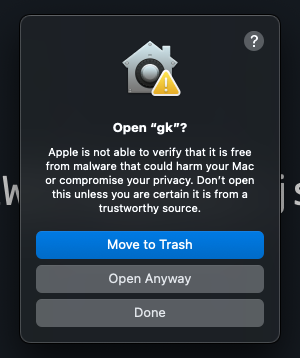
如果你在 macOS 上从发布页面手动安装 CLI,很可能会遇到如下安全错误:
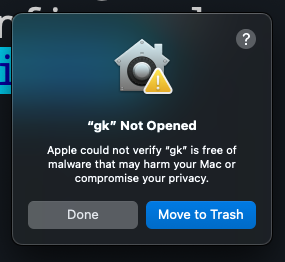
要解决此问题,请前往“设置”>“安全性与隐私”>“通用”,然后点击“仍要允许”。
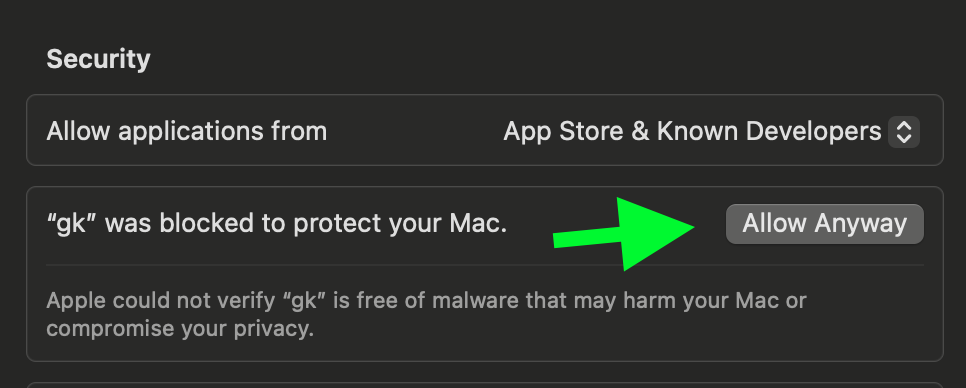
尝试再次运行 gk setup,然后点击“仍要打开”以继续。