FreeCAD MCP
A server to interact with FreeCAD models using the Model Context Protocol (MCP).
FreeCAD MCP
This repository is a FreeCAD MCP that allows you to control FreeCAD from Claude Desktop.
Demo
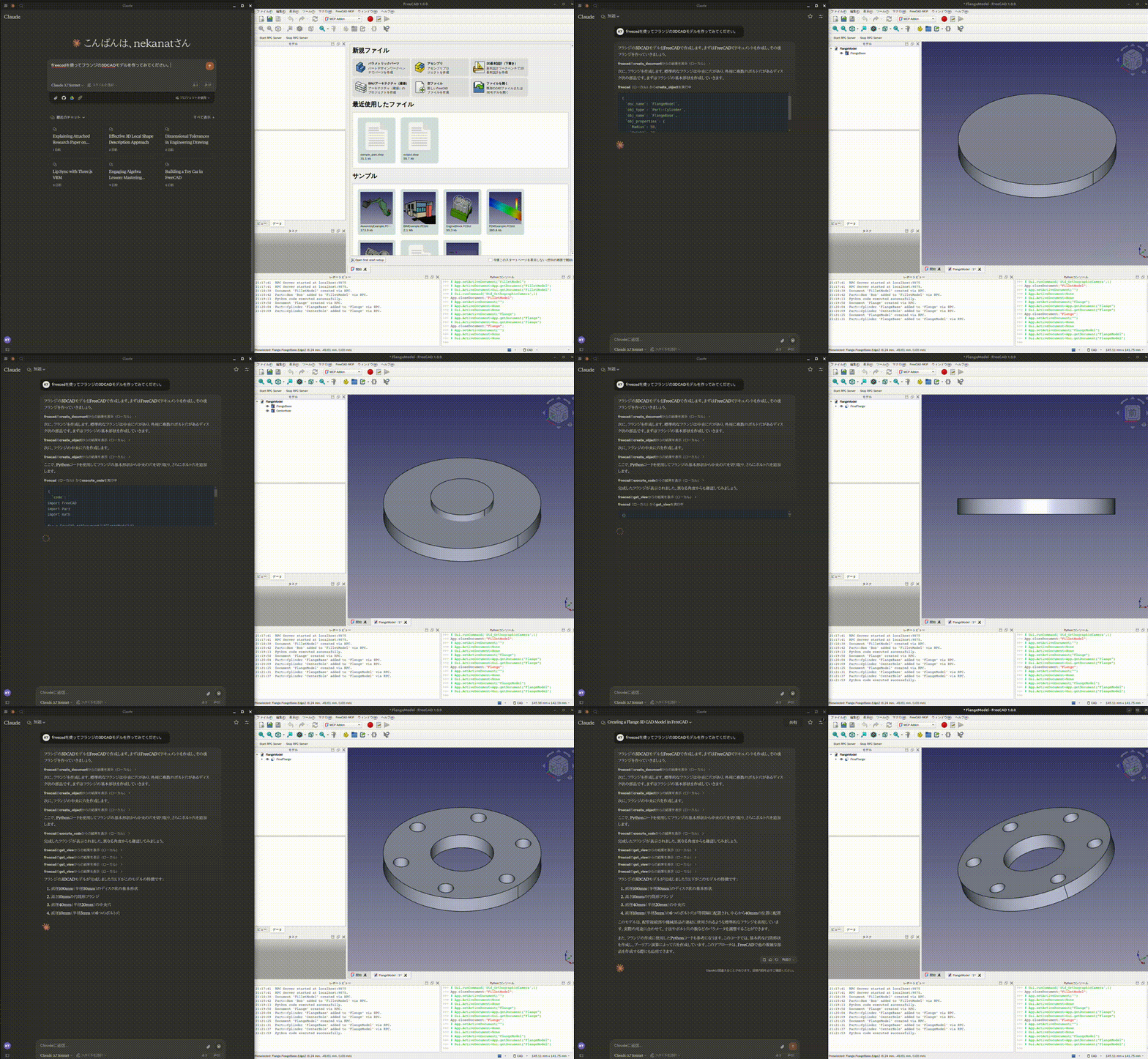
Design a flange

Design a toy car

Design a part from 2D drawing
Input 2D drawing

Demo

This is the conversation history. https://claude.ai/share/7b48fd60-68ba-46fb-bb21-2fbb17399b48
Install addon
FreeCAD Addon directory is
- Windows:
%APPDATA%\FreeCAD\Mod\ - Mac:
~/Library/Application\ Support/FreeCAD/Mod/ - Linux:
- Ubuntu:
~/.FreeCAD/Mod/or~/snap/freecad/common/Mod/(if you install FreeCAD from snap) - Debian:
~/.local/share/FreeCAD/Mod
- Ubuntu:
Please put addon/FreeCADMCP directory to the addon directory.
git clone https://github.com/neka-nat/freecad-mcp.git
cd freecad-mcp
cp -r addon/FreeCADMCP ~/.FreeCAD/Mod/
When you install addon, you need to restart FreeCAD. You can select "MCP Addon" from Workbench list and use it.

And you can start RPC server by "Start RPC Server" command in "FreeCAD MCP" toolbar.

Auto-Start RPC Server
By default, the RPC server must be started manually each time FreeCAD opens. To start it automatically:
- Open the FreeCAD MCP menu (switch to the MCP Addon workbench first)
- Check Auto-Start Server
The setting is saved to freecad_mcp_settings.json and persists across sessions. On the next FreeCAD launch, the RPC server will start automatically once the application finishes loading.
You can disable it at any time by unchecking Auto-Start Server in the same menu.
Setting up Claude Desktop
Pre-installation of the uvx is required.
And you need to edit Claude Desktop config file, claude_desktop_config.json.
For user.
{
"mcpServers": {
"freecad": {
"command": "uvx",
"args": [
"freecad-mcp"
]
}
}
}
If you want to save token, you can set only_text_feedback to true and use only text feedback.
{
"mcpServers": {
"freecad": {
"command": "uvx",
"args": [
"freecad-mcp",
"--only-text-feedback"
]
}
}
}
For developer. First, you need clone this repository.
git clone https://github.com/neka-nat/freecad-mcp.git
{
"mcpServers": {
"freecad": {
"command": "uv",
"args": [
"--directory",
"/path/to/freecad-mcp/",
"run",
"freecad-mcp"
]
}
}
}
Remote Connections
By default the RPC server does not accept remote connections and listens on localhost. To control FreeCAD from another machine on your network:
1. Enable remote connections in FreeCAD
In the FreeCAD MCP toolbar:
-
Check Remote Connections — the RPC server will bind to
0.0.0.0(all interfaces) on the next restart. For security reasons, it only accepts connections from the IP addresses or CIDR subnets specified in the Allowed IPs field. By default this is127.0.0.1. -
Click Configure Allowed IPs and enter a comma-separated list of IP addresses or CIDR subnets that are allowed to connect, e.g.:
192.168.1.100, 10.0.0.0/24127.0.0.1is always the default. Invalid entries are rejected with an error dialog. Restart the RPC server after changing these settings.
2. Point the MCP server at the remote host
Pass the --host flag with the IP address or hostname of the machine running FreeCAD:
{
"mcpServers": {
"freecad": {
"command": "uvx",
"args": [
"freecad-mcp",
"--host", "192.168.1.100"
]
}
}
}
The --host value is validated on startup — it must be a valid IPv4/IPv6 address or hostname.
Tools
create_document: Create a new document in FreeCAD.create_object: Create a new object in FreeCAD.edit_object: Edit an object in FreeCAD.delete_object: Delete an object in FreeCAD.execute_code: Execute arbitrary Python code in FreeCAD.insert_part_from_library: Insert a part from the parts library.get_view: Get a screenshot of the active view.get_objects: Get all objects in a document.get_object: Get an object in a document.get_parts_list: Get the list of parts in the parts library.
Contributors
Made with contrib.rocks.
Máy chủ liên quan
Scout Monitoring MCP
nhà tài trợPut performance and error data directly in the hands of your AI assistant.
Alpha Vantage MCP Server
nhà tài trợAccess financial market data: realtime & historical stock, ETF, options, forex, crypto, commodities, fundamentals, technical indicators, & more
Wopee MCP
AI testing agents for web apps — dispatch test runs, analysis crawls, and AI agent tests, fetch artifacts and project status
Paraview_MCP
An autonomous agent that integrates large language models with ParaView for creating and manipulating scientific visualizations using natural language and visual inputs.
stdout-mcp-server
Captures and manages stdout logs from multiple processes via a named pipe system for real-time debugging and analysis.
DevRev MCP Server
Access DevRev's APIs to manage work items, parts, search, and user information.
PyPI MCP Server
Search and access Python package metadata, version history, and download statistics from the PyPI repository.
SwissArmyHammer
Manage AI prompts as local markdown files.
Elementor WordPress MCP Server
An MCP server for WordPress and Elementor, enabling AI assistants to manage content and build pages.
Quick Chart MCP Server
A server for creating charts and visualizations using the Quick Chart API.
Roblox Studio MCP Server
Provides AI assistants with comprehensive access to Roblox Studio projects for exploration, script analysis, debugging, and bulk editing.
VSCode MCP
Enables AI agents and assistants to interact with VSCode through the Model Context Protocol.