Chronica
Claude Desktop için kalıcı bellek MCP sunucusu — oturumlar arasında bağlamı, zamanı ve konuları hatırlar
Dokümantasyon
Chronica 🗝️
A persistent memory layer for Claude Desktop via MCP
Claude Desktopに長期記憶を与えるMCPサーバー
"AI conversations forget everything when the session ends.
Chronica remembers — so Claude can pick up right where you left off."
What is Chronica?
Chronica is a Model Context Protocol (MCP) server that gives Claude Desktop persistent, structured memory across sessions.
When you start a new conversation, Claude calls chronica_compose_opening with the current project name — and greets you with awareness of:
- ✅ The current time (PC local timezone, auto-detected)
- ✅ Up to five recent project-scoped memory entries (title preview, kind, recency — not full body text)
- ✅ Open question / action items from that slice, called out for follow-up
Each user turn can also sync lightweight time/recency JSON via chronica_session_tick. Without the project argument on compose_opening, memories from other projects can mix in — the tool descriptions require always passing it (or confirming the name with list_threads first).
No more "I don't have context from previous sessions." Chronica solves this at the architecture level.
Chronicaとは?
Chronicaは、Claude Desktopに会話をまたいだ記憶を持たせるためのMCPサーバーです。
AIとの会話は、セッションが終わるとすべてリセットされます。
Chronicaを導入すると、Claudeが会話開始時に chronica_compose_opening でプロジェクト名付きの記憶サマリを読み込み、自然に続きから話せるようになります(明細は必要に応じて chronica_search などで取得)。
Features / 機能
| Tool | Description |
|---|---|
compose_opening | 会話開始時に現在時刻・指定 project の直近5件・継続中(question/action)の要約テキストを生成。project は必須想定(混入防止) |
session_tick | 各ターン用の軽量JSON(現在時刻・「何日ぶり」・直近トピック)。MCPはプッシュ不可のため毎ターン呼び出し推奨 |
save_entry | 会話内容をClaudeが自動保存(メモ・決定・タスクなど5種) |
search | タグ・種別・スレッドで記憶を検索 |
timeline | 期間指定でタイムラインを取得 |
summarize | 日次・週次・決定事項のサマリー生成 |
get_last_seen | 最後に会話した時刻を取得 |
create_thread | スレッド(会話トピック)を作成 |
list_threads | スレッド一覧を取得 |
get_thread_info | スレッドの詳細情報を取得 |
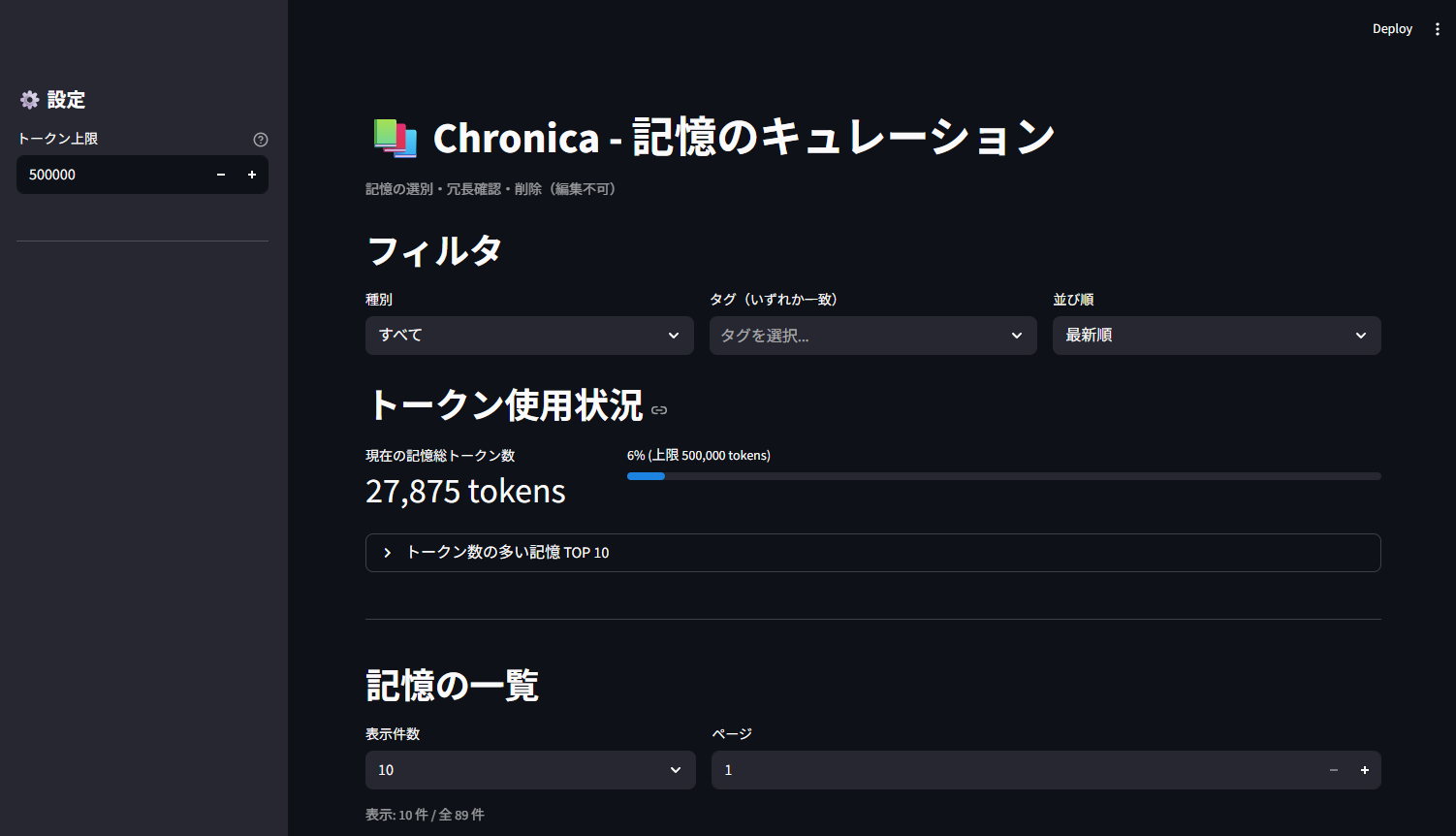
Curation UI(キュレーション画面)
Streamlit製の管理UIで、蓄積した記憶を整理できます。
- 📋 記憶の一覧表示(種別・タグでフィルタ)
- 🗑️ 不要な記憶の削除(編集不可・削除のみ)
- 📊 トークン使用量の可視化(TOP 10・使用率)
📸 Screenshots
Curation UI — Memory management dashboard
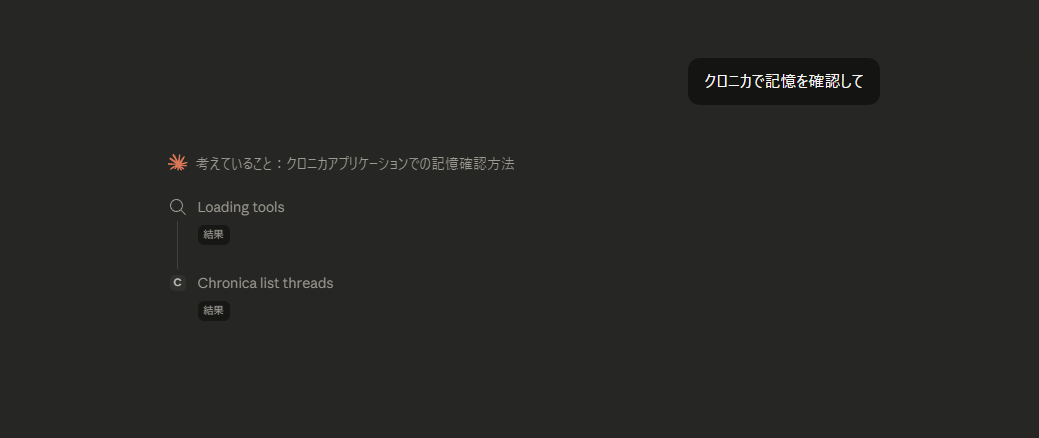
Claude Desktop — Automatic tool invocation
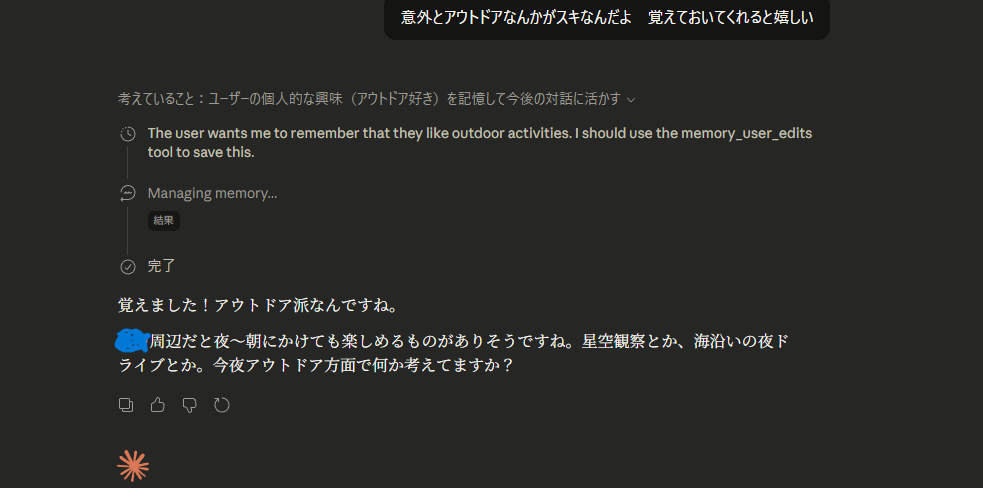
Claude Desktop — Memory saved and personalized response
Architecture / アーキテクチャ
Claude Desktop (Sonnet)
        │ MCP Protocol (STDIO)
        ▼
Chronica MCP Server (Python)
  └── src/chronica/
        ├── tools.py       # 10 MCP tools
        ├── opening.py     # Context generation
        ├── summarize.py   # Summary generation
        ├── store.py       # SQLite persistence
        └── timeparse.py   # Relative time parsing
        │ SQLite
        ▼
data/chronica.sqlite3
Design philosophy: Chronica is the single source of truth for time and memory structure. Claude acts purely as the interface — preventing hallucination by trusting only Chronica's structured output.
Requirements / 必要な環境
- Python 3.10+
- Claude Desktop (with MCP support)
- Windows / macOS
Installation / インストール
クイックセットアップ(推奨)
プロジェクトルートで以下を実行すると、仮想環境・依存パッケージ・Claude Desktop設定を一括で行います。
# Windows (PowerShell)
.\setup.ps1

# Windows (cmd)
setup.bat
# macOS / Linux
chmod +x setup.sh
./setup.sh
完了後、Claude Desktop / Claude Code を再起動してください。
Claude Code を使っている場合
セットアップ後、Chronica フォルダを開いて会話を開始すると、.mcp.json により Chronica が自動で読み込まれます。初回は MCP サーバーの利用許可を求められる場合があります。
「MCPサーバーは追加されていません」と表示される場合
claude.ai からダウンロードした MSIX 版は、別の設定パスを使用します。.\setup.ps1 を再実行すると、両方のパスに設定が書き込まれます。
手動セットアップ
1. Clone the repository
git clone https://github.com/Nic9dev/Chronica.git
cd Chronica
2. Create virtual environment / 仮想環境を作成
python -m venv .venv

# Windows
.venv\Scripts\activate

# macOS
source .venv/bin/activate
3. Install dependencies / 依存パッケージをインストール
pip install -r requirements.txt
4. Configure Claude Desktop / Claude Desktopに設定を追加
Claude Desktopの設定ファイル(claude_desktop_config.json)に以下を追加してください。
設定ファイルの場所 / Config file location:
- Windows (MSIX版 / claude.aiからDL):
%LOCALAPPDATA%\Packages\Claude_*\LocalCache\Roaming\Claude\claude_desktop_config.json - Windows (従来版 / exeインストール):
%APPDATA%\Claude\claude_desktop_config.json - macOS:
~/Library/Application Support/Claude/claude_desktop_config.json - Linux:
~/.config/Claude/claude_desktop_config.json
.\setup.ps1を実行すると、MSIX版・従来版を自動検出して適切なパスに設定を書き込みます。
{
  "mcpServers": {
    "chronica": {
      "command": "C:/path/to/Chronica/.venv/Scripts/python.exe",
      "args": ["C:/path/to/Chronica/run_server.py"],
      "env": {
        "PYTHONPATH": "C:/path/to/Chronica/src"
      }
    }
  }
}
⚠️
C:/path/to/Chronicaの部分はご自身の実際のパスに書き換えてください。
⚠️ Windowsでは/を使ってください(\は不可)。
5. Restart Claude Desktop / Claude Desktopを再起動
設定後、Claude Desktopを再起動してください。
新しい会話を開始し、Claudeが自動で記憶を読み込むことを確認できます。
Usage / 使い方
初回起動後
新しい会話を始めると、Claudeが chronica_compose_opening を呼び出してコンテキストを読み込みます。呼び出し時は project に現在のプロジェクト名を渡すのが前提です(不明なら chronica_list_threads 等で確認)。状況確認・記憶確認の依頼では、他ツールより先に本ツールを呼ぶよう MCP 側の説明で指示しています。
コネクタのオン/オフ(会話ごとに切り替え可能)
チャットの「+」ボタンまたは「/」でメニューを開き、「コネクタ」から Chronica をオン/オフできます。
| コネクタ | 記憶の保存 | 記憶の呼び出し | 時間認識 |
|---|---|---|---|
| ON | 自動で行う | 自動で行う | あり |
| OFF | 行わない | 行わない | なし |
- ON: 記憶の保存・呼び出し・時間認識が自動で行われます。
- OFF: その会話では Chronica のツールは利用されません。記憶を使わない一時的な相談などに。
日常の使い方
- 記憶の保存: 通常通り会話するだけ。Claudeが自動で重要な情報を保存します。
- 記憶の検索: 「先週決めたことを教えて」など自然に聞くだけでOK。
- キュレーションUI: 記憶が溜まってきたら、以下で整理できます。
# Windows (PowerShell)
.\run_curation.ps1

# Windows (cmd)
run_curation.bat

# または
python -m streamlit run app_curation.py
💡 Tips:会話をまたいだ引き継ぎ
- 会話開始:
chronica_compose_openingではproject="..."を必ず渡す(別プロジェクトの記憶が混ざるのを防ぐ)。名前が曖昧ならchronica_list_threadsで確認してから呼ぶ。 - 詳細ログ:
compose_openingは直近5件の要約のみ。長い作業ログは続けてchronica_searchをproject(必要ならタグvolN)で呼ぶ。
新しい会話(vol.2、vol.3 など)を始めるときは、例えば次のように伝えると 前回の作業内容をChronicaから正確に引き出せます。
chronica_search を project「プロジェクト名」・タグ「vol2」で呼んで、
前回の作業内容と待ち事項を確認して。
⚠️ 「前回の作業を確認して」だけだと、ClaudeがChronicaではなく 自分の会話履歴を参照してしまうことがあります。
compose_openingのprojectと、search の project / タグを明示するのがポイントです。
Roadmap
Phase 2(近日予定)
- 重複記憶の自動検出(TF-IDF + コサイン類似度)
- バッチ削除機能(複数選択)
- 全文検索
- エクスポート機能(JSON / CSV)
Phase 3(将来)
- クラウド同期(Supabase + E2EE)
- 複数デバイス対応
Phase 4(将来)
- SaaS化・マルチテナント対応
License
MIT License — see LICENSE for details.
Author / 作者
Nic9 (にく9)
プログラミング未経験からAIと共に独学で複数のシステムを構築。
Chronicaは「AIと長く付き合い続けるための、個人的な基盤」として生まれました。
Contributing
Issues and PRs are welcome!
バグ報告・機能要望は Issues からどうぞ。