Chargebee
resmiMCP Sunucusu, yapay zeka ajanlarını Chargebee platformuna bağlar.
Chargebee MCP ile neler yapabilirsiniz?
- Chargebee dokümantasyonunda arama yapın — API'ler, özellikler veya faturalama kavramları hakkında sorular sorun ve
chargebee_documentation_searcharacılığıyla resmi dokümanlardan yanıtlar alın. - Entegrasyon kod taslakları oluşturun —
chargebee_code_plannerile Chargebee entegrasyonunuz için yapılandırılmış kod planları ve örnek kod parçacıkları talep edin. - Sürüm notlarını ve SSS'leri inceleyin — En son ürün güncellemelerini, sık sorulan soruları ve diğer bilgi tabanı içeriklerini alın.
Dokümantasyon
Chargebee Model Context Protocol (MCP) Sunucusu


⚠️ Kullanımdan Kaldırma Bildirimi
Bu paket kullanımdan kaldırılmıştır ve artık güncelleme veya destek almayacaktır. Lütfen gelişmiş yetenekler ve iyileştirilmiş doğruluk sunan yeni KnowledgeBase MCP Sunucumuza geçiş yapın. Daha fazla bilgi edinin ve buradan yükseltin: Chargebee MCP Sunucu Dokümantasyonu
Model Context Protocol (MCP), büyük dil modelleri (LLM'ler) ile harici sistemler arasındaki bağlamı yönetmek için tasarlanmış standartlaştırılmış bir protokoldür.
Chargebee MCP Sunucusu, geliştirici verimliliğini artırmak için sağlam bir araç seti sunar. Cursor, Windsurf ve Cline gibi yapay zeka destekli kod düzenleyicilerin yanı sıra Claude Desktop gibi genel amaçlı araçlarla entegre olur. Herhangi bir MCP İstemcisi ile uyumludur.
Bu MCP Sunucusu ile şunları yapabilirsiniz:
-
Chargebee ürünleri ve API hizmetleri hakkında anında yanıtlar alın.
-
Entegrasyon ihtiyaçlarınıza göre uyarlanmış, bağlama duyarlı kod parçacıkları alın.
-
Chargebee'nin bilgi tabanına erişin, bunlara dahil olanlar:
- Dokümantasyon
- SSS
- Sürüm notları
- Ve çok daha fazlası
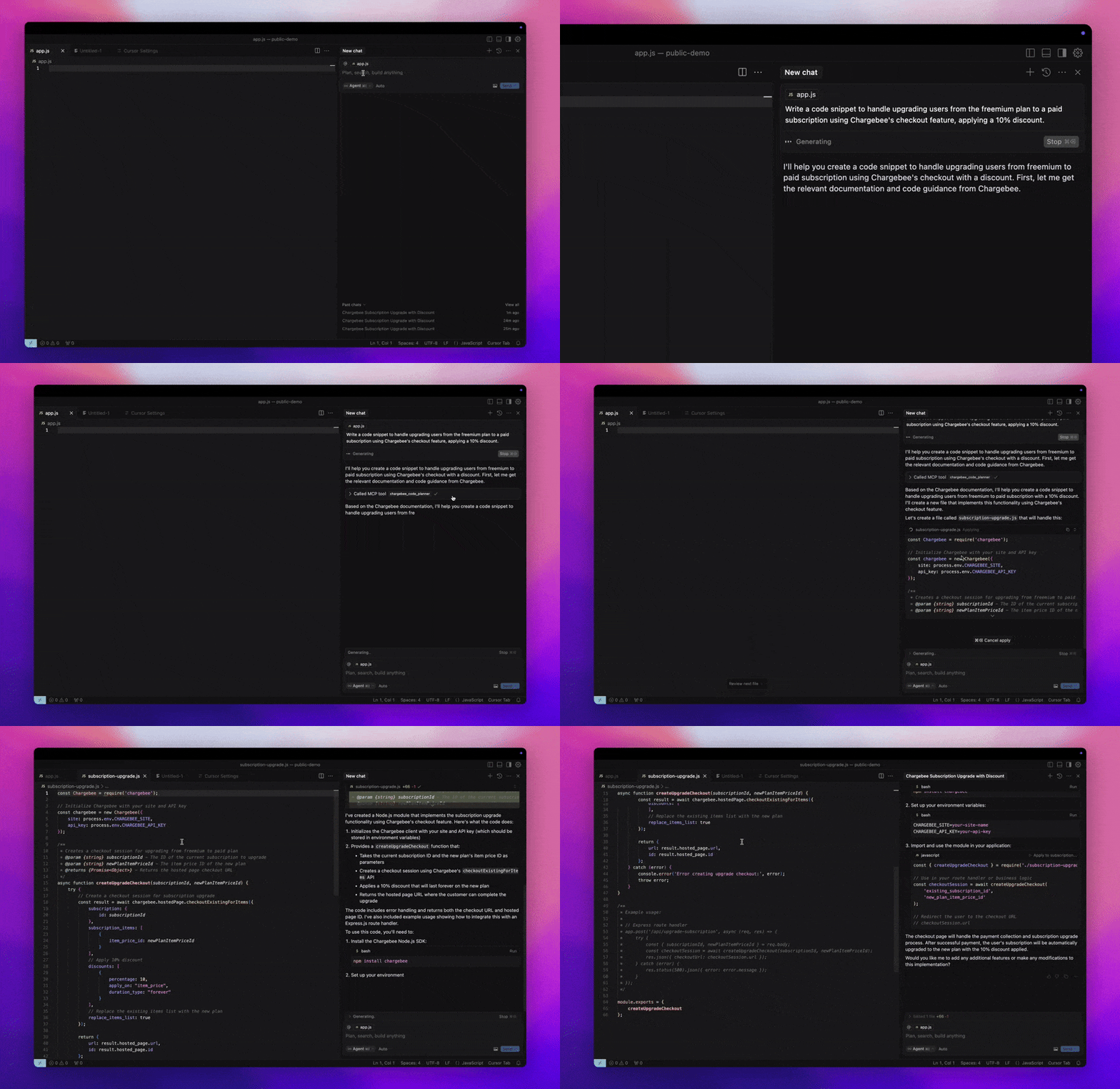
Ön Koşullar
- Node.js LTS - Chargebee MCP sunucusunun düzgün çalışması için Node.js LTS sürümü gereklidir.
Kurulum
Chargebee MCP sunucusunu Node.js npx kullanarak çalıştırmak için aşağıdaki komutu yürütün:
npx -y @chargebee/mcp@latest
Mevcut Araçlar
| Araç | Açıklama |
|---|---|
chargebee_documentation_search | Ayrıntılı bilgi ve kullanım kılavuzları almak için Chargebee'nin dokümantasyonunda arama yapın. |
chargebee_code_planner | Chargebee'nin API'lerini ve özelliklerini entegre etmek için yapılandırılmış kod taslakları ve örnek kod oluşturun. |
Kurulum
Cursor
Bu sunucuyu Cursor IDE'ye eklemek için:
Cursor Settings>MCPbölümüne gidin.+ Add new Global MCP Serverdüğmesine tıklayın.- Aşağıdaki yapılandırmayı global
.cursor/mcp.jsondosyanıza ekleyin:
{
  "mcpServers": {
    "chargebee": {
      "command": "npx",
      "args": [
          "-y",
          "@chargebee/mcp"
      ]
    }
  }
}
Daha fazla ayrıntı için Cursor dokümantasyonuna bakın. Not: Bunu projeye özel Cursor yapılandırmanıza da ekleyebilirsiniz (Cursor 0.46+ sürümünde desteklenir).
Windsurf
MCP'yi Cascade ile kurmak için:
- Windsurf'ü açın ve
Settings>Advanced Settingsbölümüne gidin veya Komut Paleti >Open Windsurf Settings Pagekullanın. - Yeni bir sunucu eklemek, mevcut sunucuları görüntülemek veya
mcp_config.jsonkonumundaki ham JSON yapılandırma dosyasına erişmek için Cascade bölümüne kaydırın. - Chargebee MCP sunucusunu doğrudan
mcp_config.jsoniçine eklemek için “Özel sunucu ekle +” düğmesine tıklayın:
{
  "mcpServers": {
    "chargebee": {
      "command": "npx",
      "args": [
          "-y",
          "@chargebee/mcp"
      ]
    }
  }
}
Daha fazla bilgi için Windsurf dokümantasyonuna bakın.
VS Code
Chargebee MCP sunucusunu VS Code'a şu düğmelerden birini kullanarak yükleyin:

Alternatif olarak, Chargebee MCP sunucusunu VS Code CLI kullanarak da yükleyebilirsiniz:
# For VS Code
code --add-mcp '{"name":"chargebee","command":"npx","args":["-y","@chargebee/mcp"]}'
# For VS Code Insiders
code-insiders --add-mcp '{"name":"chargebee","command":"npx","args":["-y","@chargebee/mcp"]}'
Kurulumdan sonra, Chargebee MCP sunucusu VS Code'daki GitHub Copilot aracınızla kullanıma hazır olacaktır.
Claude
Aşağıdaki yapılandırmayı claude_desktop_config.json dosyanıza ekleyin. Daha fazla ayrıntı için Claude Desktop dokümantasyonuna bakın:
{
  "mcpServers": {
    "chargebee": {
      "command": "npx",
      "args": [
          "-y",
          "@chargebee/mcp"
      ]
    }
  }
}
Cline
Cline MCP Sunucu ayarları aracılığıyla cline_mcp_settings.json dosyanıza aşağıdaki JSON'u manuel olarak ekleyin:
{
  "mcpServers": {
    "chargebee": {
      "command": "npx",
      "args": [
          "-y",
          "@chargebee/mcp"
      ]
    }
  }
}
Roo Code
Roo Code ayarlarında Edit MCP Settings seçeneğini belirleyerek veya VS Code komut paletinde Roo Code: Open MCP Config komutunu kullanarak MCP ayarlarına erişin:
{
  "mcpServers": {
    "chargebee": {
      "command": "npx",
      "args": [
          "-y",
          "@chargebee/mcp"
      ]
    }
  }
}
Katkıda Bulunma
Bu projeye katkıda bulunmak için katkı kılavuzuna bakın.