Video Editor
Video Jungle API kullanarak videoları ekleyin, analiz edin, arayın ve düzenleyin. Ayrıca macOS'ta yerel video aramasını destekler.
Dokümantasyon
Video Editor MCP server
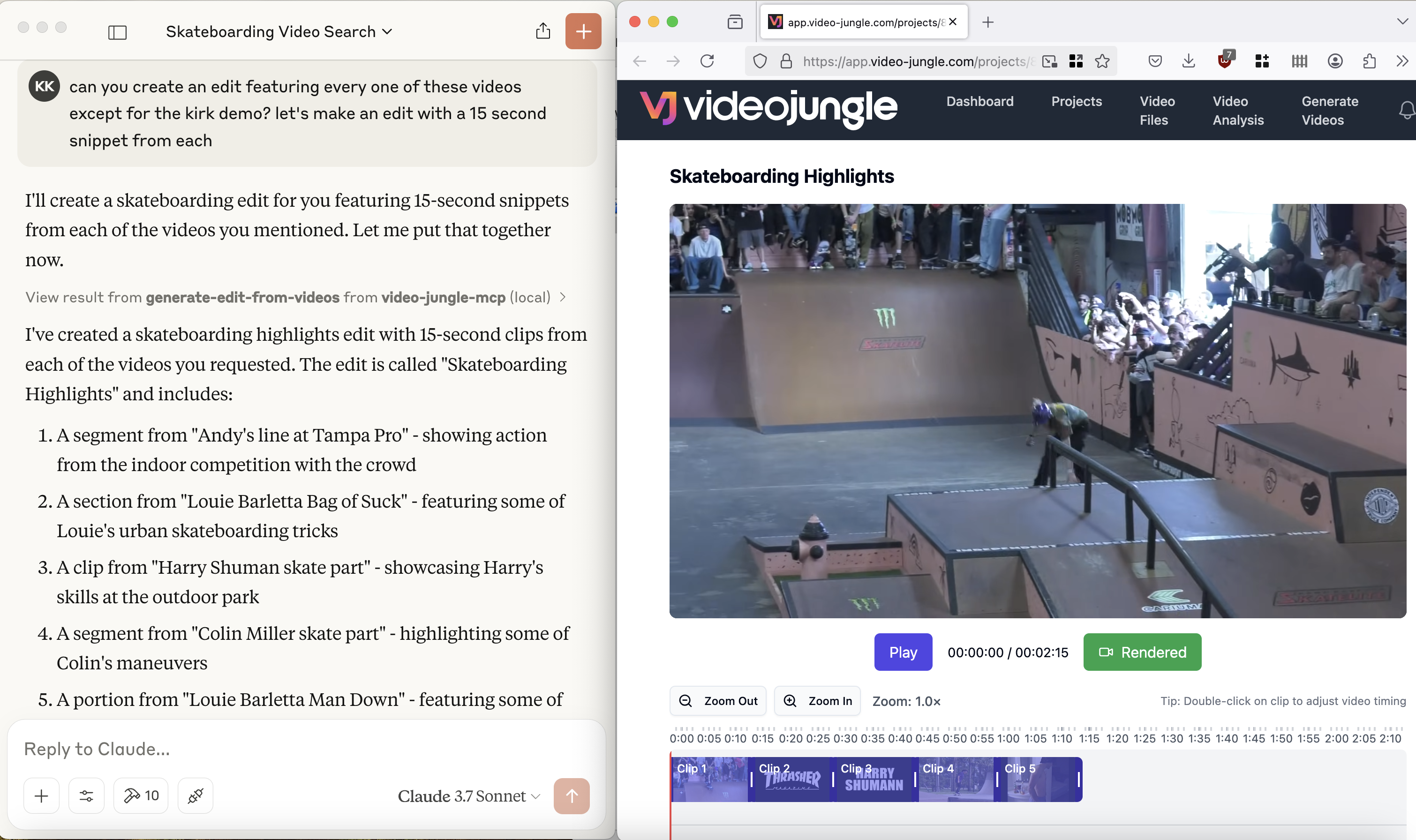
See a demo here: https://www.youtube.com/watch?v=KG6TMLD8GmA
Upload, edit, search, and generate videos from everyone's favorite LLM and Video Jungle.
You'll need to sign up for an account at Video Jungle in order to use this tool, and add your API key.

Components
Resources
The server implements an interface to upload, generate, and edit videos with:
- Custom vj:// URI scheme for accessing individual videos and projects
- Each project resource has a name, description
- Search results are returned with metadata about what is in the video, and when, allowing for edit generation directly
Prompts
Coming soon.
Tools
The server implements a few tools:
- add-video
- Add a Video File for analysis from a URL. Returns an vj:// URI to reference the Video file
- create-videojungle-project
- Creates a Video Jungle project to contain generative scripts, analyzed videos, and images for video edit generation
- edit-locally
- Creates an OpenTimelineIO project and downloads it to your machine to open in a Davinci Resolve Studio instance (Resolve Studio must already be running before calling this tool.)
- generate-edit-from-videos
- Generates a rendered video edit from a set of video files
- generate-edit-from-single-video
- Generate an edit from a single input video file
- get-project-assets
- Get assets within a project for video edit generation.
- search-videos
- Returns video matches based upon embeddings and keywords
- update-video-edit
- Live update a video edit's information. If Video Jungle is open, edit will be updated in real time.
Using Tools in Practice
In order to use the tools, you'll need to sign up for Video Jungle and add your API key.
add-video
Here's an example prompt to invoke the add-video tool:
can you download the video at https://www.youtube.com/shorts/RumgYaH5XYw and name it fly traps?
This will download a video from a URL, add it to your library, and analyze it for retrieval later. Analysis is multi-modal, so both audio and visual components can be queried against.
search-videos
Once you've got a video downloaded and analyzed, you can then do queries on it using the search-videos tool:
can you search my videos for fly traps?
Search results contain relevant metadata for generating a video edit according to details discovered in the initial analysis.
search-local-videos
You must set the environment variable LOAD_PHOTOS_DB=1 in order to use this tool, as it will make Claude prompt to access your files on your local machine.
Once that's done, you can search through your Photos app for videos that exist on your phone, using Apple's tags.
In my case, when I search for "Skateboard", I get 1903 video files.
can you search my local video files for Skateboard?
generate-edit-from-videos
Finally, you can use these search results to generate an edit:
can you create an edit of all the times the video says "fly trap"?
(Currently), the video edits tool relies on the context within the current chat.
generate-edit-from-single-video
Finally, you can cut down an edit from a single, existing video:
can you create an edit of all the times this video says the word "fly trap"?
Configuration
You must login to Video Jungle settings, and get your API key. Then, use this to start Video Jungle MCP:
$ uv run video-editor-mcp YOURAPIKEY
To allow this MCP server to search your Photos app on MacOS:
$ LOAD_PHOTOS_DB=1 uv run video-editor-mcp YOURAPIKEY
Quickstart
Install
Installing via Smithery
To install Video Editor for Claude Desktop automatically via Smithery:
npx -y @smithery/cli install video-editor-mcp --client claude
Claude Desktop
You'll need to adjust your claude_desktop_config.json manually:
On MacOS: ~/Library/Application\ Support/Claude/claude_desktop_config.json
On Windows: %APPDATA%/Claude/claude_desktop_config.json
Published Server Configuration
 "mcpServers": {
   "video-editor-mcp": {
     "command": "uvx",
     "args": [
       "video-editor-mcp",
       "YOURAPIKEY"
     ]
   }
 }
Development/Unpublished Servers Configuration
 "mcpServers": {
   "video-editor-mcp": {
     "command": "uv",
     "args": [
       "--directory",
       "/Users/YOURDIRECTORY/video-editor-mcp",
       "run",
       "video-editor-mcp",
       "YOURAPIKEY"
     ]
   }
 }
With local Photos app access enabled (search your Photos app):
  "video-jungle-mcp": {
    "command": "uv",
    "args": [
      "--directory",
      "/Users/<PATH_TO>/video-jungle-mcp",
      "run",
      "video-editor-mcp",
      "<YOURAPIKEY>"
    ],
   "env": {
        "LOAD_PHOTOS_DB": "1"
    }
  },
Be sure to replace the directories with the directories you've placed the repository in on your computer.
Development
Building and Publishing
To prepare the package for distribution:
- Sync dependencies and update lockfile:
uv sync
- Build package distributions:
uv build
This will create source and wheel distributions in the dist/ directory.
- Publish to PyPI:
uv publish
Note: You'll need to set PyPI credentials via environment variables or command flags:
- Token:
--tokenorUV_PUBLISH_TOKEN - Or username/password:
--username/UV_PUBLISH_USERNAMEand--password/UV_PUBLISH_PASSWORD
MCP Server Registry
mcp-name: io.github.burningion/video-editing-mcp
Debugging
Since MCP servers run over stdio, debugging can be challenging. For the best debugging experience, we strongly recommend using the MCP Inspector.
You can launch the MCP Inspector via npm with this command:
(Be sure to replace YOURDIRECTORY and YOURAPIKEY with the directory this repo is in, and your Video Jungle API key, found in the settings page.)
npx @modelcontextprotocol/inspector uv run --directory /Users/YOURDIRECTORY/video-editor-mcp video-editor-mcp YOURAPIKEY
Upon launching, the Inspector will display a URL that you can access in your browser to begin debugging.
Additionally, I've added logging to app.log in the project directory. You can add logging to diagnose API calls via a:
logging.info("this is a test log")
A reasonable way to follow along as you're workin on the project is to open a terminal session and do a:
$ tail -n 90 -f app.log