Lance App Manager
Lance คือเอเจนต์ที่ทำงานบน Mac คลาวด์ของตัวเอง และจัดการทุกอย่างในฝั่ง App Store Connect ของการส่งแอป iOS ขึ้นวางจำหน่าย มันเชื่อมต่อกับเอเจนต์เขียนโค้ดอย่าง Claude Code และ Codex ผ่าน MCP และรับช่วงงานที่พวกเขาทำไม่ได้ เช่น การสร้างแอปบน App Store Connect การตั้งค่าการแจ้งเตือน/วิดเจ็ต การกรอกข้อมูลเมตาของรายการ การอัปโหลดบิลด์ไปยัง TestFlight การส่งเพื่อตรวจสอบ และการตอบกลับความคิดเห็นจาก App Review เนื่องจากมี Mac ของตัวเอง มันจึงสามารถสร้าง รัน และทดสอบแอปของผู้ใช้ รวมถึงจับภาพหน้าจอได้ด้วย
เอกสาร
Lance MCP
Connect AI tools and coding agents to your organization's App Manager (Lance's autonomous App Store Connect operator) using the Model Context Protocol. Your agent gets real answers and real actions against your real account: listings, screenshots, IAPs, builds, review.
Install
The fastest path is one command that detects your client and wires the server in:
npx add-mcp https://api.lance.app/mcp
Lance MCP is a hosted server over streamable HTTP. There is nothing to run locally:
https://api.lance.app/mcp
Not a terminal person? The install page has click-through setup for every major agent.
Set up your client
Cursor
Or add the server to .cursor/mcp.json in your project (or ~/.cursor/mcp.json globally):
{
  "mcpServers": {
    "lance": {
      "url": "https://api.lance.app/mcp"
    }
  }
}
Claude Desktop & claude.ai
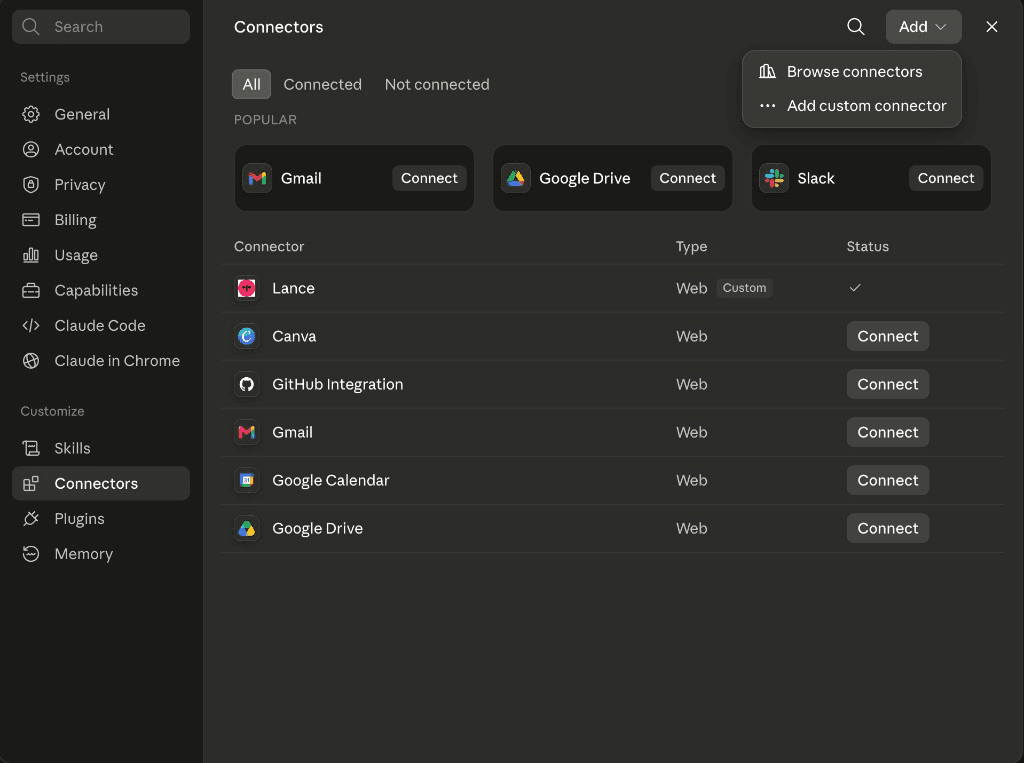
No terminal needed: remote MCP servers are added as custom connectors, not in claude_desktop_config.json. Go to Settings → Connectors, click Add → "Add custom connector", name it Lance, and paste the endpoint URL, leaving Advanced settings empty. Then click Connect and sign in.
https://api.lance.app/mcp
- 1Open Settings → Connectors
In Claude Desktop or on claude.ai, open Settings, pick Connectors, then click Add and choose "Add custom connector".
- 2Name it Lance and paste the server URL
Enter "Lance" as the name and paste the URL below into the URL field. Leave Advanced settings empty, then click Add.
https://api.lance.app/mcp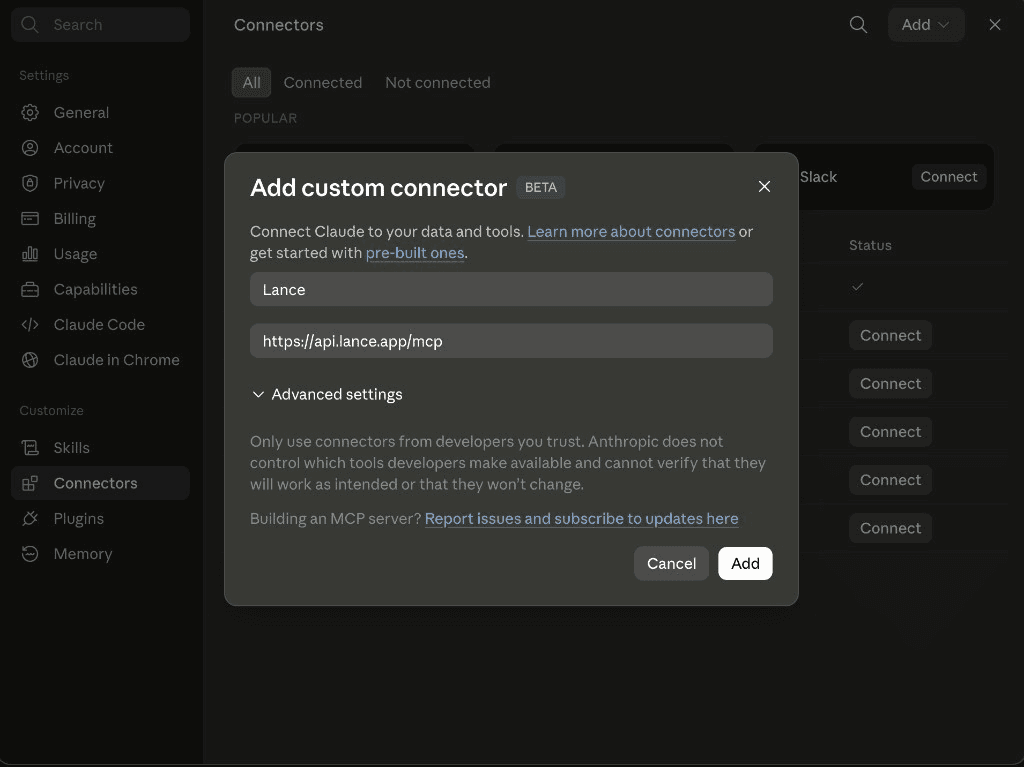
- 3Connect and sign in Click Connect on the new Lance connector and sign in with your Lance account in the browser window that opens. OAuth handles the rest, so there are no keys to copy.
On Team and Enterprise plans, an org owner adds the connector first under Admin settings → Connectors.
Claude Code
claude mcp add --transport http lance https://api.lance.app/mcp
Then run /mcp inside Claude Code to sign in.
Codex
Easiest: paste this prompt into Codex and it installs Lance itself.
Install the Lance MCP server for me: https://api.lance.app/mcp (it authenticates with OAuth, no API keys to configure).
Or run the command yourself, or add to ~/.codex/config.toml:
codex mcp add lance --url https://api.lance.app/mcp
[mcp_servers.lance]
url = "https://api.lance.app/mcp"
Windsurf and other MCP clients
Any client that speaks MCP over streamable HTTP works with the same configuration: the endpoint URL, then OAuth sign-in on first use.
{
  "mcpServers": {
    "lance": {
      "url": "https://api.lance.app/mcp"
    }
  }
}
If your client can't open a browser to sign in, pass an API key instead (see Authentication):
{
  "mcpServers": {
    "lance": {
      "url": "https://api.lance.app/mcp",
      "headers": {
        "Authorization": "Bearer lance_sk_YOUR_KEY"
      }
    }
  }
}
Authentication
Lance uses OAuth, so there is nothing to configure. On first use your client discovers Lance's OAuth, opens a browser, and you sign in. For interactive clients there are no keys to copy and no headers to set; the configuration is just the URL.
Headless agents & CI
Only if your agent can't open a browser: mint a per-user API key (lance_sk_…) in Settings → API keys and pass it as a bearer token. The key identifies you and acts for your organization, so mint one per agent or machine and you can revoke each independently.
Authorization: Bearer lance_sk_YOUR_KEY
Available tools
Fast reads answer in seconds with no agent involved; delegation tools hand work to the operator, which runs autonomously in the background while your agent keeps working.
get_app_store_status
Reads an app's live App Store submission state in seconds: the listing, the current version, and exactly what Apple still requires.
list_teams
Lists the organization's connected App Store Connect teams: names and team ids, never credentials.
list_bundles
Every app a team owns, straight from App Store Connect: bundle id, app id, name, and SKU.
ask_app_manager
Delegates a task or question to the operator in plain language: listings, IAPs, builds, review. It returns immediately and the work runs in the background on a real Mac.
check_app_manager_activity
Live status of the operator and any subagents it spawned, per conversation or org-wide.
read_app_manager_conversation
Durable, timestamped history of every operator conversation. Filterable by app and thread, pageable.
generate_assets
Production-ready app icon packs from a plain-language description: every Apple and Android size plus the store marketing sizes. Free, and takes about 30 seconds.
create_artifact_slot
A presigned upload/download pair for passing one file either direction (an.ipa in, an APNs key out).
get_asc_jwt
A short-lived fetch link for direct App Store Connect API reads. The raw token and the org's.p8 never enter the conversation.
Security
- Your organization's operator credentials (App Store Connect API keys,
.p8files, Apple sessions) never cross the MCP boundary. Agents delegate the work; the operator holds the keys. - App-level credentials your app legitimately needs (APNs keys, provisioning profiles, IAP shared secrets) are delivered through expiring artifact slots, never pasted into chat.
- API keys are stored hashed, scoped to one organization, and revocable at any time from Settings → API keys. Removing a member from the organization invalidates their keys immediately.
- The genuinely irreversible steps, Apple ID sign-in and the final Submit, happen only on the owner's explicit request, never as a side effect.