People Remover
People Remover เป็นเครื่องมือที่ขับเคลื่อนด้วย AI เยี่ยมชมเว็บไซต์อย่างเป็นทางการสำหรับรายละเอียดและการใช้งาน
เอกสาร
See People Removed from Photos
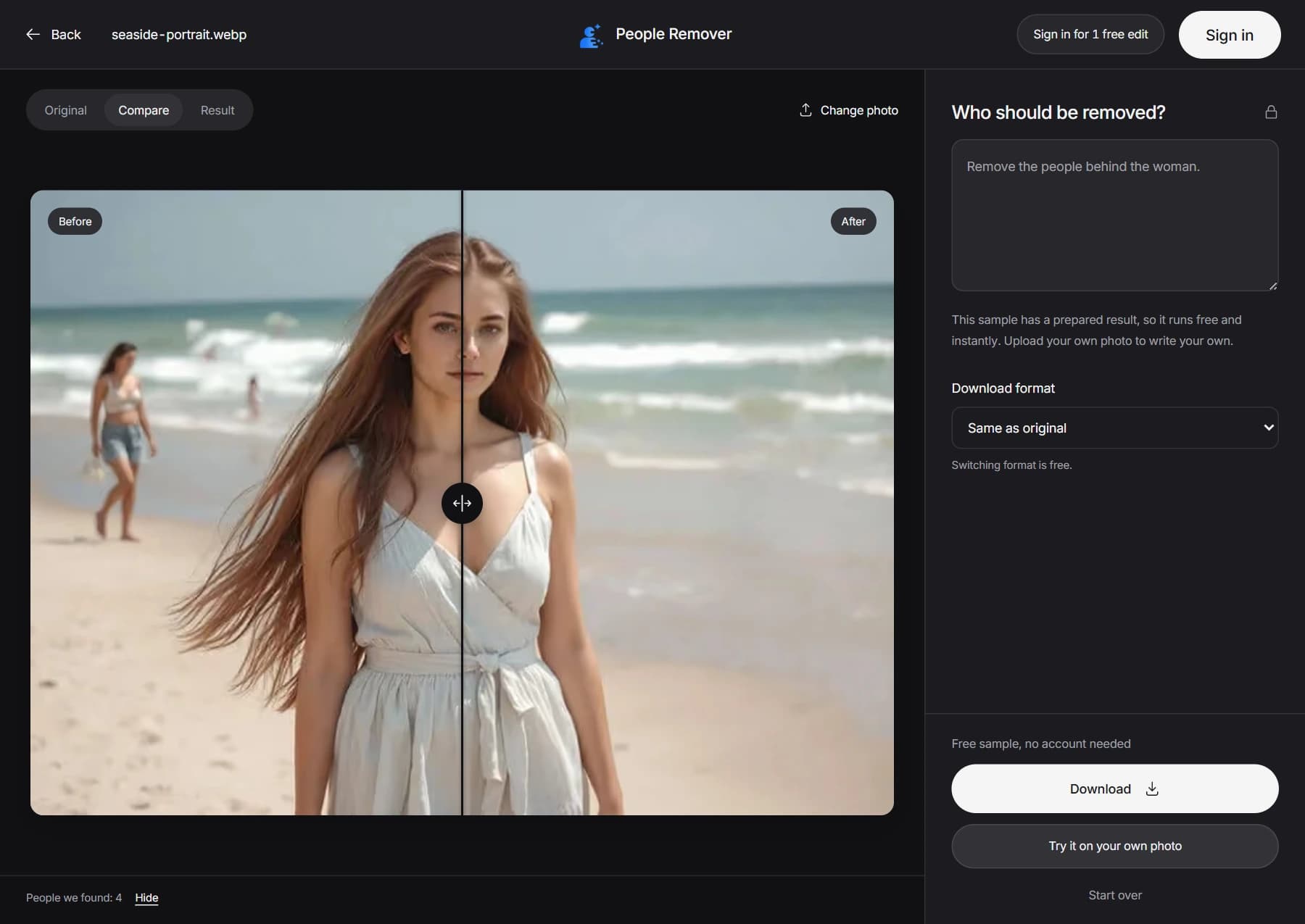
Open a photo and drag the slider to compare before and after. Each preview includes the instruction for who to remove.

Seaside portrait after the requested people have been removed.
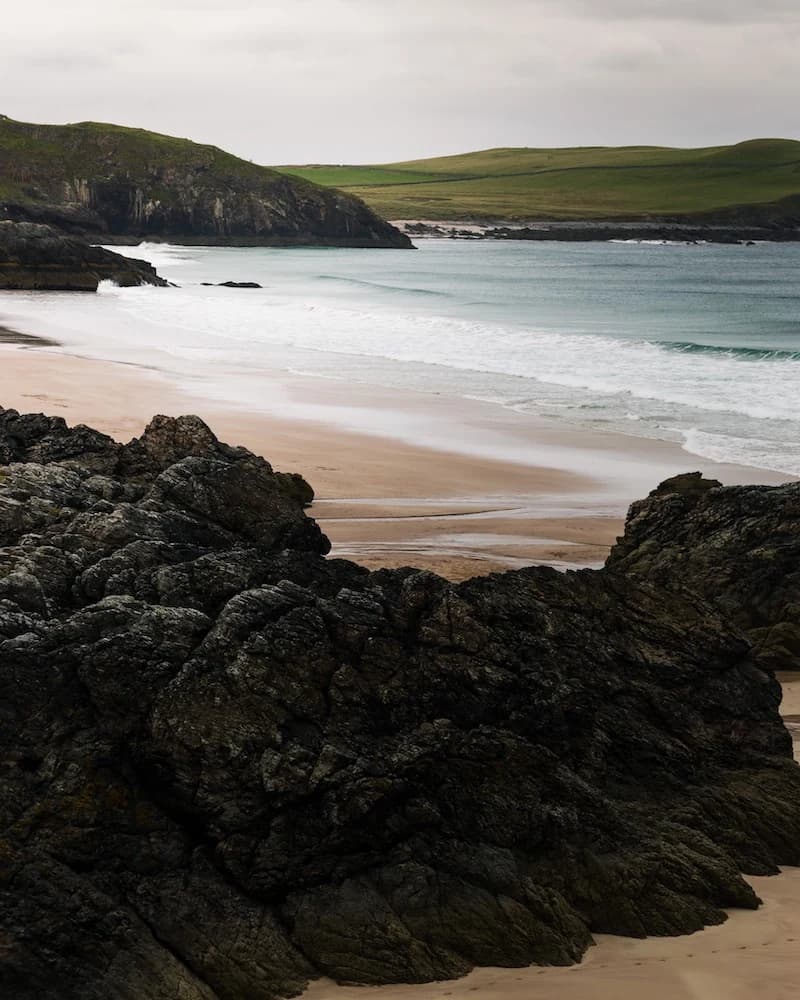
Rocky cove after the requested people have been removed.
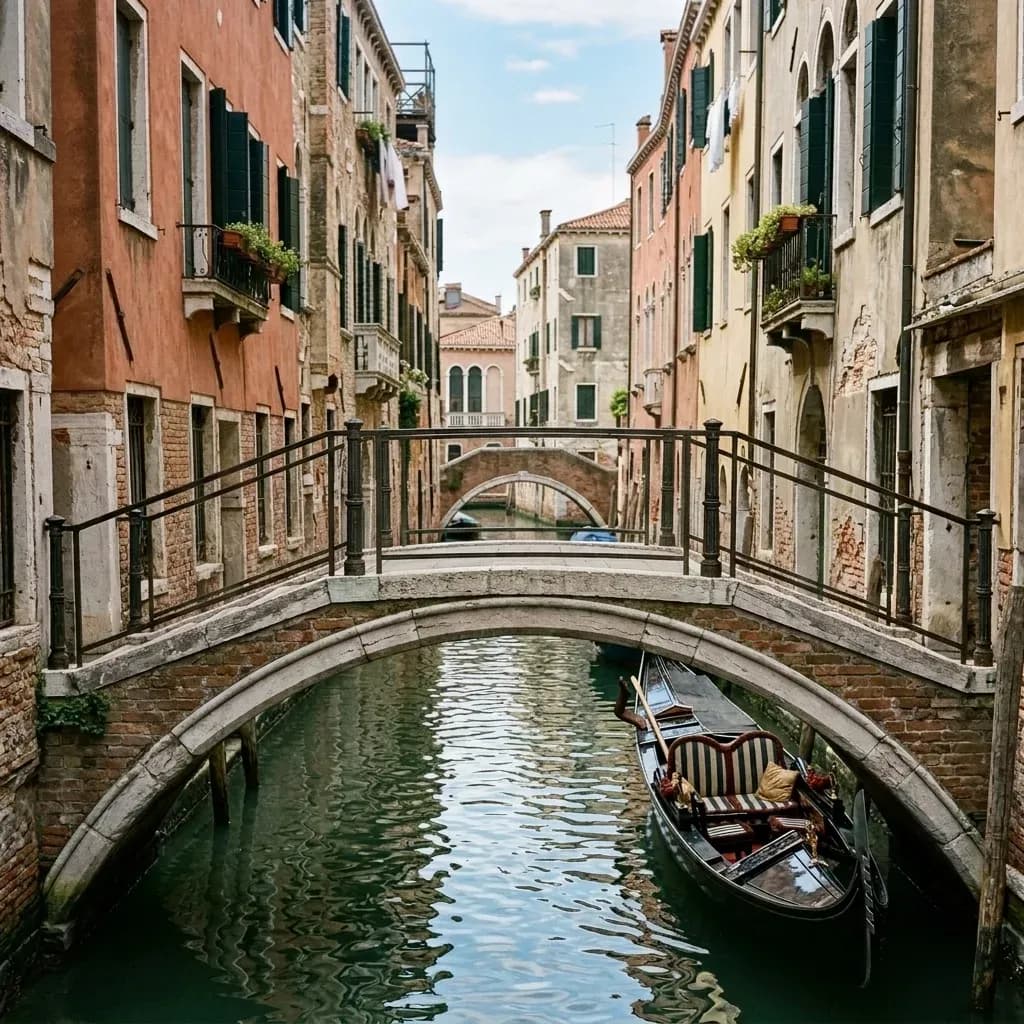
Venice canal after the requested people have been removed.
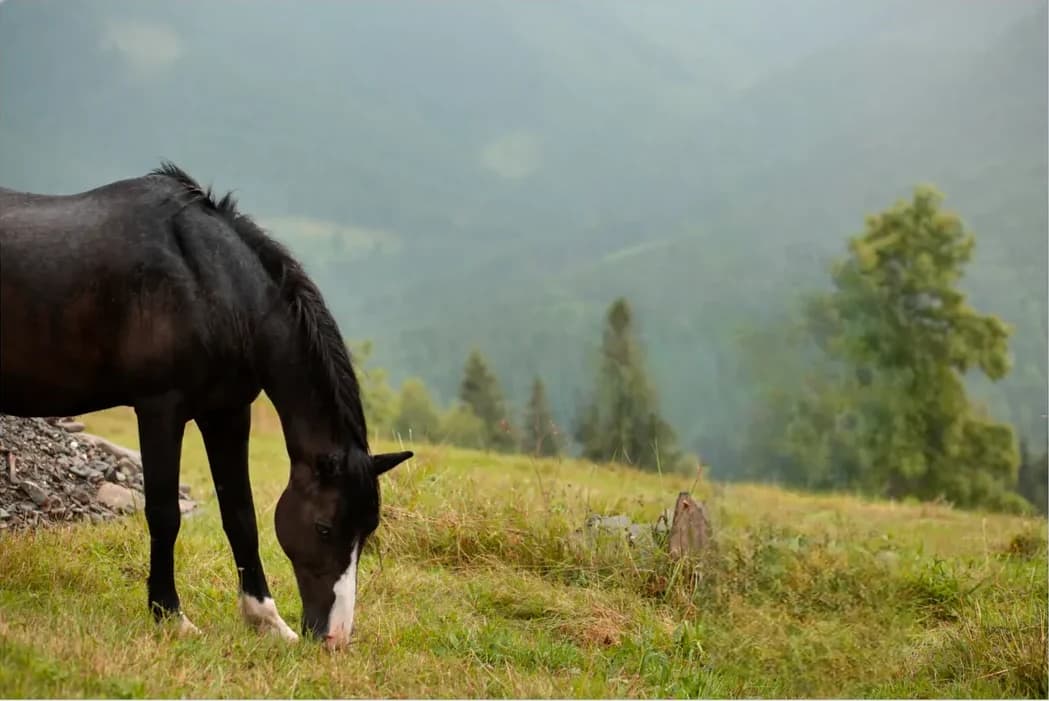
Horse in a meadow after the requested people have been removed.
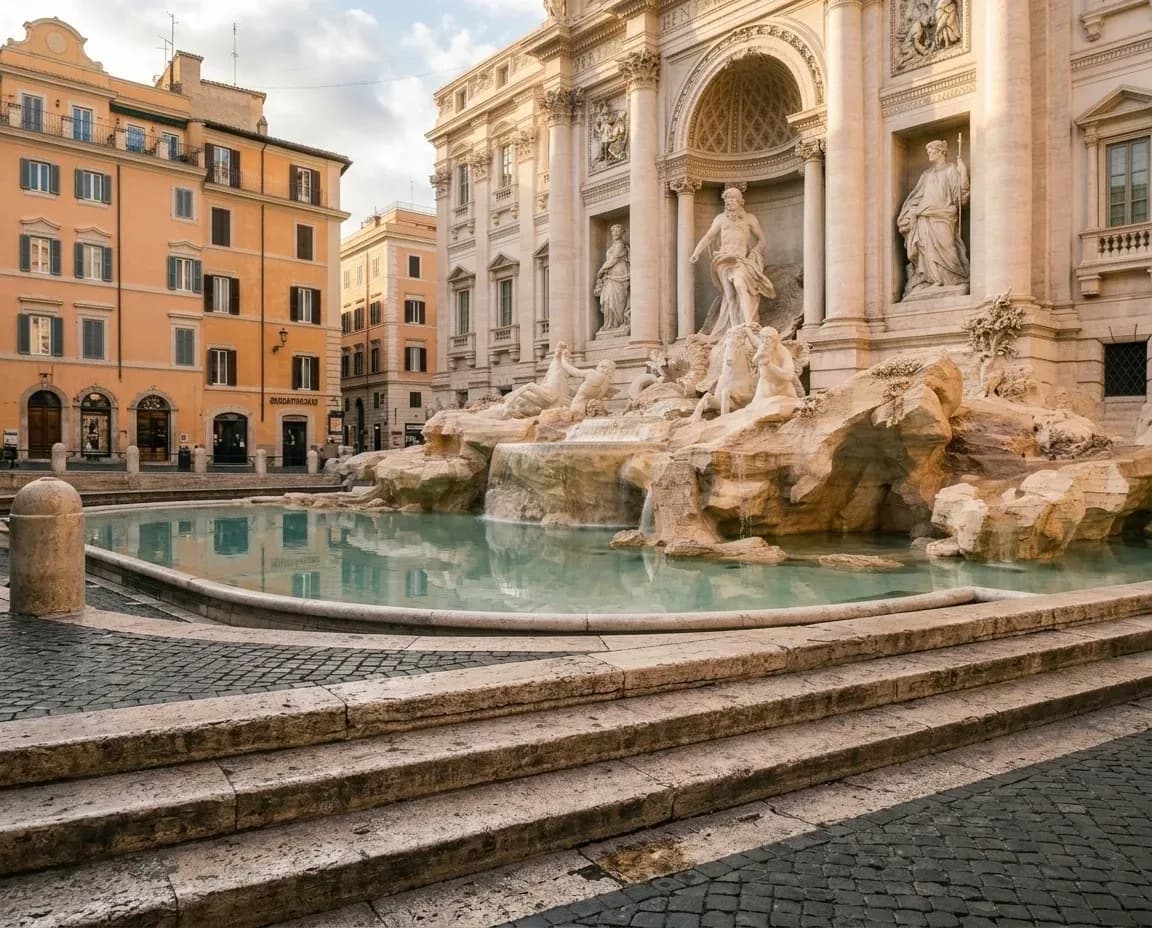
Trevi Fountain after the requested people have been removed.

Food truck after the requested people have been removed.

City traveler after the requested people have been removed.

Real estate lounge after the requested people have been removed.
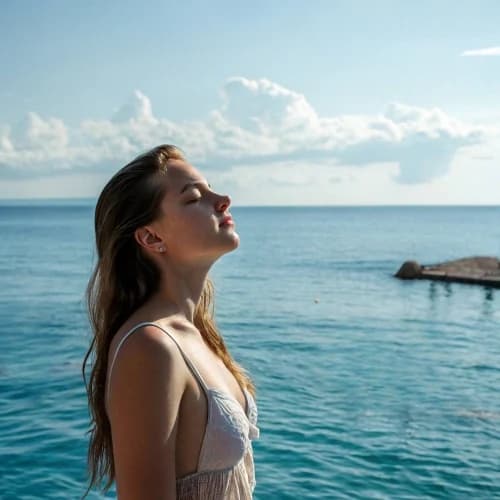
Seaside swimmers after the requested people have been removed.

Wedding guests after the requested people have been removed.

Sunlit workspace after the requested people have been removed.
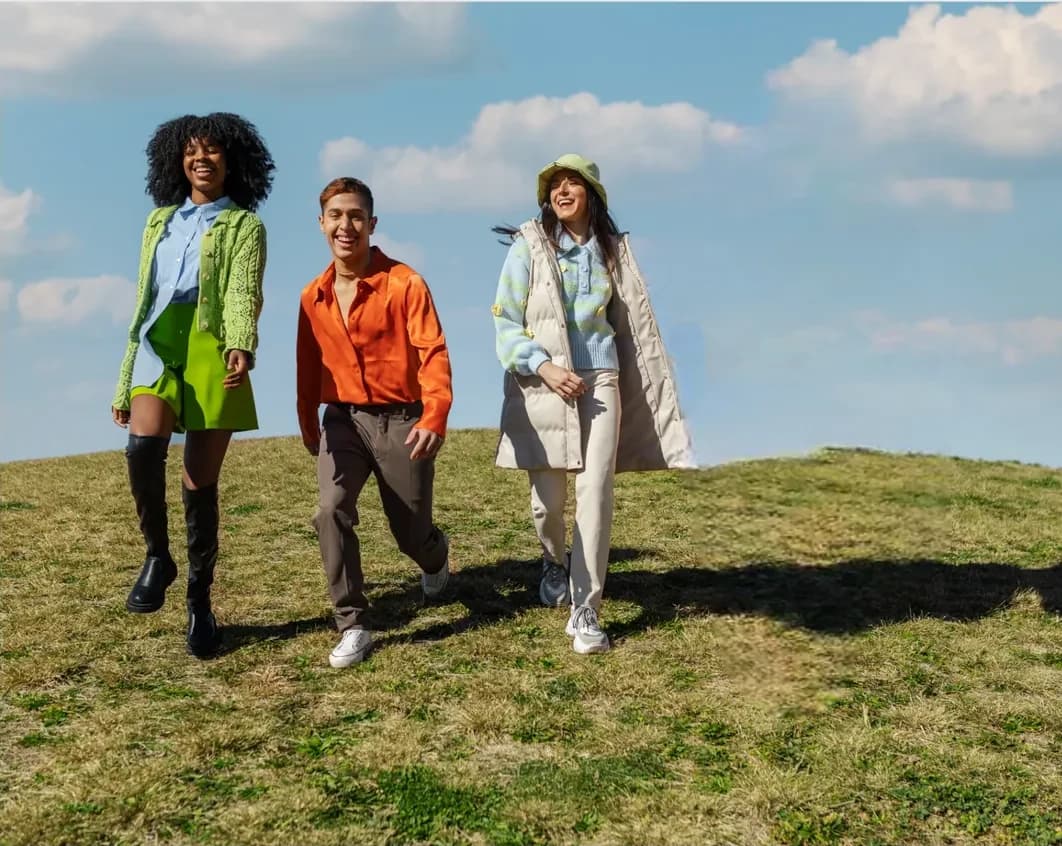
Friends in a meadow after the requested people have been removed.
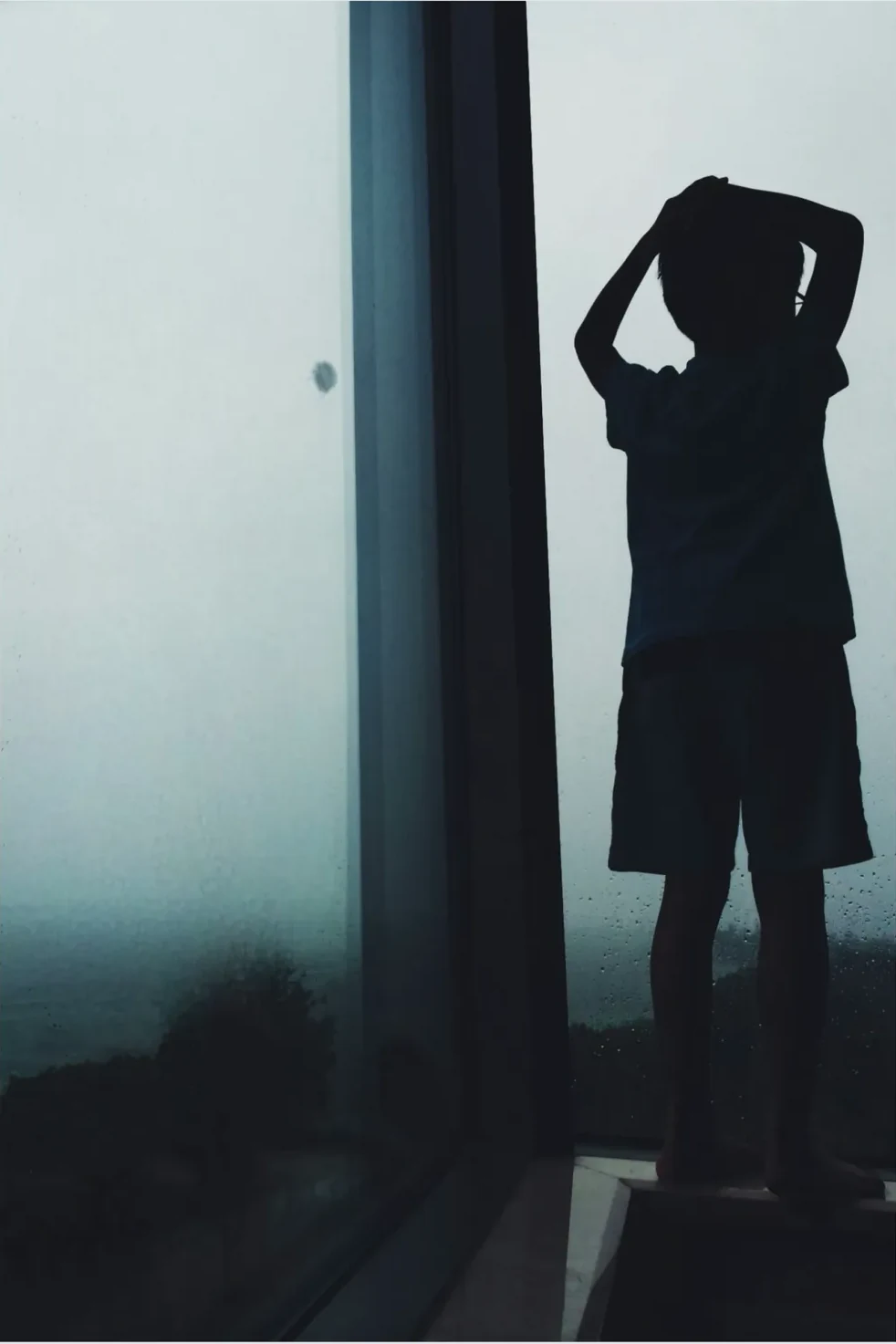
Window reflection after the requested people have been removed.

Wildflower portrait after the requested people have been removed.

Courtyard portrait after the requested people have been removed.

Garden portrait after the requested people have been removed.
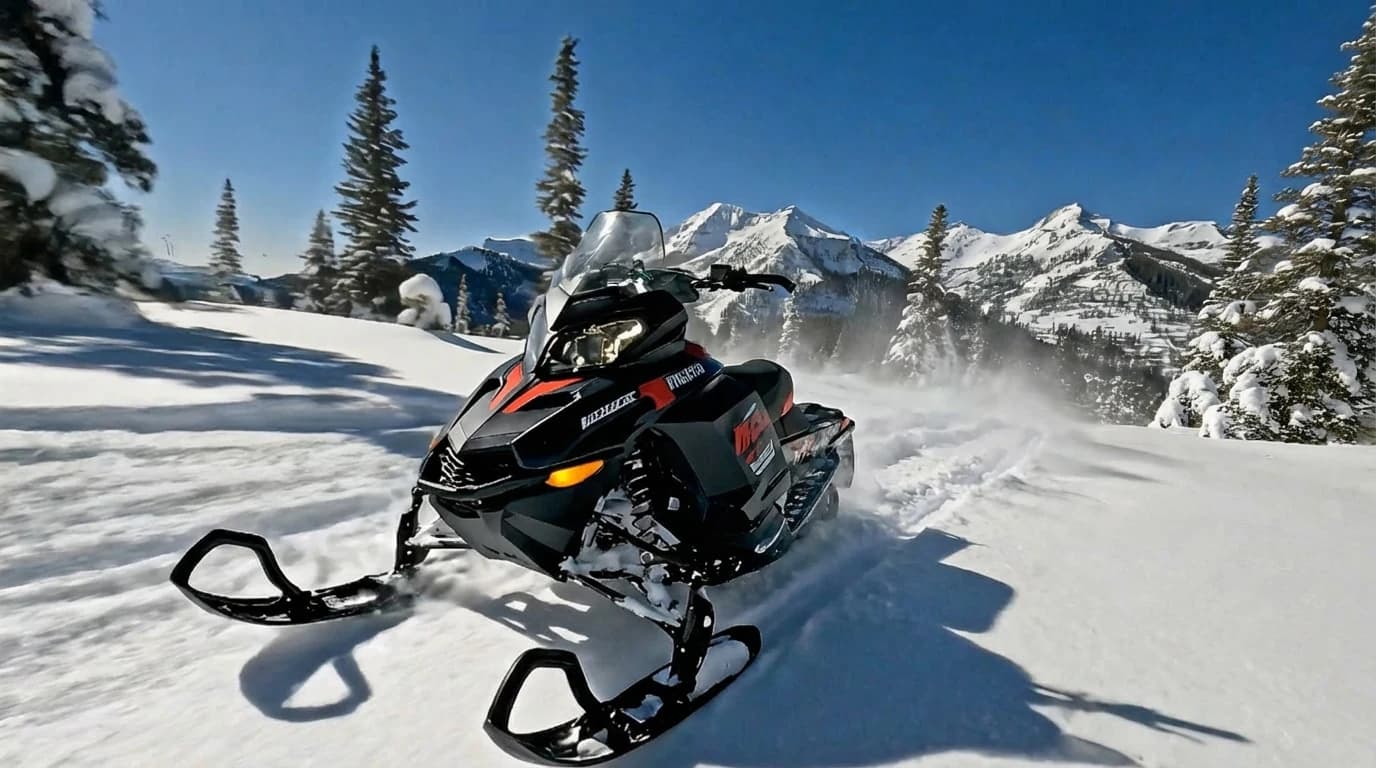
Snowmobile after the requested people have been removed.
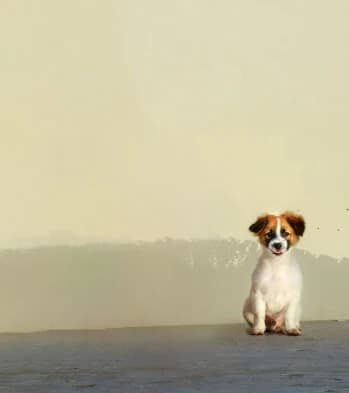
Dog portrait after the requested people have been removed.
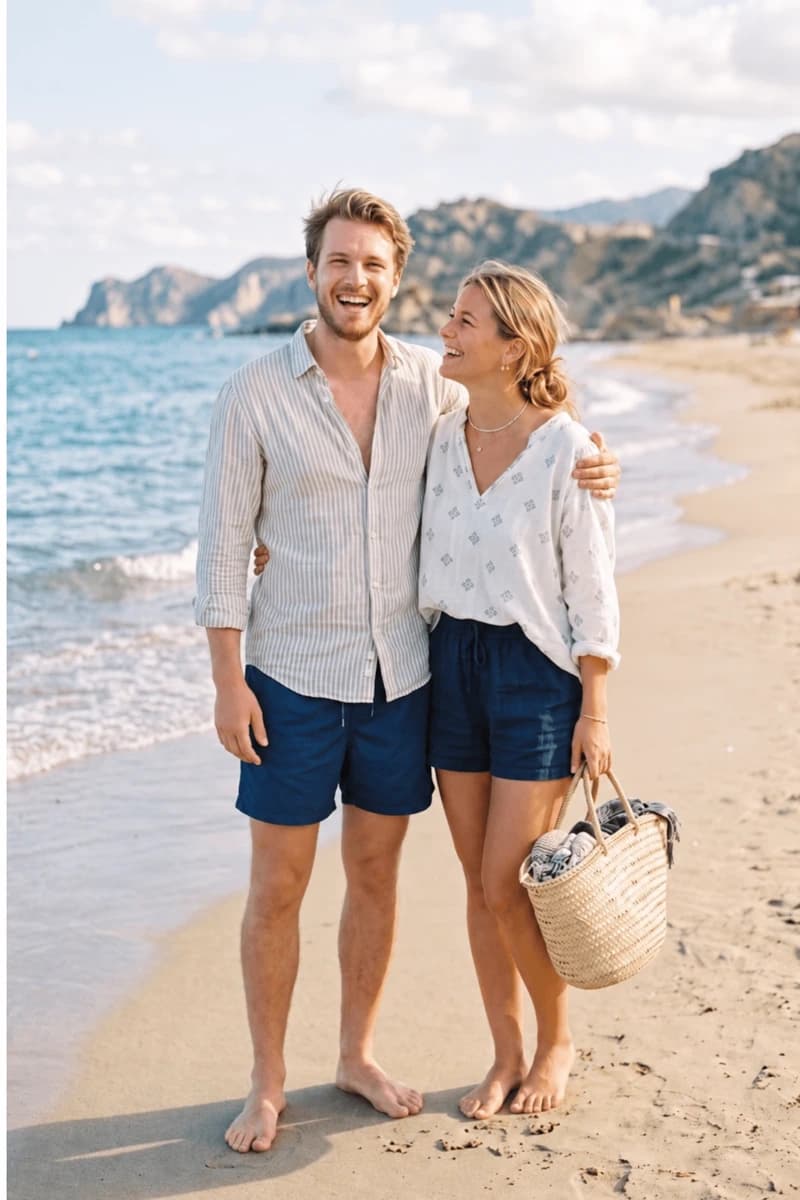
Coastal couple after the requested people have been removed.
How to Remove People from Photos in 3 Steps
You describe who to remove in plain words. You don't draw a mask or select anyone.
Here is how to remove a person from a photo: upload it to People Remover, type who you want gone, and download the result. You describe the person in words instead of painting over them.
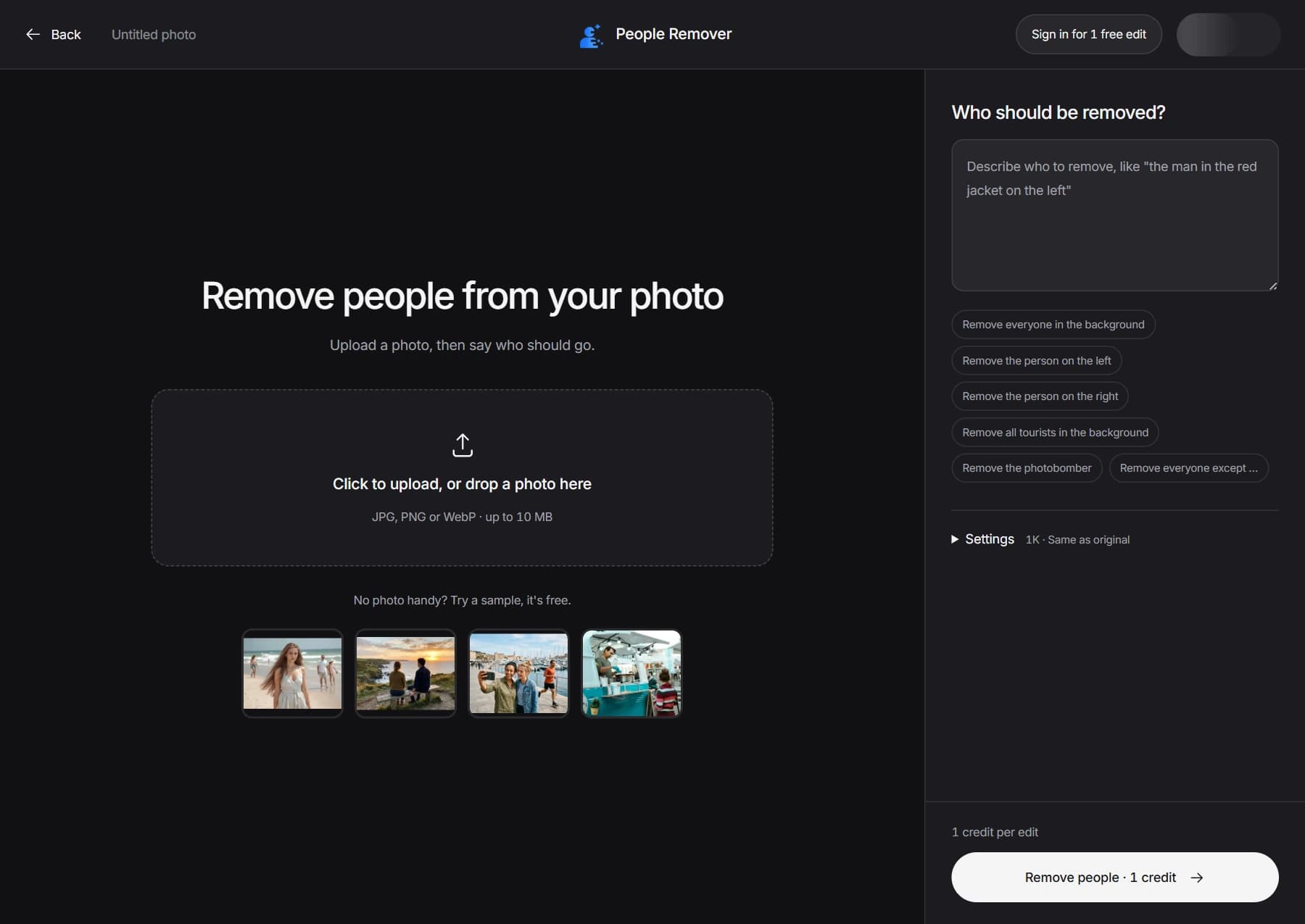
Upload your photo.
Choose a JPG, PNG, WebP or iPhone HEIC/HEIF photo up to 10 MB. HEIC photos are converted to JPG in your browser. Download your result when it is ready so you have your own copy.
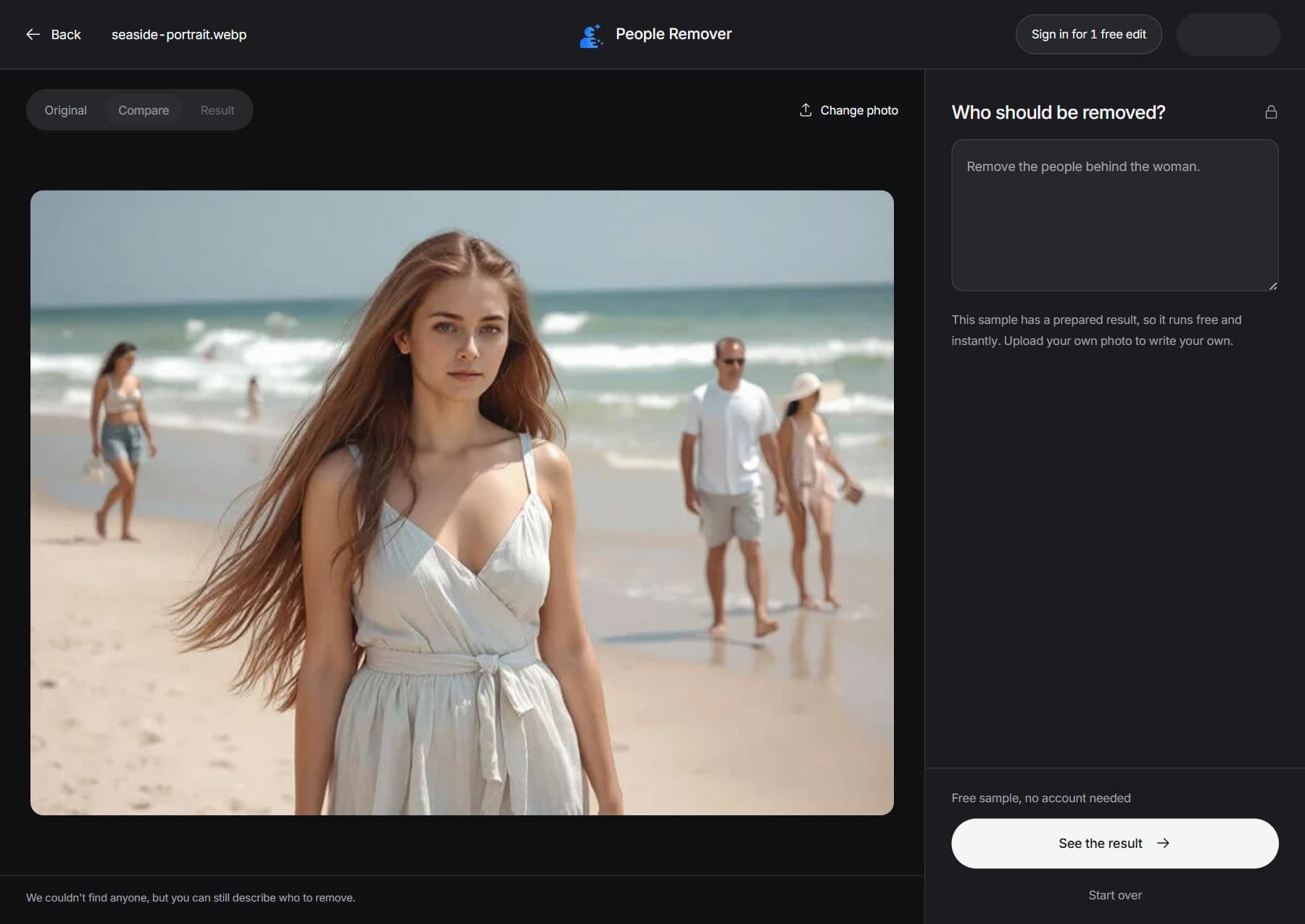
Describe who to remove.
Type a short sentence, such as "remove the man on the left" or "remove everyone in the background". Say where the person is or what they are wearing.
Download the result.
Pick JPG, PNG or WebP and download. Paid plans can also choose 2K or 4K. There is no watermark on any plan.
How to Describe the People You Want Removed
A clear sentence gives a cleaner result when you remove people from photos with AI. Point to where the person is, what they wear or what they are doing.
You typeWhat it does
Remove the man on the leftTargets one person by position.
Remove the woman in the red jacketTargets one person by clothing.
Remove everyone in the backgroundClears the crowd and keeps the main subject.
Remove all people except the brideKeeps one person and removes the rest.
Remove the child sitting on the stepsTargets a person by what they are doing.
Think of it as a short AI prompt: say who, and where. Not sure it understood? Add one more detail, such as the color of their clothes, and run it again.
Remove People from Photos: Common Uses
Most people use it to remove unwanted people from photos they can't retake.
Tourist crowds
Landmarks are rarely empty. Describe the crowd behind you and keep the monument and your group in the shot.
Photobombers
Someone walked through your picture at the wrong moment. Name where they are and remove them.
Removing an ex
Keep a good photo of a good day. Remove someone from a photo and everyone else stays in the shot.
Real estate photos
Listing photos work better without neighbors or passersby in the frame. Remove them before you publish.
Weddings and events
Remove a person from a group photo, like a guest or a staff member who walked into a candid, and keep the couple.
Family photos
Clear out strangers on a beach, a trail or a playground so the picture shows only your family.
Tips for Cleaner Results When You Remove People from Photos
The tool works best with clear descriptions. Here is what helps, and where it can go wrong.
Be specific.
"The man in the red jacket on the left" works better than "the man". If several people look alike, say which one.
Name everyone in one go.
You can list several people in one description, and it still counts as one edit.
Overlapping people are harder.
If the person you remove stands in front of, or touches, your subject, the result can look less clean. Try again with a clearer description.
The whole image is re-drawn.
The AI generates the finished photo, so small details outside the removed person can shift slightly. Check the result before you print or share it.
It can misread a request.
If the wrong person is removed, edit your sentence and run it again. A failed edit gives your credits back.
Ways to Remove People from a Photo, Compared
Looking for apps to remove people from photos? Each method suits a different job, so pick the one that matches yours.
| Method | Good for | Trade-off |
|---|---|---|
| Eraser tools in phone photo apps | Quick fixes on a phone | Controls differ by app, so check how it handles several people |
| Desktop photo editors | Full control over every pixel | Takes skill and time to learn |
| Brush-based online erasers | Painting an exact area | You must mask each person by hand |
| Describe-and-remove (People Remover) | Naming people in a sentence | Less exact than painting an area when you need a precise outline |
Where People Remover is weaker. If you need to remove a very specific shape or a small part of a person, a brush gives you more control. If you want to remove whole people fast, describing them is usually quicker.
Remove People from Photos Free: Credits and Pricing
Sign in and try your first edit free. Then choose a one-time credit pack or a monthly credit plan.
5-credit pack
Just a few photos? No subscription.
$3.99
One-time purchase
- 5 credits, paid once
- No subscription; credits never expire
- Up to 5 edits at 1K, 2 at 2K or 1 at 4K
- Download JPG, PNG or WebP without a watermark
- Credits returned if an edit fails
Basic
For a few photos each month
$9.9
Per month
- 100 credits every month
- 100 edits at 1K, 50 at 2K or 33 at 4K
- About $0.10 per 1K edit
- Unused credits carry over
- Download JPG, PNG or WebP without a watermark
- Credits returned if an edit fails; cancel any time
Standard
Most Popular
For regular use
$19.9
Per month
- 300 credits every month
- 300 edits at 1K, 150 at 2K or 100 at 4K
- About $0.07 per 1K edit
- Unused credits carry over
- Download JPG, PNG or WebP without a watermark
- Credits returned if an edit fails; cancel any time
Pro
Best value
For frequent use
$49.9
Per month
- 900 credits every month
- 900 edits at 1K, 450 at 2K or 300 at 4K
- About $0.06 per 1K edit
- Unused credits carry over
- Download JPG, PNG or WebP without a watermark
- Credits returned if an edit fails; cancel any time
In every paid plan: Choose 1K, 2K or 4K, which cost 1, 2 or 3 credits per edit. Download as JPG, PNG or WebP with no watermark. If an edit fails, your credits come back. Monthly plans renew automatically until you cancel. Cancel a monthly plan any time and keep the credits you already have.
One edit, any number of people. "Remove everyone in the background except the bride" is one edit, however many people you remove.
Remove People from Photos: FAQ
Short answers to the questions people ask most.
Can I remove people from photos online for free?
Yes. You can remove a person from a photo for free: your first edit costs nothing when you sign in. After that you can buy a 5-credit pack for $3.99 or choose a monthly plan. The free edit has no watermark.
How do I remove a person from a photo on my iPhone?
Open People Remover in your phone's browser, upload the photo, and type who to remove. You don't need to install an app. Download the result to your phone when it is ready.
Do I need to brush or select the person?
No. You describe the person in a sentence, such as "remove the woman in the red jacket". The AI finds them and removes them.
Can I remove several people at once?
Yes. Name them in one description, like "remove everyone in the background". It counts as one edit and costs the same credits as removing one person.
Does it add a watermark?
No. Results have no watermark on any plan, including the free edit.
Are my photos stored?
Our AI service processes your photo to make the requested edit. Your uploaded original and edited results are automatically deleted after 1 hour. Your photos and editing instructions are not used to train AI models. Download your result before the hour ends; your photos are not saved in your profile.
What happens if an edit fails?
If an edit fails, your credits come back. You can try again with the same photo or a clearer description.
What is the difference between 1K, 2K and 4K?
They are output sizes. Your free edit is 1K, and paid credits work at any size. A larger size is better for printing and costs more credits: 1K costs 1, 2K costs 2 and 4K costs 3.
Will the rest of my photo change?
The AI re-draws the full image, so small details away from the removed person can shift slightly. Check the result before you print or share it.