Vysion MCP
Vysion MCP Server เชื่อมต่อผู้ช่วย AI โดยตรงกับแพลตฟอร์มข่าวกรองภัยคุกคามไซเบอร์ของ Vysion ช่วยให้ผู้ใช้ตรวจสอบภัยคุกคามไซเบอร์ด้วยภาษาธรรมชาติ โดยไม่ต้องเขียนโค้ดหรือเรียก API
เซิร์ฟเวอร์ MCP แบบโฮสต์
npx add-mcp 'https://mcp.vysion.ai/mcp'ติดตั้งลง Claude Code, Codex, Cursor และอื่นๆ
เอกสาร
The Vysion MCP server lets you use Vysion’s threat intelligence directly from AI assistants such as Claude Code, Mistral (Le Chat), Cursor, OpenCode, and more.
Instead of writing code or calling the REST API, you connect the server once and then ask questions in plain language. The assistant decides which Vysion tool to call and returns the results to you.
What is MCP?
MCP (Model Context Protocol) is an open standard that lets AI assistants use external tools and data sources. When you connect the Vysion MCP server, your assistant gains access to Vysion’s darknet intelligence (documents, leaks, instant messaging, ransomware victims, feeds, and more) as a set of tools it can invoke on your behalf.
Prerequisites
- A Vysion API key (see Authentication)
- A compatible client: Claude Code, Mistral / Le Chat, Cursor, OpenCode, or any other MCP-compatible client
Connection Details
Use the same values in every client:
| Setting | Value |
|---|---|
| Server URL | https://mcp.vysion.ai/mcp |
| Authentication | Your personal Vysion API key |
Claude Code
Claude Code supports two ways to add the Vysion MCP server: a CLI command or a configuration file.
Run the following command in your terminal:
claude mcp add vysion \
  --transport http \
  https://mcp.vysion.ai/mcp \
  --header "Authorization: Bearer YOUR_API_KEY"
Replace YOUR_API_KEY with your personal Vysion API key.
After adding the server, verify it is connected by running the /mcp command inside Claude Code. You should see Vysion listed with its tools.
Mistral / Le Chat
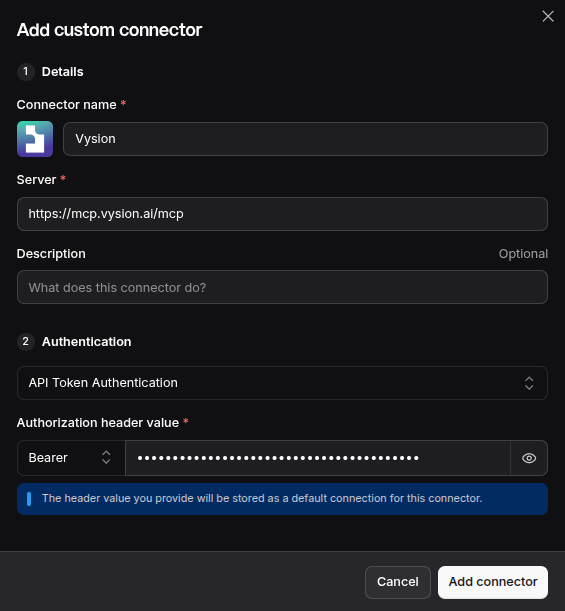
- Open Mistral and go to Connectors.
- Click Add connector and select Add a custom connector.
- Fill in the form with these values:
| Field | Value |
|---|---|
| Name | Vysion |
| Connector Server | https://mcp.vysion.ai/mcp |
| Authentication | API Token Authentication |
| Header name | Authorization |
| Type | Bearer |
| Token | YOUR_API_KEY |
- Save the connector and enable it for your conversations.
What You Can Do
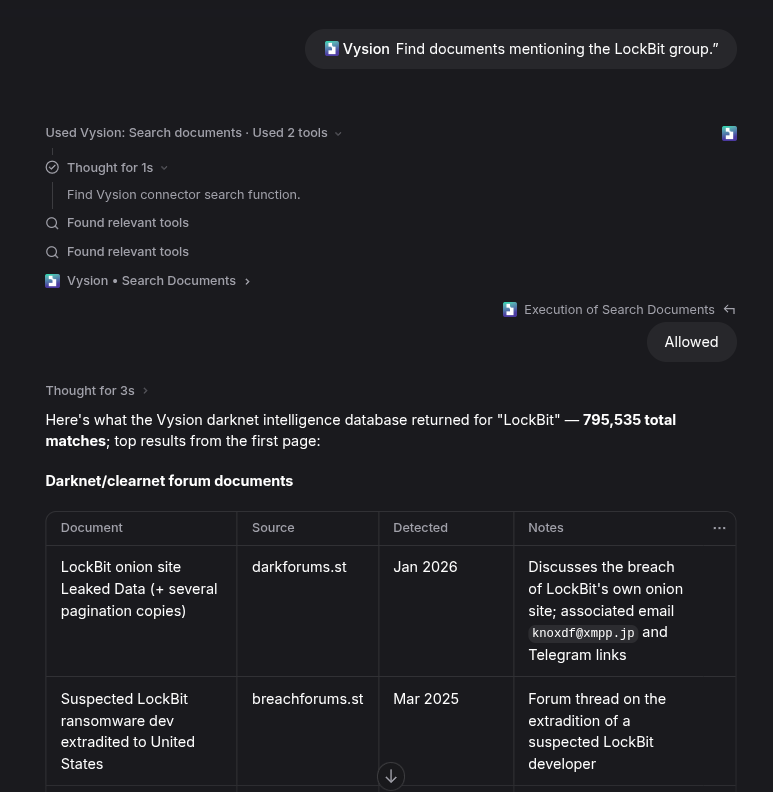
Once connected, ask questions in natural language. The assistant will pick the right Vysion tool automatically. For example:
- “Search for leaked credentials for the email
admin@example.com.” - “Show me ransomware victims in the healthcare sector from the last 30 days.”
- “Find documents mentioning the LockBit group.”
- “Check if this Bitcoin address appears in any leak or dark web source.”
Available Tools
The Vysion MCP server exposes tools across these categories:
- Documents: search and retrieve threat intelligence documents
- Leaks: search leaked data by email, wallet, IP, phone, username, or hash
- Instant Messaging: search Telegram and Discord messages, channels, and profiles
- Ransomware Victims: search ransomware victims and groups
- Ransomware Stats & Histograms: statistics by country, group, and sector
- Feeds: ransomware, Telegram, cryptocurrency, and onion feeds
- OSINT: phone number intelligence
For endpoint details and parameters, start with the Documents API reference and use the API Reference sidebar for the remaining categories.
Troubleshooting
401 Unauthorized
The server returns 401 when the API key is missing or invalid. Check that:
- You replaced
YOUR_API_KEYwith your real key. - The header is
Authorization: Bearer YOUR_API_KEY.
Connector not appearing in Mistral
Make sure you selected API Token Authentication and set the header to Authorization with type Bearer. Mistral detects the connector type from the server’s authentication response.
Rate limits
The Vysion API is rate limited. See the Rate Limiting guide for details.