Bifrost
เปิดเผยเครื่องมือพัฒนาและคุณสมบัติทางภาษาของ VSCode ให้กับเครื่องมือ AI ผ่านเซิร์ฟเวอร์ MCP
เอกสาร
Bifrost - VSCode Dev Tools MCP Server

This VS Code extension provides a Model Context Protocol (MCP) server that exposes VSCode's powerful development tools and language features to AI tools. It enables advanced code navigation, analysis, and manipulation capabilities when using AI coding assistants that support the MCP protocol.
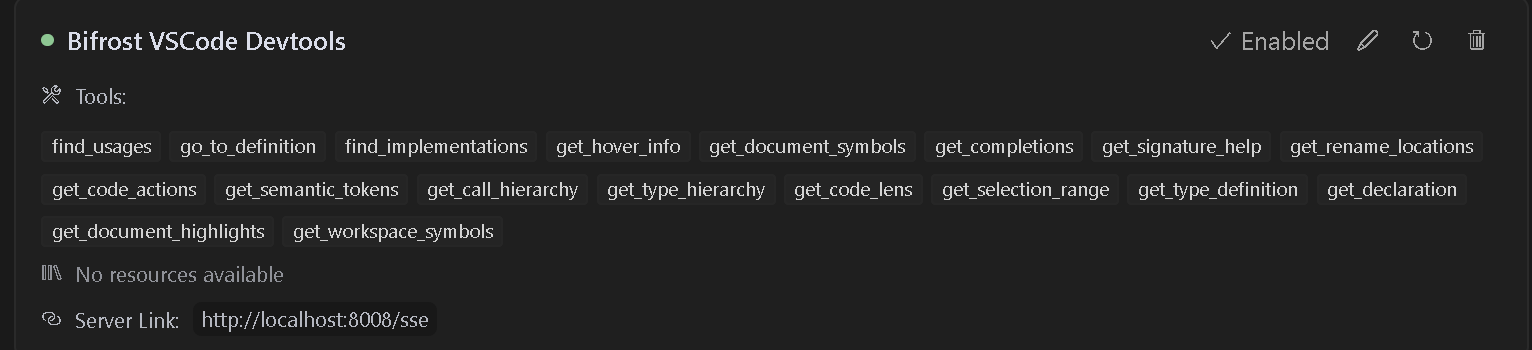
Table of Contents
- Features
- Installation/Usage
- Multi-Project Support
- Available Tools
- Available Commands
- Troubleshooting
- Contributing
- Debugging
- License
Features
- Language Server Integration: Access VSCode's language server capabilities for any supported language
- Code Navigation: Find references, definitions, implementations, and more
- Symbol Search: Search for symbols across your workspace
- Code Analysis: Get semantic tokens, document symbols, and type information
- Smart Selection: Use semantic selection ranges for intelligent code selection
- Code Actions: Access refactoring suggestions and quick fixes
- HTTP/SSE Server: Exposes language features over an MCP-compatible HTTP server
- AI Assistant Integration: Ready to work with AI assistants that support the MCP protocol
Usage
Installation
- Install the extension from the VS Code marketplace
- Install any language-specific extensions you need for your development
- Open your project in VS Code
Configuration
The extension will automatically start an MCP server when activated. To configure an AI assistant to use this server:
- The server runs on port 8008 by default (configurable with
bifrost.config.json) - Configure your MCP-compatible AI assistant to connect to:
- SSE endpoint:
http://localhost:8008/sse - Message endpoint:
http://localhost:8008/message
- SSE endpoint:
LLM Rules
I have also provided sample rules that can be used in .cursorrules files for better results.
Cline Installation
- Step 1. Install Supergateway
- Step 2. Add config to cline
- Step 3. It will show up red but seems to work fine
Windows Config
{
  "mcpServers": {
    "Bifrost": {
      "command": "cmd",
      "args": [
        "/c",
        "npx",
        "-y",
        "supergateway",
        "--sse",
        "http://localhost:8008/sse"
      ],
      "disabled": false,
      "autoApprove": [],
      "timeout": 600
    }
  }
}
Mac/Linux Config
{
  "mcpServers": {
    "Bifrost": {
      "command": "npx",
      "args": [
        "-y",
        "supergateway",
        "--sse",
        "http://localhost:8008/sse"
      ],
      "disabled": false,
      "autoApprove": [],
      "timeout": 600
    }
  }
}
Roo Code Installation
- Step 1: Add the SSE config to your global or project-based MCP configuration
{
  "mcpServers": {
    "Bifrost": {
      "url": "http://localhost:8008/sse"
    }
  }
}
Follow this video to install and use with cursor
FOR NEW VERSIONS OF CURSOR, USE THIS CODE
{
  "mcpServers": {
    "Bifrost": {
      "url": "http://localhost:8008/sse"
    }
  }
}
Multiple Project Support
When working with multiple projects, each project can have its own dedicated MCP server endpoint and port. This is useful when you have multiple VS Code windows open or are working with multiple projects that need language server capabilities.
Project Configuration
Create a bifrost.config.json file in your project root:
{
    "projectName": "MyProject",
    "description": "Description of your project",
    "path": "/my-project",
    "port": 5642
}
The server will use this configuration to:
- Create project-specific endpoints (e.g.,
http://localhost:5642/my-project/sse) - Provide project information to AI assistants
- Use a dedicated port for each project
- Isolate project services from other running instances
Example Configurations
- Backend API Project:
{
    "projectName": "BackendAPI",
    "description": "Node.js REST API with TypeScript",
    "path": "/backend-api",
    "port": 5643
}
- Frontend Web App:
{
    "projectName": "FrontendApp",
    "description": "React frontend application",
    "path": "/frontend-app",
    "port": 5644
}
Port Configuration
Each project should specify its own unique port to avoid conflicts when multiple VS Code instances are running:
- The
portfield inbifrost.config.jsondetermines which port the server will use - If no port is specified, it defaults to 8008 for backwards compatibility
- Choose different ports for different projects to ensure they can run simultaneously
- The server will fail to start if the configured port is already in use, requiring you to either:
- Free up the port
- Change the port in the config
- Close the other VS Code instance using that port
Connecting to Project-Specific Endpoints
Update your AI assistant configuration to use the project-specific endpoint and port:
{
  "mcpServers": {
    "BackendAPI": {
      "url": "http://localhost:5643/backend-api/sse"
    },
    "FrontendApp": {
      "url": "http://localhost:5644/frontend-app/sse"
    }
  }
}
Backwards Compatibility
If no bifrost.config.json is present, the server will use the default configuration:
- Port: 8008
- SSE endpoint:
http://localhost:8008/sse - Message endpoint:
http://localhost:8008/message
This maintains compatibility with existing configurations and tools.
Available Tools
The extension provides access to many VSCode language features including:
- find_usages: Locate all symbol references.
- go_to_definition: Jump to symbol definitions instantly.
- find_implementations: Discover implementations of interfaces/abstract methods.
- get_hover_info: Get rich symbol docs on hover.
- get_document_symbols: Outline all symbols in a file.
- get_completions: Context-aware auto-completions.
- get_signature_help: Function parameter hints and overloads.
- get_rename_locations: Safely get location of places to perform a rename across the project.
- rename: Perform rename on a symbol
- get_code_actions: Quick fixes, refactors, and improvements.
- get_semantic_tokens: Enhanced highlighting data.
- get_call_hierarchy: See incoming/outgoing call relationships.
- get_type_hierarchy: Visualize class and interface inheritance.
- get_code_lens: Inline insights (references, tests, etc.).
- get_selection_range: Smart selection expansion for code blocks.
- get_type_definition: Jump to underlying type definitions.
- get_declaration: Navigate to symbol declarations.
- get_document_highlights: Highlight all occurrences of a symbol.
- get_workspace_symbols: Search symbols across your entire workspace.
Requirements
- Visual Studio Code version 1.93.0 or higher
- Appropriate language extensions for the languages you want to work with (e.g., C# extension for C# files)
Available Commands
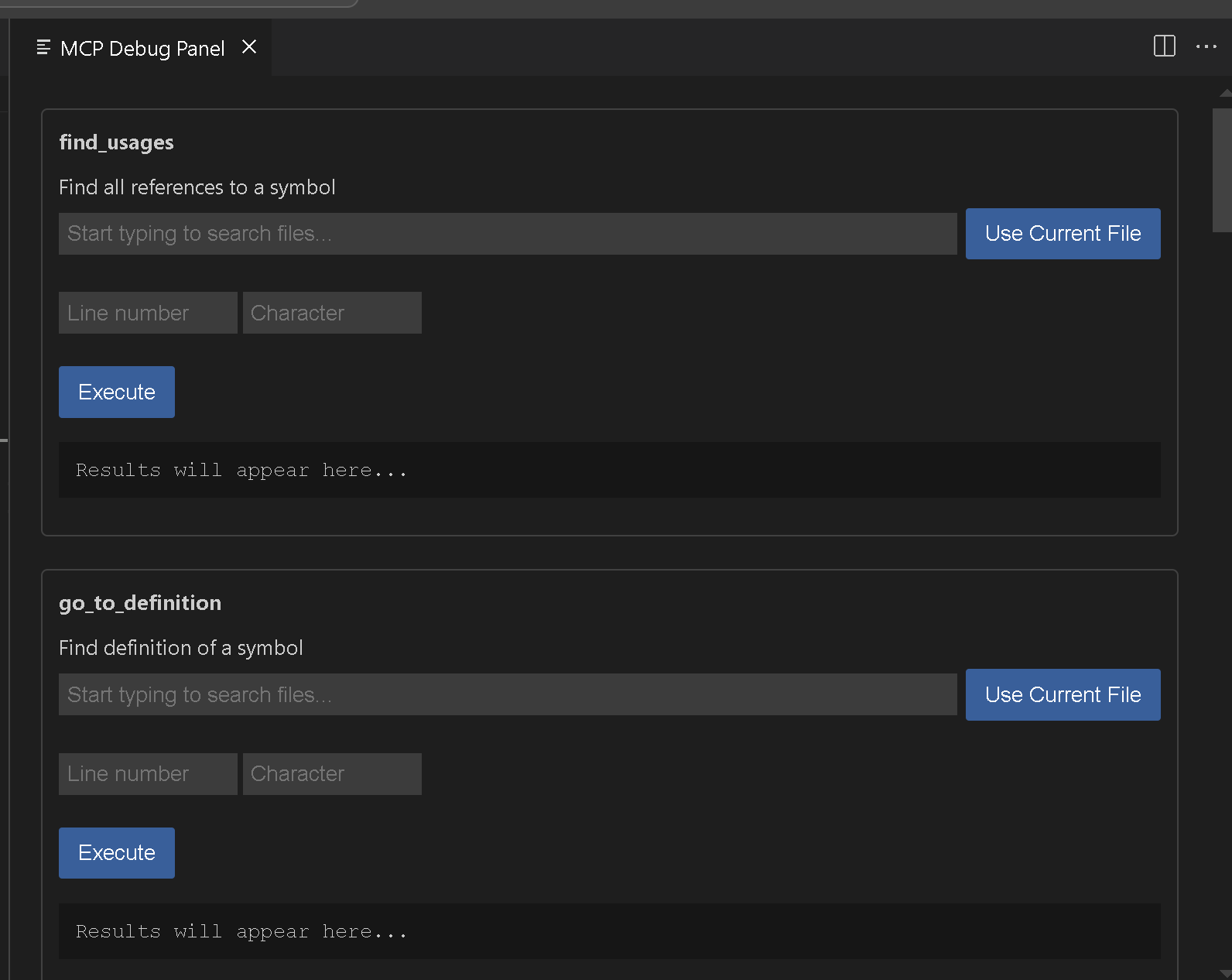
Bifrost MCP: Start Server- Manually start the MCP server on port 8008Bifrost MCP: Start Server on port- Manually start the MCP server on specified portBifrost MCP: Stop Server- Stop the running MCP serverBifrost MCP: Open Debug Panel- Open the debug panel to test available tools

Star History
Example Tool Usage
Find References
{
  "name": "find_usages",
  "arguments": {
    "textDocument": {
      "uri": "file:///path/to/your/file"
    },
    "position": {
      "line": 10,
      "character": 15
    },
    "context": {
      "includeDeclaration": true
    }
  }
}
Workspace Symbol Search
{
  "name": "get_workspace_symbols",
  "arguments": {
    "query": "MyClass"
  }
}
Troubleshooting
If you encounter issues:
- Ensure you have the appropriate language extensions installed for your project
- Check that your project has loaded correctly in VSCode
- Verify that port 8008 is available on your system
- Check the VSCode output panel for any error messages
Contributing
Here are Vscodes commands if you want to add additional functionality go ahead. I think we still need rename and a few others. Please feel free to submit issues or pull requests to the GitHub repository.
vsce package
Debugging
Use the MCP: Open Debug Panel command
License
This extension is licensed under the APGL-3.0 License.