Ybug
officialConnect Claude, ChatGPT, Cursor or any MCP client to Ybug. Read bug reports with screenshots, console logs and network requests, then triage them in chat.
What can you do with Ybug MCP?
- Pull full bug report details — Ask your assistant to fetch a specific report with
get_feedback, including page, browser, and screenshot link. - Investigate console errors — Have your assistant retrieve browser console logs via
get_feedback_console_logsto diagnose what the reporter saw. - Review network activity — Ask for the fetch/XHR calls and their statuses using
get_feedback_network_requeststo spot failing requests. - Triage and prioritize feedback — Use
list_feedbackto filter reports by status, priority, type, tag, or assignee, then suggest what's urgent. - Update report status — Instruct your assistant to change a report's status or assignee with
update_feedbackas you work through fixes. - Leave internal notes — Have your assistant document findings or fixes on a report using
add_commentfor team visibility.
Hosted MCP Server
npx add-mcp 'https://mcp.ybug.io/mcp'Installs into Claude Code, Codex, Cursor and more
Documentation
Let your AI agent work through your feedback
Stop copying bug reports into chat. Connect your AI assistant to Ybug to pull in report details, investigate bugs in your repo and update feedback as you go.
No credit card required
claude code — ybug mcp
Fix the checkout bug QA reported this morning.
get_feedback hkz92hg6sf · screenshot · browser · console
The promo handler reads cart.total before the totals request resolves.
update_feedback hkz92hg6sf → In progress
Trusted by 1,000+ teams worldwide
From “it’s broken” to fixed, without the copy-paste
No pasting screenshots into a chat window. No re-typing which browser it happened on.
Skip the “which browser?” email
Your agent sees what the reporter saw: the screenshot, the page, their browser and screen size. It also reads the console errors they never saw. Nobody has to go back to the client with questions.
Know what to fix next
Ask what’s urgent on a project and get a short list back, right in your editor. No switching tabs, no scrolling through the board.
Don’t fix the same bug twice
Before it touches the code, your agent checks whether someone already reported it. Five clients hitting one broken button means one fix, not five.
Your team knows what changed
Your agent leaves a note on the report explaining the fix, so whoever picks it up next isn’t starting from zero. The client never sees it.
A board that keeps itself up to date
Your agent assigns reports, moves them to In progress and sets priorities as it works. The board stays current without anyone doing admin.
Hear what users are asking for
Suggestions and ratings come through too. Ask for a summary of last month’s feedback and walk into planning with the top requests.
From report to repo
Start with the bug report, keep working in your repo
Ask your coding agent to read a report from Ybug and look for the cause in your code. Have it leave an internal note on the report so your team can follow what changed.
- Pull in the report’s page, browser details and console log
- Investigate in the repo you’re working on
- Leave your findings on the original report
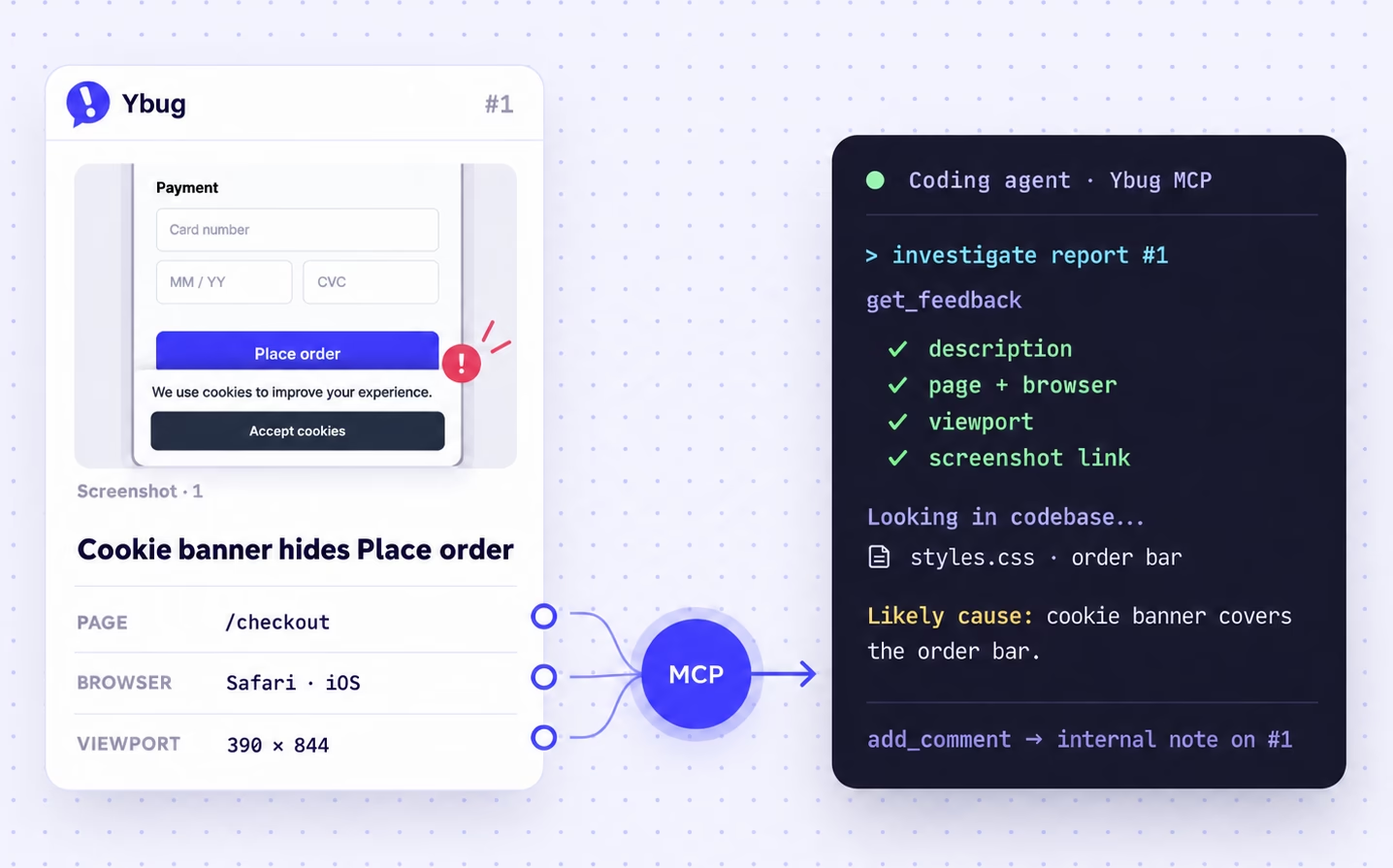
Example: a coding agent investigates a Ybug bug report and leaves an internal note on it
Put your bug reports to work
Three prompts to steal on your first day connected.
Prepare for a client call
“Summarize this week’s feedback on the Acme site and group it by page. Flag anything that’s a change request, not a bug.”
Investigate a bug
“Read the checkout report from yesterday and find the likely cause in this repo.”
Sort the new pile
“Review the reports since Friday. Suggest priorities, owners and likely duplicates, then apply the changes I approve with an internal note on each.”
Twelve tools, one endpoint
Your assistant finds all of them the moment it connects, and picks the right one on its own. You never type a tool name.
list_projectsEvery project you can reach in the team you connected.get_projectA project’s statuses, priorities and types, so your own names work in a prompt.list_tagsThe team’s tags. They’re shared across every project.list_project_membersWho on a project can take a report. Names and roles, never emails.list_feedbackFind reports by status, priority, type, tag, assignee, date or text.get_feedbackOne report in full, with the page, the browser and a screenshot link.get_feedback_console_logsThe reporter’s browser console: errors, warnings and stack traces.get_feedback_network_requestsThe fetch and XHR calls the page made, with status and timing. Never the bodies.list_commentsThe thread on a report. Author emails are never included.update_feedbackWrite Set status, priority, type and assignee. Add or remove tags.add_commentWrite Leave an internal note on a report for the team.create_tagWrite Add a tag to the team, without duplicating one you already have.
The nine read tools work on BASIC. The three that change a report need STARTUP or COMPANY, and so does recording network requests. Arguments and examples →
Your data, your rules
Your assistant works with your permissions
Your assistant sees the projects you can access in the team you connect. It can only make changes your account is allowed to make. You can disconnect it at any time.
- Review the requested permissions before granting access
- Reporter and commenter email fields aren’t included
- Comments added through MCP are internal. Status changes can trigger the automatic replies you’ve enabled
- Screenshot and video links expire after about an hour
- Revoke any assistant from Connected apps in your account
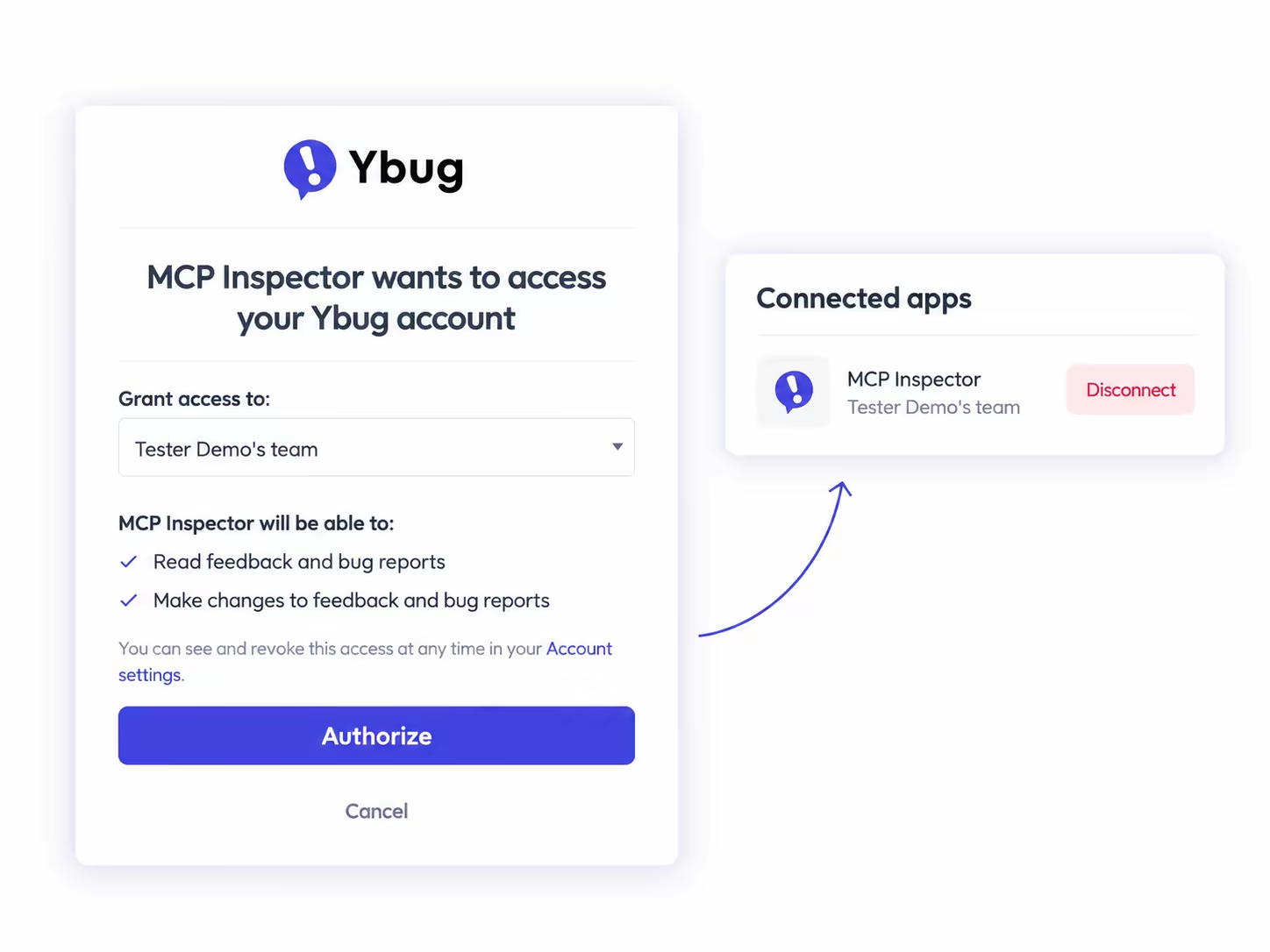
The Ybug consent screen where you review the requested permissions before an assistant gets access
Frequently asked questions
What is an MCP server?
MCP (Model Context Protocol) is an open standard that lets AI assistants and agents use outside tools. The Ybug MCP server gives yours twelve tools for reading and triaging your feedback. Ybug hosts it, so there’s nothing to install.
Which AI assistants and coding agents work with it?
Claude, ChatGPT, Claude Code, Codex, Cursor, GitHub Copilot in VS Code and any other client that supports remote MCP servers with OAuth sign-in. The docs have a setup guide for each.
How do I connect Ybug to Claude Code, Cursor or ChatGPT?
Add the Ybug server URL in your client’s connector or MCP settings, then sign in with your Ybug account and approve access. There’s no API key to copy.
Which plans include MCP?
Every paid plan, at no extra charge. BASIC gets the read-only tools; STARTUP and COMPANY add the tools that make changes. MCP isn’t available on FREE, and the 10-day free trial includes MCP for whichever plan you pick. Compare plans.
What can the assistant see?
The projects and feedback your Ybug account can access in the connected team, including page and browser details, console logs, network requests, comments and screenshot links. Reporter and commenter email fields aren’t included, but text people typed into a report or comment is. Request URLs come through as the page sent them, query string included.
Can my AI agent see the screenshot?
It gets a link to the screenshot. Whether it opens the image depends on your client and model, but the page, browser and screen size always come through as text.
Can it delete anything?
No. There’s no delete tool. On STARTUP and COMPANY, it can change a report’s status, priority, type, assignee and tags, and add internal comments. On BASIC, it can only read.
Should I use the MCP server or the REST API?
Use the MCP server when a person is in the loop, like triaging in a chat or handing a report to a coding agent. Use the REST API for scripts and apps that run on their own.
How do I disconnect an assistant?
Open Connected apps in your Ybug account settings and click Disconnect. Access to that team ends right away.