SKU.io
Inventory, orders and purchasing for multi-channel e-commerce businesses. Remote, OAuth; draft orders and edits only when the user allows.
Hosted MCP Server
npx add-mcp 'https://mcp.sku.io/mcp'Installs into Claude Code, Codex, Cursor and more
Documentation
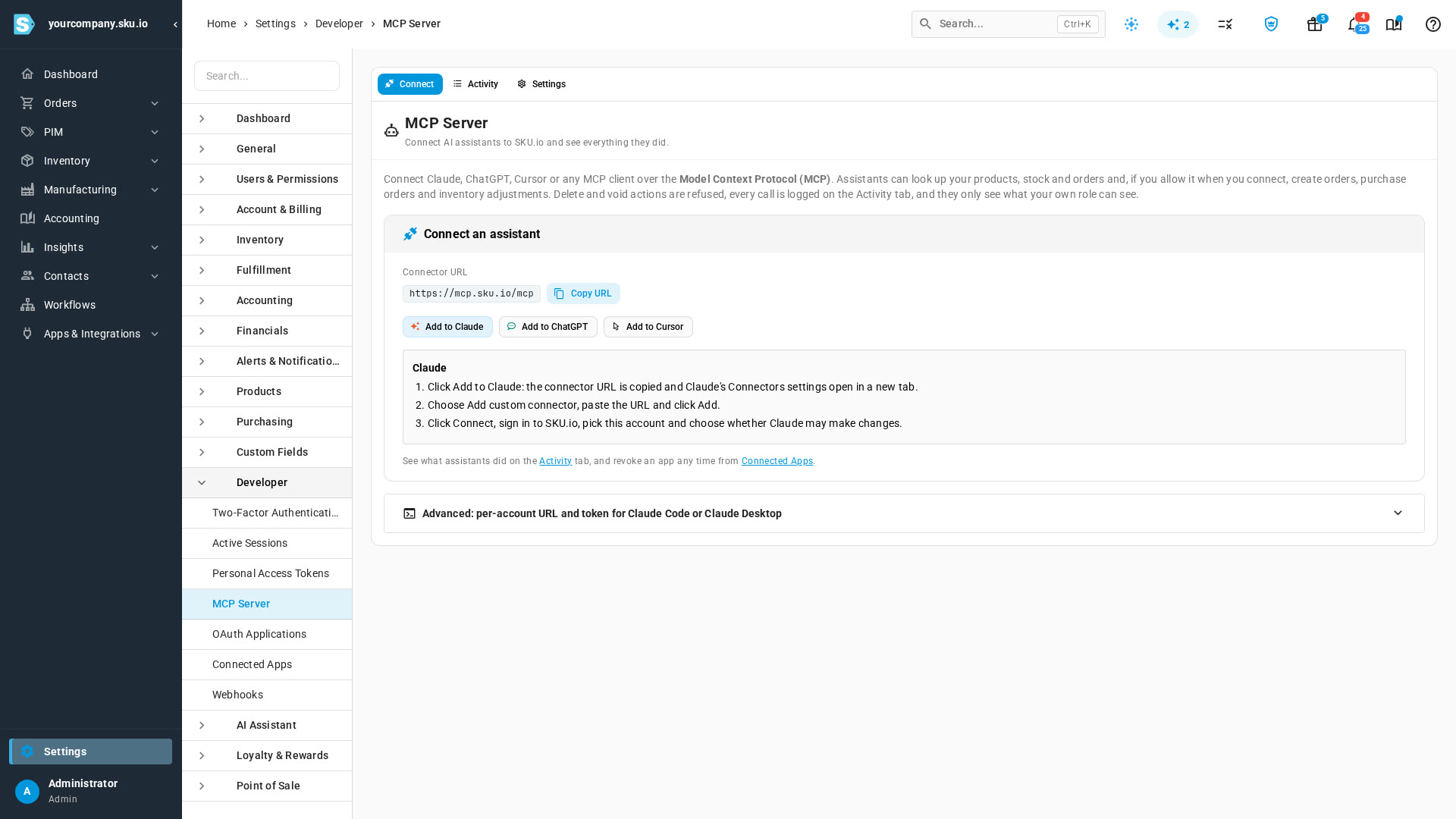
SKU.io speaks the Model Context Protocol (MCP), so an AI assistant can work in your account while you chat with it. It can look up products, stock, sales orders and purchase orders, and, if you allow it when you connect, create draft sales orders and purchase orders, adjust inventory and more. Every call it makes is listed on the Activity tab, and an admin can switch assistants off for the whole account.
There are two ways to connect:
| Your assistant | How it connects | Section |
|---|---|---|
| Claude, ChatGPT or Cursor, on the web, desktop or phone | Add the connector URL, then sign in to SKU.io and choose what the assistant may do. No token. | Steps |
| Claude Code, a Claude Desktop config file, or a client that can't sign in with a browser | Paste a config that carries a connection token. A token can look things up only. | Connect with a token |
Before you begin
- The assistant sees only what your role can see, and it can change only what your role can change.
- Your Claude or ChatGPT plan has to allow custom connectors. On a team or enterprise plan, an owner may need to add the connector for everyone.
- An admin can switch assistants off, or keep them to looking things up, on the Settings tab.
- The screenshots come from a demonstration account with sample activity.
Steps
- Go to Settings → Developer → MCP Server. The page opens on the Connect tab.
- Click Copy URL to copy the connector URL,
https://mcp.sku.io/mcp. Every account uses this same address; you pick your account when you sign in.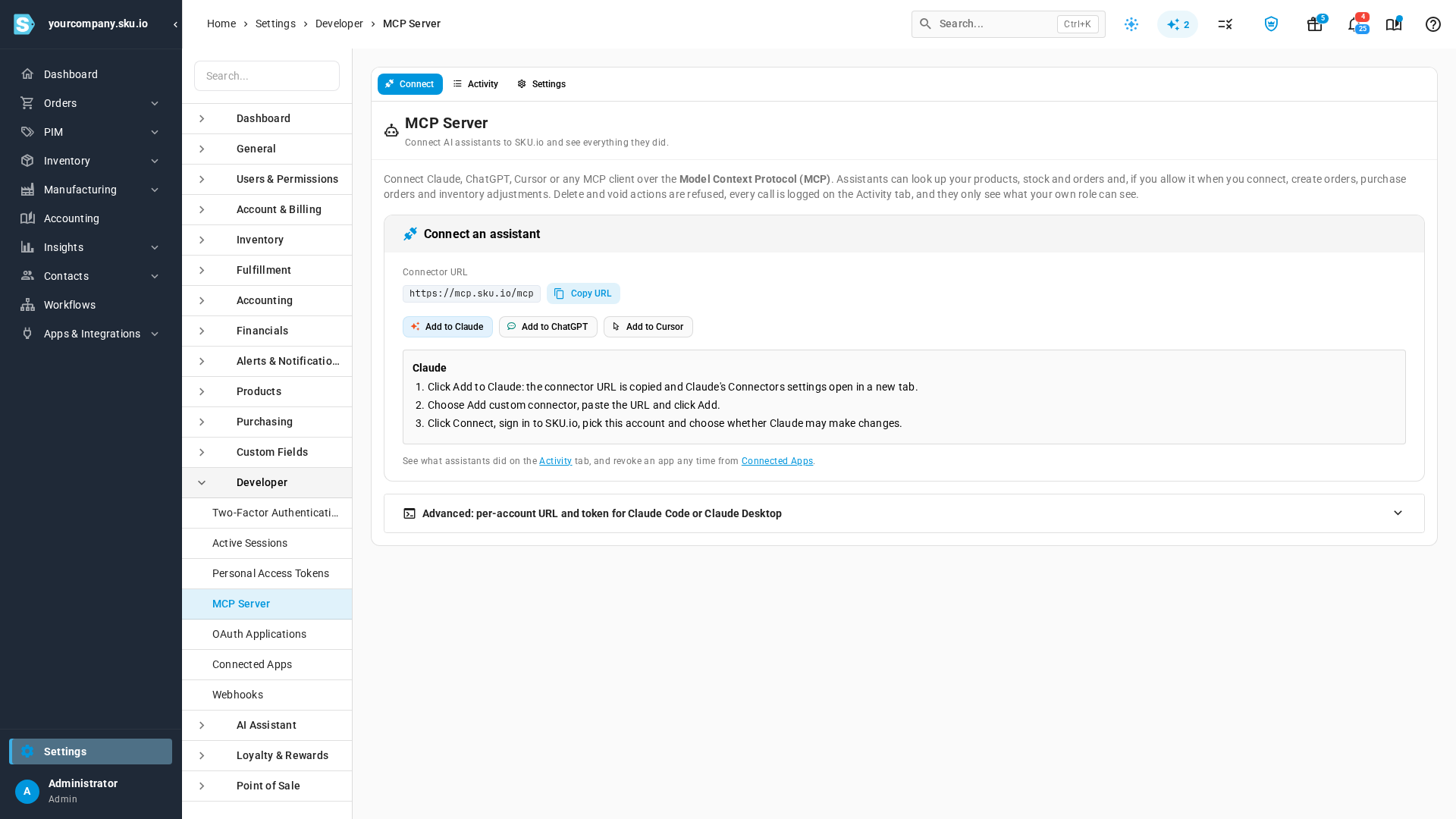
- Add the connector in your assistant. Click the button for your app to see its steps under the buttons:
- Add to Claude copies the URL and opens Claude's connector settings in a new tab. Choose Add custom connector, paste the URL, click Add, then click Connect.
- Add to ChatGPT copies the URL and opens ChatGPT's settings in a new tab. Add a custom connector there with the URL, and leave its sign-in set to OAuth.
- Add to Cursor opens Cursor, which offers to install the SKU.io server. Click Install, then Connect.
- Add to Claude copies the URL and opens Claude's connector settings in a new tab. Choose Add custom connector, paste the URL, click Add, then click Connect.
- Sign in to SKU.io when your assistant sends you there, and check the request:
- You will be sent back to names the app you started from, such as
claude.aiorchatgpt.com. If it names anything else, click Cancel.- Account is the SKU.io account the assistant will work in. If you belong to more than one, choose it from the list; Approve stays greyed out until you do.
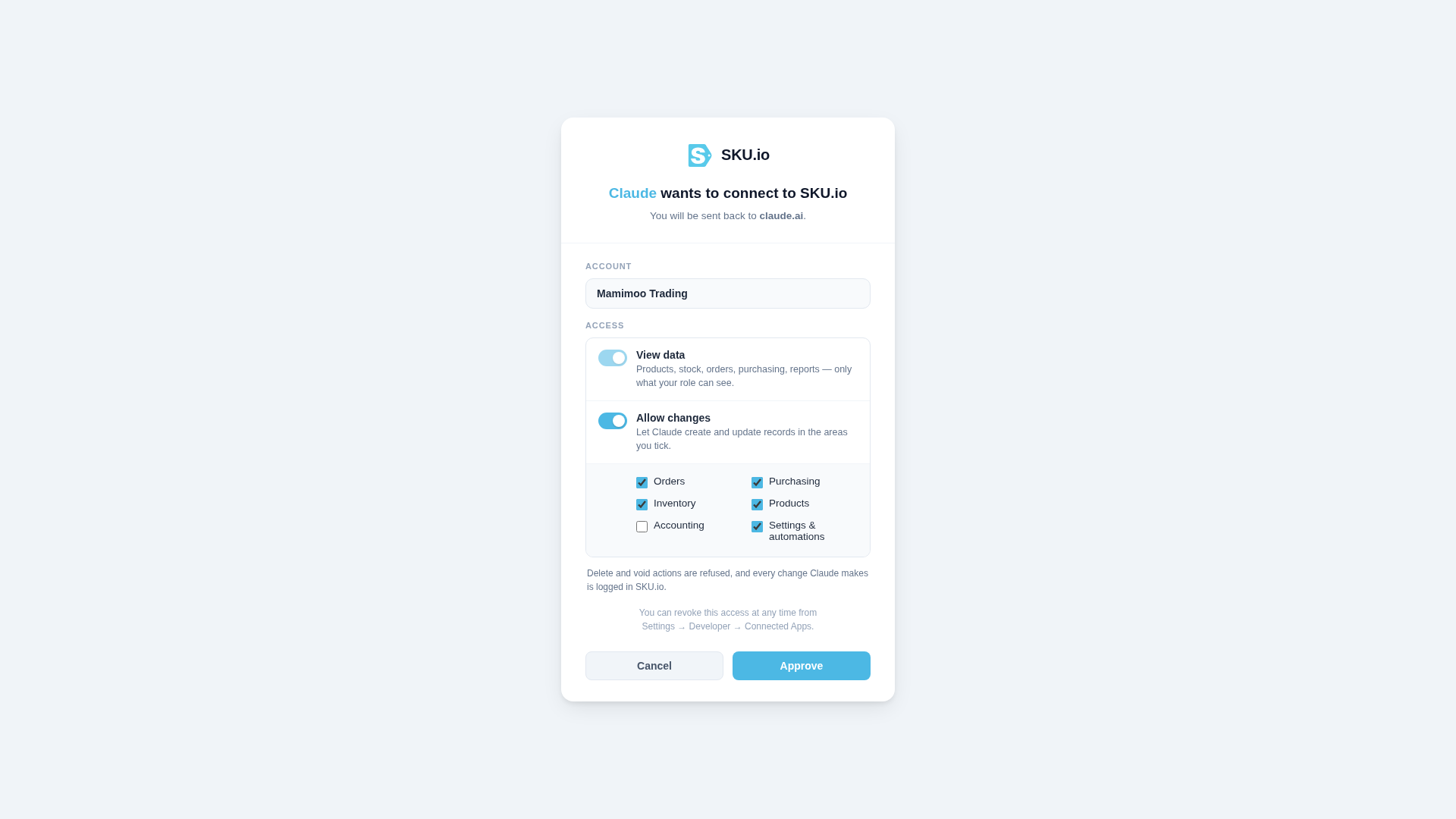
- Account is the SKU.io account the assistant will work in. If you belong to more than one, choose it from the list; Approve stays greyed out until you do.
- You will be sent back to names the app you started from, such as
- Choose what the assistant may do. View data is always on. To let it create and update records, turn on Allow changes, then untick any area it shouldn't change: Orders, Purchasing, Inventory, Products, Accounting or Settings & automations. An area is greyed out, with the reason beside it, when your role can't edit it. Allow changes itself is greyed out when an admin has turned changes off.
- Click Approve. You're sent back to your assistant.
- Ask your assistant something about your account, such as "How much stock of the 750 ml water bottle do we have, and is more on order?" It looks it up and links each record back to its page in SKU.io.
The connection stays signed in. Your assistant renews it in the background, so you don't approve it again each day. Connecting the same app again later reuses the access you approved; to change it, revoke the app first, then connect again.
What an assistant can do
| With | The assistant can |
|---|---|
| View data (always) | Search products, check stock per warehouse with units on order, look up sales orders and purchase orders, list warehouses, and find products at risk of running out |
| Orders | Create sales orders, always as drafts. A draft isn't fulfilled until you click Approve order on it in SKU.io |
| Purchasing | Create purchase orders, always as drafts; submit a purchase order to its supplier; and record purchase invoices |
| Inventory | Make inventory adjustments |
| Products | Create products and update their prices |
| Accounting | Record vendor credits |
| Settings & automations | Save views on your lists and draft workflows. A drafted workflow isn't published |
Beyond these, an assistant can look up most other records in SKU.io with View data. Its changes are limited to a fixed set of actions SKU.io has reviewed for assistants, such as adding a note to a sales order or creating a quote, and each still needs the matching Allow changes area. Anything outside that set is refused, even with every area ticked.
Some things it can never do, whatever you approve:
- Delete or void anything. SKU.io refuses those requests.
- Manage users, roles, billing or tokens, or change the logins of your connected integrations.
Two things make changes safer:
- Dry runs. An assistant can check a change first, and SKU.io tells it what would happen without saving anything. The call shows as Dry run on the Activity tab.
- Safe retries. If an assistant sends the same request twice, for example after a dropped connection, SKU.io returns the first result instead of creating a second record. The repeat shows as Replayed.
See what assistants did
Open the Activity tab. It lists every call an assistant made in this account, newest first.
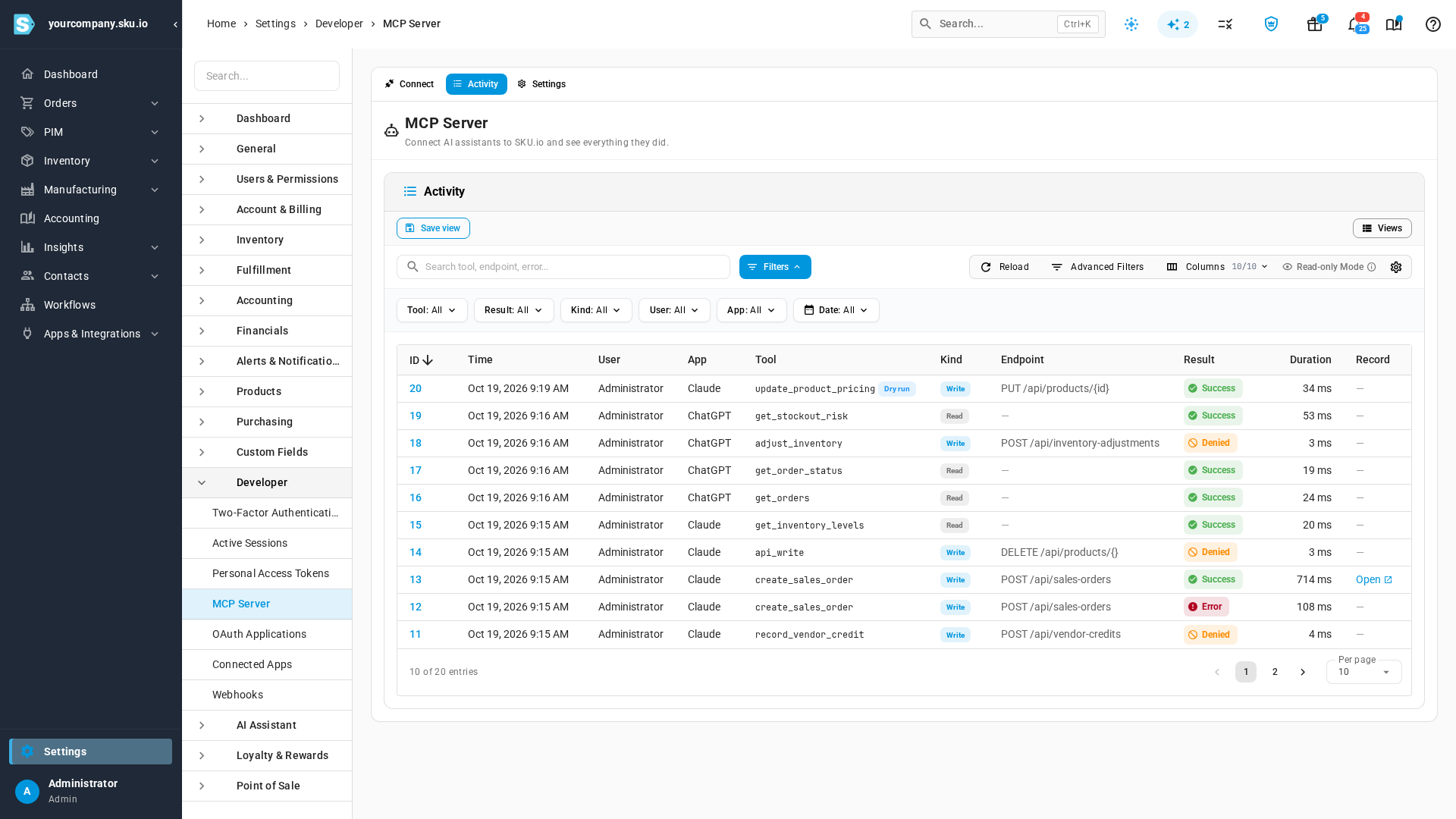
| Column | What it shows |
|---|---|
| App | The assistant that made the call, such as Claude or ChatGPT. Calls made with a connection token show Connection token |
| Tool | What the assistant asked for. A Dry run or Replayed badge sits beside it when that applies |
| Kind | Read for a look-up, Write for a change |
| Endpoint | The SKU.io address a change went to |
| Result | Success; Error when SKU.io couldn't do it, for example because a field was missing; Denied when the request wasn't allowed |
| Record | Open links to the record the call created or changed |
Use the search box and the Tool, Result, Kind, User, App and Date filters to narrow the list. Calls are kept for 180 days.
Open a call
Click a call's ID to see its details: who made it, from which app, the address it went to, a link to the record, and the arguments the assistant sent. Passwords, tokens, keys and card details are stored as [redacted].
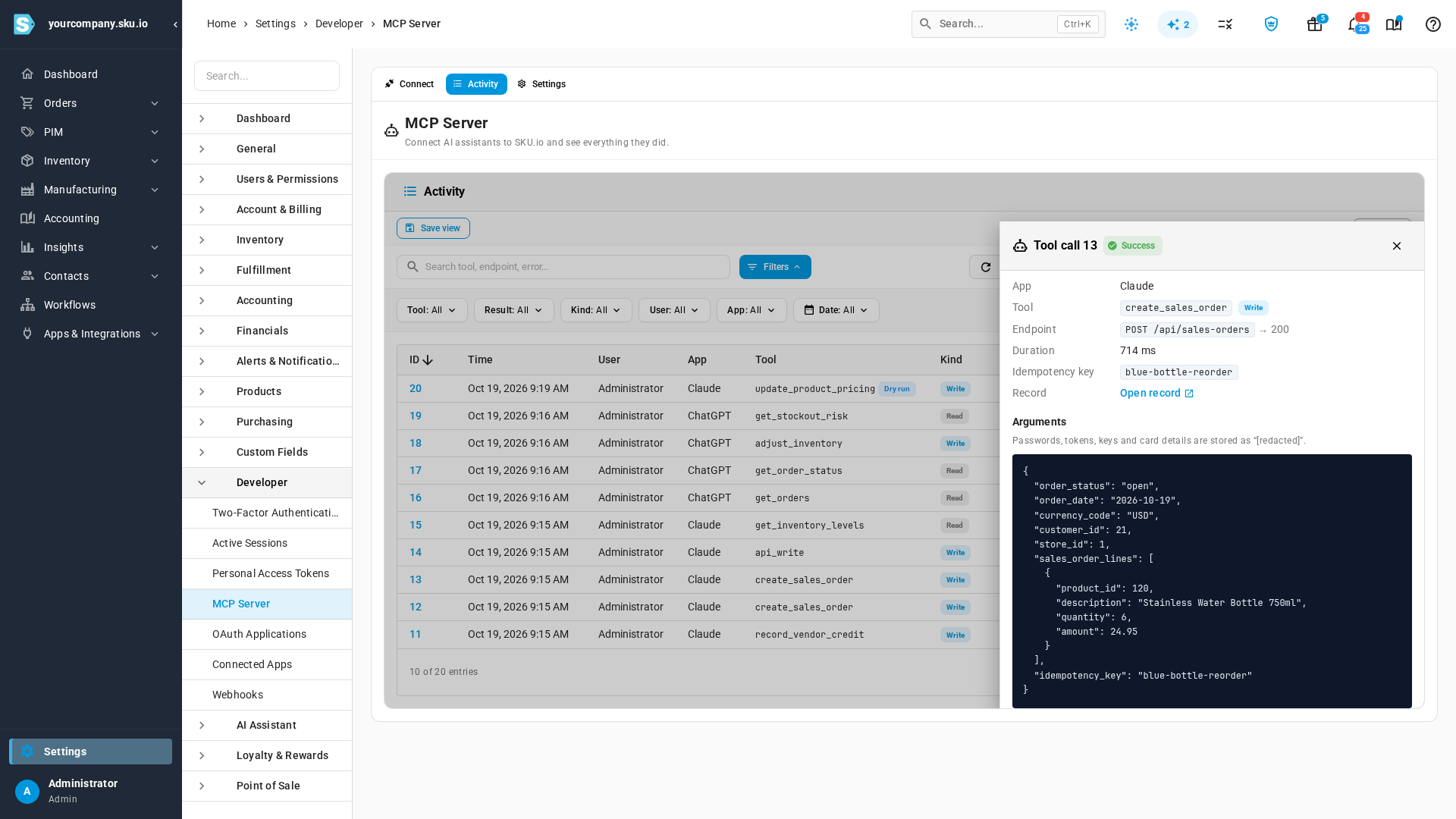
When the assistant sent an Idempotency key, it's shown too: a repeat of the same request with that key is replayed instead of run twice.
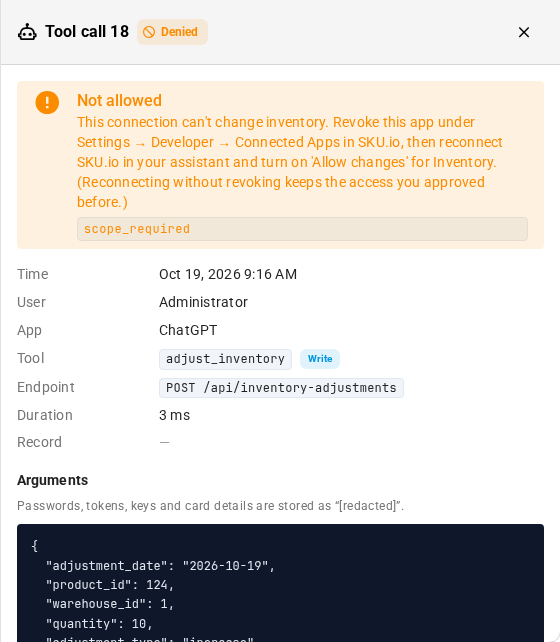
A call that failed or was refused also shows why, in the words the assistant was given. Not allowed marks a refusal, such as a change in an area the connection wasn't approved for; Failed marks a request SKU.io couldn't complete.
Revoke an app
Right-click a call and choose Revoke app access to cut off the app that made it. You can revoke only apps you connected yourself; for anyone else's, the option is greyed out. If you use two-factor authentication, you verify first. Revoking stops the app reaching the account straight away. You can also revoke an app from Settings → Developer → Connected Apps. Removing the connector inside Claude or ChatGPT alone leaves SKU.io's approval in place, so revoke it here as well.
Turn assistants off or keep them read-only
Admins control access for the whole account on the Settings tab.
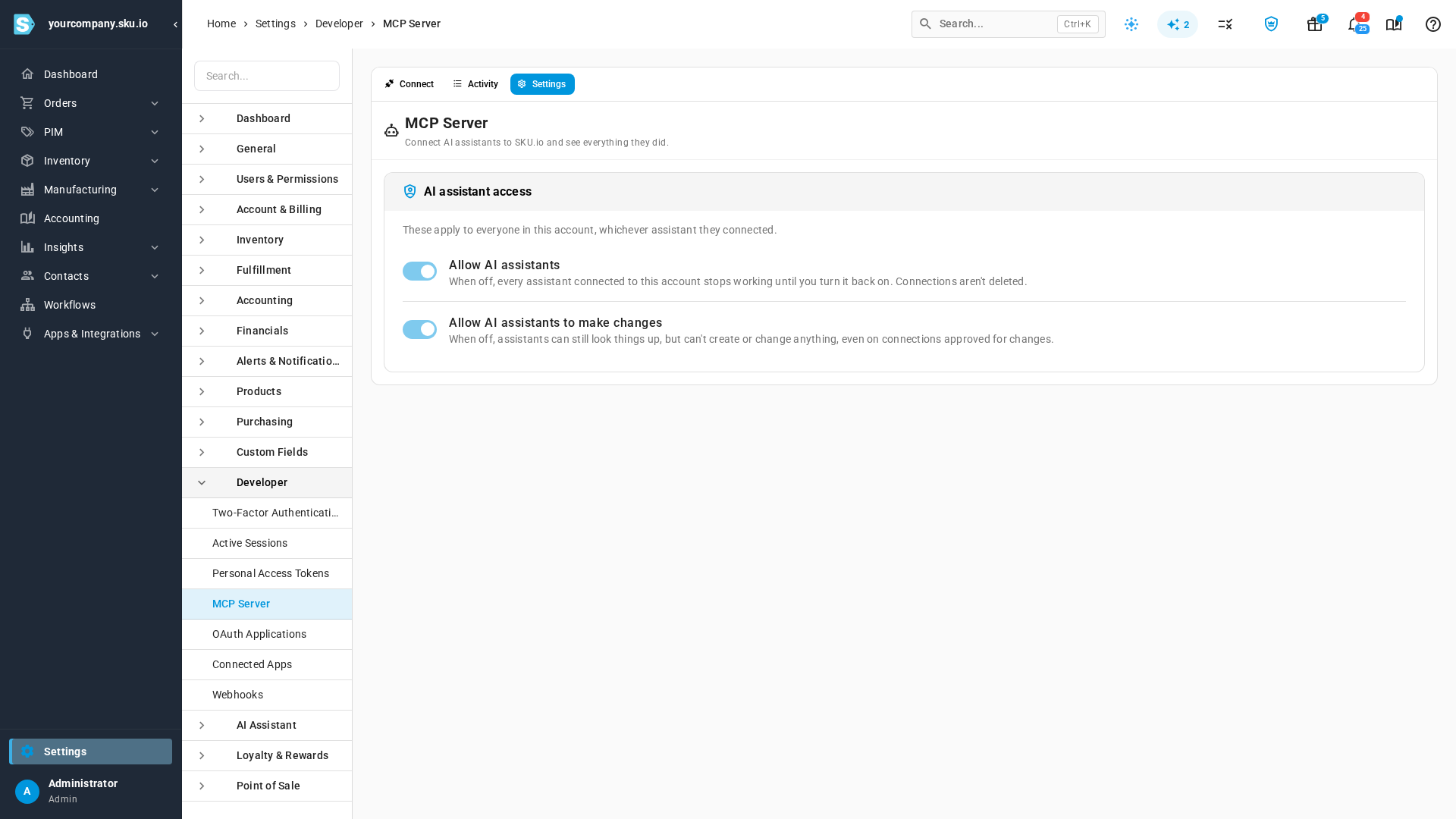
- Allow AI assistants — when off, every assistant connected to this account stops working until you turn it back on. Connections aren't deleted.
- Allow AI assistants to make changes — when off, assistants can still look things up but can't create or change anything, even on connections approved for changes. The sign-in page then greys out Allow changes.
Both are on by default. Only users who can change settings can switch them; for everyone else they're greyed out.
Connect with a token
Claude Code, a Claude Desktop config file and some other clients can't sign in with a browser. They connect to your account's own address with a connection token instead.
- A connection token can look things up only. To let an assistant make changes, connect it with the connector URL in the Steps and turn on Allow changes.
- You get one connection token. Generating another replaces the first, so every client you set up this way shares it.
- The token is shown once, when you create it. Have the client's config file open, or somewhere safe to paste it.
- On the Connect tab, open Advanced: per-account URL and token for Claude Code or Claude Desktop. It shows your account's own address, such as
https://yourcompany.sku.io/mcp/sku.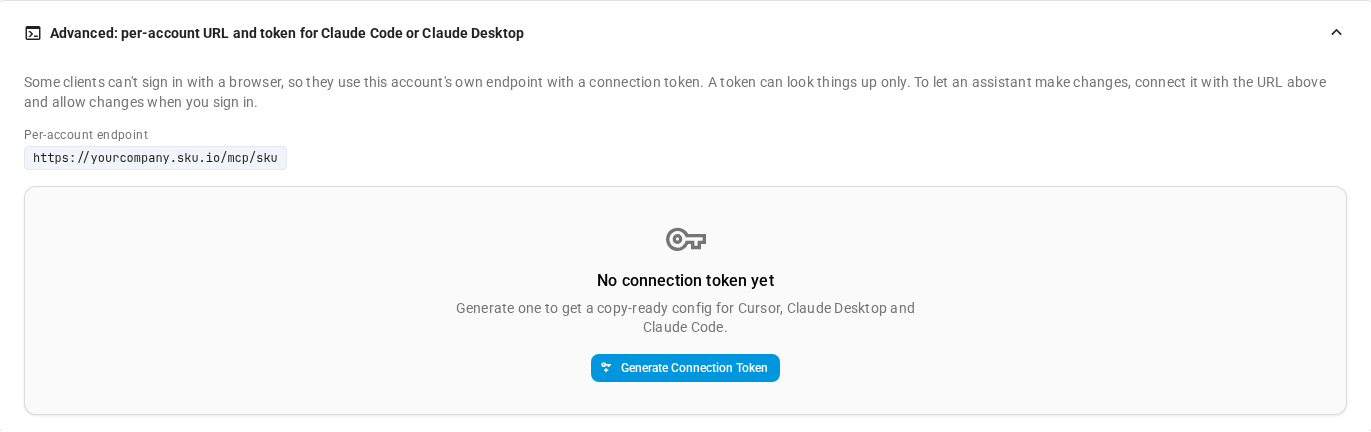
- Click Generate Connection Token. SKU.io asks for your password first, and for your two-factor code if you use one. SKU.io emails you whenever a token is created on your account.
- In the Connection ready — copy your config now dialog, pick your client from the tabs and copy its snippet with the Copy button.
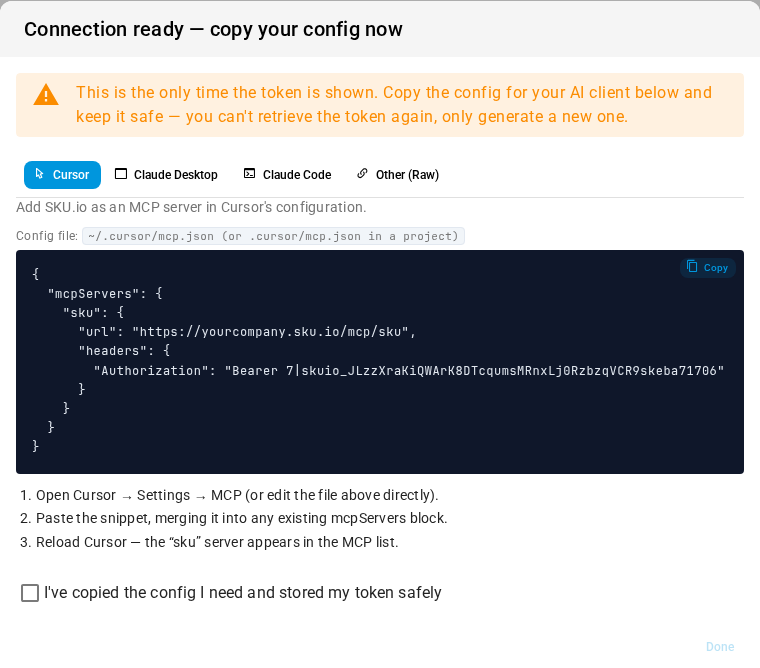
- Cursor: merge the snippet into
~/.cursor/mcp.json, or.cursor/mcp.jsoninside a project.- Claude Desktop: merge the snippet into
claude_desktop_config.json, then quit and relaunch Claude Desktop. It needsnpxon your machine. - Claude Code: run the one-line command in your terminal, then confirm with
claude mcp list. - Other (Raw): the address and the
Authorizationheader every MCP client needs.
- Claude Desktop: merge the snippet into
- Cursor: merge the snippet into
- Tick I've copied the config I need and stored my token safely, then click Done.
The panel then shows the token's name, when it was created and last used, and Regenerate and Disconnect buttons. Last used is the quickest way to confirm your client reached SKU.io: ask it something, reload the page, and the value moves. The token doesn't expire, so Disconnect is the control that matters: it revokes the token straight away. Regenerate revokes it and issues a new one; every client holding the old token stops working until you paste the new config.
A connection token reaches the AI connection only. Sent to SKU.io's regular API, it is refused, so a config file that leaks doesn't become a general API key. It doesn't appear in your personal access tokens and doesn't use one of their slots.
Next steps
- Review connected apps — see and revoke every app authorized on your account.
- API scopes reference — the access areas behind View data and Allow changes.
- Set up two-factor authentication — required to generate a connection token once enabled.
- Ask the AI assistant — the assistant built into SKU.io. Video transcript
To connect an AI assistant, open Settings, then Developer, then MCP Server. From here, Claude, ChatGPT or Cursor can look up your stock and orders, and, if you let them, make changes to your records. Every account uses the same address. Click Copy URL, then add it to your assistant as a custom connector. The steps for Claude, ChatGPT and Cursor are right below. When you connect, the assistant opens a SKU sign-in page. Check the account it will use. View data is always included. To let the assistant create records, turn on Allow changes. Untick any area it shouldn't change. Finally, click Approve to grant the access. Back in SKU, the Activity tab lists every call an assistant made. Each row shows the app, the tool, and whether it read or changed something. Success, Error and Denied give the result. Dry run marks a check that changed nothing. To see one call in full, click its ID, and its details open on the right. You see where it went, a link to the record it created, and the arguments it sent, with passwords and tokens hidden. On the Settings tab, admins control access for the whole account. The first switch turns every connection off at once. The second keeps them read-only, so they can look things up but never change a record.