Narrareach
Draft, schedule, and analyze content for Substack, Medium, LinkedIn, X, Bluesky, and Threads. Requires an eligible Narrareach account and OAuth sign-in; capabilities vary by platform.
Hosted MCP Server
npx add-mcp 'https://www.narrareach.com/mcp'Installs into Claude Code, Codex, Cursor and more
Documentation
How the connector works
Narrareach uses the Model Context Protocol over HTTPS. Claude, ChatGPT, Gemini, and Notion Agents discover the endpoint, register an OAuth client dynamically, send the user through Narrareach sign-in, and authorize future MCP requests. MCP is included on paid plans with scheduling and analytics.
One URL
Users provide /mcp. The client discovers the rest.
OAuth
Users grant permissions through Narrareach. No shared secrets are exposed.
DCR + PKCE
Dynamic client registration and PKCE S256 handle client setup safely.
Claude
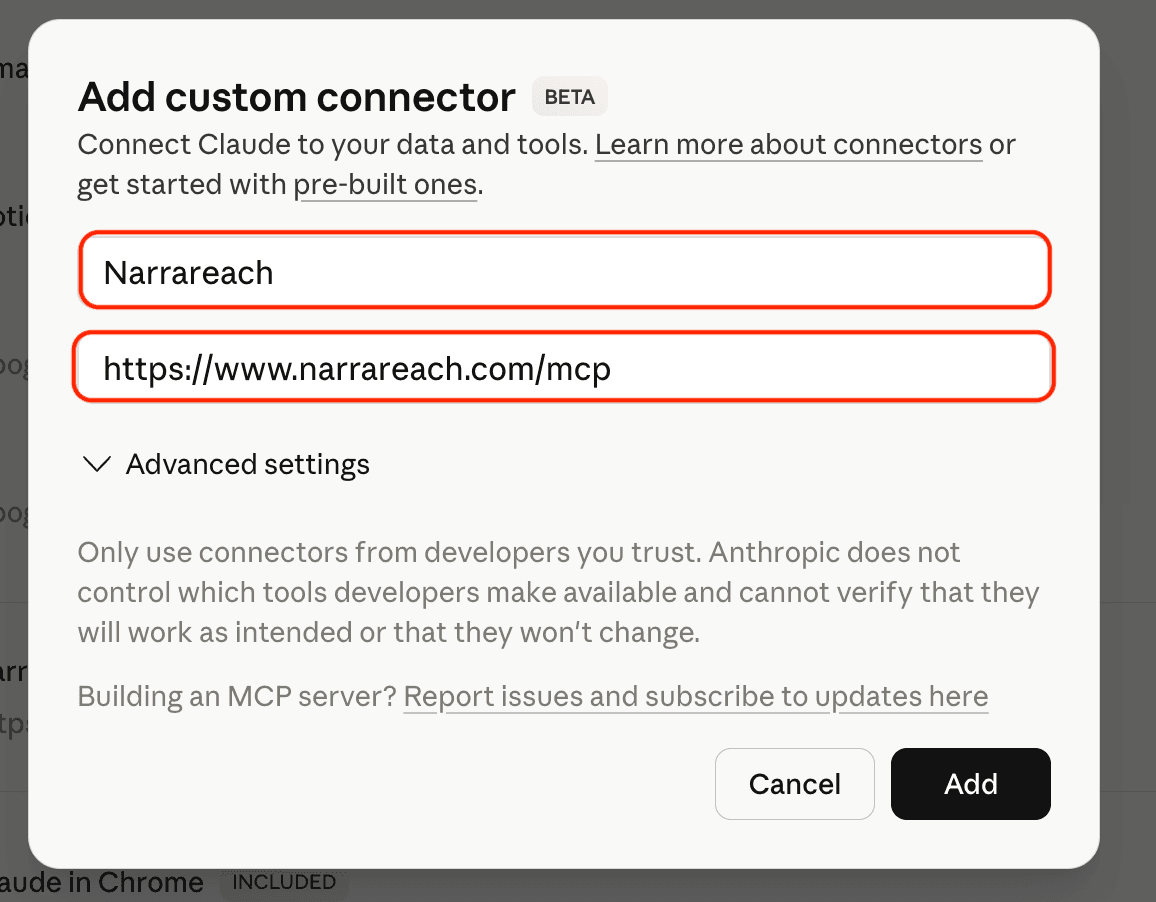
Add Narrareach as a custom connector
In Narrareach, open Settings > Integrations > Claude, then use the values below in Claude. Leave Advanced settings closed. Claude registers the OAuth client automatically.
Name
Narrareach
Connector URL
https://www.narrareach.com/mcp
ChatGPT
Add Narrareach as a ChatGPT plugin
In Narrareach, open Settings > Integrations > ChatGPT, then create a ChatGPT plugin with the values below. Keep Authentication set to OAuth. Users should not paste a client ID or client secret.
- In ChatGPT, open Plugins settings and create a new plugin.
- Enter the Name, optional description, and Server URL below.
- Keep Authentication on OAuth, accept the custom MCP warning, then Create.
- Complete Narrareach sign-in with the same email as your Narrareach account.
Name
Narrareach
Description
Content growth engine for writers
Server URL
https://www.narrareach.com/mcp
New Plugin
×
Icon (optional)
PNG only. Best results at 256 × 256 px or larger.
Max file size: 10 KB
Connection
Server URLTunnel
https://www.narrareach.com/mcp
Authentication
OAuth▾
Advanced OAuth settings
Review discovered OAuth settings, or enter them manually.
Custom MCP servers introduce risk. Learn more
Create
Admin note
If your auth provider still enforces a redirect allowlist, add the ChatGPT callback URI shown in ChatGPT app management (for example https://chatgpt.com/connector/oauth/…). Ensure the OAuth client can request openid, profile, email, and offline_access. That is an admin setup task, not a user setup step.
Common questions
Why does ChatGPT say “Resource not found” when the Narrareach tools are visible?
ChatGPT may be unable to resolve a cached plugin action or an earlier attachment before it sends the request to Narrareach. Start a new chat so ChatGPT reloads the tool list. If the error continues, remove and reconnect the Narrareach plugin, then attach the image again. Successful profile or read actions do not rule out this client-side action or attachment error.
How should I send a ChatGPT-generated image with an article?
Send the actual image bytes, not a temporary ChatGPT attachment reference or a blob: or file: URL. Ask ChatGPT to use schedule_article with coverImage or media as a data URI or base64 value. It can also call upload_media first and use the returned public URL.
Can create_draft save an article image by itself?
create_draft accepts a title and optional HTML body; it does not accept an attached image object. To keep the article as a draft, create it first and then call update_draft with coverImage. To schedule immediately, use schedule_article, which accepts cover and inline media.
Gemini
Add Narrareach as a Gemini custom app
In Narrareach, open Settings > Integrations > Gemini, then add a custom app in Gemini with the values below. Leave Advanced features closed unless Gemini asks for credentials. Gemini should register the OAuth client automatically.
- On a computer, open gemini.google.com and go to Settings → Connected Apps.
- If Connected Apps is hidden, open Personal Intelligence first, then Connected Apps.
- Under Custom apps, choose Add a custom app. Paste the Connector URL below, then click Next.
- Complete Narrareach sign-in with the same email as your Narrareach account.
- In a chat, type
@Narrareachto select the connector explicitly.
Connector URL
https://www.narrareach.com/mcp
Google account requirements
Google currently requires users to be 18 or older, located in the United States, using Gemini in English with a personal Google Account and Keep Activity on. Work or school accounts cannot connect custom apps. Connect the app in the Gemini web app first; after that it can also be used on mobile.
Admin note
Narrareach publishes Clerk's Dynamic Client Registration endpoint and PKCE S256 support through its OAuth metadata. Gemini should therefore register itself from the Connector URL; users do not need a client ID or secret. If Google changes its client onboarding method, verify the live authorization request before changing Clerk.
Notion
Use Narrareach in Notion Agents
This connects Narrareach's MCP tools to Notion Agent or an individual Notion Custom Agent. It is separate from the Notion page-import connection in Narrareach Settings. Notion requires a Business or Enterprise plan and web or desktop setup; custom MCP servers must be enabled by your workspace admin. No Narrareach API token or client secret is needed.
Connector URL
https://www.narrareach.com/mcp
Notion Agent
- On Notion web or desktop, open Settings → Connections → Discover → Add Custom MCP.
- Enter the Connector URL and sign in with your Narrareach account.
- Find Narrareach under All sources → MCP servers in chat. Mention it by name if the agent does not select it.
Custom Agent
- Open the agent's Settings → Tools & Access → Add connection → Custom MCP server.
- Enter the Connector URL, sign in with Narrareach, and choose the tools this agent can use.
- Keep write tools set to require confirmation, especially scheduling and publishing actions.
Access and troubleshooting
Notion Agent and every Custom Agent require separate connections. An admin must enable custom MCP servers and, in an approved-only workspace, approve this URL. A Custom Agent uses the Narrareach permissions of the person who connects it, including when teammates interact with that agent; limit agent access accordingly. If tools are missing, check the connection status and refresh the agent settings before reconnecting.
Notion Agent instructions Custom Agent instructions
Make
Connect a Make scenario through the REST API
Use Make's HTTP module with a scoped Narrareach automation token. Keep the token in Make's credential storage, map only approved content into the request, and preserve the returned Narrareach identifier for status checks and safe retries.
- Create a token in Narrareach Settings > Integrations > REST API & webhooks with only the required scopes.
- Add an HTTP request module and use the endpoint and body from the public OpenAPI contract.
- Store the token as a credential and send it in the Authorization header.
- Use a stable source-record ID as the idempotency key where supported.
- Store the accepted item ID, then check status before retrying after a timeout.
n8n
Use the Narrareach community node in n8n
Install n8n-nodes-narrareach for native Schedule Article, Schedule Note, Get Status, Reschedule, and Cancel actions. n8n handles triggers and branching while Narrareach handles connected destinations and publishing state.
- Install
n8n-nodes-narrareachunder Community Nodes. - Create a scoped Narrareach automation token and save it only in the n8n credential.
- Map approved content, destination, schedule time, timezone, and a stable source ID.
- Run one future-dated canary and confirm it with Get Status before enabling the workflow.
LLM clients discover Narrareach auth from standards-based metadata. These endpoints must remain public and served over HTTPS.
MCP resource
https://www.narrareach.com/.well-known/oauth-protected-resource/mcp
Auth server (ChatGPT)
https://www.narrareach.com/.well-known/oauth-authorization-server/mcp
Auth server (Clerk)
https://clerk.narrareach.com/.well-known/oauth-authorization-server
Resource
https://www.narrareach.com/mcp
Required
The authorization metadata must include a registration_endpoint.
Required
PKCE support must advertise S256.
Publishing guide
Edit scheduled LinkedIn posts with ChatGPT
Use ChatGPT, Claude, or another connected MCP assistant to review and change a queued, text-only LinkedIn post in your personal Narrareach account. Publishing must not have started. This does not edit media posts, published posts, or scheduled articles.
- Ask your assistant to find the post with
list_scheduled_items, checkget_scheduled_item_readiness, and read the queued text withget_note. - Provide the replacement text and ask for a preview. The assistant uses
amend_scheduled_note_contentwith the schedule id, the current revision asexpectedRevision, and your full replacement text. Previewing alone does not change the post. - Review the preview and confirm before the assistant applies it with
apply: true. If the post has changed, review a fresh preview before confirming again.
Example request: “Show me tomorrow’s LinkedIn post. Preview this replacement text, but don’t apply it until I confirm.” To move a Note or article to a different time, use amend_scheduled_item instead. Team Note changes still use the team dashboard.
Inspect article drafts and change covers
Article readiness includes a draftId. Use it with get_draft to review the Narrareach draft, not a verified copy of what is scheduled on the publishing platform. For an unscheduled article, update_draft can change its title, body, or cover image. Cover-only edits preserve the body and existing subscribe controls. It cannot edit an active article schedule. Review the schedule status before making changes; do not cancel or recreate it without approval.
Existing connections
Get new tools in your MCP connection
Existing tools use Narrareach’s updated backend after deployment, but your assistant may keep an older list of available actions. New tools appear when that list is refreshed. The Narrareach MCP URL stays the same.
For a ChatGPT developer-mode connection, open the connection, select Refresh, confirm the new actions appear, and start a new conversation. A workspace-managed app may also need an administrator to review and enable new actions. Other MCP clients have their own refresh or reconnect controls. You do not need to disconnect LinkedIn or another publishing account just because a tool is missing.
OpenAI’s connection and refresh guide
Tool catalog
What LLMs can do
Connected clients can work with drafts, notes, scheduling, inspiration, analytics, and profile context across Substack, Medium, LinkedIn, X, Bluesky, Threads, Instagram, Facebook, TikTok, and Pinterest. Tool access is scoped to the authenticated Narrareach user. Scheduling responses include the Narrareach item URL; published platform URLs are returned once the destination confirms publish. Article responses may also include non-blocking advisories; relay these as status updates without treating the accepted schedule as a failure.
Choose the account before acting
Call list_workspaces to see the teams and writers you can access. The tool details below show which calls accept workspace and writer. Drafts, article scheduling, and schedule changes currently use your personal account. Keep the same workspace when listing, reading, and scheduling team Notes. If team access fails, do not switch to personal publishing to work around it.
Check Notes and articles separately
For Notes and social posts, use list_notes, then get_note with the returned id. For articles, use list_scheduled_posts and find the schedule id, not the draft id. After a timeout, an empty article list does not tell you whether a Note was scheduled. Check the right account, filters, and list limit before submitting again. Team Note changes currently use the team dashboard.
Tool
Description
list_workspaces
List the personal account and authorized team workspaces, writers, and publications.Account and fields
Discovers context from your signed-in account. No selectors needed.
Required fields: None.
Accepted fields: None.
Use the schema supplied by your MCP client for field types, choices, and limits.
get_user_profile
Read the current user profile, plan, timezone, connection status, and available publishing context.Account and fields
Discovers context from your signed-in account. No selectors needed.
Required fields: None.
Accepted fields: None.
Use the schema supplied by your MCP client for field types, choices, and limits.
list_drafts
Find drafts in your personal account by title or status.Account and fields
Personal account only. Do not send workspace or writer.
Required fields: None.
Accepted fields: limit, status, query.
Use the schema supplied by your MCP client for field types, choices, and limits.
get_draft
Read the complete content and metadata for one authorized draft.Account and fields
Personal account only. Do not send workspace or writer.
Required fields: id.
Accepted fields: id.
Use the schema supplied by your MCP client for field types, choices, and limits.
create_draft
Save an article draft in your personal account without scheduling it.Account and fields
Personal account only. Do not send workspace or writer.
Required fields: title.
Accepted fields: title, contentHtml.
Use the schema supplied by your MCP client for field types, choices, and limits.
update_draft
Update the title, body, or cover image of an unscheduled article draft.Account and fields
Personal account only. Do not send workspace or writer.
Required fields: id.
Accepted fields: id, title, contentHtml, coverImage.
Use the schema supplied by your MCP client for field types, choices, and limits.
archive_draft
Archive an owned draft after active schedules have been handled.Account and fields
Personal account only. Do not send workspace or writer.
Required fields: id.
Accepted fields: id.
Use the schema supplied by your MCP client for field types, choices, and limits.
list_notes
Find scheduled, published, or failed Notes and social posts.Account and fields
Personal account by default; accepts an authorized team workspace.
Required fields: None.
Accepted fields: limit, status, platform, query, workspace, writer.
Use the schema supplied by your MCP client for field types, choices, and limits.
get_note
Read one authorized Note and its destination state.Account and fields
Personal account by default; accepts an authorized team workspace.
Required fields: id.
Accepted fields: id, workspace.
Use the schema supplied by your MCP client for field types, choices, and limits.
schedule_note
Schedule short-form content to supported connected publishing destinations.Account and fields
Personal account by default; accepts an authorized team workspace.
Required fields: scheduledFor, platforms.
Accepted fields: draftId, title, content, scheduledFor, timezone, platforms, instagramDestinations, linkedInAccountId, linkedInOrganizationUrn, workspace, writer, publication, confirmProfileDestination, substackConnectionId, imageUrls, videoUrls, threadsTopicTag, firstReply, platformVersions, media.
Conditional field: postingAs. Available only when your connected tool schema includes it. Select a connected Substack pen name, profile handle, or publication label. Use postingAs or publication, not both. This field does not grant access to another account.
Use the schema supplied by your MCP client for field types, choices, and limits.
list_scheduled_posts
List article schedules in your personal account.Account and fields
Personal account only. Do not send workspace or writer.
Required fields: None.
Accepted fields: limit, status, from, to.
Use the schema supplied by your MCP client for field types, choices, and limits.
cancel_scheduled_post
Cancel an article schedule from list_scheduled_posts.Account and fields
Personal account only. Do not send workspace or writer.
Required fields: id.
Accepted fields: id.
Use the schema supplied by your MCP client for field types, choices, and limits.
schedule_article
Schedule a full article to supported connected long-form destinations.Account and fields
Personal account only. Do not send workspace or writer.
Required fields: platforms.
Accepted fields: draftId, title, contentHtml, subtitle, coverImage, media, tags, sendToNewsletter, isPaidContent, paywallMarker, addSearchMetadata, linkedinShareCommentary, linkedinPublicationType, linkedinAuthorUrn, linkedinNewsletterUrn, scheduledFor, platformSchedules, timezone, platforms, publication, substackConnectionId, mediumPublicationId, mediumNotifyFollowers.
Conditional field: mediumPublicationId. Only valid when platforms includes MEDIUM. Call list_medium_publications and pass its returned id; never guess one. When canPublish is false the story is submitted for editorial review and left unscheduled until an editor accepts it. A rejection by the publication is best-effort — the story still goes to the personal profile and the rejection is returned as a warning.
Conditional field: mediumNotifyFollowers. Only valid when platforms includes MEDIUM. Defaults to false (no subscriber email).
Use the schema supplied by your MCP client for field types, choices, and limits.
list_linkedin_article_destinations
Refresh and list LinkedIn article profiles, Company Pages, and newsletters. Does not publish content.Account and fields
Personal account only. Do not send workspace or writer.
Required fields: None.
Accepted fields: authorUrn, refresh.
Use the schema supplied by your MCP client for field types, choices, and limits.
list_medium_publications
List the Medium publications the connected account can submit stories to. Does not publish content.Account and fields
Personal account only. Do not send workspace or writer.
Required fields: None.
Accepted fields: refresh.
Use the schema supplied by your MCP client for field types, choices, and limits.
list_linkedin_destinations
Refresh and list connected LinkedIn profiles and Company Pages for short-form posts. Does not publish content.Account and fields
Personal account by default; accepts an authorized team workspace.
Required fields: None.
Accepted fields: workspace, writer.
Use the schema supplied by your MCP client for field types, choices, and limits.
list_scheduled_items
Review Notes and articles together with their destinations, times, and readiness checks.Account and fields
Personal account by default; accepts an authorized team workspace.
Required fields: None.
Accepted fields: kind, status, from, to, limit, workspace, writer.
Use the schema supplied by your MCP client for field types, choices, and limits.
get_scheduled_item_readiness
Inspect one scheduled Note or article before making changes.Account and fields
Personal account only. Do not send workspace or writer.
Required fields: id.
Accepted fields: id, kind.
Use the schema supplied by your MCP client for field types, choices, and limits.
amend_scheduled_item
Preview and confirm a time change for a scheduled Note or article.Account and fields
Personal account only. Do not send workspace or writer.
Required fields: id, expectedRevision, scheduledFor.
Accepted fields: id, kind, expectedRevision, scheduledFor, timezone, apply.
Use the schema supplied by your MCP client for field types, choices, and limits.
amend_scheduled_note_content
Preview and edit the text of a queued, text-only LinkedIn post.Account and fields
Personal account only. Do not send workspace or writer.
Required fields: id, expectedRevision, content.
Accepted fields: id, expectedRevision, content, apply.
Use the schema supplied by your MCP client for field types, choices, and limits.
reschedule_scheduled_item
Move an authorized queued Note or article to a new time.Account and fields
Personal account only. Do not send workspace or writer.
Required fields: id, scheduledFor.
Accepted fields: id, kind, scheduledFor, timezone.
Use the schema supplied by your MCP client for field types, choices, and limits.
cancel_scheduled_item
Cancel an authorized queued Note or article without deleting its source draft.Account and fields
Personal account only. Do not send workspace or writer.
Required fields: id.
Accepted fields: id, kind.
Use the schema supplied by your MCP client for field types, choices, and limits.
upload_media
Upload supported image or video bytes for later use in an authorized publishing workflow.Account and fields
Personal account only. Do not send workspace or writer.
Required fields: kind.
Accepted fields: kind, sourceType, url, data, mimeType, fileName.
Use the schema supplied by your MCP client for field types, choices, and limits.
list_inspiration_posts
Browse inspiration posts saved by the authenticated user.Account and fields
Personal account only. Do not send workspace or writer.
Required fields: None.
Accepted fields: limit, platform, tag.
Use the schema supplied by your MCP client for field types, choices, and limits.
get_benchmark_inspiration
Read saved writing experiments and optional inspiration for eligible pilot accounts.Account and fields
Personal account only. Do not send workspace or writer.
Required fields: None.
Accepted fields: None.
Use the schema supplied by your MCP client for field types, choices, and limits.
prepare_benchmark_inspiration
Prepare low-confidence draft comparisons from saved examples for eligible pilot accounts.Account and fields
Personal account only. Do not send workspace or writer.
Required fields: recordId, niche.
Accepted fields: recordId, niche.
Use the schema supplied by your MCP client for field types, choices, and limits.
list_reader_activities
List owned Substack likes, comments, and restacks.Account and fields
Personal account only. Do not send workspace or writer.
Required fields: None.
Accepted fields: state, type, sort, cursor, limit, substackConnectionId.
Use the schema supplied by your MCP client for field types, choices, and limits.
reply_to_reader_activity
Publish a reply to an owned, replyable Substack comment.Account and fields
Personal account only. Do not send workspace or writer.
Required fields: activityId, text.
Accepted fields: activityId, text, idempotencyKey, substackConnectionId.
Use the schema supplied by your MCP client for field types, choices, and limits.
update_reader_activity
Move an owned reader activity item between Inbox and History.Account and fields
Personal account only. Do not send workspace or writer.
Required fields: activityId, triageState.
Accepted fields: activityId, triageState, substackConnectionId.
Use the schema supplied by your MCP client for field types, choices, and limits.
get_platform_analytics
Fetch supported account and post analytics, or return stored metrics. May refresh connection and analytics data; does not publish content.Account and fields
Personal account only. Do not send workspace or writer.
Required fields: platform.
Accepted fields: platform, recentLimit.
Use the schema supplied by your MCP client for field types, choices, and limits.
get_stats_insights
Read stored Narrareach Stats insights for a selected period.Account and fields
Personal account by default; accepts an authorized team workspace.
Required fields: None.
Accepted fields: period, from, to, platforms, contentTypes, publicationId, workspace.
Use the schema supplied by your MCP client for field types, choices, and limits.
Open the complete agent-ready MCP tool reference
Media
Scheduling with images and video
schedule_note accepts imageUrls for public HTTPS images and media for pasted clipboard images, data URIs, or raw base64. Inline media is uploaded first, then the scheduled note stores the returned public URL. Article images and videos are handled through article HTML or draft media, not a top-level imageUrls field on schedule_article. Server-to-server callers can pass note images to POST /api/v1/notes with imageUrls.
Platform
Note media limit
Substack
Up to 6 images
X
Up to 4 images or 1 video; images and video cannot be mixed
Bluesky
Up to 4 images or 1 video; images and video cannot be mixed
At least one media item is required; up to 10 total media items
TikTok
Up to 35 images or 1 video; images and video cannot be mixed
One media item is required
Images are supported through the connected posting path
Threads
Images are supported through the connected posting path
Images are supported through the connected posting path
{
  "jsonrpc": "2.0",
  "id": "schedule-image-note",
  "method": "tools/call",
  "params": {
    "name": "schedule_note",
    "arguments": {
      "content": "A short note with an attached image.",
      "platforms": ["SUBSTACK", "X", "THREADS"],
      "scheduledFor": "2026-07-01T14:00:00.000Z",
      "timezone": "America/New_York",
      "threadsTopicTag": "Creator Economy",
      "imageUrls": ["https://cdn.example.com/note-image.png"]
    }
  }
}
Local URLs
blob: and file: URLs cannot be fetched by Narrareach. Upload the media or pass it through media.
Validation
Platform media limits are checked before Narrareach creates scheduled rows.
REST API
Schedule articles from your server
REST callers can schedule full articles with POST /api/v1/articles. Article scheduling supports SUBSTACK, MEDIUM,LINKEDIN, and X. Use an automation token with articles:write; note-only tokens cannot schedule articles. LinkedIn articles must be scheduled at least 20 minutes ahead. Set addSearchMetadata to generate SEO metadata for supported article destinations; X does not expose separate article SEO settings.
scheduledFor accepts an RFC 3339 timestamp with either Z or an explicit UTC offset; Narrareach normalizes it to UTC.
LinkedIn Notes can publish from the connected personal profile or an administered Company Page. Call GET /api/v1/linkedin/destinations and send the returned accountId as linkedInAccountId. For a Page, also send linkedInOrganizationUrn. Omit both to use the Settings default or the only available personal profile. Narrareach never guesses among Company Pages. If several destinations exist and none can be selected safely, the request fails with LINKEDIN_DESTINATION_REQUIRED.
LinkedIn Articles can publish from the signed-in personal profile or an administered Company Page. Call GET /api/v1/linkedin/article-destinations, choose a returned authorUrn, and send it as linkedinAuthorUrn. Call the same endpoint with authorUrn to list that profile or Page's newsletters. For a newsletter issue, also send linkedinPublicationType: "newsletter" and the returned linkedinNewsletterUrn.
A Medium article publishes to the connected account's own profile by default. To submit it to a publication instead, call GET /api/v1/medium/publications and send a returned id as mediumPublicationId. The publication list is saved for this connection; use ?refresh=1 when publication access changes to check Medium again. When canPublish is false for that publication, the story is submitted for editorial review and left unscheduled — it goes live when an editor accepts it, not at the requested time, and never publishes to the personal profile behind the publication's back. Submitting is otherwise best-effort: if the publication rejects the story, it still publishes or schedules to the personal profile and the rejection is returned in warnings, not as a failure. Set mediumNotifyFollowers: true to email Medium subscribers about the story; it defaults to false and is applied on the same best-effort basis.
Identify the Substack destination with publication as an exact connected publication name, handle, or URL. If omitted, Narrareach can select a sole active publication. Otherwise, the caller must ask the user which publication to use.
When LinkedIn has a pending connection sync, create and reschedule requests return HTTP 409 with PLATFORM_SESSION_REFRESH_REQUIRED and canRetryAfterSync: true. New article input is saved first, and create responses include saved: true with the saved draftId. Nothing is scheduled until the connection is synced; sync LinkedIn in Platform connections, then retry the same request using that draft.
Uploaded article video is available for Substack-only article requests. Add kind: "video" to an item in media and place it with a 1-based {{media:N}} marker in contentHtml. Omitting kind remains backward-compatible and treats the item as an image. Narrareach accepts MP4, WebM, MOV, and M4V video up to 100MB when fetched from a public URL; inline REST data is additionally limited by the 15,000,000-character request field (about 10.7 MiB of decoded base64 bytes). A request containing article video is rejected with VIDEO_REQUIRES_SUBSTACK_ONLY if Medium, LinkedIn, or X is also selected, so uploaded video is never silently omitted. YouTube iframe input is normalized before saving: it publishes as a native inline embed on Substack and remains visible as a canonical link on selected destinations that cannot embed it. Vimeo iframe input is preserved as a canonical link on every selected destination. If saved structured content and HTML disagree about the number or identity of their videos, Narrareach returns CONTENT_OUT_OF_SYNC before publishing; re-save the draft and retry. Video preparation may continue after a schedule is accepted. Check the schedule status instead of submitting another article. A VIDEO_PROCESSING response means the video is not ready yet. VIDEO_DISABLED with HTTP 503 means video publishing is temporarily unavailable; retry after service is restored.
Successful article create and reschedule responses may include an advisories array when a selected platform is experiencing publishing delays. Advisories are informational: the request remains accepted, no acknowledgement is required, and actionRequired is false.
For retry-safe note creation, send a stable Idempotency-Key header to POST /api/v1/notes. The existing idempotencyKey body field remains supported and must match the header when both are present. New idempotent note responses include an operationId; use GET /api/v1/operations/:id with notes:read to inspect recovery status after a timeout.
Read the current delivery state with GET /api/v1/article-schedules/:id or GET /api/v1/notes/:id. Status responses are ownership-scoped and never cached. Integrations can validate a stored credential without scheduling content through GET /api/v1/auth/check.
Reader activity is available through GET /api/v1/reader-activities with activity:read. Use POST /api/v1/reader-activities/:id/replies to reply to an owned comment and PATCH /api/v1/reader-activities/:id to move an item between Inbox and History; both require activity:write. The matching MCP tools are list_reader_activities,reply_to_reader_activity, and update_reader_activity.
Threads notes may include one optional threadsTopicTag through either schedule_note or POST /api/v1/notes. Include THREADS in platforms. The topic is limited to 50 characters and cannot contain periods, ampersands, or line breaks; it is stored only on the Threads destination when a note targets multiple platforms.
Notes may also include an optional firstReply through schedule_note or POST /api/v1/notes. Narrareach applies each destination's own length rules—including X weighted characters—and reports where the reply was accepted or omitted. A reply that cannot be used never cancels the root note.
Note character limits are Bluesky 300, Threads 500, LinkedIn 3,000, and X 25,000 weighted characters (posted as a thread); Substack and the other destinations have none. With schedule_note or POST /api/v1/notes, pass platformVersions, such as { "BLUESKY": "..." }, to supply text that fits a platform. A version that is still over its limit is rejected before anything is scheduled. A platform without a version gets an automatic cut at a sentence break. Every platform that posts different text from the note is listed in adjustedPlatforms with the exact text, and an automatic cut also adds a warning to relay to the user.
Create
POST /api/v1/articles creates or schedules an existing draft.
Move
PATCH /api/v1/article-schedules/:id changes the queued time.
Read
GET /api/v1/article-schedules/:id returns the current state.
Cancel
DELETE /api/v1/article-schedules/:id cancels a queued article.
curl -X POST https://www.narrareach.com/api/v1/articles \
  -H "Authorization: Bearer $NARRAREACH_API_TOKEN" \
  -H "Content-Type: application/json" \
  -d '{
    "title": "My full article",
    "subtitle": "Optional subtitle",
    "contentHtml": "<p>Free preview.</p>[[PAID_SECTION]]<p>Paid section.</p>",
    "platforms": ["SUBSTACK"],
    "publication": "@theainewsroom",
    "scheduledFor": "2026-12-01T14:00:00.000Z",
    "timezone": "America/New_York",
    "sendToNewsletter": true,
    "paywallMarker": "[[PAID_SECTION]]",
    "addSearchMetadata": true,
    "idempotencyKey": "article-2026-12-01-001"
  }'
curl \
  -H "Authorization: Bearer $NARRAREACH_API_TOKEN" \
  "https://www.narrareach.com/api/v1/linkedin/article-destinations"

# Then list newsletters for one returned author:
curl \
  -H "Authorization: Bearer $NARRAREACH_API_TOKEN" \
  "https://www.narrareach.com/api/v1/linkedin/article-destinations?authorUrn=urn%3Ali%3Afsd_company%3A110374957"
curl \
  -H "Authorization: Bearer $NARRAREACH_API_TOKEN" \
  "https://www.narrareach.com/api/v1/medium/publications"
Schedule Medium article to a publication
curl -X POST https://www.narrareach.com/api/v1/articles \
  -H "Authorization: Bearer $NARRAREACH_API_TOKEN" \
  -H "Content-Type: application/json" \
  -d '{
    "title": "My Medium story",
    "contentHtml": "<p>Full article body.</p>",
    "platforms": ["MEDIUM"],
    "mediumPublicationId": "the_id_from_list_medium_publications",
    "mediumNotifyFollowers": false,
    "scheduledFor": "2026-12-01T14:00:00.000Z",
    "timezone": "America/New_York"
  }'
curl -X POST https://www.narrareach.com/api/v1/articles \
  -H "Authorization: Bearer $NARRAREACH_API_TOKEN" \
  -H "Content-Type: application/json" \
  -d '{
    "title": "Article with video",
    "contentHtml": "<p>Watch the walkthrough:</p>{{media:1}}",
    "media": [{
      "kind": "video",
      "sourceType": "url",
      "url": "https://cdn.example.com/walkthrough.mp4",
      "mimeType": "video/mp4",
      "fileName": "walkthrough.mp4"
    }],
    "platforms": ["SUBSTACK"],
    "publication": "@theainewsroom",
    "scheduledFor": "2026-07-01T14:00:00.000Z",
    "timezone": "America/New_York"
  }'
curl -X PATCH https://www.narrareach.com/api/v1/article-schedules/scheduled_post_id \
  -H "Authorization: Bearer $NARRAREACH_API_TOKEN" \
  -H "Content-Type: application/json" \
  -d '{
    "scheduledFor": "2026-07-02T14:00:00.000Z",
    "timezone": "America/New_York"
  }'
Schedule Substack articles with the Narrareach API
Use Narrareach’s article scheduling API to publish a newsletter article at a chosen time, set its free preview, and include a native subscribe button. The same publishing workflow is available through the Narrareach MCP connector in ChatGPT or Claude. These are Narrareach endpoints for your connected publications—not endpoints supplied by Substack.
This guide covers long-form articles. For short Substack Notes, use schedule_note or POST /api/v1/notes instead. A paid article’s access setting, its paywall position, and its email-delivery setting are separate decisions.
Before your first article request
- Connect the intended publication in Narrareach and confirm it is ready. API access does not connect an account automatically.
- For REST, use an account with API access and an automation token with
articles:write. Send it asAuthorization: Bearer <token>. Keep it on your server, never in client-side code or shared examples. - For ChatGPT or Claude, use the authorized Narrareach connector. You do not need to paste an API token into the conversation.
- Choose the publication, a future publishing time and timezone, reader access, and whether to send email. Confirm these choices with the writer before scheduling.
Send publication as a connected publication name, handle or URL. Narrareach can select a sole active Substack publication when omitted; when there are multiple possibilities, choose explicitly. Sending it explicitly is the clearest option for repeatable automations. Check plan access and the OpenAPI reference for the current endpoint requirements.
Free preview, paid subscribers and newsletter email
Public article
Use isPaidContent: false without a paywall divider. Adding a subscribe button does not make an article paid.
Paid article with a free preview
Put <hr data-type="paywall"> after the free portion. Narrareach treats an explicit divider as paid access, even if isPaidContent was omitted or false. Select only Substack for this version.
Paid audience without a custom divider
Use isPaidContent: true. This selects paid access; it does not choose a custom preview boundary for you. Include a divider when you want a specific free excerpt.
Email delivery
sendToNewsletter defaults to true for a new article. Set it to false when you want to publish without sending the newsletter email. Adding a paywall does not change that choice.
A Substack paywall is not a portable access control for LinkedIn, Medium or X. Create a separate public excerpt or public article for those destinations. Do not send protected text to another platform assuming the Substack divider will protect it there.
Add a subscribe button with a caption
Place this HTML where the reader should see the subscription invitation. Use your own caption and escape quotation marks and other special characters in attribute values.
<div data-type="button" data-kind="subscribeCaption"
     data-text="Subscribe"
     data-caption="Get the complete guide and future editions."></div>
For a button without a caption, use data-kind="subscribe" and omit data-caption. An ordinary link remains a link; a shortened subscription URL does not automatically become a native subscribe button. A button and a paywall serve different purposes: one invites a subscription, the other sets where paid content begins.
Example: schedule a paid article without sending email
Send this JSON to POST https://www.narrareach.com/api/v1/articles with your authorization header and Content-Type: application/json. Replace the example publication and date. The timestamp’s Z means UTC: 14:00 UTC is 09:00 in New York on this example date. An explicit UTC offset is also accepted; keep it consistent with your named timezone.
{
  "title": "A practical guide for newsletter writers",
  "contentHtml": "<p>This introduction is the free preview.</p><div data-type=\"button\" data-kind=\"subscribeCaption\" data-text=\"Subscribe\" data-caption=\"Get the complete guide and future editions.\"></div><hr data-type=\"paywall\"><p>This section is for paid subscribers.</p>",
  "platforms": [
    "SUBSTACK"
  ],
  "publication": "@your-publication",
  "scheduledFor": "2026-12-01T14:00:00Z",
  "timezone": "America/New_York",
  "isPaidContent": true,
  "sendToNewsletter": false,
  "idempotencyKey": "newsletter-guide-december-01"
}
If your content system uses a custom placeholder, put it once in the article text at the intended boundary and supply the same string as paywallMarker. For example, [[PAID_SECTION]] in contentHtml with paywallMarker: "[[PAID_SECTION]]". Do not place it in a URL or button caption. Native divider HTML is the most direct option.
Read the scheduling response
A newly accepted request returns HTTP 202. The following is an illustrative response; your IDs, status and dates will differ. Save both draftId and every scheduled[].id. A schedule ID identifies a scheduled delivery, not the article draft.
{
  "success": true,
  "mode": "schedule",
  "draftId": "draft_example",
  "article": {
    "id": "draft_example",
    "title": "A practical guide for newsletter writers",
    "status": "SCHEDULED"
  },
  "scheduled": [
    {
      "id": "schedule_example",
      "platforms": [
        "SUBSTACK"
      ],
      "status": "PENDING",
      "scheduledFor": "2026-12-01T14:00:00.000Z",
      "timezone": "America/New_York",
      "publishedAt": null,
      "error": null
    }
  ],
  "idempotencyKey": "newsletter-guide-december-01"
}
Acceptance is not proof of publication. The article summary says SCHEDULED, while a newly queued delivery starts as PENDING. Read GET /api/v1/article-schedules/:id using the returned schedule ID to check delivery state. These article-schedule endpoints use articles:write. Display informational warnings or advisories when present, but do not treat an advisory alone as failure.
Schedule an existing draft, reschedule or cancel
To schedule a saved article, send draftId instead of new title and body fields. This schedules its saved content and audience settings; it is not an edit operation. Review or update the draft first if those settings should change. Do not supply paywallMarker with an existing draft.
{
  "draftId": "draft_example",
  "platforms": [
    "SUBSTACK"
  ],
  "publication": "@your-publication",
  "scheduledFor": "2026-12-02T14:00:00Z",
  "timezone": "America/New_York",
  "idempotencyKey": "existing-draft-december-02"
}
To move an existing schedule, use PATCH /api/v1/article-schedules/:id with scheduledFor and, optionally, timezone. Do not create another schedule just to change the time. To cancel a queued delivery, use DELETE /api/v1/article-schedules/:id. Cancellation is not a way to retract an already-published article; read the current state before taking action.
Schedule a Substack newsletter from ChatGPT or Claude
With the Narrareach connector enabled, describe the result you want in ordinary language. You do not need to write HTML. For example:
Schedule my approved article to @your-publication on December 1 at 9 a.m. New York time. Keep the introduction free and put the paywall before “The complete guide.” Add a subscribe button just before the paywall with the caption “Get the complete guide and future editions.” Publish it without sending an email. Confirm the publication and these choices before scheduling.
The corresponding tool is schedule_article. It uses the same title, HTML content, destination, scheduling and audience fields; the REST idempotencyKey field and REST response envelope are not MCP tool arguments. If the intended boundary is unclear, the assistant should ask which paragraph ends the free preview. Clear placement should not require another formatting question. After scheduling, keep the returned result and use list_scheduled_posts, reschedule_scheduled_item or cancel_scheduled_item to manage it.
Handle errors and retries without duplicate articles
For REST article creation, send a stable idempotencyKey in the JSON body. After a timeout, check the queue and retry the same body with the same key rather than immediately creating a new request. A successful replay may return HTTP 200. If you intentionally change the request, first check whether the earlier schedule exists; then use a new key for the new operation. This article contract is separate from the Notes idempotency header.
For non-success responses, read error.code, error.message, error.resolution and any error.details. Keep useful recovery instructions visible to the writer.
400 · INVALID_PAYWALL_MARKER
Confirm one free-preview boundary. Remove conflicting positions or choose a separate public version for another platform; do not retry unchanged content.
400 · SUBSTACK_PUBLICATION_REQUIRED / SUBSTACK_PUBLICATION_AMBIGUOUS
Supply the exact connected publication name, handle or URL. Do not choose a publication on the writer’s behalf.
400 · VALIDATION_ERROR / INVALID_MEDIA
Check the fields identified by the response, your future publishing time, and the media requirements in the reference.
409 · PLATFORM_NOT_READY / PLATFORM_SESSION_REFRESH_REQUIRED
Reconnect the named platform in Narrareach. If the response includes a saved draftId, keep it and schedule that draft after reconnecting.
409 · CONTENT_OUT_OF_SYNC
Open and save the article in its editor, check the preview, then try scheduling again.
409 · IDEMPOTENCY_IN_PROGRESS
Wait and check the queue. Do not switch keys just to bypass an in-progress request.
409 · IDEMPOTENCY_CONFLICT
That key belongs to different request content. Check the earlier result before submitting an intentionally different request with a new key.
Authentication and access errors require a valid token, the required scope and an eligible account. For rate limits or temporary service errors, follow the returned retry guidance; do not continuously resubmit. Never send tokens, unpublished article bodies or account credentials in a support screenshot.
Next: review the REST endpoint examples, connect ChatGPT, or consult the complete request schemas.
Access
Plan and rate limits
Paid plans include MCP access, image-capable scheduling, and analytics. Full Agentic Mode includes REST API and webhook workflows for direct server-to-server integrations.
MCP limit
Each user gets 120 MCP request units per 10 minutes. A JSON-RPC batch consumes one unit per item in the batch.
Bulk scheduling
This allows a 62-item bulk Notes run plus setup and status calls. For image-heavy batches, keep normal client retry/backoff behavior enabled.
Troubleshooting
Common connection issues
Redirect URI mismatch
Confirm dynamic client registration is enabled. Dynamically registered clients provide their callback during registration. For a manually pre-registered client, add only the exact callback URI supplied by that client at the provider level.
Missing openid scope
ChatGPT requests openid during authorize. If the Clerk OAuth application only allows profile/email, add openid (and usually offline_access) on that OAuth client.
OAuth verification fails
If server logs mention an invalid JWT form, the endpoint is trying to parse an opaque Clerk OAuth credential as a JWT. Validate it through Clerk's OAuth-aware flow instead.
Localhost does not work in hosted clients
Claude, ChatGPT, and Gemini require HTTPS for remote connectors. Use the production URL or expose local development through an HTTPS tunnel.