Sqraft
Local-first UI design tool with a full MCP endpoint: agents build nodes, set auto layout, swap tokens and screenshot the canvas. 36 tools, macOS and Windows, free and open source.
Documentation
Sqraft
AI-friendly, lightweight UI design tool — a desktop app with local files that works offline.
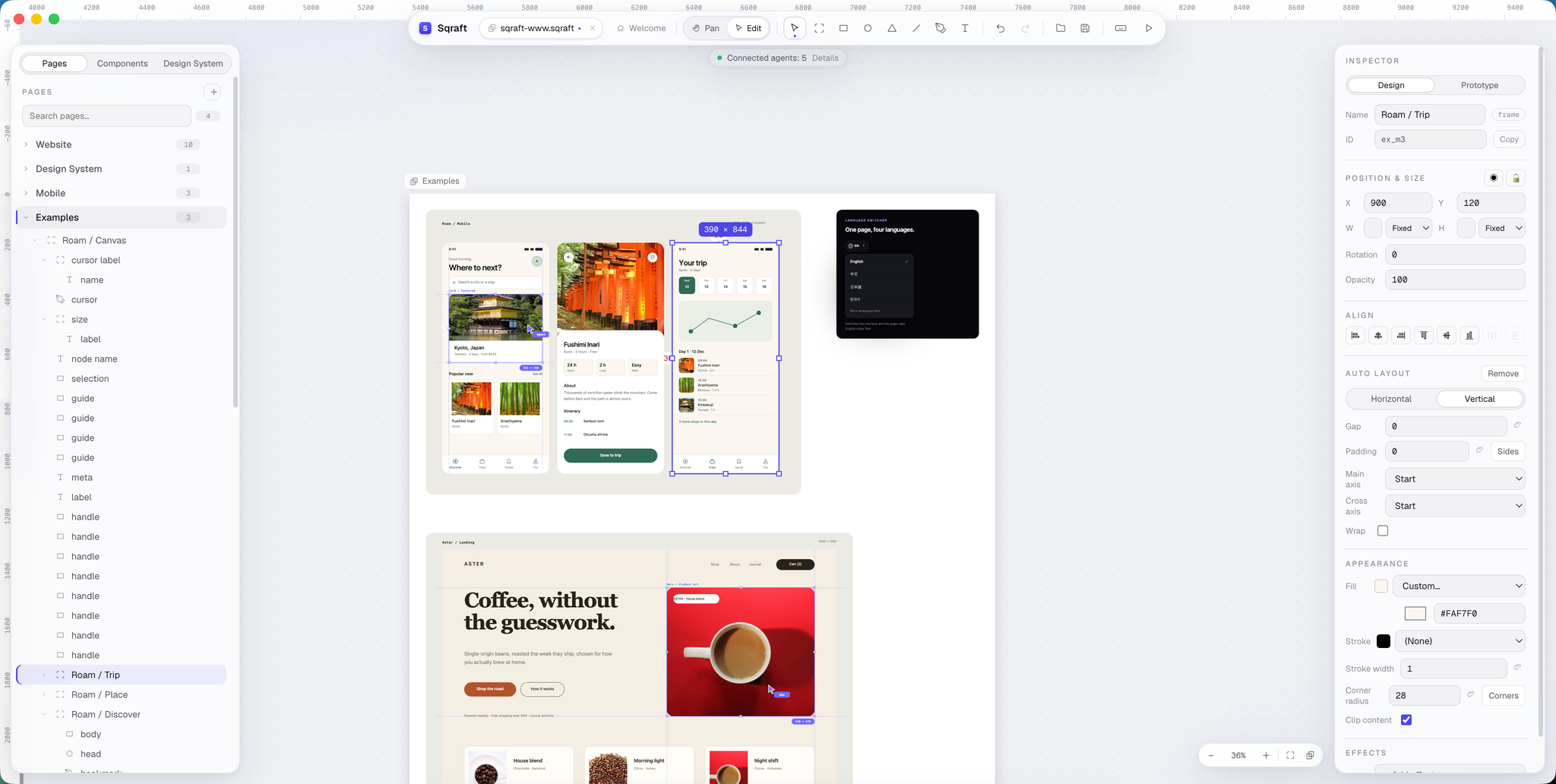
Design interfaces with frames, components, auto layout, design tokens and gradients; the same capabilities are exposed over MCP to agents such as Claude Code and Cursor, so "edit the design in natural language" is a first-class entry point.
The app is fully local: no account, no cloud, no model calls. A design is simply a .sqraft file on disk.
Download
⬇ Download the latest version
- macOS · Apple Silicon (M series) · about 120 MB
- Windows · x64 · about 100 MB · unsigned
- Under Assets on the Releases page pick
Sqraft-<version>-arm64.dmg(manual install) orSqraft-Setup-<version>.exe; the.zipis what the macOS updater downloads - Windows 10 22H2 or Windows 11, x64. Linux is not supported
- Older versions and release notes: Releases
Install
macOS
- Open the downloaded
.dmgand drag Sqraft into Applications - The app is signed and notarized by Apple, so it opens on double-click — no manual allow needed
- Afterwards the app checks for updates on launch: new versions download in the background, a "Restart to update" button appears in the toolbar, and quitting or clicking it finishes the upgrade
If you would rather not auto-update, Help → Check for Updates… checks manually at any time.
Windows
- Run
Sqraft-Setup-<version>.exe. SmartScreen warns because the installer is unsigned: click More info → Run anyway - The wizard lets you choose the install folder; by default it installs for the current user (no administrator rights). Start-menu and desktop shortcuts are created — just delete the desktop one if you don't want it
- Double-click any
.sqraftfile to open it in Sqraft - Updates are manual: when a new version is out, the app shows a Download chip that opens the Releases page; uninstalling keeps your data in
%APPDATA%\Sqraft
What you can do
- Vector canvas: rectangles, ellipses, polygons, lines, pen paths, text; infinite canvas with multiple pages
- Auto layout: direction, gap, padding, hug / fill / fixed, wrapping, drag to reorder
- Components: main components, instances, slots, overrides, swapping, and component sets with enumerated variants
- Prototype links: click a layer to jump to another page or go back, with instant / fade transitions; present mode scrolls pages and
Hhighlights hotspots - Design tokens: colors, numbers (font size, radius, spacing…) and gradients; change once and it applies everywhere. In strict mode a literal color from an agent comes back as
TOKEN_REQUIRED, with the nearest tokens - Editing: multi-select, marquee, align and distribute, drag to reparent, grouping, guides, snapping
- Effects: drop shadow, inner shadow, layer blur, background blur
- Gradients: linear, radial, angular and diamond fills and strokes, editable on the canvas (endpoints, center, radius, angle) and down to each stop — drag, insert, delete; six built-in presets plus your own, saved locally
- Images: drag in, paste, crop, mask, linked images (cached locally); drop an
.svgto import editable vectors, or hold⌥to insert it as an image - AI editing: agents search and read only the page or subtree they need (even in 100k-layer files), create nodes and change styles over MCP (35 tools), and get warnings on every write (zero-size, clipped text, missing tokens) so they fix themselves; models without vision can read a text summary of the screen. They can also wire prototype links, so a generated design is clickable; one tool call = one undo step
- Examples: the welcome page ships a login page, a card grid and a gradient-heavy landing page you can open and take apart
- Export: the export matrix writes PNG 1×/2×/4× and optional SVG into one zip, named after document, page and layer; single PNG / SVG export from the selection or the active page, plus
Copy as ▸for the clipboard - Interface languages: 中文 / English / 日本語 / 한국어, with optional automatic system-language detection
Connect AI
Sqraft never calls a model and needs no API key. While the app is running it serves an MCP endpoint on localhost, so you can attach the agent you already use:
http://127.0.0.1:7331/mcp
The app must stay running (there is no CLI, and clients cannot launch it). If the port is taken the app moves to the next free one; the actual address is shown on the welcome page and under Sqraft → Configure MCP… (in the File menu on Windows).
Open Sqraft → Configure MCP… and tick the clients you use. Sqraft writes only its own sqraft entry, backs up the config first, and keeps the address in sync when the port changes; restart the client afterwards. If a client is not detected, its CLI is missing, or the config is not writable, copy a snippet instead. On Windows the one-click setup is implemented but not yet verified on a real machine — the snippets below always work.
Claude Code
claude mcp add --transport http sqraft http://127.0.0.1:7331/mcp
OpenCode
{
  "$schema": "https://opencode.ai/config.json",
  "mcp": {
    "servers": {
      "sqraft": { "type": "remote", "url": "http://127.0.0.1:7331/mcp" }
    }
  }
}
Cursor / other mcpServers clients
{
  "mcpServers": {
    "sqraft": { "url": "http://127.0.0.1:7331/mcp" }
  }
}
Codex
[mcp_servers.sqraft]
url = "http://127.0.0.1:7331/mcp"
VS Code
{
  "mcpServers": {
    "sqraft": { "type": "http", "url": "http://127.0.0.1:7331/mcp" }
  }
}
Zed
{
  "context_servers": {
    "sqraft": { "url": "http://127.0.0.1:7331/mcp" }
  }
}
The endpoint only listens on 127.0.0.1 and rejects requests carrying an Origin header, but it has no token: any other process on the same machine can connect. Concurrent requests from multiple clients run one at a time.
Local-first
- A design is a
.sqraftfile on disk (a zip container: snapshot + image assets); no cloud service involved - No account, no backend, no telemetry; the only outbound requests are update checks and linked images you added yourself
- Operation logs go to the system log directory (macOS:
~/Library/Logs/Sqraft/); Help → Open Logs Folder takes you there - Uninstalling removes the app; data and preferences stay in
~/Library/Application Support/Sqraft/(macOS) or%APPDATA%\Sqraft(Windows) and can be deleted as well
Build from source
Requirements: macOS on Apple Silicon or Windows x64, Node.js 22.12 (see .nvmrc) and pnpm 10.33.4.
pnpm install
pnpm dev      # electron-vite dev server with renderer HMR
pnpm test     # vitest across packages
pnpm build    # type check + production bundle
pnpm dist     # host platform: macOS arm64 dmg + zip, or the Windows x64 installer
pnpm dist signs and notarizes the macOS build, so it needs a Developer ID certificate and Apple notarization credentials; use pnpm dist:dir for an unsigned local package.
See CONTRIBUTING.md for the project layout and the review process.
Requirements and known limitations
- macOS Apple Silicon (M series); Intel Macs are not supported
- Windows 10 22H2+ or Windows 11 (x64); Windows on ARM (ARM64) and Linux are not supported
- The macOS app is signed and notarized: it opens on the first try without a Gatekeeper prompt. The Windows installer is unsigned, so SmartScreen warns on the first run
- Auto-update is macOS-only; on Windows you download and run the new installer yourself
- No Figma import: start a new document, or bring individual SVG assets
- CJK text uses each system's own fonts, so line breaks can shift between macOS and Windows
- No real-time collaboration, no accounts, no cloud sync
Community
- Questions and ideas: GitHub Discussions
- Bugs and feature requests: issues
License and feedback
Sqraft is open source under the Apache License 2.0. The "Sqraft" name and the application icon are not covered by the license — forks must use a different name and icon.
Contributions are welcome; see CONTRIBUTING.md. For bugs or feature requests, open an issue.
Sqraft = Square + Craft.