Brilliant Design (hosted)
Design pages, screens and posts on a live, editable Brilliant canvas, and remove the background from a photo.
Hosted MCP Server
npx add-mcp 'https://brilliant.design/mcp'Installs into Claude Code, Codex, Cursor and more
Documentation
Brilliant runs a local MCP server while the app is open, so any coding agent that speaks MCP can design on your canvas as native, editable elements. Check your tool’s row in Settings, MCP connections, restart the tool, and ask it to design.
How do I install Brilliant from a terminal?
Get the installer from the download page, or install it with your package manager.
brew install --cask brilliant
How do I connect a coding agent to Brilliant?
Check one row, restart the tool, start a chat. Brilliant writes the entry into the tool’s own config file, and your other servers stay as they are.
1
Open MCP connections.
Open Settings (Cmd+, on macOS, Ctrl+, on Windows) and choose MCP connections.
2
Check your tool’s row.
The checkmark means Brilliant is in that tool’s config. A tool you have not installed yet can be checked too. Uncheck to remove the entry.
3
Restart the tool.
It reads its config at launch. Restarting Cursor or Codex shows no change on its own, because they connect on the first chat.
4
Ask it to design.
Try "Design a three-tier pricing section in Brilliant." Your tool calls Brilliant’s tools and the result lands on your canvas.
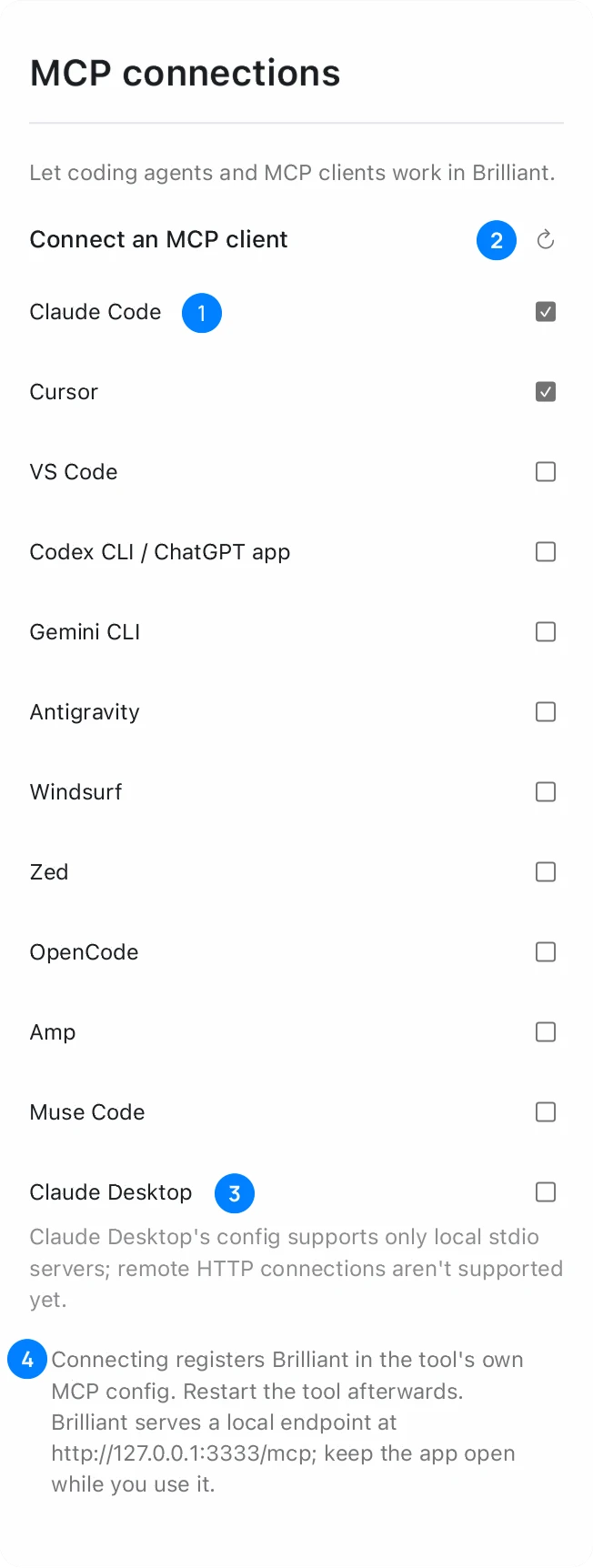
The MCP connections page in Settings. The note at the bottom names the address Brilliant is serving.
- A tool row Checked means Brilliant is in that tool’s MCP config. The state is read from the file itself.
- Re-read client configs Reads every config file again, after a hand edit for example.
- Claude Desktop Connects through the helper, so its row stays unchecked.
- The note The address Brilliant is serving right now.
Which tools can connect to Brilliant?
Twelve tools have a row in MCP connections. Eleven connect with a checkbox, and Claude Desktop connects through a one-line helper.
| Row in Brilliant | Config file Brilliant writes | Setup |
|---|---|---|
| Claude Code | ~/.claude.json | Claude Code setup |
| Cursor | ~/.cursor/mcp.json | Cursor setup |
| VS Code | mcp.json in your VS Code user folder | GitHub Copilot setup |
| Codex CLI / ChatGPT app | ~/.codex/config.toml | Codex setup |
| Gemini CLI | ~/.gemini/settings.json | Check the row, then restart your Gemini CLI session |
| Antigravity | ~/.gemini/config/mcp_config.json | Antigravity setup |
| Windsurf | ~/.codeium/windsurf/mcp_config.json | Windsurf setup |
| Zed | macOS: ~/.config/zed/settings.json. Windows: %APPDATA%\Zed\settings.json | Check the row, then restart Zed |
| OpenCode | ~/.config/opencode/opencode.json | Check the row, then restart your OpenCode session |
| Amp | ~/.config/amp/settings.json | Check the row, then restart Amp |
| Muse Code | ~/.config/muse/settings.json | Check the row, then restart your muse session |
| Claude Desktop | claude_desktop_config.json | Claude Desktop setup |
On Windows, ~ is your user folder, %USERPROFILE%.
ChatGPT itself needs no row and no config file: Brilliant is in the ChatGPT app directory as Brilliant Design. See Brilliant for ChatGPT.
Are there other ways to start the connection?
Yes. All three write the same entry.
| Where | What you do |
|---|---|
| Settings | MCP connections, then check the row |
| Command palette | Run MCP Connections to open the page, or a toggle such as Toggle Cursor MCP Connection |
| Brilliant’s chat | In the setup question, choose Connect a coding agent (MCP), then your tool. A checklist walks you through the restart |
What address does Brilliant serve?
Brilliant serves http://127.0.0.1:3333/mcp, on your machine only, while the app is open. If 3333 is taken it uses 3334, then 3335.
http://127.0.0.1:3333/mcp
Every tool you checked follows the port on each start, so you do not toggle again. A second running copy of Brilliant leaves those entries alone, and its row reads Another Brilliant instance owns this config until you check it there.
How do I connect an agent to brilliant.design?
Install the local helper once, then keep a brilliant.design tab open in Chrome, Edge or Firefox with WebGPU. The helper needs Node 20 or later and runs on your machine. It reaches the tab over 127.0.0.1.
claude mcp add --scope user brilliant -- npx -y @brilliant-hq/mcp
If it says brilliant already exists, you are already connected.
Any other tool, for example Cursor
npx @brilliant-hq/mcp install cursor
Settings, MCP connections on the web lists each tool’s command and shows the bridge status under Your agent bridge. With no tab open, the first tool call opens brilliant.design and pairs with it. With the desktop app open, the same entry reaches the app.
- Chrome may ask once for local network permission. Grant it. On Windows the request appears as a small prompt in the address bar, "brilliant.design wants to access other apps and services on this device": click Allow, or the first connection waits.
- If you see that your browser is blocking local connections, turn on Local network for this site in your browser settings.
- Safari blocks the local connection for every website. Use Chrome, Edge, Firefox or the desktop app.
What does a connected agent do in Brilliant?
It creates and edits designs, reads your canvases, runs canvas commands, exports, and generates images and vectors. Read what the AI can do for the full list, and Blueprint, the format agents write for the native format.
Does anything leave my computer?
MCP itself stays on your machine. An image generated on Brilliant AI and background removal go through Brilliant’s servers. Your agent, and any provider key you connected, send content to that provider.
Does it count against my plan?
Your own agents over MCP get unlimited canvas work on every plan, Free included. Generated images and background removal draw on your Brilliant AI usage. See plans and billing.
Should I use my agent or Brilliant’s chat?
Use your agent when your work already lives there, next to your code. Use Brilliant’s built-in AI chat for no setup: it sits on the canvas and runs on Brilliant AI out of the box.
Where next?
- Connect your tool: Claude Code setup, Cursor setup, Codex setup, GitHub Copilot setup.
- Connect the rest: Claude Desktop setup, Windsurf setup, Antigravity setup.
- Use Claude on the web, desktop or mobile with no local setup: Claude connector setup.
- Carry a design between tools: send a design to Framer and back.
- Still stuck? Read the troubleshooting guide.