Vidu Q4
Vidu Q4 is an AI-powered tool. Visit the official site for details and usage.
Documentation
What Is Vidu Q4?
Vidu Q4 turns a visual idea into a short video. Animate an existing composition from one still image, or guide a reference scene with a prompt and pictures. Describe what moves and how the camera sees it.
This independent service uses Vidu Q4 Preview in two modes. Read how to use Vidu Q4 for the controls, upload steps, and ways to prepare a clear first prompt.
Vidu Q4 Preview Features
Match the mode to your starting material. References guide a scene without guaranteeing identical subjects or perfect motion.
| Control | Image to Video | Reference to Video |
|---|---|---|
| Starting input | One image; prompt optional | Required prompt and at least one image |
| Reference material | One starting picture | 1–12 pictures; up to 3 optional audio references |
| Frame shape | Based on your starting image | 16:9, 9:16, 1:1, 3:4, or 4:3 |
| Prompt expansion | Available, on by default | Not available in this mode |
| Video settings | 540p to 4K; 3 to 16 seconds | 540p to 4K; 3 to 16 seconds |
Vidu Q4 Image to Video
One image establishes the subject and composition. Try a slow camera push, drifting clouds, or a gentle turn to judge one movement clearly.
| Setting | How to use it |
|---|---|
| Image | Upload a PNG, JPG, JPEG, or WebP file, up to 100MB. |
| Prompt | Optional. Describe movement and camera direction. |
| Resolution and duration | Choose size and 3–16 whole seconds. |
| Prompt expansion | Allow interpretation, or switch off for precise wording. |
| Generate audio | Turn generated sound on or off. |
| Seed | Leave blank for random, or enter an integer. |
Vidu Q4 Reference to Video
Pair a required prompt with at least one picture. Identify the subject, describe its action, and choose consistent views of the same scene.
| Setting | How to use it |
|---|---|
| Prompt | Required: subject, setting, action, and camera. |
| Reference images | Required: 1–12 pictures of the scene or subject. |
| Reference audio | Optional: up to 3 references; not voice cloning. |
| Aspect ratio | 16:9, 9:16, 1:1, 3:4, or 4:3. |
| Resolution and duration | Same sizes and lengths as image mode. |
| Seed | Blank or 0 for random; nonzero integer for a specific value. |
Vidu Q4 Video Settings
Match the clip to its destination. Longer clips allow more action; higher resolutions use more credits. Compare Vidu Q4 pricing when choosing settings.
| Choice | Useful starting point |
|---|---|
| Quick exploration | Short, lower-resolution clips to check one movement. |
| Default settings | 720p and 5 seconds. |
| More detail | 1080p, 2K, or 4K for a larger frame. |
| More time | 3–16 seconds, allowing the action to unfold. |
| Audio | Choose generated sound on or off. |
How to Use Vidu Q4 Preview
Take one scene from a starting image to a finished video. Keep the first attempt focused on one movement.
Sign in and choose a mode. Image to Video starts with one picture; Reference to Video needs a prompt and 1–12 pictures. Check the uploaded preview.
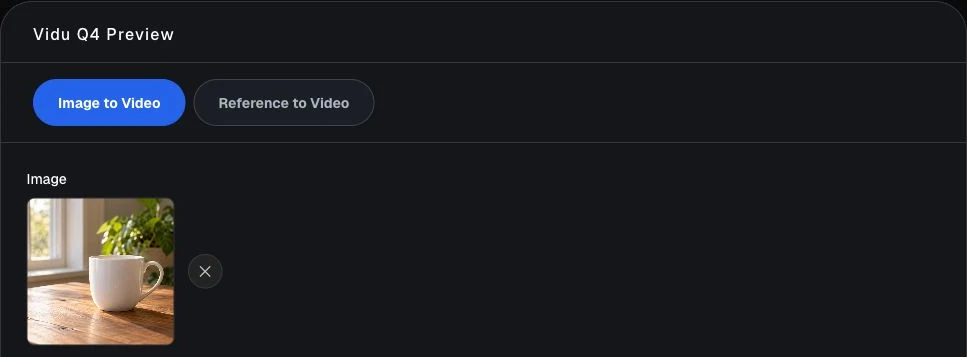
An uploaded starting image, ready for motion directions.
Vidu Q4 Use Cases
Choose a movement that makes the subject easy to see, then match your input to the idea.
Animate a still life
Start with a product or object photograph and ask for a gentle camera movement.
Guide a subject
Choose references that show a subject clearly, then describe one action.
Explore a composition
Pair a reference picture with a prompt describing a landscape, object, or simple scene.
Plan for a screen
Choose a portrait or landscape frame in reference mode.
Vidu Q4 FAQ
Use your own or authorized material and review each output before sharing it. Read the terms of service for account and content rules.
What input do I need for Vidu Q4?▼
Image to Video requires one PNG, JPG, JPEG, or WebP picture. Reference to Video needs a prompt and at least one picture. Use authorized material and keep each file within 100MB.
What images do I need for Reference to Video?▼
Use 1–12 relevant pictures with a clear subject, then describe its movement and camera direction. Consistent views offer more useful guidance than unrelated images added to fill the list.
Which video sizes and lengths can I choose?▼
Both modes offer 540p, 720p, 1080p, 2K, and 4K, with whole-number lengths from 3 to 16 seconds. Defaults are 720p and 5 seconds. Higher settings do not guarantee flawless results.
What does prompt expansion do?▼
In Image to Video, it lets the model elaborate on your description. Turn it off to try precise wording. It is separate from Generate audio and absent from reference mode.
How are video credits calculated?▼
Vidu Q4 multiplies the resolution’s per-second credit rate by video length. Both modes use the same rates. Review the estimate before submitting; shorter clips use fewer credits at the same resolution.