Telo by BlynkAI
Ask about synced Apple Health sleep, workouts, and readiness from Telo through a user-authorized connection.
Hosted MCP Server
npx add-mcp 'https://api.incubator.blynkai.app/v1/health/mcp'Installs into Claude Code, Codex, Cursor and more
Documentation
Know yourdaily readiness.
Bring your Apple Health sleep, heart rate variability (HRV), and workouts together to understand how your body is doing each day.
For iPhone and Apple Watch
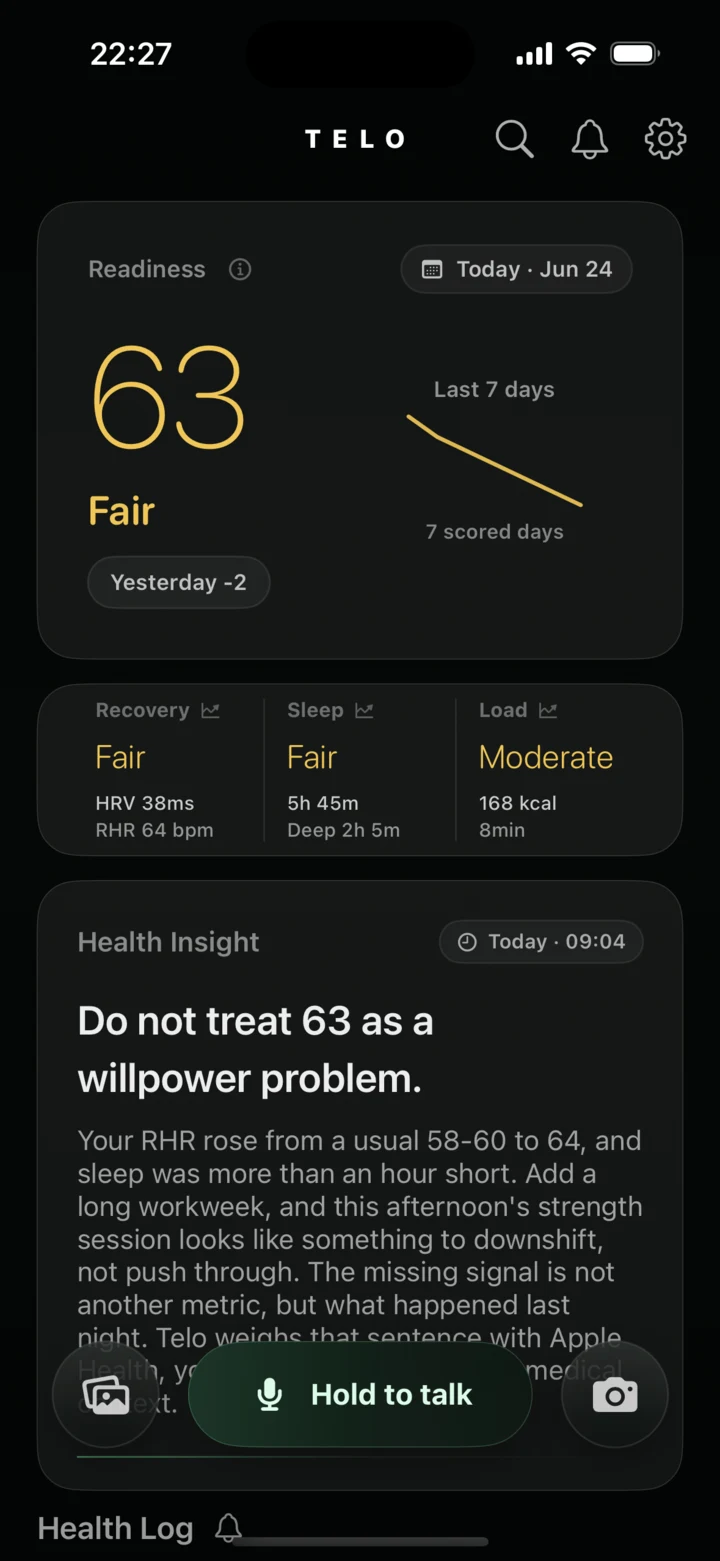
Telo app screens · Demo data
See how your day fits together
Daily readiness
Check your score in the morning and see how recovery, sleep, and workout load compare with your usual baseline.
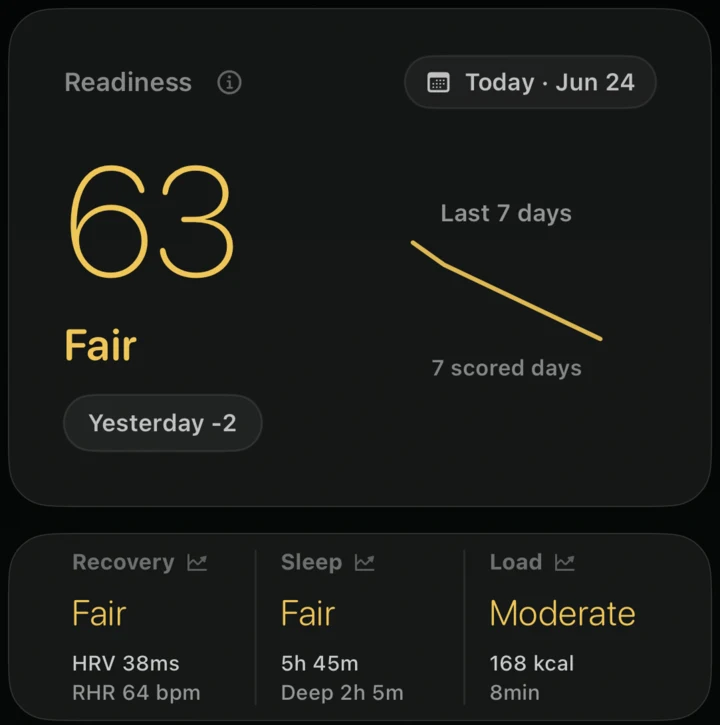
Telo dashboard with a readiness score of 63 and a seven-day trend
Health Log
See synced workouts and sleep alongside the meals, stress, and daily events you log by voice, photo, or text.
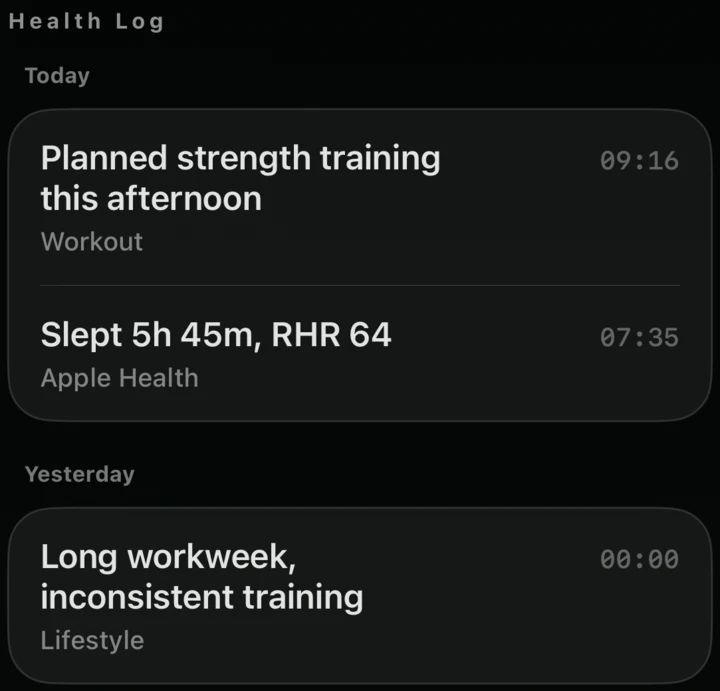
Telo Health Log with dated workout, sleep, and lifestyle entries
AI health insights
Review your health signals alongside the events you logged. See how a busy week, shorter sleep, and changes in recovery show up together.
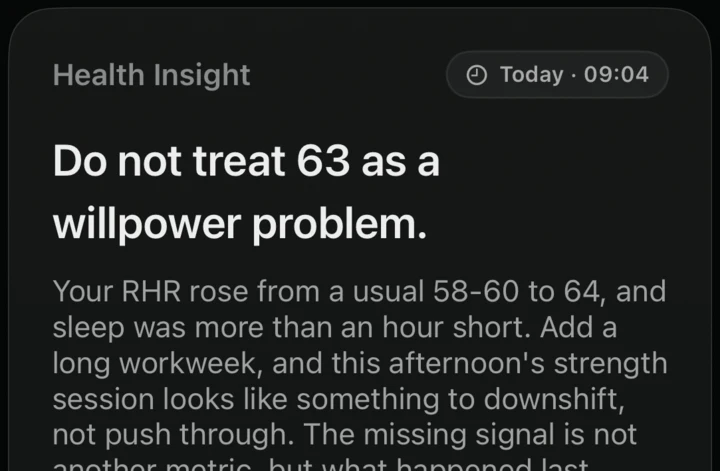
Telo health insight relating shorter sleep and a busy week to recovery
Ask your AI assistant
Connect Telo to Codex or Claude Desktop. Ask a plain-language question about your synced sleep, activity, scores, or health log.
Try asking after you connect
What changed in my sleep and workouts over the last two weeks?
Download Telo
See your daily readiness, recovery, sleep, and workouts in one place.
Open Telo and choose which Apple Health data to share.
Connect Telo to Codex
Ask about your sleep, recovery, and workouts using your synced Telo data.
Install the Telo plugin in Codex from https://telo.ferryman.app/plugins/telo-codex-1.0.4.zip and open the OAuth authorization page so I can pair it.
Or install manually
For a manual install, unzip the download and run these commands from the folder containing telo-codex-marketplace:
codex plugin marketplace add ./telo-codex-marketplace
codex plugin add telo@blynkai
Connect Telo to Claude
Use your synced Telo data in Claude Desktop.
Download the Claude plugin ZIP View installation steps
- In Claude Desktop, choose Plugins → Add → Upload plugin and upload the ZIP.
- In Your plugins, find Telo and select Finish setup → Add… → Continue.
- Choose Sign in now and Register automatically, then select Add → Connect.
- In your browser, select Continue connecting. In the Telo app, open Settings → AI Assistant Access, generate a pairing code, and enter it in your browser.
Claude Desktop can connect to Telo. Detailed query results are still being verified.
Common questions
Do I need an Apple Watch?
You can use Telo on iPhone. If you have an Apple Watch, Telo can use relevant data that has synced to Apple Health and that you’ve chosen to share.
Where can I manage an AI assistant’s access?
Go to Settings → AI Assistant Access in Telo to review or revoke a connection. The authorization page shows what the assistant can access.
Can Telo give medical advice?
Telo provides general wellness, fitness, and lifestyle information. For diagnosis or treatment, consult a qualified healthcare professional.