Switchbooks
Official remote MCP server for Switchbooks AI bookkeeping. Search transactions, run financial reports, and—with permission—categorize, post, match transfers, create journal entries, and reconcile accounts. OAuth 2.1 sign-in; choose read-only or bookkeeping changes. $25 per company/month, 10-day no-card trial.
Hosted MCP Server
npx add-mcp 'https://app.switchbooks.ai/api/mcp'Installs into Claude Code, Codex, Cursor and more
Documentation
Claude
Listed in the Claude connector directory. Open the listing, click Connect and sign in to Switchbooks.
- 1.Open the Switchbooks listing in the Claude directory and click Connect. On a Team or Enterprise plan your organization owner may need to add it first.
- 2.Sign in to Switchbooks and review what the connection may do. Allow bookkeeping changes is ticked; untick it for a read-only connection, then choose Allow.
- 3.In a chat, enable Switchbooks from the + menu under Connectors. Ask "List my Switchbooks companies", then "Use [company name]". Open in the Claude directory
ChatGPT
Listed in the ChatGPT plugin directory. Open the listing, click Install plugin and sign in to Switchbooks.
- 1.Open the Switchbooks listing in the ChatGPT plugin directory and click Install plugin. You can also open Plugins in the ChatGPT sidebar and search for Switchbooks.
- 2.Sign in to Switchbooks and review what the connection may do. Allow bookkeeping changes is ticked so ChatGPT may post, edit and reconcile; untick it for a read-only connection. Then choose Allow.
- 3.In a chat, type @switchbooks, or pick one of the listing's Try in chat prompts. Ask "List my Switchbooks companies", then "Use [company name]". Open in the ChatGPT plugin directory
Grok Bot
Listed as a plugin in the Grok Bot marketplace. Open the listing, or search for it inside Grok Bot.
- 1.In Grok Bot, open Settings, then Plugins, then Marketplace, and search for Switchbooks.
- 2.Install the plugin and sign in to Switchbooks in your browser when prompted. Review what the connection may do and allow access.
- 3.Ask your Bot "List my Switchbooks companies", then "Use [company name]" to start. Open in the Grok Bot marketplace
Cursor
Listed in the Cursor marketplace. Add it from the listing and sign in to Switchbooks.
- 1.Open the Switchbooks listing in the Cursor marketplace and add it to Cursor.
- 2.Sign in to Switchbooks when Cursor opens the browser, review what the connection may do, and allow access.
- 3.In a chat, ask "List my Switchbooks companies", then "Use [company name]". Open in the Cursor marketplace
Any MCP client
Other tools that support remote MCP servers with OAuth connect with the server URL. The server is published in the official MCP registry as ai.switchbooks/switchbooks.
- 1.Add a remote MCP server with the URL https://app.switchbooks.ai/api/mcp. No client ID or secret is needed; the server supports dynamic client registration.
- 2.Complete the sign-in the client opens. Choose read-only or allow changes when asked.
- 3.Call list_companies, then set_company, before using the other tools.
Guides: bookkeeping in ChatGPT and Claude, the ChatGPT bookkeeping plugin, Claude step by step, how to automate your bookkeeping with AI, and which AI assistants can do the books.
MCP server URL:
https://app.switchbooks.ai/api/mcp
Authorization:
OAuth 2.1 with PKCE and dynamic client registration. Switchbooks is its own authorization server.
Discovery:
https://app.switchbooks.ai/.well-known/oauth-protected-resource and https://app.switchbooks.ai/.well-known/oauth-authorization-server
MCP registry:
ai.switchbooks/switchbooks, record at https://registry.modelcontextprotocol.io/v0/servers?search=switchbooks
Read
- Search transactions in To Review or posted, by description, amount, date, account or payee
- List categories, payees, rules, accounts and the team
- Run a profit and loss, balance sheet, cash flow, forecast or trial balance for any dates
- Open the entries behind any report number
- Read stored files such as receipts and statements
With write access
-
Categorize, post and split To Review rows
-
Match transfers between accounts
-
Book and edit journal entries
-
Create, rename and merge categories and payees
-
Make and change rules, including auto-post
-
Reconcile an account from a preview, and undo a reconciliation
-
Book an opening balance from a preview
-
Attach and rename files
-
Update a transaction's details
-
Add questions to the owner's open request
-
Make a new company from its name and what it does
-
Connect a bank through Plaid's own sign-in page
-
Sync a bank, merge accounts, delete files or email the team, after asking you
-
Undo its own changes
-
“List my Switchbooks companies.”
-
“Use Harbor Goods. What is sitting in To Review?”
-
“Post everything in To Review that matches a rule, and list what you were unsure about.”
-
“Show me last month's profit and loss.”
-
“Compare this quarter's expenses with the previous quarter.”
-
“Find every transaction paid to Gusto this year.”
-
“Reconcile Chase checking to the statement ending September 30 with a balance of 12,480.12.”
-
“What did you change today? Undo the last one.”
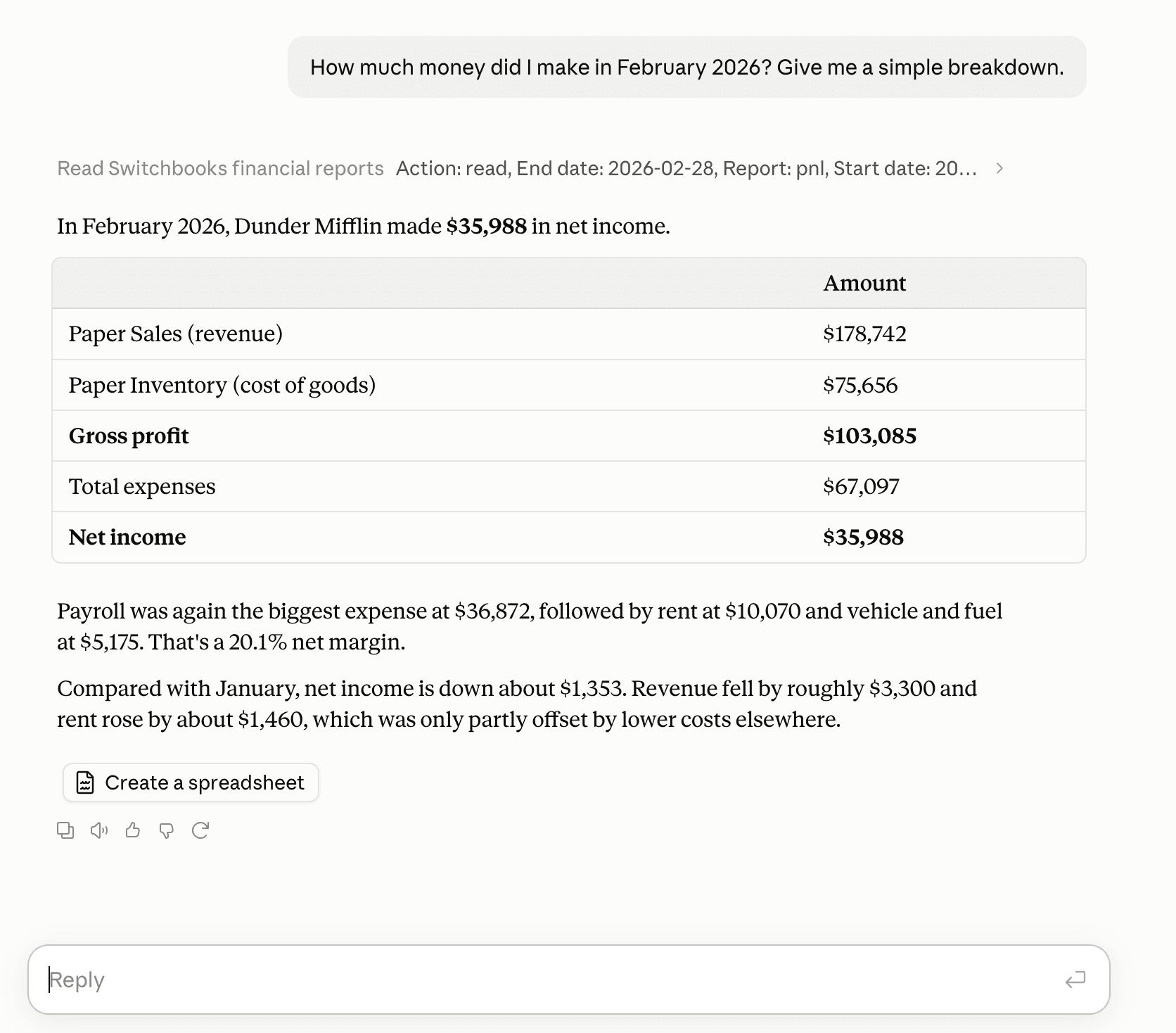
“How much money did I make in February 2026? Give me a simple breakdown.”
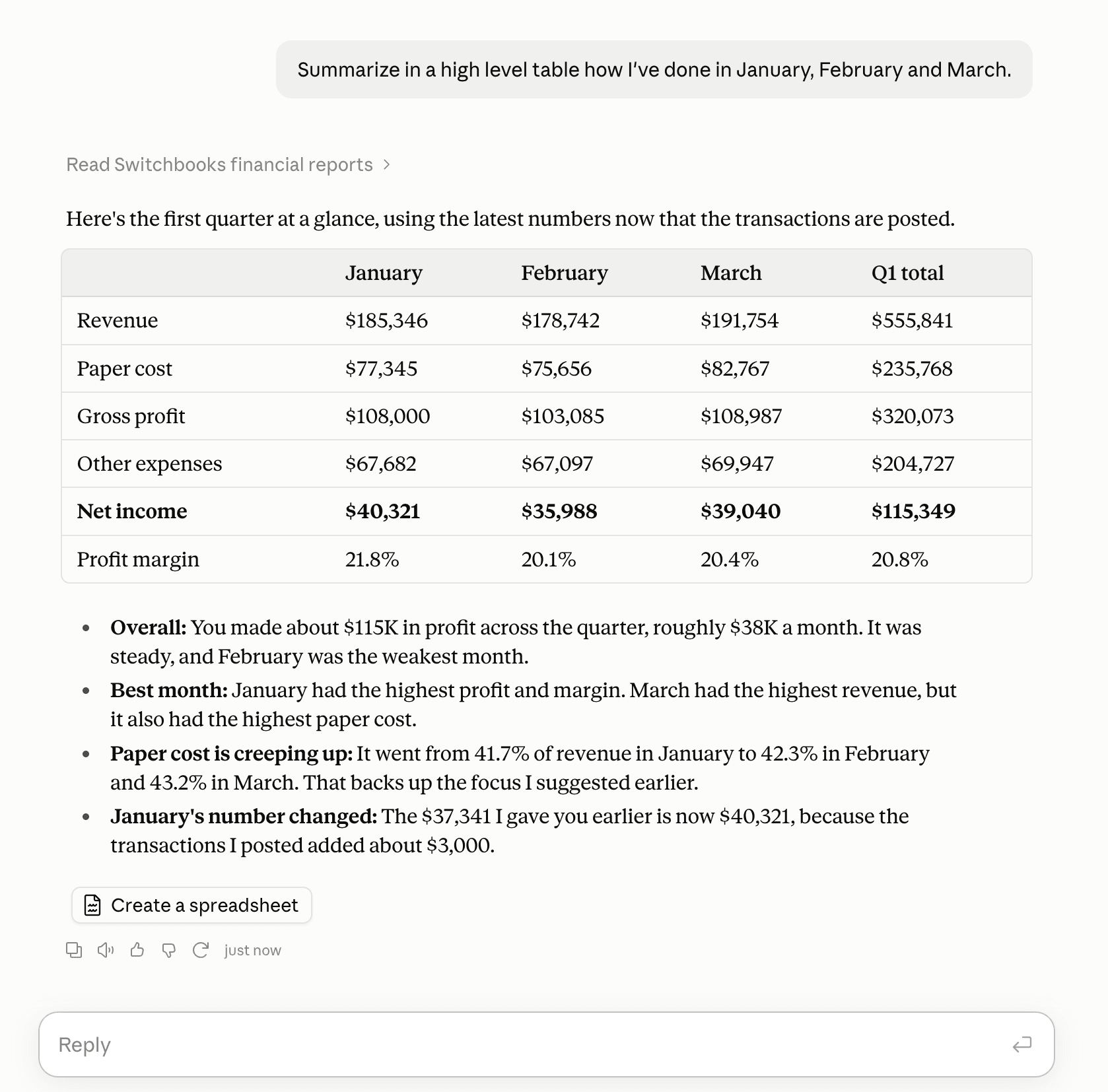
“Summarize in a high level table how I’ve done in January, February and March.”
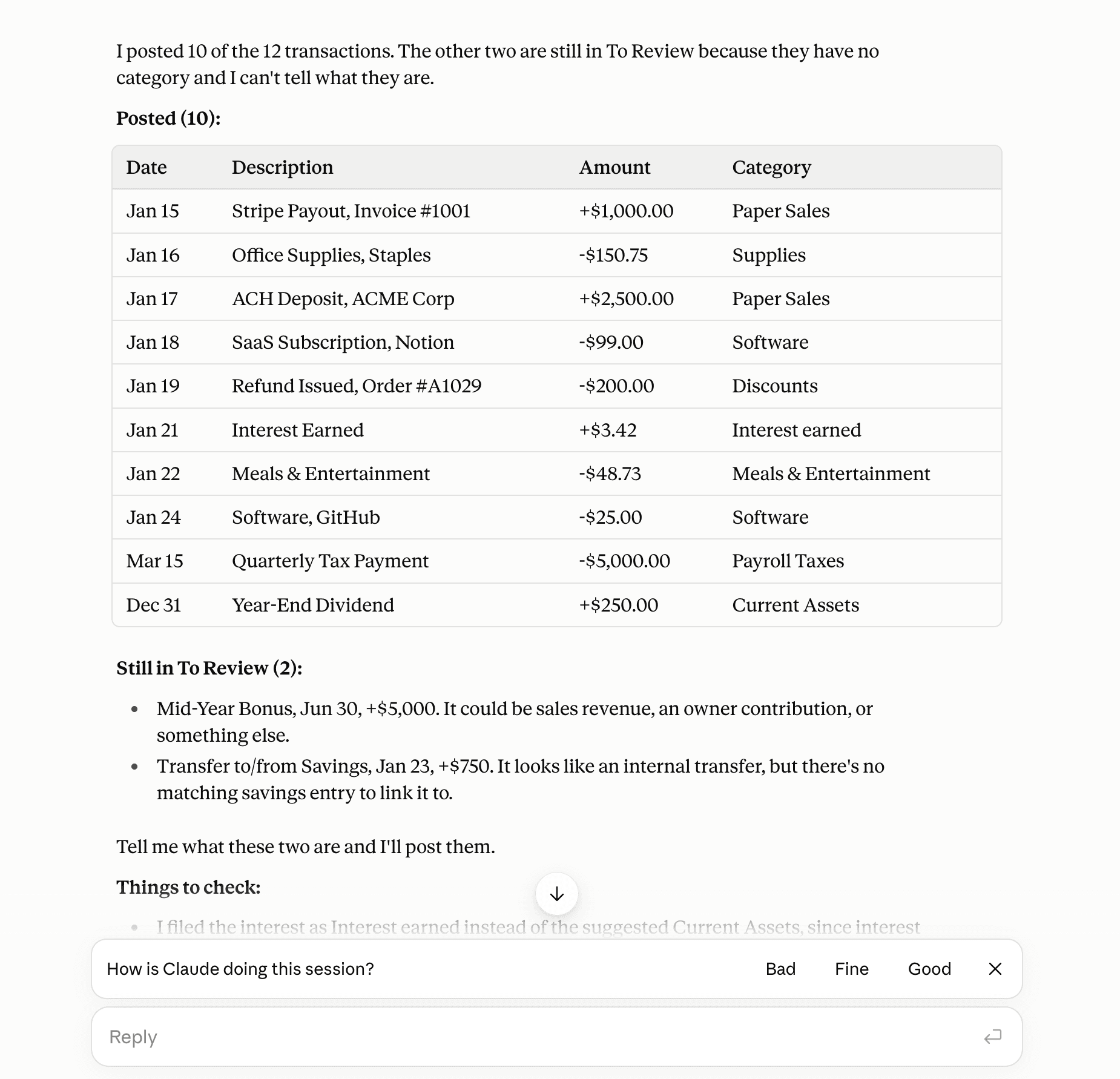
“Post all my transactions. Give me a summary of your work once done.”
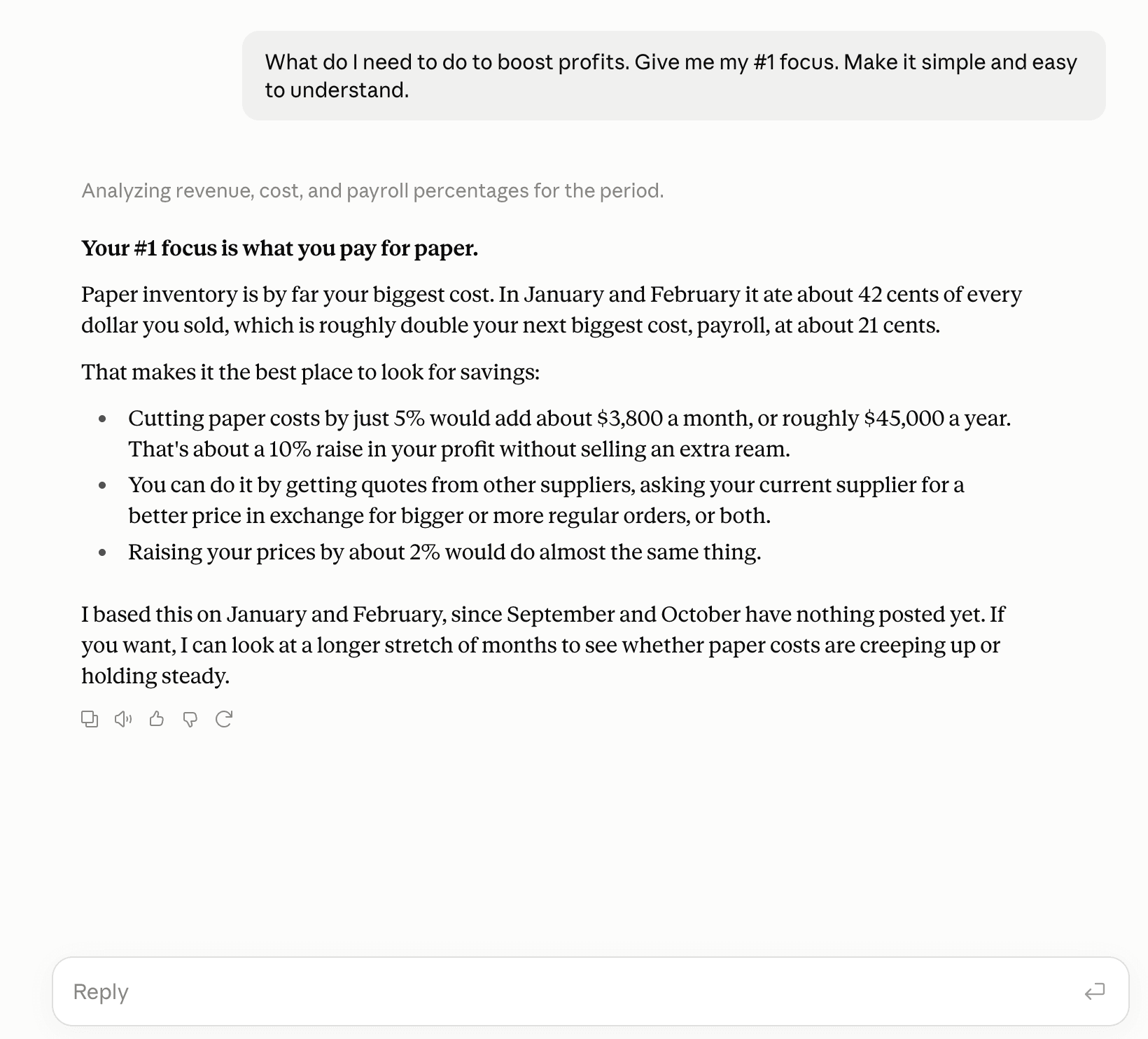
“What do I need to do to boost profits? Give me my #1 focus.”
books_glance
The company's key numbers, what waits in To Review, what is reconciled through when, and the chart of accounts.
get_switchbooks_info
How Switchbooks works, by topic: workflow, categories, rules, banking, reconciliation, reports, billing and more.
list_companies
Every company the signed-in user can access.
set_company
Picks the company the other tools work in.
manage_transactions
Bank and card rows in To Review or posted: search, read, and with write access categorize, post, split and match them.
manage_reports
Profit and loss, balance sheet, cash flow and forecast for any dates, a trial balance as of a date, and the entries behind any number.
manage_categories
The chart of accounts: list, and with write access create, rename and merge categories.
manage_payees
Who was paid or who paid the company: list, and with write access create and merge payees.
manage_rules
Rules that file incoming bank rows by description, amount or direction, with optional auto-post.
manage_accounts
Bank and card accounts on the books, a comparison with the bank, and with write access opening balances and connecting a bank on Plaid's own sign-in page.
manage_journal_entries
Manual journal entries: adjustments, accruals, depreciation, payroll. Debits must equal credits.
manage_reconciliations
Tie an account to its statement from a preview, finish it, or undo a finished one.
manage_files
Stored files: list and read them, and with write access attach one to a row or entry, or rename it.
manage_requests
Questions for the owner, about rows or for files, added to the open request the owner answers on a link with no login.
manage_company
A new company, and the company's name, description, lasting facts and team.
manage_changes
This connection's changes to the books: list them and undo the latest or a named one.
Is Switchbooks in the Claude directory?
Yes. The listing is at https://claude.ai/directory/switchbooks. Click Connect, sign in to Switchbooks, and choose whether the connection may make changes.
Does Switchbooks work with ChatGPT?
Yes. Switchbooks is a plugin in the ChatGPT plugin directory at https://chatgpt.com/plugins/plugin\_asdk\_app\_6abd8e0efeec8191ac492b360ecda570. Click Install plugin, sign in to Switchbooks, and choose whether ChatGPT may make changes. From ChatGPT it can read your books, run reports and, with changes allowed, post, edit, book entries and reconcile. Connecting a bank, importing files and owner requests stay in the Switchbooks app.
Is Switchbooks in the Grok Bot marketplace?
Yes. The plugin listing is at https://x.ai/bot/plugin/71396845. Inside Grok Bot, open Settings, then Plugins, then Marketplace, and search for Switchbooks to install it.
Is Switchbooks in the Cursor marketplace?
Yes. The listing is at https://cursor.com/marketplace/switchbooks. Add it from there and sign in to Switchbooks when Cursor opens the browser.
What is the Switchbooks MCP server URL?
https://app.switchbooks.ai/api/mcp. It uses OAuth 2.1 with PKCE and dynamic client registration, so no client ID or secret is needed. Discovery documents are at https://app.switchbooks.ai/.well-known/oauth-protected-resource and https://app.switchbooks.ai/.well-known/oauth-authorization-server.
Is Switchbooks in the official MCP registry?
Yes, as ai.switchbooks/switchbooks, with a streamable HTTP remote at https://app.switchbooks.ai/api/mcp. The registry is an API; the record is at https://registry.modelcontextprotocol.io/v0/servers?search=switchbooks. Catalogs that copy from the registry list it on their own schedules.
Does connecting an assistant cost extra?
No. The connection is included with Switchbooks, which is $25 per month per company with a 10-day free trial.
Can an assistant change my books?
Only if you allow it when connecting. A read-only connection can search and run reports. A connection with write access can also post, match, book entries, reconcile and make rules. Every change it makes is recorded, and most can be undone from the same chat.
What can a connected assistant never do?
Sign in to your bank for you, invite or remove people, share a report, change billing or delete the company. Those happen in the Switchbooks app. Steps it can take that cannot be undone, like merging accounts, wait for your yes.
Which company does the assistant work in?
It can see every company you can access. Ask it to list your companies, then name the one to use. If you have only one, it is selected automatically.
Does the assistant see my bank login?
No. You sign in to your bank on Plaid's own page, from a link the assistant gives or from the Switchbooks app, and the login never reaches Switchbooks or the assistant. The assistant sees only the accounts and transactions brought into your books.
How do I disconnect?
In ChatGPT, open the Switchbooks listing and choose Manage, or open Settings, then Plugins, and remove it. In Claude, open Customize, then Connectors, select Switchbooks and disconnect it. In Grok Bot, remove the plugin from Settings, then Plugins. In Switchbooks, Settings, then MCP, lists every connection and token with a Revoke button.