Sorinai
Lets Claude, ChatGPT, Cursor and other MCP clients search your Sorinai meetings, read notes and transcripts, and pull the filled-in answers from your meeting templates. Remote server: https://mcp.sorinai.com/mcp (OAuth sign-in with your Sorinai account).
Hosted MCP Server
npx add-mcp 'https://mcp.sorinai.com/mcp'Installs into Claude Code, Codex, Cursor and more
Documentation
The Sorinai app icon and the Claude app icon side by side, with arrows running between them, over a page of handwritten notes.
We're excited to announce that you can now ask Claude about any call you've had. Sorinai is officially listed in Claude's connector directory: connect it in a few clicks and Claude can search your meetings, read your notes and transcripts, and pull answers straight from your note templates. It's on every Sorinai plan, and it also works with ChatGPT on Business, Enterprise, Edu and Pro.
What is an MCP?
MCP (Model Context Protocol) is the open standard Claude and other AI apps use to connect to the tools you already use. Sorinai now supports it, so Claude can read your meetings when you ask.
Your calls, wherever you're working
Most of the work that comes out of a call happens after it, or somewhere else. You're using Claude to draft follow-up emails or content to post, and what you need was said on a call last Tuesday.
Until now, for Claude to understand your work, that meant opening Sorinai or any notetaker that you use, finding the meeting, copying the right bit and pasting it back into Claude. Now you can skip that step. Ask Claude about a call, and it finds the meeting in Sorinai and reads what was written and said. All you have to do is connect Claude to Sorinai's MCP in Claude's settings.
Sorinai is built to help you during the call: taking notes with you and filling in your template as you talk. The MCP means everything you captured comes with you once the call is over.
What you can do with it
Whether you work in sales, recruitment or any people-facing role where meetings make up a huge part of your work, every call you've taken notes on in Sorinai is now something Claude can search, compare and quote, and use directly in its output.
Compare across calls
- "Compare the prospects I spoke to this week: budget, timeline and who signs off."
- "Compare the candidates I screened this week: salary expectations, notice period and whether they need sponsorship."
Whatever template you used for that meeting, Claude has access to all the filled-in answers from each call.
Turn calls into the work that comes after them
This is the one people reach for every day. The call is the raw material; the follow-up, the post, the submission is the actual job. Claude writes it from what was really said, in the words it was said in, straight from the transcript rather than a summary of it.
- "Write the follow-up email to Marcus, covering the three things we agreed and the pricing question he left open."
- "Give me five LinkedIn post ideas from the calls I did this week."
And when you want to check a line before it goes out, ask where it came from — Claude quotes the transcript back to you, with who said it.
Spot what keeps coming up
- "Across my calls this month, what was the number one objection or concern raised?"
Claude reads every call and gives you the receipts: which ones it came up on, who raised it, and in the exact words it was said.
How to connect
In Claude (web or desktop):
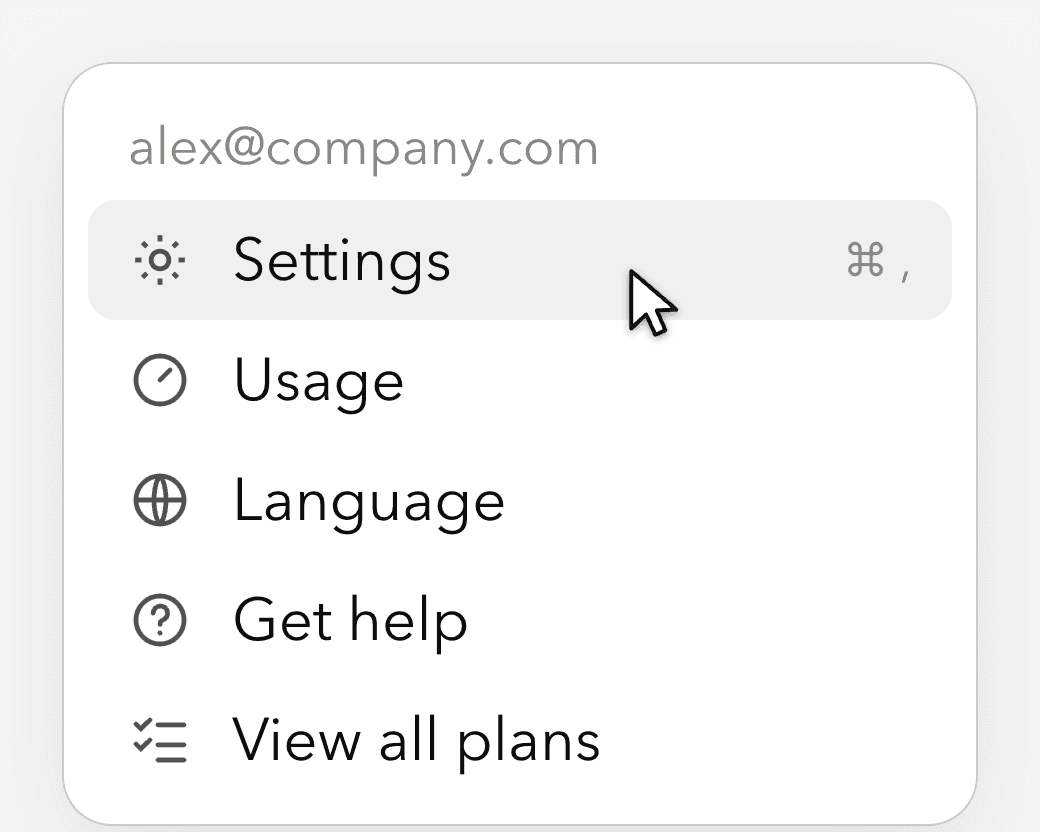 1Click your name, then Settings.
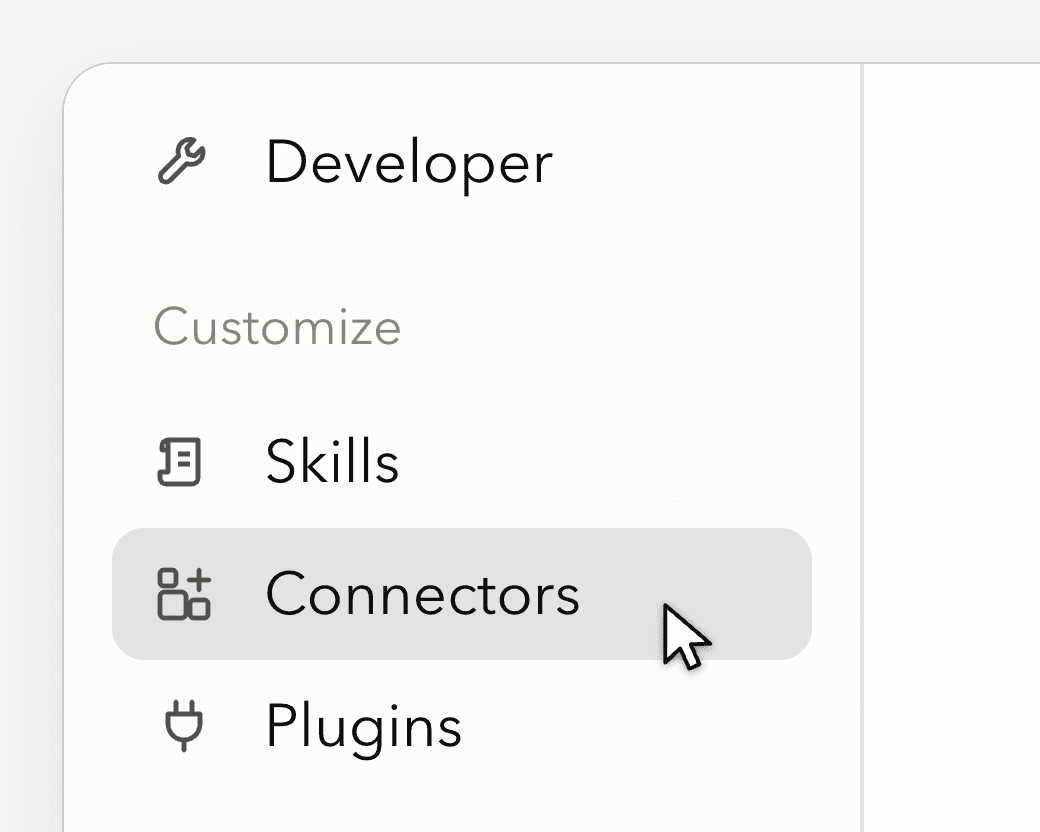 2Open Connectors.
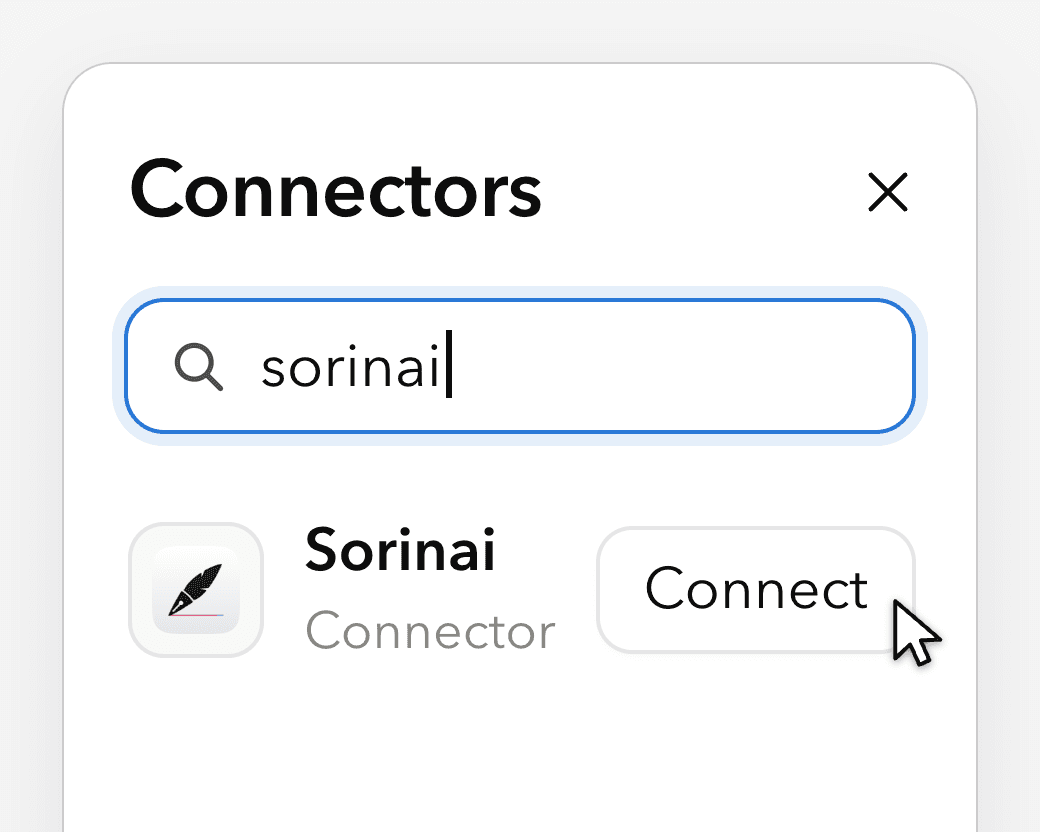 3Search for Sorinai and click Connect.
- 4Sign in with your Sorinai account.
- 5In a new chat, make sure Sorinai is switched on. (It should be on by default)
In ChatGPT (web or desktop): for now, you can add Sorinai yourself on ChatGPT:
- Turn on developer mode in Settings, then Apps, then Advanced settings.
- In Apps, choose Create and paste the Sorinai server URL:
https://mcp.sorinai.com/mcp - Sign in with your Sorinai account, then switch Sorinai on in a new chat.
In other apps that support MCP (Cursor and more): add Sorinai as a custom connector with the server URL above, then sign in with your Sorinai account.
What Claude can see
- Read-only. Claude can find and read your meetings, notes, transcripts, folders and templates. It can't create, change or delete anything in Sorinai.
- Only your account. Claude sees the meetings in the Sorinai account you sign in with.
- Processed under your Claude account. When Claude reads a meeting, that content is handled under your Claude account's data settings, the same as anything you paste into a chat.
Frequently asked questions
Is the Sorinai MCP free?
Yes, it's on every plan. On the free plan Claude can reach your last 30 days of meetings; on Business it can reach your full history.
Does Sorinai work with Claude?
Yes. Sorinai is in Claude's connector directory. Go to Settings, then Connectors, search for Sorinai and sign in.
Can Claude edit or delete my meetings?
No. The connection is read-only.
Does Sorinai work with ChatGPT?
For now, Sorinai works on ChatGPT Business, Enterprise, Edu and Pro, where you can add it yourself on the web (see How to connect). It isn't available on Free or Plus yet.
Live now
Sorinai is in Claude's connector directory now. It's free for Mac and Windows: download Sorinai, connect it to Claude, then ask about your last call.