SEOcrawl AI
SEO + GEO MCP: live Google Search Console data, keyword and page analysis, site audit and SEO tasks — 21 tools.
Documentation
mcp.seocrawl.ai
Google Search Console MCP
The Google Search Console MCP server with SEO + GEO superpowers: your GSC data and SEO tasks inside your AI assistant.
85 MCP tools, one connector. Pull live Google Search Console and Google Analytics 4 data, drill into any keyword or page, check what Google actually indexes, slice it by your own tags and Smart Views, manage and audit your AI visibility across ChatGPT, Claude, Gemini and Perplexity, measure the traffic those engines send you, run and compare site-audit crawls, render the results as rich visual widgets, and create or close SEO tasks — all from a chat. Built on the open Model Context Protocol (MCP), so it works out of the box with Claude, ChatGPT, Cursor and Claude Code. Part of SEOcrawl AI's SEO + GEO (AI visibility) platform.
Works with
Claude · SEOcrawl AI MCP
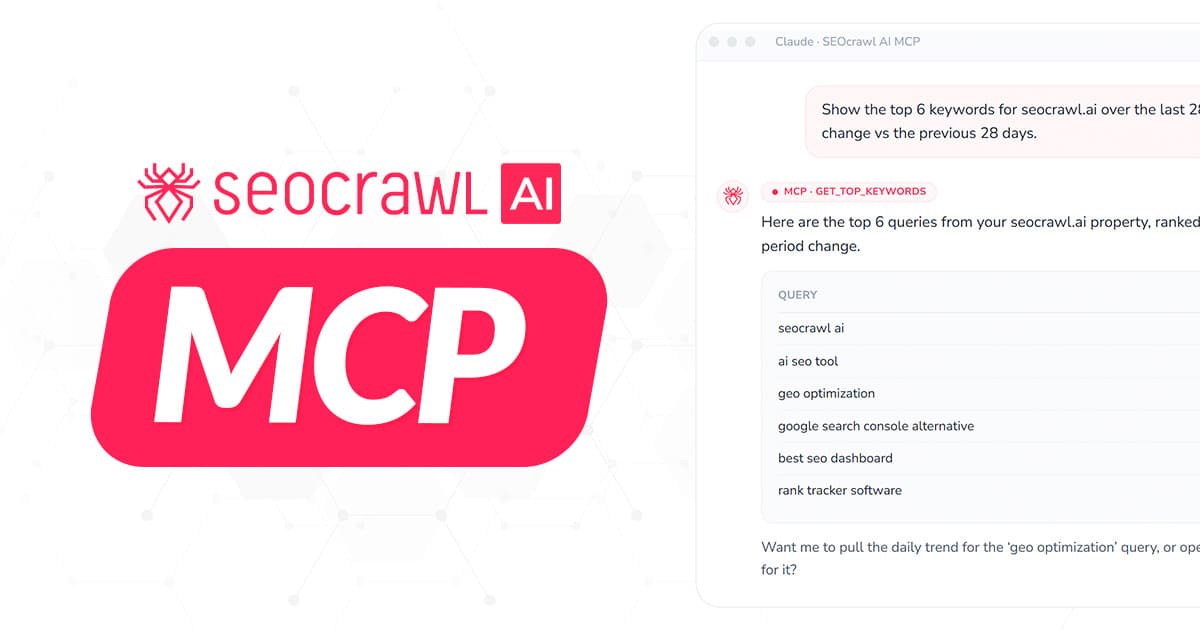
Show the top 6 keywords for seocrawl.ai over the last 28 days, sorted by clicks, with the change vs the previous 28 days.
MCP · get_top_keywords
Here are the top 6 queries from your seocrawl.ai property, ranked by clicks. Δ shows the period-over-period change.
QueryClicksImpr.Δ Clicks
seocrawl ai1,84218,210+12%
ai seo tool1,20522,540+8%
geo optimization90414,830+34%
google search console alternative6129,150-4%
best seo dashboard48812,420+19%
rank tracker software34210,820-7%
Want me to pull the daily trend for the ‘geo optimization’ query, or open a task to expand the page that ranks for it?
Claude connector
SEOcrawl AI is in Claude's official connector directory
Add it from our listing in Claude and sign in with your SEOcrawl AI account — no server URL to copy, nothing to install.
Google Search Console MCP Use Cases
Fourteen real conversations you can have today — SEO and GEO (AI visibility) alike. Each one maps to the actual MCP tools listed below — no hand-waving, no copy-paste, no exports.
Claude · SEOcrawl AI MCP
Compare seocrawl.ai performance for the last 28 days vs the previous 28 — clicks, impressions, CTR and average position.
MCP · compare_date_ranges
Here's the comparison for seocrawl.ai (period A: 2026-04-30 → 2026-05-27, period B: 2026-04-02 → 2026-04-29):
MetricPeriod APeriod BΔ %
Clicks18,42016,108+14.4%
Impressions412,890388,210+6.4%
CTR4.46%4.15%+7.5%
Avg. position12.313.1-0.8
Clicks +14% and position improved by 0.8 spots — want me to break that down by top page?
get_gsc_summary · compare_date_ranges
Search Console recap, in chat
Get your weekly Search Console recap in one chat — the same data you'd open the SEO Dashboard for. Skip the manual export: ask for last 28 days vs the 28 before, and your assistant pulls the four headline metrics with diff and change_pct already calculated.
Example prompt
“Compare seocrawl.ai performance for the last 28 days vs the previous 28 — clicks, impressions, CTR and average position.”
Claude · SEOcrawl AI MCP
Top 5 pages by clicks on seocrawl.ai this last 28 days, and which ones dropped vs the previous 28.
MCP · get_top_pages
Top 5 pages by clicks (last 28 days), with the period-over-period delta:
/seo-tools/rank-tracker 3,240+22%
/blog/generative-engine-optimization 2,815+148%
/seo-tools/seo-dashboard 1,902+9%
/blog/technical-seo 1,184-38%
/free-seo-tools/schema-validator 905-12%
Two pages dropping — /blog/technical-seo is the biggest loser. Want the daily breakdown for that URL?
get_top_pages · get_page_detail
Growing and Declining Pages
See which pages move the needle, and which just dropped. Ask for top pages with period-over-period and your assistant ranks them by clicks, flags the losers, and offers to fetch the daily breakdown for any URL you call out.
Example prompt
“Top 5 pages by clicks on seocrawl.ai this last 28 days, and which ones dropped vs the previous 28.”
Claude · SEOcrawl AI MCP
Show me the daily trend for 'geo optimization' on seocrawl.ai for the last 28 days — clicks, impressions and position.
MCP · get_keyword_detail
Daily breakdown for the query ‘geo optimization’ over the last 28 days. Bars are scaled to peak clicks:
Total clicks
904
Avg. CTR
6.1%
Avg. position
4.8 ↑ 2.1
Position jumped 2.1 spots on the 17th. Want me to open a task to update the page that ranks for it?
get_keyword_detail
Keyword Deep Dive
Zoom into a single keyword’s day-by-day trend. Once you’ve spotted a query worth investigating, pull its daily time series — useful for catching the exact day a position shift happened or correlating with a Google update.
Example prompt
“Show me the daily trend for 'geo optimization' on seocrawl.ai for the last 28 days — clicks, impressions and position.”
Claude · SEOcrawl AI MCP
Create a task to update the meta title on /blog/technical-seo. Priority 2, assigned to me, description should mention the -38% click drop.
MCP · create_task
Task created on the seocrawl.ai property:
TitleUpdate meta title on /blog/technical-seo
Slug technical-seo-meta-fix-4a2c
PriorityP2
AssigneeDK
TaskboxTo do
DescriptionClicks down 38% vs previous 28 days. Refresh the meta title to match current intent for ‘technical seo’.
Done. Want me to also add a checklist comment with the meta-title hypotheses?
create_task
From Insight to Action
Spin up an SEO task without leaving the chat. When the data points to action, your assistant creates it right there in your Task Manager — title, description, assignee, priority (1–5) and taskbox, all in one call.
Example prompt
“Create a task to update the meta title on /blog/technical-seo. Priority 2, assigned to me, description should mention the -38% click drop.”
Claude · SEOcrawl AI MCP
List my open tasks on seocrawl.ai, mark 'Update meta title on /blog/technical-seo' as Done, and add a comment with the new title.
MCP · list_tasks → update_task → add_comment
3 open tasks assigned to you. I'll close the meta-title one and leave a note:
Open → DoneUpdate meta title on /blog/technical-seoP2
OpenInternal-link audit on /seo-tools/*P3
OpenRefresh /pricing FAQ for credit changesP3
Comment added
“Title updated to ‘Technical SEO checklist for 2026 — 14 fixes that actually move rankings’. Will re-check clicks in 14 days.”
1 task closed, 2 still open. Want a summary email of the 2 remaining ones for the team?
list_tasks · update_task · add_comment
One-Chat Task Triage
Triage your open SEO tasks in a single chain. Your assistant lists what’s open, changes status on any one of them, and appends a comment with what was done — three MCP calls, one natural-language request.
Example prompt
“List my open tasks on seocrawl.ai, mark 'Update meta title on /blog/technical-seo' as Done, and add a comment with the new title.”
Claude · SEOcrawl AI MCP
What are the biggest keyword movers on seocrawl.ai — last 28 days vs the previous 28? Show the top gainers and the biggest decliners.
MCP · list_winners_losers
Biggest keyword movers for seocrawl.ai (last 28 days vs the previous 28), by click change:
Top gainers
geo optimization+312
ai seo tool+180
generative engine optimization+96
Biggest decliners
technical seo-64
rank tracker software-41
best seo dashboard-28
‘geo optimization’ is your standout gainer. Want me to open a task to double down on the page that ranks for it?
list_winners_losers
Biggest movers, ranked
See the gainers and decliners between two periods without drilling each one. Ask for the biggest movers and your assistant returns keywords (or pages) sorted by how far they climbed or dropped — deltas pre-computed, so you skip opening each item.
Example prompt
“What are the biggest keyword movers on seocrawl.ai — last 28 days vs the previous 28? Show the top gainers and the biggest decliners.”
Claude · SEOcrawl AI MCP
Which pages on seocrawl.ai rank for 'seo dashboard'? I want to check whether more than one URL is competing for it.
MCP · list_pages_for_keyword
Pages on seocrawl.ai earning clicks for ‘seo dashboard’, ranked by clicks:
PageClicksPos.
/seo-tools/seo-dashboard 4124.2
/blog/seo-dashboard-guide 1888.7
/free-seo-tools 6414.1
Two pages split this query — /seo-tools/seo-dashboard and /blog/seo-dashboard-guide. Want a task to consolidate them?
list_pages_for_keyword
Spot keyword cannibalization
Find every page competing for the same query. Give your assistant a keyword and it lists the pages on your site that earn its clicks and impressions, ranked — so you can see when two URLs split the same intent and pick a canonical one.
Example prompt
“Which pages on seocrawl.ai rank for 'seo dashboard'? I want to check whether more than one URL is competing for it.”
Claude · SEOcrawl AI MCP
Add an annotation on seocrawl.ai for today: 'Shipped new /mcp landing'. Then list the annotations from the last 3 months.
MCP · add_annotation → list_annotations
Annotation added to seocrawl.ai. Here's the timeline for the last 3 months:
Annotation added
Timeline
2026-05-28Shipped new /mcp landing
2026-05-14Google May core update
2026-04-30Published GEO guide
2026-04-12Migrated to new pricing
The May 14 core update lines up with your position swing. Want me to open a task to review the pages that dropped?
add_annotation · list_annotations
Mark the moment, read it back
Pin context to your Search Console timeline. When something changes — a migration, a Google update, a big publish — your assistant records a dated annotation, then reads the timeline back so the ‘why’ behind a traffic shift is never lost.
Example prompt
“Add an annotation on seocrawl.ai for today: 'Shipped new /mcp landing'. Then list the annotations from the last 3 months.”
Claude · SEOcrawl AI MCP
On seocrawl.ai, list pages from the last crawl that are missing an H1 or return a 404 — worst health first.
MCP · page_explorer
Pages from your latest seocrawl.ai crawl matching those criteria, sorted by health (worst first):
PageStatusHealthIssue
/demo 20097H1 missing
/es/demo 20097H1 missing
/blog/legacy-guide 404—Broken page
Want me to open a task to add an H1 to the /demo pages, or 301 the broken URL?
page_explorer
Find the pages behind a technical issue
Turn your site audit into a question. Ask for pages with a missing canonical, no H1, a 404 status, or any audit check, and your assistant returns the exact URLs from your latest crawl — health score, error and warning counts included — so you go straight from issue to fix list without opening the dashboard.
Example prompt
“On seocrawl.ai, list pages from the last crawl that are missing an H1 or return a 404 — worst health first.”
Claude · SEOcrawl AI MCP
List the AI Tracker prompts seocrawl.ai is tracking — show which engines each runs on and how many times they ran in the last 28 days.
MCP · list_prompts
Here are the AI Tracker prompts on seocrawl.ai, with the engines each runs against and runs in the last 28 days:
PromptEnginesRuns
best AI visibility tracking toolsGPTClaudeGeminiPPlx56
how to track brand mentions in ChatGPTGPTClaude28
best GEO tools 2026GPTClaude28
SEOcrawl AI alternativesGPTGeminiPPlx42
‘best GEO tools 2026’ only runs on two engines — want me to widen it to Gemini and Perplexity, or open a task to expand coverage?
list_prompts
Audit your AI visibility coverage
See exactly what your AI Tracker is monitoring across ChatGPT, Claude, Gemini and Perplexity. Ask which prompts a property tracks and your assistant lists each one with the engines it runs against and how many times it ran in the window — so you can audit your GEO coverage and spot gaps without opening the dashboard.
Example prompt
“List the AI Tracker prompts seocrawl.ai is tracking — show which engines each runs on and how many times they ran in the last 28 days.”
Claude · SEOcrawl AI MCP
Tag every keyword on seocrawl.ai that contains 'geo' as 'GEO', then show me the top keywords with that tag over the last 28 days.
MCP · create_tag_rule → get_top_keywords
Created an auto-tag rule (keyword contains ‘geo’ → GEO) and pulled the top GEO-tagged keywords for seocrawl.ai:
Rule created keyword contains “geo” → GEO
KeywordClicksPos.
geo optimizationGEO1,2403.1
what is geo in seoGEO5405.4
geo vs seoGEO4106.0
best geo toolsGEO2808.2
GEO queries are up 18% as a group. Want a weekly report on this tag, or a ‘Brand’ rule set up the same way?
create_tag_rule · get_top_keywords
Slice your data by your own taxonomy
Group keywords and pages your way, then read Search Console through that lens. Ask your assistant to auto-tag everything matching a pattern — say every query containing ‘geo’ — and it creates a rule that tags current and future matches, then pulls your top keywords filtered to that tag. By product line, by intent, brand vs non-brand — your taxonomy, your reports.
Example prompt
“Tag every keyword on seocrawl.ai that contains 'geo' as 'GEO', then show me the top keywords with that tag over the last 28 days.”
Claude · SEOcrawl AI MCP
Give me the GA4 summary for seocrawl.ai over the last 28 days — sessions, users, conversions and engagement rate, vs the previous 28.
MCP · get_ga4_summary
Here's the GA4 summary for seocrawl.ai (last 28 days vs the previous 28):
MetricLast 28dPrev 28dΔ %
Sessions12,48011,927+4.6%
Users8,9208,615+3.5%
Conversions1,4301,287+11.1%
Engagement rate50.1%48.7%+2.9%
Conversions up 11% on barely-moving sessions — engagement is doing the work. Want the traffic split by channel?
get_ga4_summary · compare_ga4_date_ranges
Your GA4 recap, next to your GSC data
Google Analytics 4 headline metrics in the same conversation as Search Console — no tab-switching, no Looker Studio detour. Ask for any window and your assistant pulls sessions, users, conversions and engagement rate with the delta vs the previous period already calculated — or compares any two windows side by side.
Example prompt
“Give me the GA4 summary for seocrawl.ai over the last 28 days — sessions, users, conversions and engagement rate, vs the previous 28.”
Claude · SEOcrawl AI MCP
Break down seocrawl.ai traffic for the last 28 days by channel — sessions and share of total.
MCP · get_ga4_traffic_by_source
GA4 sessions for seocrawl.ai over the last 28 days, by default channel grouping:
Organic Search drives nearly half your traffic. Want the same split by source/medium, or the AI referral detail?
get_ga4_traffic_by_source
See where your traffic actually comes from
One question, your full acquisition mix. Your assistant breaks GA4 sessions down by channel or by source/medium — each row with its share of the period's total — so you see at a glance how much search, referrals, social and paid actually drive, without building a single report.
Example prompt
“Break down seocrawl.ai traffic for the last 28 days by channel — sessions and share of total.”
Claude · SEOcrawl AI MCP
How much AI traffic did seocrawl.ai get in the last 28 days? Break it down by engine — sessions, key events and change vs the previous period.
MCP · get_ga4_ai_referrers
AI referral traffic for seocrawl.ai over the last 28 days, by engine:
EngineSessionsKey eventsΔ Sessions
ChatGPT1,28438+42%
Perplexity41219+51%
Gemini2689+22%
Claude19611+64%
Copilot843-8%
ChatGPT sends the volume, but Claude visitors stay 3× longer. Want a monthly annotation to track this trend?
get_ga4_ai_referrers
Measure your AI traffic, engine by engine
The missing half of GEO: not just where you're mentioned, but the traffic it sends. Your assistant reads AI/LLM referral sessions straight from your GA4 source/medium — ChatGPT, Perplexity, Gemini, Claude, Copilot — with key events and session duration per engine, no manual regex filters. Pair it with your AI Tracker prompts to connect visibility to visits.
Example prompt
“How much AI traffic did seocrawl.ai get in the last 28 days? Break it down by engine — sessions, key events and change vs the previous period.”
85 MCP tools for SEO & GEO
85 SEO MCP tools across 19 groups. Names below match the real MCP tool IDs so you (or your assistant) can call them directly.
Properties
1 tool
Discover which Search Console properties (projects) are connected to the account before any other query.
list_properties
List every GSC property the authenticated user can access. Returns the property ID (UUID) and URL (sc-domain:…) you pass to all other tools.
Performance overview
3 tools
High-level Search Console performance for any property, plus apples-to-apples comparison between two date windows.
get_gsc_summary
Clicks, impressions, CTR and average position for a property over a chosen window. Accepts presets (last_7_days, last_28_days, last_3_months, last_year) or absolute from/to dates. Also returns a branded_breakdown that splits clicks, impressions, CTR and position into branded vs non-branded — driven by the property's Brand tag.
compare_date_ranges
Compare two GSC windows side by side and get diff + change_pct for clicks, impressions, CTR and position. Period A can be a preset; Period B is absolute.
list_winners_losers
The biggest movers between two periods, with deltas pre-computed so your assistant skips drilling each item. Pick dimension=keywords or pages, a metric (clicks, impressions or position) and direction=up / down / both to get gainers, decliners or the largest swings either way. Period B defaults to the window immediately before Period A.
Keywords
3 tools
Find which queries actually drive traffic, then zoom into any single keyword's day-by-day trend.
get_top_keywords
Top keywords for a property ranked by clicks, impressions, CTR or position — with period-over-period comparison. Paginated via next_cursor. Filter by branded: true|false to split brand-driven queries from SEO-earned ones; the summary returns a branded_breakdown you can read in one shot.
get_keyword_detail
Daily time series (clicks, impressions, CTR, position) for a single search query in a property. Same date-range options as the summary.
list_pages_for_keyword
Given a single query, list the pages on your property that earn its clicks and impressions — ranked by clicks, impressions, CTR or position, with period-over-period deltas and next_cursor pagination. Handy for spotting keyword cannibalization or finding the canonical page for a term.
Pages
3 tools
See which URLs carry the traffic, where they lost ground, and pull a daily breakdown for any one of them.
get_top_pages
Top pages for a property ranked by clicks, impressions, CTR or position — every row returns clicks, impressions, CTR and position with period-over-period deltas. Paginated via next_cursor.
get_page_detail
Daily time series (clicks, impressions, CTR, position) for a single page URL in a property. Drop-in compatible with the summary's date-range syntax.
list_keywords_for_page
Given a page URL, list the search queries driving its clicks and impressions — ranked by your chosen metric, with period-over-period deltas and next_cursor pagination. The inverse of list_pages_for_keyword: start from a URL and see exactly which queries feed it.
Google Discover
3 tools
Google Discover is its own Search Console surface with its own clicks and impressions — read it here without mixing it into your Search numbers.
get_discover_summary
Discover clicks, impressions and CTR for the range, each compared with the equal-length window immediately before it: *_current, *_prev, *_delta and *_change_pct (ctr is a 0–1 fraction). Discover carries no query, position, country or device breakdown, so none is returned.
get_discover_history
The daily Discover trend: two series, clicks and impressions, as {date, value} points with missing days back-filled with 0 and ready to chart, plus the number of points and an insufficient_history flag.
get_discover_top_pages
The property's top Discover pages ranked by clicks — or by impressions or CTR — each with its clicks, impressions and ctr for the range and the change against the preceding window. Cursor-paginated via next_cursor.
Index coverage
4 tools
How much of your site Google actually indexes — coverage totals, the daily indexed trend, the URLs stuck in each state, and a live URL Inspection for any single page, straight from chat.
get_indexation_summary
Index-coverage summary for a property: known (sitemap-submitted) URLs, how many Google indexes, indexed_pct and a by_state breakdown (Submitted and indexed, Crawled – currently not indexed, Discovered – currently not indexed, Excluded by 'noindex', Page with redirect, Not found 404, Soft 404…). indexed carries a true prev/delta; date range via preset or absolute from/to.
get_indexation_history
The daily indexed-pages trend — one "indexed" series of {date, value} points, summed across the property's sitemaps and ready for a time-series chart. Returns points (days with real data) and flags insufficient_history when there are too few days to chart meaningfully.
list_indexation_pages
The URLs currently in a given Google coverage state (pass the state exactly as get_indexation_summary reports it). Each row returns url, state, last_crawled, google_canonical vs declared_canonical and discovered_via (sitemap or referring page). Cursor-paginated (limit max 200).
get_url_inspection
Live Google URL Inspection for one page: coverage_state, verdict (PASS / NEUTRAL / FAIL), indexing_allowed, Google vs user canonical, last_crawl_time, robots_txt_state, page_fetch_state, sitemaps, a referring-URLs sample, rich_results and mobile_usability. Cache-first — returns a fresh cached result or refreshes live from GSC within the property's inspection quota.
Tasks
8 tools
The SEOcrawl AI Task Manager — fully wired into the MCP. Create work, edit it, comment on it, never leave the chat.
list_tasks
All tasks for a property. Filter by status (open / done), assignee, taskbox (column) or q (case-insensitive title search). Paginated via next_cursor.
list_taskboxes
The task board's columns (taskboxes) for a property: id, name, status (todo / in_progress / done) and order. Pass a returned taskbox id — or the status keyword — to create_task or update_task to move a task into that column.
get_task
Full detail for a single task. Accepts a UUID, a slug, or a full browser task URL (the property arg is optional when you pass a URL).
create_task
Create a task on a property with title (required) plus optional description, assignee, priority (1–5, default 3) and taskbox (defaults to the TO-DO column).
update_task
Partially update a task — any combination of title, description, assignee, priority, taskbox, or unassign:true to clear the owner.
add_comment
Append a comment to a task. Same flexible ticket reference (UUID / slug / URL) as get_task and update_task.
get_comments
List the comments on a task, including nested replies. Same flexible ticket reference (UUID / slug / URL) as get_task — the property arg is optional when you pass a URL.
add_task_follower
Add a teammate as a follower of a task, or drop them with remove:true. The user is an email or a user UUID and has to be a member of that board already; adding one sends the same notification the app does, and the call is idempotent.
Roadmap milestones
4 tools
Milestones live on the same task board: group tasks into a dated roadmap, move the dates when the plan moves, and read progress straight from the DONE column.
list_milestones
Every roadmap milestone on a property's board: id, slug, name, description, start_date and end_date (Y-m-d), color, progress (0–100, computed from the tasks sitting in the DONE column), state (upcoming / active / overdue / done / at_risk) and the task and done counts. Pass a returned id or slug to update_milestone or assign_task_to_milestone.
create_milestone
Create a dated roadmap milestone. name plus startDate and endDate (Y-m-d, start on or before end) are required; description and a #RRGGBB color are optional. Tasks are attached afterwards with assign_task_to_milestone.
update_milestone
Partially update a milestone by id or slug — any combination of name, description, startDate, endDate and color. A milestone can be moved but never unscheduled, and startDate must stay on or before endDate.
assign_task_to_milestone
Link a task to a milestone, or unlink it by leaving the milestone out. The ticket takes a UUID, a slug or a full browser task URL, and a task belongs to at most one milestone.
Annotations
4 tools
Chart notes for any property — record what changed and when, then read the timeline back so context never gets lost next to your Search Console trends.
add_annotation
Create a chart note on a property for a given date (Y-m-d) with the note text — plus optional longer description, category and a linked task UUID. Added as a custom, site-wide note authored by you.
list_annotations
List a property's annotations within a date range, newest first. Use a preset (last_7_days, last_28_days, last_3_months, last_year) or absolute from/to dates, with optional substring search on the note text and pagination (limit capped at 200).
get_annotation
Full detail for a single annotation by its id — date, note, description, category, linked task, author and the property it belongs to. Use list_annotations to find the id.
delete_annotation
Delete a custom annotation by its id. Only your own custom notes can be removed — official or global notes are rejected. Returns the id with deleted: true.
Site Audit
8 tools
Drive your site-audit crawler from chat — read the health summary, list issues and the URLs behind them, drill into any page, trigger a fresh crawl, and diff two crawls to see what regressed, without opening the dashboard.
list_site_audit_projects
List the property's Site Audit projects (crawl configurations) so you can discover the audit_id to target. Each returns audit_id, name, mode (list / complete / organic_traffic), device, start_urls, status, progress, last_crawl_date, pages_crawled and the latest health_score. Most other site-audit tools default to the most-recently-finished audit, so this is only needed to target a specific one.
get_site_audit_summary
Technical-health summary of the latest crawl: health_score (current plus prev and delta), pages_crawled, crawl_date, issues_by_severity (critical / warning / notice, each with issue_types and pages_affected vs the previous crawl), issues_by_category (OnPage, Links, International, Robots, Social) and per-area category_scores. Defaults to the most recent audit.
list_site_audit_issues
The technical issues detected by the latest crawl, most severe first — each with issue_code (pass it to list_site_audit_issue_pages), title, severity, category, pages_affected (with prev and delta), how_to_fix guidance and priority. Filter by severity and/or category; cursor-paginated (limit max 200).
list_site_audit_issue_pages
The exact URLs affected by one issue — pass its issue_code and get each offending url with the per-page value. Cursor-paginated (limit max 200). Turns any audit issue straight into a concrete fix list.
get_site_audit_page
Full crawl detail for a single URL: status_code, crawl_depth, indexability_score and health_score, category_scores, issue_counts and issues[] — the page's failing checks, each with issue_code, severity, category, the per-page description and how_to_fix.
page_explorer
Find crawled pages that match technical SEO criteria from your latest site audit. Filter by status_code (e.g. 404), no_canonical (missing canonical tag), missing_h1 (missing H1 heading) or check_title (any audit check shown in the UI, e.g. "Title Tag too short"). Sort by health, status_code, url or depth, paginated via next_cursor. Every row returns url, status_code, title, indexability, performance_score (health 0–100), last_crawled_at, count_errors and count_warnings — plus a check_description when a check filter is active.
trigger_site_audit_crawl
Start a fresh crawl (write action) — queues the audit and spends the project's crawler credits (separate from MCP credits) in proportion to the pages crawled. Supports complete and list modes; returns audit_id, status, started_at and pages_queued. Results become available to the read tools once the crawl finishes.
compare_site_audit_crawls
Diff two crawls to answer "what regressed or improved since last time?" — health_diff plus counts and four lists: new_issues, resolved_issues, worsened and improved, each issue carrying pages_affected, prev and delta. Defaults to the latest crawl vs the previous one.
Code Monitor
4 tools
Track on-page HTML/code changes across your monitored pages from chat — see which pages are watched with their status, read the project-wide change feed or a single page's history, pull the exact before/after diff of any detected change, and get a page's latest captured snapshot, without opening the dashboard.
list_code_monitor_pages
List the pages a property tracks in Code Monitor, each with its monitoring status — url, last_change_at (most recent detected change) and changes_count (total changes detected). Filter by url substring; cursor-paginated (limit max 200). Returns feature_not_available when the plan doesn't include Code Monitor.
list_code_monitor_changes
List detected on-page code/HTML changes, newest first — each with url, date and change_types (Title, Canonical, Meta Description, noindex, robots.txt, sitemap.xml, H1, Status code, Hreflang, Open Graph, Twitter image, Analytics, Tag Manager). Filter to one page with seoMonitorId or page, or omit for the project-wide recent-changes feed; narrow with from/to. Cursor-paginated (limit max 200).
get_code_monitor_change
Get the before/after values for a single detected change, addressed by url + createdAt — one entry per changed field with type, property, before and after (arrays for multi-valued fields). Pass changeType to return just one field. Returns not_found when no change matches and invalid_change_type for an unknown field label.
get_code_monitor_snapshot
Get the most recent captured state of a monitored page — the current extracted on-page fields (title, canonical, meta description, meta robots, robots.txt, sitemap.xml, H1, headings, status code, hreflang, Open Graph image, Twitter image, Analytics, Tag Manager). Address the page by seoMonitorId or url; raw HTML and screenshots are not stored. Returns not_found for an unknown page.
AI Tracker
14 tools
Your AI Tracker (GEO / AI visibility), end to end — see which prompts a property monitors across ChatGPT, Claude, Gemini and Perplexity, read per-engine mention rates and the exact sources each engine cited, and create, edit or organize prompts and topics, all from chat.
list_prompts
List the AI Tracker prompts a property is tracking. Every row returns prompt_id, prompt_text, engines_tracked (the LLM engines the prompt runs against), last_run_at (ISO-8601, most recent run) and runs_in_range (engine executions inside the window). Scope runs_in_range with a preset (last_7_days, last_28_days, last_3_months, last_year) or absolute from/to dates — the full prompt list always comes back. Filter by engine (chatgpt/openai, claude/anthropic, gemini, perplexity) and page via limit (max 200) and next_cursor.
get_prompt_detail
Per-engine visibility for a single prompt: runs, mentions, mention_rate (%) and the change in percentage points vs the immediately preceding period — broken out per ChatGPT, Claude, Gemini and Perplexity, with totals aggregated across engines. Date range via preset or absolute from/to (defaults to last_28_days).
list_prompt_runs
The individual engine executions behind one prompt — one row per run with date, engine, mentioned / mentioned_in_text flags and a response_excerpt (up to 600 chars of the actual AI answer). Filter by engine, scope by date range, paginate via limit (max 200) and next_cursor.
list_prompt_citations
The sources the AI engines cited when answering one prompt, aggregated over the range: own_domain plus every cited domain and URL flagged with is_own_domain and url_count — so you can see which of your pages earn citations and which competitors win them.
create_prompt
Create an AI Tracker prompt — the question the tracker runs against the engines. Set the engine list (chatgpt, claude, gemini, perplexity), country, response language and run cadence (daily, week or month), and optionally file it under a topic by topicId or topicTitle (find-or-create).
update_prompt
Partially update a tracked prompt — any combination of its text, engine list, country, response language or run cadence; omitted fields are left unchanged. The prompt keeps its current topic and must stay unique within it.
delete_prompt
Delete a tracked prompt and all of its recorded engine responses. Irreversible; the prompt's topic is left untouched.
list_prompt_topics
List the prompt topics that group prompts on the LLM Tracker page — each with topic_id and title. Pass a topic to create_prompt / update_prompt to file a prompt under it.
create_prompt_topic
Create (or fetch) a prompt topic by title — an idempotent upsert, so re-creating an existing title returns it unchanged with created=false. Topics group prompts on the LLM Tracker page.
update_prompt_topic
Rename a prompt topic by its topicId. The new title must be non-empty and unique within the property (renaming to the same title is a no-op success).
delete_prompt_topic
Delete a prompt topic. Cascades: every prompt filed under it, and all of those prompts' recorded responses, are permanently deleted too. Returns prompts_deleted. Irreversible.
get_ai_visibility_share_of_voice
The aggregate share-of-voice view: your domain against its competitors across every tracked prompt, each domain ranked by share of voice (0–100 average visibility) with its change vs the preceding period, plus a head-to-head count of the prompts you win and lose against the top competitor. Use list_prompts / get_prompt_detail for the per-prompt breakdown.
get_ai_visibility_mentions
How often the brand is named across all tracked prompts in the range: total_prompts plus three mutually exclusive buckets — mentioned (named prominently), mentioned_in_text (only in the body of the answer) and absent — each with a count and a percentage. This is presence, not sentiment.
get_ai_visibility_history
The daily AI-visibility trend: one series of {date, value} points where value is the percentage of tracked prompts whose answers linked to the brand that day, ready to chart. Also returns the number of points in range and an insufficient_history flag for windows too short to read.
GA4 Web Analytics
6 tools
Google Analytics 4 in the same connector — sessions, conversions, traffic sources and the AI/LLM referral traffic behind your GEO work, straight from chat.
list_ga4_properties
List the GA4 properties connected to your projects. Each entry returns the project id and URL (either works as the property argument for the other GA4 tools), the underlying GA4 property ID and the connection date. Only projects with a connected GA4 property are returned.
get_ga4_summary
Sessions, users, new users, conversions, engagement rate and sessions per user for a property over a chosen window — presets (last_7_days, last_28_days, last_3_months, last_year) or absolute from/to dates. Every metric returns current, prev and delta vs the immediately preceding period.
compare_ga4_date_ranges
Compare two GA4 windows side by side — sessions, users, new users, conversions and engagement rate, with both values plus diff and change_pct per metric. Period A can be a preset; Period B is absolute. The GA4 twin of compare_date_ranges.
get_ga4_traffic_by_source
Sessions broken down by acquisition source. Pick dimension=source_medium (default) or channel for GA4's default channel grouping — rows come sorted by sessions, each with its share_pct of the period total, capped by limit (default 25, max 100).
get_ga4_top_pages
GA4 metrics per page (landing / URL), ranked so you see which pages drive the most sessions, signups (conversions) or users. Every row returns the page plus sessions, users, conversions and engagement_rate, each with the prior-period prev and change_pct. Sort by sessions (default), conversions or users; capped by limit (default 25, max 100). The page-level companion to get_ga4_traffic_by_source.
get_ga4_ai_referrers
AI/LLM referral traffic by engine — ChatGPT, Perplexity, Gemini, Claude, Copilot and more, detected from the GA4 session source/medium. Each engine returns sessions, key events and average session duration, with the change vs the previous period. Your GEO traffic, measured.
Tags
8 tools
Build a custom taxonomy over your keywords and pages, then slice Search Console by it. Create tags, assign them by hand or with auto-rules, and pass them to the tags filter on get_top_keywords, get_top_pages and list_winners_losers.
list_tags
List a property's keyword and page tags. Each tag returns tag_id, name, type (keyword|page), color, rule_count (auto-assignment rules) and member_count (keywords or pages currently carrying it). Pass tag names to the tags filter on get_top_keywords, get_top_pages and list_winners_losers.
create_tag
Create a tag on a property. type is keyword (tags keywords), url (tags pages) or both. Optional color is a hex string used by the SEOcrawl AI UI. Tag identity is name + type, so re-creating an existing tag just updates its color.
apply_tag
Manually apply a tag to specific keywords and/or pages, on top of any auto-rules. Pass keywords (exact strings) and/or urls (exact page URLs); at least one is required. The tag is created for the relevant type if it does not exist yet.
remove_tag
Remove a tag from specific keywords and/or pages — the inverse of apply_tag. Only unassigns the tag from those items; it does not delete the tag itself or touch auto-assignment rules.
delete_tag
Delete a tag entirely: unassign it from every keyword/page and remove the tag. type is keyword, url or both. The built-in Brand / Non-Brand tags cannot be deleted. Auto-rules targeting the tag are left intact — use delete_tag_rule for those.
list_tag_rules
List a property's auto-assignment rules — the patterns that tag keywords/pages automatically. Optionally filter by tag. Each rule returns rule_id, tag, field (keyword|url), country and its conditions (match + value).
create_tag_rule
Create an auto-assignment rule that tags every matching keyword or page — current and future. field is keyword or url; match is contains, not_contains, exact, starts_with, ends_with or regex (a safe RE2 pattern); value is the pattern. One rule per tag+field; tagging of existing items runs asynchronously.
delete_tag_rule
Delete an auto-assignment rule by its rule_id (from list_tag_rules). Stops future auto-tagging for that pattern; items already carrying the tag keep it (use remove_tag or delete_tag to unassign).
Smart Views
3 tools
Saved, named tag selections that show up in the SEOcrawl AI UI exactly like natively-built views. Build a reusable segment from your keyword or page tags, read them back, or remove one — your saved views, managed from chat.
list_smart_views
List the keyword and page Smart Views defined for a property — each with view_id, name, type (keyword | page) and the tag names it groups. Per-tag member counts come from list_tags.
create_smart_view
Create a Smart View from a set of tags (read them from list_tags). type is keyword (over keyword tags) or page (over page tags). The view appears in the SEOcrawl AI UI exactly like a natively-created one and can be edited there.
delete_smart_view
Delete a Smart View by its view_id. Permanent and removes the view from the SEOcrawl AI UI too; the underlying tags are not affected. A regular applied-filter id returns not_found.
Reporting
4 tools
Your SEO Reporting, from chat — list the reports and templates built for a property, read any report's full widget composition, generate a shareable snapshot link, and see which reports are scheduled for recurring delivery, all without opening the dashboard.
list_reports
List the SEO Reporting reports built for a property — each with id, name, is_template, is_automate, created_at and owner. Returns plain reports by default; pass templates: true to list report templates instead. Recurring reports are excluded (use list_report_schedules). Cursor-paginated via next_cursor.
get_report
Get one report's metadata (name, is_template, is_automate, owner, created_at, plus period and recipients when scheduled) and its full widget structure — every widget's type, title, position, config and filters. Returns the report's composition, not rendered analytics numbers (read those with the GSC / GA4 tools).
generate_report
Generate a shareable snapshot of an existing report and return its public URL (write action). Snapshots the report's current widget state, deduped by content hash — it takes no date range, so edit the report's widgets first if you need a different period. Returns report_id, snapshot_id and url.
list_report_schedules
List the reports configured for automated recurring delivery on a property — each with id, name, owner, period (week or month) and the recipient user IDs. Reflects the stored schedule configuration (period + recipients). Cursor-paginated via next_cursor.
Web Fetch
1 tool
Inspect any live page mid-conversation — parsed SEO elements, clean markdown content and raw HTML, no crawl required.
fetch_url
Fetch a single live URL on demand (plain HTTP GET, no JavaScript) and get the response details back — final URL, status code, full redirect chain, response time and decoded page size — plus optional blocks: parsed SEO elements (title, meta description, meta robots, canonical, hreflang, headings, OG/Twitter tags, JSON-LD types, word count, link counts, images missing alt), the main content as clean markdown, and the raw HTML. Transport failures return structured errors (dns_error, timeout, blocked_url…). Free — it never burns MCP credits; rate-limited per user.
Visual rendering
3 tools
Turn any result into a rich visual widget instead of raw JSON — KPI scorecards, sortable tables and interactive trend charts. Data tools flag a render_with hint and your assistant calls these automatically; all three are free.
render-scorecard
Render a KPI card grid from summary data — each card carries a label, a raw value, an optional unit ($ prefix, % suffix, or s for a duration), a period-over-period change with up/down direction, and optional grouping into sections when there are more than four cards. Auto-called when a summary tool (get_gsc_summary, get_ga4_summary…) returns render_with: render-scorecard. Free.
render-data-table
Render an interactive table with client-side sort, search and pagination from any list result — top keywords, top pages, biggest movers, prompts, backlinks and more. Columns are typed from the data and array cells stay as chips. Auto-called when a list tool returns render_with: render-data-table. Free.
render-time-series-chart
Render an interactive line chart with hover tooltip and crosshair, a toggleable legend, and an automatic dual Y-axis when two series use different units. Fed by any history / daily-series tool (get_page_detail, get_keyword_detail, performance history…) that returns render_with: render-time-series-chart. Free.
Platform health
1 tool
Check the connector itself before you build on it — one free call shows whether every surface is up right now.
health
Live status of the MCP backend per surface (GSC, GA4, Site Audit, AI Tracker, Tasks) and per data store, each reported as ok, degraded or down with last_check_at and a sample_error. Free and takes no arguments — poll it before a multi-step workflow so a broken endpoint is visible up front.
MCP clients: Claude, ChatGPT, Cursor & Claude Code
SEOcrawl AI MCP follows the open Model Context Protocol — any MCP-compatible client works. Here are the four most common setups today.

Claude
Connect SEOcrawl AI from Claude.ai and Claude Desktop. Ask for performance summaries, top pages or task triage and Claude calls the right MCP tool for you.

ChatGPT
Use SEOcrawl AI inside ChatGPT via the Apps connector. Mention @SEOcrawl AI in a chat to pull live Search Console data or open a task without leaving the conversation.

Cursor
Drop the SEOcrawl AI MCP into Cursor and pull live performance or task data while you're writing code, briefs or release notes.

Register SEOcrawl AI in Claude Code from your terminal. Every tool becomes a one-line CLI call inside your existing dev workflow.
SEOcrawl AI MCP — FAQ
What is MCP?
MCP (Model Context Protocol) is an open standard introduced by Anthropic in late 2024 that lets AI assistants like Claude and ChatGPT talk to external tools and data sources. Instead of copy-pasting reports into a chat, the assistant calls SEOcrawl AI directly and brings the data back. Full spec at modelcontextprotocol.io.
What is the SEOcrawl AI MCP?
It's a server that exposes 85 SEOcrawl AI tools — Search Console performance queries, keyword and page drill-downs, index-coverage and live URL inspection, GA4 web analytics (sessions, top pages, traffic sources and AI/LLM referral traffic), custom tagging and Smart Views, full AI Tracker (GEO) prompt and topic management with per-engine mention rates and cited sources, a complete site-audit workflow (summary, issues, page detail, trigger and compare crawls), the full SEOcrawl AI task system, chart annotations, and rich visual rendering (scorecards, tables and trend charts) — as MCP tools your AI assistant can call. You ask in natural language; the assistant runs the right query against your account and brings the result back.
Is this a Google Search Console MCP server?
Yes — and more. Most Google Search Console MCP servers are bare connectors that need service accounts, OAuth setup or local installs. SEOcrawl AI's MCP gives you Search Console performance data out of the box (sign in with your SEOcrawl AI account, no Google Cloud setup), plus everything raw GSC can't do: side-by-side date comparisons, branded vs non-branded segmentation, index-coverage and URL inspection, custom tags and Smart Views, GA4 analytics, a full site-audit workflow, AI visibility tracking and SEO task management — 85 tools in one connector.
What does it actually do today?
Eight families of work: (1) Search Console performance — clicks, impressions, CTR and position summaries plus side-by-side date comparisons; (2) Keyword and page analysis — top lists with period-over-period deltas, branded vs non-branded segmentation (driven by your property's Brand tag) and daily breakdowns for any single keyword or URL; (3) Index coverage — how much of your site Google indexes, the daily indexed trend, the URLs stuck in each coverage state, and a live URL Inspection for any page; (4) GA4 analytics — sessions, users, conversions, top pages, traffic by source or channel, and AI/LLM referral traffic per engine; (5) Site audit — read the health summary, list issues and the URLs behind them, drill into any page, trigger a fresh crawl and diff two crawls; (6) AI visibility (GEO) — list, create, edit and organize AI Tracker prompts and topics, and read per-engine mention rates and the sources each engine cited; (7) Tags and Smart Views — build a custom taxonomy and saved segments over your keywords and pages; (8) SEO tasks — list, create, update, comment on and close tasks inside your SEOcrawl AI projects. New tools ship on a rolling basis — see the public roadmap for what's next.
Does the MCP help with GEO and AI visibility?
Yes — GEO is a first-class surface. You can list, create, edit and organize AI Tracker prompts and topics across ChatGPT, Claude, Gemini and Perplexity (list_prompts, create_prompt, update_prompt, delete_prompt, and the topic tools), read per-engine mention rates with their trend for any prompt (get_prompt_detail), see the individual engine answers (list_prompt_runs) and the exact domains and URLs each engine cited (list_prompt_citations), and measure the AI/LLM referral traffic those engines actually send your site, straight from GA4 (get_ga4_ai_referrers). The property-wide aggregates are here too: share of voice against your competitors (get_ai_visibility_share_of_voice), the mention-presence breakdown (get_ai_visibility_mentions) and the daily visibility trend (get_ai_visibility_history). We update this page when new tools ship.
Which plans include MCP access? How are calls metered?
MCP access is included on every SEOcrawl AI plan — see the pricing page for the per-tier breakdown. Each plan ships with a monthly MCP credit pool — 3,000 (Starter), 10,000 (Growth), 30,000 (Pro), 100,000 (Agency) and Unlimited (Enterprise). Each MCP call burns 1–6 credits depending on the tool: light lookups (list_properties, get_task) cost 1, performance summaries and time-series cost 3, top-keyword / top-page calls cost 5, side-by-side date comparisons cost 6. A per-minute rate limit and a hard daily cap apply on every plan to protect the platform from runaway agents. Your account's project, click and LLM-credit limits still apply on top.
Which AI clients does it work with?
Claude (Claude.ai and Claude Desktop), ChatGPT (via the Apps connector), Cursor and Claude Code today. Any MCP-compliant client should work — the server uses the open MCP transport, with no client-specific code paths.
Does it use my real SEOcrawl AI data?
Yes. The MCP authenticates against your SEOcrawl AI account and reads the same Search Console properties and tasks you see in the app. We never share data across accounts.
How do I set it up?
Add the SEOcrawl AI MCP endpoint — https://mcp.seocrawl.ai — to your AI client's MCP/connector configuration. It's the same URL for everyone, with nothing to switch on in your account settings first. Sign in with your SEOcrawl AI account when your client prompts you, and most clients pick the 85 tools up automatically so you can start chatting in under a minute.
Where can I find the SEOcrawl AI MCP server?
Beyond this page, the SEOcrawl AI MCP is listed on Glama, an independent MCP server directory, as an official SEOcrawl AI server. However you discover it, it's the same hosted endpoint — https://mcp.seocrawl.ai — one universal URL you connect to and sign in with your SEOcrawl AI account. Full setup and live examples are always at seocrawl.ai/mcp.