Qwen Image 2.1
AI image generation and editing studio: text-to-image, multi-reference guidance, transparent RGBA assets and prompt tools for creative workflows.
Documentation
Image generationImage editingDetailed prompts Start creating
An index of possibilities.
Seven visual studies across portraiture, objects and imagined places. Open a frame to look closer.
Concept art
Glass in motion
Smoked glass folds over pale stone
Photography
The quiet bloom
An orchid and its afternoon shadow
Editing
Silver fold
A material study in light and movement
Concept art
A world in a jar
A small landscape with a bright detail
Photography
A door to elsewhere
Lapis stone against a distant horizon
Editing
The quiet forest
A scene shaped by atmosphere
Photography
Warm angles
Architecture in afternoon light
A studio for the whole thought.
Start with words, refine with references, and keep control over the details.
Describe the world.
Describe the subject, composition, light and mood you want to see.
Change one thing.
Bring a reference into your draft and write the change you want to make.
Keep your intent.
Choose a format and prepare a clear prompt for your image workflow.
A practical guide to Qwen Image 2.1
Qwen Image 2.1 is a model from the Qwen team that brings text-to-image creation and image editing into one image workflow. Its official release describes a 7B visual generation component, native transparent RGBA images, support for multiple reference images and refined text and portrait details. Those are capabilities of the model itself. QwenImage AI is an independent space for exploring these possibilities and generating images through a configured model service.
Before choosing a tool, decide whether you need a new scene, a revision of an existing image, a transparent asset, or a composition guided by references. The sections below turn those choices into a brief. In the studio, signed-in users can submit text-to-image prompts to the configured Qwen Image service.
A field guide for image makers05 / PRACTICAL NOTES
01
Start with a clear text-to-image brief
For a new image, write the subject first, then describe the setting, viewpoint, composition and light. “A ceramic cup” leaves almost every visual choice open. “A handmade ceramic cup on a pale stone table, viewed from above in soft morning light” gives the model a coherent scene. Add mood and materials when they matter. A useful prompt reads like compact art direction, not a pile of unrelated style tags.
Choose a frame with the concept: square for a product, portrait for a character, wide for a landscape. The official repository lists recommended 2K sizes. The studio sends your selected ratio with the generation request.
03
Plan transparent assets and layered ideas
Native transparency is a distinctive feature of the release. Qwen says the model can create or edit RGBA images and extract a subject from a photograph as a transparent layer. That makes it relevant to stickers, product cutouts, icons and compositing work. If transparency is essential, request it plainly and describe the subject’s edges, material and pose. The official repository provides an explicit RGBA prompt pattern.
Ask for a complete subject, specify shadows, and check how details read on light and dark backgrounds. A sticker may need a clean silhouette; a product cutout may need exact packaging text. Verify the alpha channel in your model tool.
04
Use references without losing the main idea
Qwen’s documentation describes up to ten reference images for multi-subject composition and editing. References can convey a person, product, clothing, location or visual language. Give each image a job: reference one for the subject, reference two for the outfit, reference three for the setting. Then describe the new scene in one sentence. This gives the model a hierarchy instead of blending everything without direction.
Specify which face, shape, logo or color should remain. This studio previews one local reference for an editing draft; it is not a ten-image uploader. The gallery is original site illustration, not output from your prompt.
05
Make text, layout and review part of the prompt
Qwen highlights improved typography and detail in its newest release. For a poster, label or sign, put the exact words in quotation marks and state placement, scale and language. Describe the hierarchy: headline first, supporting line second, image third. For an editorial visual, describe the light and texture that matter most, such as soft window light or crisp paper grain, without conflicting adjectives.
When a generation endpoint is configured, check spelling, hands, product details and composition in the result. Revise one constraint at a time. The studio submits generation prompts and displays the returned image; exact results depend on the model service.
Qwen Image 2.1 questions
Straight answers about the model and this studio.
Can I generate a Qwen Image 2.1 image on this site?
Yes, when the site operator has configured the model service. Sign in, enter a prompt, choose an aspect ratio and submit it from the playground. The gallery illustrations remain original site artwork, separate from generated results.
What can Qwen Image 2.1 do?
According to Qwen’s official repository, the model combines text-to-image generation and image editing. It supports transparent RGBA output, multi-reference editing and local edit guidance, with improved typography and visual detail. Availability and exact controls depend on the implementation you use.
Are the gallery images Qwen Image 2.1 results?
No. They are original illustrative studies for this website. They are not generated from your prompt and should not be read as a benchmark or a claim about what the model will produce.
How should I write a better image editing prompt?
Describe the requested change, identify the region or object involved, and list the details that must remain. Include reference roles and exact text when relevant. Test the prompt in a connected model tool and revise based on the result.
A place to begin, and begin again.
Give your idea a shape before you take it into an image workflow.
Explore the model sources.
Check the original model repository and pipeline documentation for the model capabilities, setup details and current examples.
Simple credits, no surprises.
Every image costs the same in generate and edit mode: 28 credits at 1K, 53 credits at 2K. Failed images are refunded automatically.
Basic
$9.90 / month
1,000 credits
- About 35 images at 1K
- or about 18 images at 2K
- Text-to-image and image editing
- New credits every month, unused credits expire at renewal
Pro
Most popular
$29.90 / month
3,200 credits
- About 114 images at 1K
- or about 60 images at 2K
- Text-to-image and image editing
- New credits every month, unused credits expire at renewal
Max
$99.90 / month
11,000 credits
- About 392 images at 1K
- or about 207 images at 2K
- Text-to-image and image editing
- New credits every month, unused credits expire at renewal
Prices in USD. Subscriptions renew automatically and can be cancelled any time from your account settings.
What will you make next?
Notes on Qwen models and image making.
[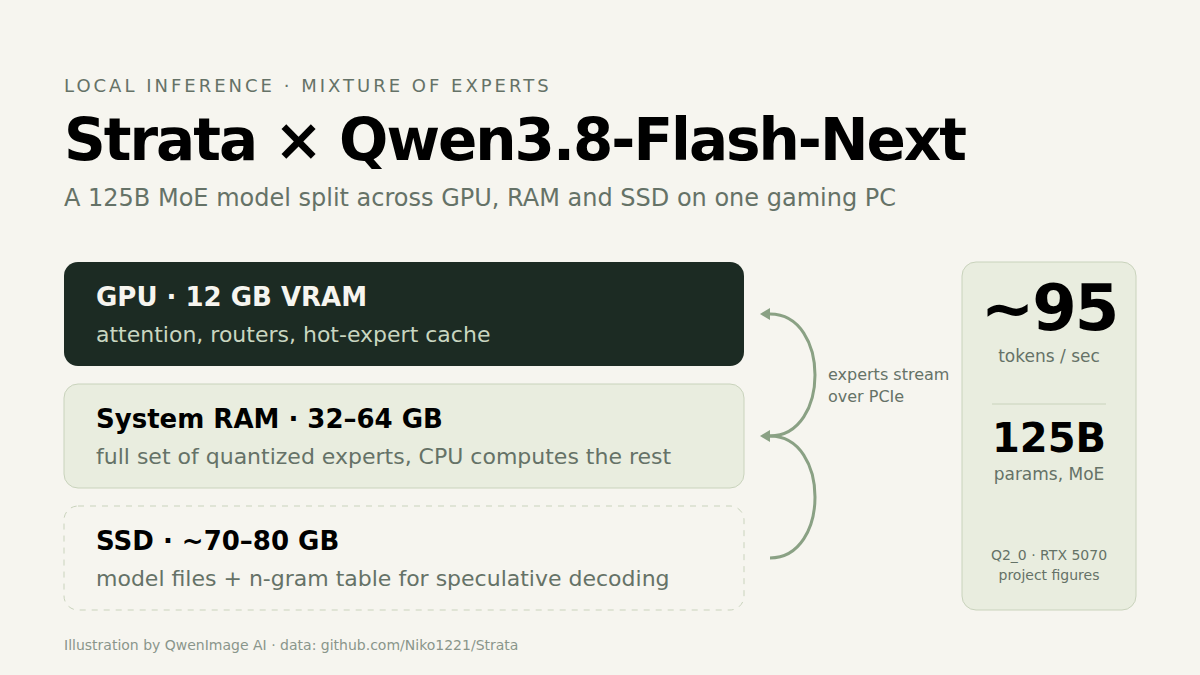 Oct 4, 2026 Strata and Qwen: running a 125B Qwen model on a gaming PC
What the open-source Strata engine does, how it fits Qwen3.8-Flash-Next into 12 GB of VRAM, the speeds its authors report, and the trade-offs to know before you install it.](https://qwenimage-21.org/blog/strata-qwen-local-inference) [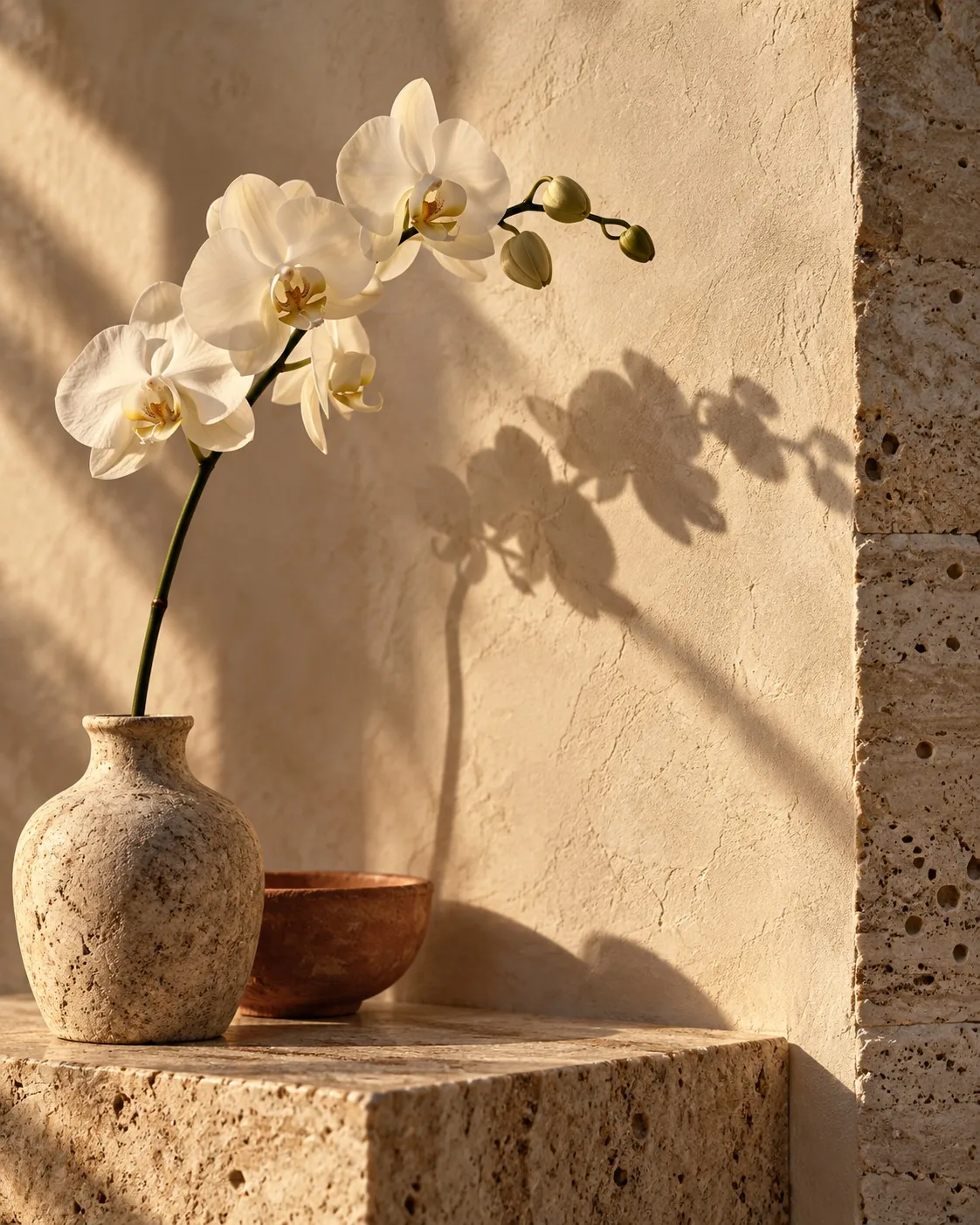 Sep 30, 2026 A more useful way to write an image prompt
Turn a vague idea into a visual brief with a subject, setting, light, composition and a clear point of view.](https://qwenimage-21.org/blog/write-a-visual-brief) [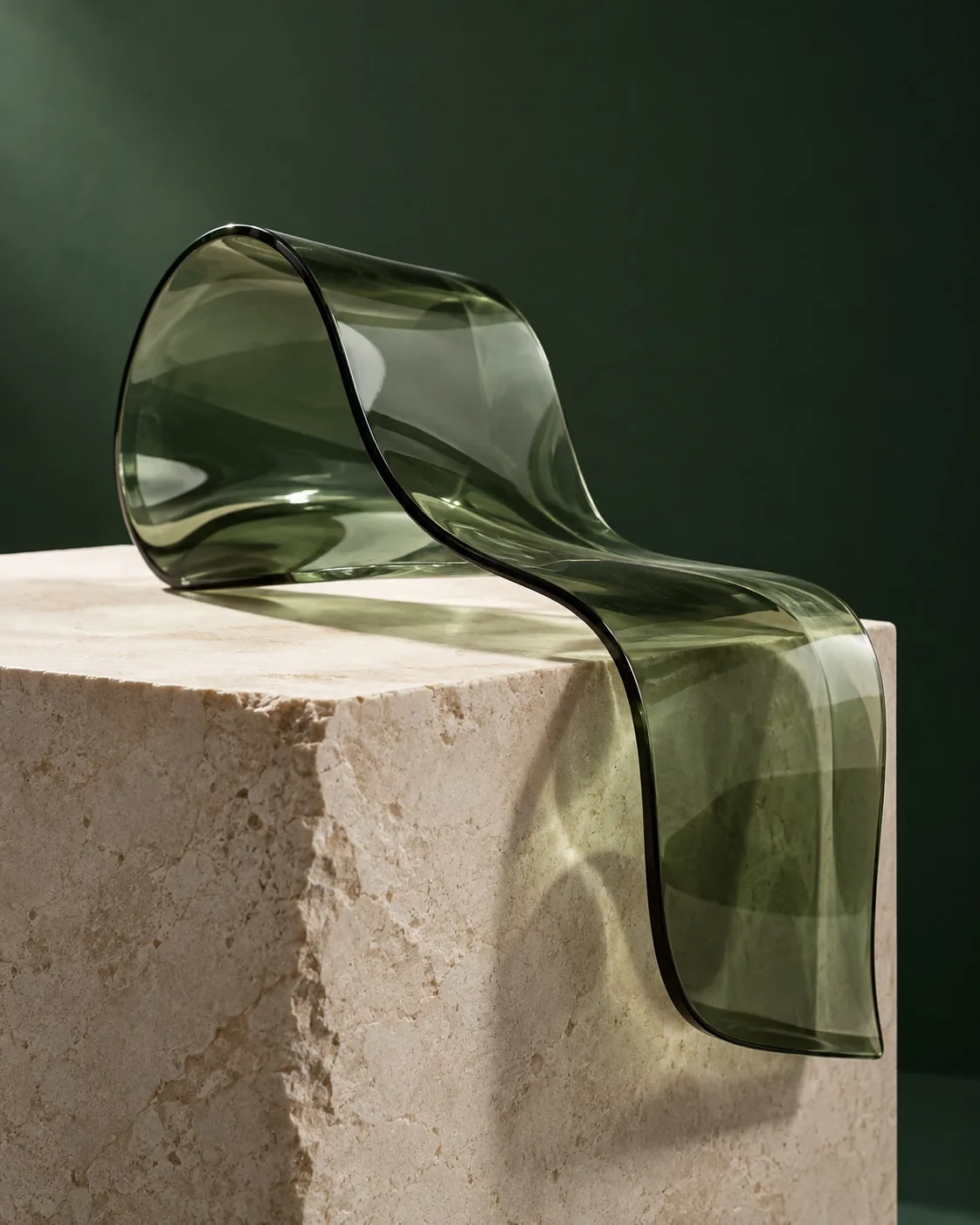 Sep 25, 2026 Plan an image edit around what should stay
A practical framework for describing edits while protecting the subject, composition and mood you want to preserve.](https://qwenimage-21.org/blog/edit-with-a-reference)