PostRite
PostRite's hosted MCP server lets Claude, ChatGPT and other remote MCP clients create, validate, schedule and manage posts on 14 social networks, read analytics, and answer comments and DMs. Secured with OAuth 2.1 and scoped permissions.
Hosted MCP Server
npx add-mcp 'https://mcp.postrite.app/mcp'Installs into Claude Code, Codex, Cursor and more
Documentation
PostRite provides a hosted MCP server so AI assistants like Claude and ChatGPT can schedule and manage your posts through a secure connection with limited permissions. You stay in control: access is granted only to the organizations you choose, limited to specific actions, and can be revoked at any time.
What is MCP?
The Model Context Protocol (MCP) is an open standard that lets AI assistants call external tools. PostRite provides a set of tools (creating posts, scheduling, listing connected accounts, and more) that a compatible assistant can use on your behalf. The connection is authorized with OAuth 2.1, the same family of standards banks and identity providers use, so the assistant never sees your password and only gets the access you approve.
The MCP server URL
Add PostRite to your assistant with this endpoint:
https://mcp.postrite.app/mcp
Enabling AI assistants for your organization
For security, AI assistant access is off by default for every organization. Before an assistant can connect, the organization owner must enable it under Settings → General → AI Assistants. There are two separate switches:
- Remote MCP access: allows assistants like Claude to connect through the MCP server (as described below).
- In-page browser agents (WebMCP): exposes in-page tools to browser AI agents while a member is using the PostRite app.
Turning a switch off takes effect immediately: pending consents are rejected, existing connections stop working on their next request, and their tokens can no longer be refreshed.
Remote MCP access has an extra safeguard. Allow deleting via remote MCP is a separate switch and is off by default. While it is off, an assistant connected through MCP can read and create, but any attempt to delete a post, template, or media file is refused, even if the assistant has the matching write scope. Turn it on only when you want assistants to be able to delete on your behalf. Changing it also takes effect immediately.
Assistants can also answer your comments and messages, behind a second switch: Let AI assistants answer comments and messages, also off by default and also owner-only. While it is off, an assistant cannot read or answer either inbox, whatever permissions it was granted. Deleting a comment needs both this switch and Allow deleting via remote MCP.
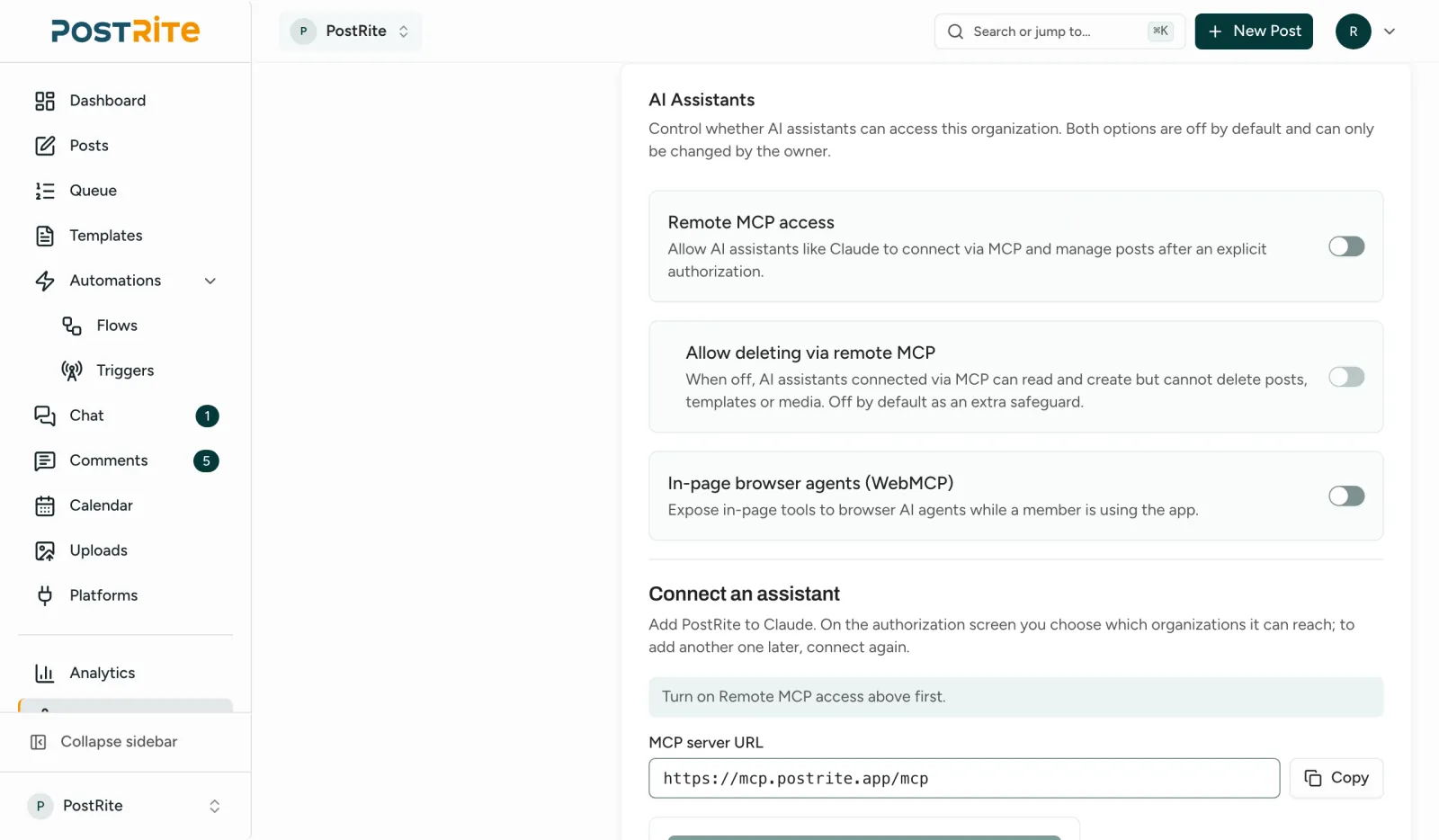
Remote MCP access is switched on per organization, by its owner.
Connecting Claude
PostRite is listed in Claude's connectors directory. Open the listing, either from that link or with the Connect to Claude button under Settings → General → AI Assistants, and click its connect button. In Claude you can also search for PostRite among the connectors. On Claude Team or Enterprise, an organization owner first connects it for the team from the same listing, and members then connect their own account. Claude opens the PostRite sign-in and consent screen in your browser:
- Sign in to your PostRite account (if you are not already signed in).
- Choose the organizations the assistant can act in, one or several. It can never reach the organizations you leave unchecked. To add one later, connect again. Only organizations whose owner enabled MCP access can be selected.
- Review the requested permissions (scopes) and click Authorize. You are returned to Claude, which is now connected. The connector works in Claude on the web, desktop and mobile. The screen also shows who confirms the assistant's identity. For Claude, it says identified by claude.ai. An app PostRite cannot verify is marked as not verified, so only authorize it if you started the connection yourself.
You can also add it by URL: in Claude, add a custom connector and paste the MCP server URL above. A connection made this way keeps working; Claude shows it as a custom connector instead of the PostRite listing.
Connecting ChatGPT
ChatGPT connects to PostRite as a custom MCP app through its Developer mode, which OpenAI offers on eligible paid plans. OpenAI sometimes moves these menus, so check its help article on Developer mode for the current path:
- In ChatGPT's settings, turn on Developer mode. On a Business or Enterprise workspace, an admin may have to allow it first.
- Add a new app with the + button, name it (for example PostRite) and paste the MCP server URL above as its connection.
- Choose OAuth as the authentication. ChatGPT then opens the same PostRite sign-in and consent screen described for Claude: pick the organizations and approve the permissions.
- In a new chat, turn PostRite on from the tools menu.
Other MCP clients
Any client that supports remote MCP servers (Streamable HTTP) with OAuth 2.1 can connect the same way: add a remote server with the URL above and complete the PostRite consent screen. A client that only runs local servers cannot reach it.
What the assistant can do
Every request the assistant makes runs with the same permissions your own account has in that organization, so it can never do more than you can. Available tools include:
- Organizations: list the organizations this connection can act in.
- Posts: list, view, create, schedule, update, cancel, reschedule, and retry posts. The assistant can check a post against every platform's rules before creating or scheduling it (a dry run that saves nothing). Drafts it saves come back with warnings that list anything to fix before scheduling. It can write different text per platform, set each network's own options (see below), send a post for external approval, resend an approval request and read a post's approval history.
- Templates: list, view, create, update, and delete reusable content templates, including different text or different media per social network.
- Connected accounts: list your connected social accounts and whether any of them needs reconnecting, check platform availability, and look up what a post needs from a specific account: your Pinterest boards, the Discord channels the bot can post in, and the privacy levels your TikTok account allows.
- Media: list media, import an image or video from a URL, attach library media to posts by its ID, set or clear a file's alternative text, and delete media.
- Analytics: read a post's engagement metrics, the organization's analytics summary, top posts by engagement, and posting insights (best days and times, content types, cadence) from your last 12 months, for the whole organization, one platform, or one connected account. It can also turn your best time slots into concrete times to schedule at, skipping slots that already have a post. It can also read one Instagram account's account insights (followers, reach, views and audience); a block with no data comes back with its reason, never as a zero. It can also read the competitors you track on Instagram next to your own account; a figure Instagram does not return comes back empty, never as a zero.
- Billing: read your plan, usage, and limits.
- Comments and messages (only where the organization allows it, see above): open the comments inbox, list and read comments with their threads, reply, resolve, hide and delete them; list and read message conversations, send text messages, mark them read, close or snooze them; read the team's saved replies. The networks' own rules still apply: one private reply per comment, messages only inside the reply window (24 hours after the person's last message on Instagram and Messenger), and no reply to a hidden Instagram comment.
When a connection covers more than one organization, every tool requires the organization to act in. The assistant asks you which one or uses the one you named, and never guesses. A request for an organization you did not select is refused.
Options per network
When it creates or updates a post, the assistant can set the same options the editor offers:
- Facebook: a feed post, a Reel or a Story; a first comment.
- Instagram: a post, Reel or Story; first comment, collaborators, trial Reels, cover, music, the AI label and paid partnership.
- X: who can reply (everyone, accounts you follow, or only accounts you mention); a first reply.
- Threads: who can reply and a first reply, plus sharing to your Instagram story and reply approvals when your organization has them enabled.
- YouTube: title, privacy, category, tags, made for kids, Shorts and thumbnail.
- TikTok: privacy level (chosen from the ones your account allows), comments, duets and stitches, branded content, the AI label, cover and photo title.
- Pinterest: board (the assistant can list yours), title, destination link and cover.
- LinkedIn: a custom thumbnail for videos.
- Google Business Profile: an update, event or offer, with a call-to-action button.
- Discord: the channel on each server, which the assistant can look up, or the webhook's name and avatar.
- Bluesky: who can reply and quote, and content labels.
- Mastodon: visibility, content warning and language.
- Telegram: silent delivery and link previews. WhatsApp: the recipient.
Things to ask
Plain requests are enough. The assistant looks up accounts, IDs and times itself. Here are a few to start with:
“When does my Instagram audience engage the most?”
“Schedule these three captions on my Instagram next week, at my best times.”
“What were my five best posts by engagement in the last 30 days, and what do they have in common?”
“Pin this image to my Recipes board on Pinterest, linking to my website.”
“Publish this video as a Reel on my Facebook Page and on Instagram tomorrow morning.”
“Post this on X, but only let accounts I follow reply.”
“Write alt text for the images in my media library that have none.”
“Draft a TikTok post with this video and ask me which privacy level to use.”
“Answer today's unanswered Instagram comments that ask how to do something, and leave the rest for me.”
Leave it checking your inbox
An assistant that can run scheduled tasks can check your comments and messages at regular intervals and answer them, without anyone opening a chat. PostRite needs nothing extra for this: the schedule lives in your assistant.
- An owner turns on Let AI assistants answer comments and messages (see above). Leave Allow deleting via remote MCP off unless the task should delete comments. An assistant connected before these permissions existed has to be connected again.
- In Claude, scheduled tasks come with the paid plans: describe the task and how often it should run, then review and confirm what Claude proposes. Tasks run hourly, daily or weekly, keep running while your computer is off, and use the connectors you added, PostRite included. Claude's article on scheduled tasks has the current steps.
- Other assistants work the same way when their scheduled tasks can use the PostRite connection. ChatGPT has scheduled tasks too; check that a task reaches PostRite before you rely on it.
- Write the instructions as you would brief a teammate: what to answer, what to hide, what to leave for a person. Start each run by opening the comments inbox, which is what keeps new comments arriving.
“Every hour: open my PostRite comments inbox. Answer the unanswered comments and messages that ask how to use our product, with a saved reply when one fits. Hide obvious spam. Leave complaints, billing questions and anything you are unsure about for me. Then list what you did.”
Each reply goes out as your connected account and follows the same rules as a reply you write yourself: messages only inside the reply window, one private reply per comment. A task that runs every hour stays well inside the 24-hour window. If your assistant asks you to approve an action that sends a message, that run waits until you do.
Understanding scopes
Scopes are detailed permissions. During consent you can see exactly which ones are requested. An assistant only receives the scopes you approve, and each one is checked on every request. Here is what each one allows:
posts:read: view posts and their approval history, plus everything in analytics: engagement, summaries, top posts, posting insights, suggested times and competitor figures.posts:write: validate, create, schedule, update, reschedule, cancel, retry and archive posts, and resend approval requests.templates:read/templates:write: view / manage templates.media:read: view the media library.media:write: import media from a URL, set alternative text and delete media.platforms:read: view connected accounts, their health and platform availability, and look up Pinterest boards, Discord channels and TikTok posting options.billing:read: view plan, usage and storage (organization owners only).comments:read/comments:write: read the comments inbox and saved replies / reply to, resolve, hide and delete comments.chat:read/chat:write: read message conversations / send text messages and mark read, close or snooze conversations.
The Allow deleting via remote MCP organization setting applies in addition to these scopes. Even a token that has posts:write, templates:write, or media:write cannot delete anything while that setting is off. Likewise, the comment and message permissions do nothing while Let AI assistants answer comments and messages is off. A connection authorized before these permissions existed does not have them: connect the assistant again to grant them.
Security by design
Connections use OAuth 2.1 with PKCE, short-lived access tokens, and consent for exactly the organizations you choose. The assistant never receives your password, and access is limited to the scopes you approve.
Revoking access
You can revoke an assistant at any time in PostRite, under Settings → Account → Connected AI assistants. Every assistant you authorized is listed there with the organizations it can reach, and Revoke ends its access immediately, including the access token it currently holds. Removing the PostRite connector inside the AI client does not guarantee that the authorization ends in PostRite. To end access, revoke it in PostRite. Posts, templates and media an assistant already created are not affected. Access tokens are also short-lived, so even without an explicit revocation an assistant cannot keep access indefinitely.
Common problems
My organization is not on the consent screen
Only organizations whose owner turned on Remote MCP access can be selected. Ask the owner to enable it under Settings → General → AI Assistants, then connect again.
“MCP access is disabled for this organization”
The owner turned remote MCP access off after you connected. Existing connections stop working until it is turned back on.
“MCP inbox access is disabled for this organization”
Let AI assistants answer comments and messages is off, which is the default. An owner can turn it on under Settings → General → AI Assistants. If it is on and the assistant still cannot read comments, connect it again so it receives the new permissions. If it still cannot, your assistant may be keeping an older registration: remove PostRite from it and add it again.
The assistant cannot delete a post, template or file
Allow deleting via remote MCP is off, which is the default. An owner can turn it on in the same settings page.
The assistant says an account needs reconnecting
The social network revoked or expired that account's authorization. Reconnect it in PostRite. Until you do, posts that target it are refused.
A post fails for a missing option
Pinterest needs a board, a Discord bot needs a channel, TikTok needs a privacy level and WhatsApp needs a recipient. Ask the assistant to look them up. It can list your boards, the bot's channels and your TikTok account's options.
No best times or suggested times
Insights come only from your own published posts with collected metrics. A new account, or one on a network PostRite does not collect analytics for, has none yet. The assistant says so instead of inventing a time.
Tip: ask the assistant to find IDs first
Assistants work best when they look things up before acting, for example by listing your connected accounts to get the right targets before creating a post, or by asking for your best times before scheduling. A prompt like “schedule a post to my Instagram tomorrow at my best time” is enough. The assistant finds the account and the time for you.