Postage
Native Mac email client with a built-in MCP server on 127.0.0.1. Agents search, read, sort and draft mail in any IMAP account; every send waits for you to press Send.
Documentation
Every agent you use, in your mail, on your terms.
Postage hosts an MCP server on your Mac. Claude Code, Codex, Claude Desktop, Cursor, VS Code, Windsurf, Zed and Gemini CLI connect to it with the account they are already signed in to. Postage never asks for an agent subscription or an API key, and agents can read, organize and draft, but never send.
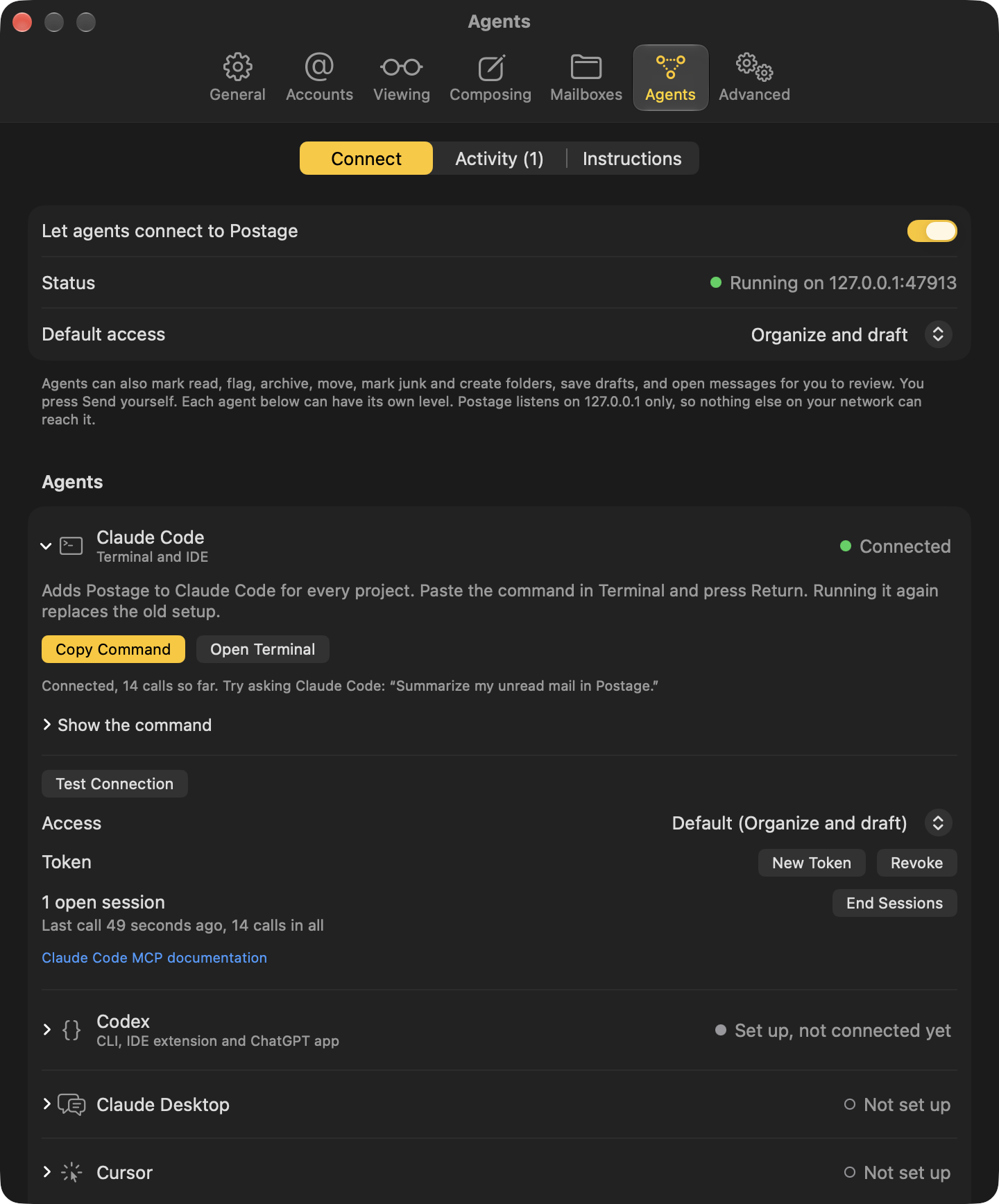
Connected in three steps
- 1
Turn it on
Open Settings, then Agents, and switch on "Let agents connect to Postage". The status line reads Running on 127.0.0.1:47913. - 2
Set up your agent
Under Settings > Agents > Connect, pick your client and press its one button: Copy Command, Install, or Add Postage to its config file. Postage makes the client's token on the spot. Onboarding offers the same buttons. - 3
Test the connection
Ask your agent to list your Postage accounts. The row turns green as soon as it connects. Test Connection checks Postage's side if it doesn't.
Any number of agents can be connected at once. The status bar in the main window shows which one is working right now.
Access levels
Pick a default for every agent, then override it per agent. Read only is the default.
Read only
The agent can look, and nothing else. This is the default.
Can
- List accounts and folders
- Search and read messages, threads and attachments
- See unread counts per folder
- Preview a batch of changes without making them
Cannot
- ×Change, move or delete anything
- ×Save drafts
- ×Prepare a message to send
Organize and draft
The agent can tidy your mail and write replies. Nothing gets sent or deleted.
Can
- Everything in Read only
- Mark read or unread, flag, archive, move, mark as junk, create folders
- Apply a whole batch of changes in one call, with one Undo
- Undo its own changes
- Save drafts and prepare messages for you to review and send
Cannot
- ×Move mail to Trash
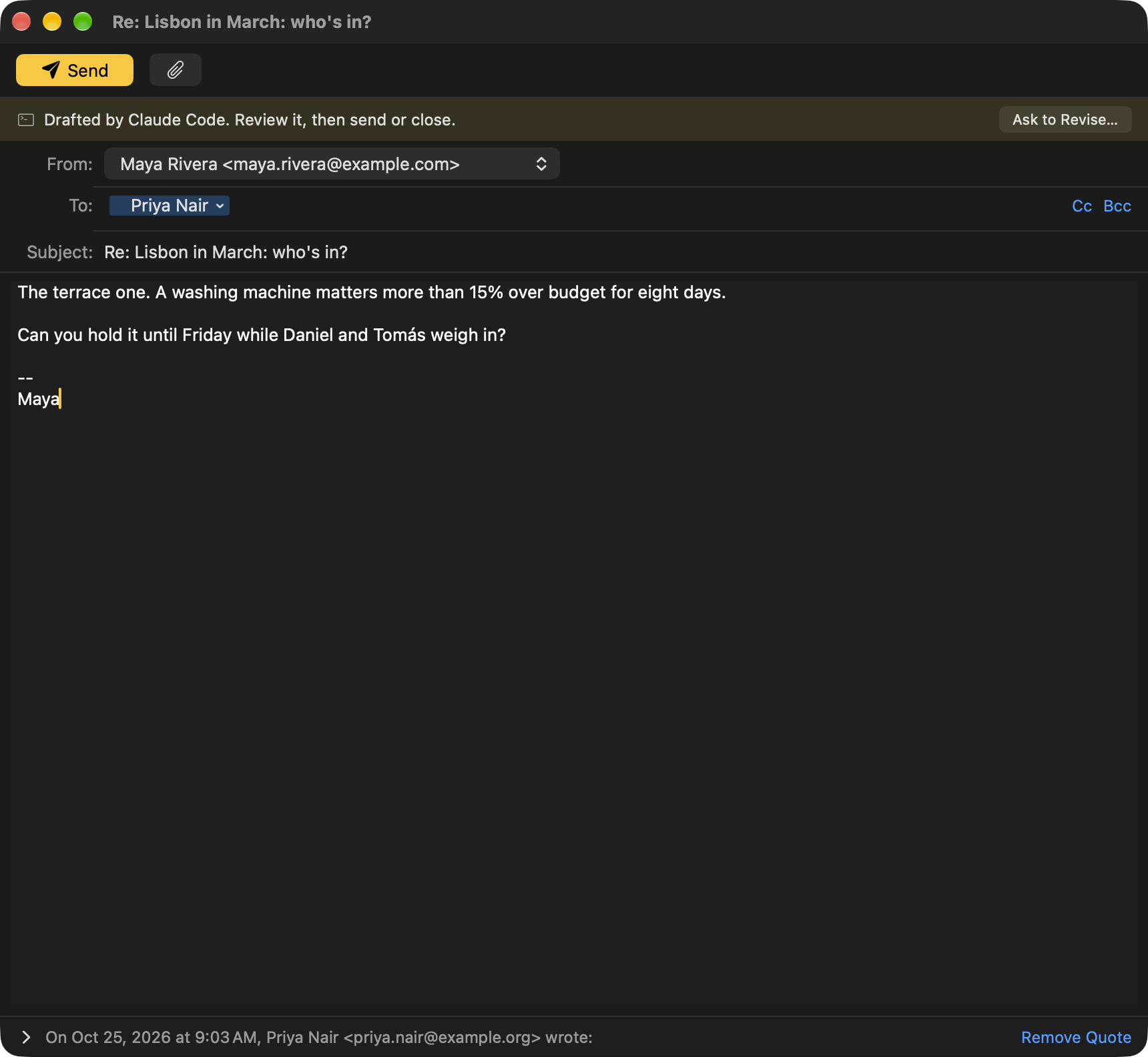
- ×Send. A message an agent prepares opens in a Postage compose window, and only you can press Send.
Full
Everything, including Trash, with you pressing Send.
Can
- Everything in Organize and draft
- Move mail to Trash (never a permanent delete)
Cannot
- ×Send. A message an agent prepares opens in a Postage compose window, and only you can press Send.
Agents never send
compose_email, reply_to_email and send_draft all do the same thing: open Postage's compose window with the agent's message filled in and a banner that names the agent. You can change anything, then press Send or close the window. Want it different? Ask to Revise sends the draft back with your note, and the agent writes a new version. The tool waits for you and returns sent (with your final text if you edited it), revise, cancelled, or still open.
Agent mail goes out through the same path as yours: threading headers, a copy in Sent, and a draft in your Drafts folder if you close it to finish later. Saving a draft with create_draft or reply_draft needs no review, because nothing leaves your Mac.
Built for trust
Localhost only
The server listens on http://127.0.0.1:47913/mcp. There is no network mode and no cloud relay. Change the port under Advanced if 47913 is taken.
A token per client
Each client gets its own bearer token in your Keychain. New Token replaces one; Revoke removes it. Other clients keep working.
Enforced by the server
tools/list only shows tools the access level allows, and tools/call checks again, so a client that ignores the list still cannot use a hidden tool.
Email is untrusted input
Message bodies and attachment text are returned marked as untrusted content from the sender, and the server's instructions tell the agent so.
Nothing is destroyed
The strongest delete is Move to Trash. Each token is limited to 100 changes a minute.
You can see everything
Each agent's row shows whether it is connected, how many sessions it has open and when it last called. Activity lists every change an agent made, message by message, with Undo for a week, even after you quit Postage. A batch undoes in one step.
Your instructions live in your agent
Postage has no rules engine and no AI of its own. Tell your agent how you handle mail, once, in words like “archive receipts after 30 days” or “flag anything from my accountant”. Postage gives it the tools to find that mail and change it, applies each batch with one Undo, and shows every change in Settings > Agents.
CLAUDE.md or AGENTS.md
Write how you handle mail once. Your agent reads it every session and follows it when you say "organize my inbox".
A skill
Settings > Agents saves a ready-made Claude Code skill (postage-mail) with your rules and the steps that work best. Edit it as much as you like.
A scheduled task
Settings > Agents saves a morning run that has Claude Code apply your skill at 8 AM, or when your Mac wakes if it was asleep. Each run shows up in Postage with its summary, a notification and Undo for a week.
Example for CLAUDE.md
## Email (Postage)

When I ask you to organize my email, use the Postage MCP server and these instructions:

- Archive receipts, order confirmations and shipping notices older than 30 days.
- Flag anything from my accountant.
- Archive newsletters older than a week.
- Leave anything from a person you're unsure about in the inbox and tell me.

Find the mail with search, make every change in one apply_actions call so I can undo it in one step, then tell me what changed. Never send mail; save drafts for me to review instead.
Built-in prompts
Postage serves these as MCP prompts, so they show up in any client that lists prompts (in Claude Code, /mcp__postage__organize_inbox). Each pulls in your recent mail and stays within the agent's access level. Settings > Agents and the Agents menu copy the same requests for clients that don't.
organize_inbox
Carries out your standing instructions, given right there or kept in your agent, and applies every change in one batch you can undo in one step.
triage_inbox
Sorts what came in: what needs you, what can wait, what can go.
summarize_unread
A short summary of your unread mail, grouped by what needs a reply. Changes nothing.
draft_replies
Finds the people waiting on your reply, read or unread, and writes a draft for each. Every one waits for you to review and send.
is_this_legit
Checks the email you have selected: legit, spam, a scam or phishing, going by its sender, authentication and where its links really go. Changes nothing.
did_i_handle_this
Looks through Sent, Drafts and related mail for signs you already dealt with the email you have selected. Changes nothing.
reply_to_this
Drafts a reply to the email you have selected. It waits for you to review and send.
Or just ask
> Archive every newsletter older than two weeks, across both accounts.
> Draft replies to everyone waiting on me.
> What did Stripe email me about this month?
> Flag anything from my accountant and move receipts to Receipts.
> Summarize what came in overnight in five lines.
> Find the PDF contract Dana sent in August.
Setup by client
In Postage these come with that client's token filled in, so you rarely need this page. Here they use YOUR_POSTAGE_TOKEN as a placeholder.
Claude Code
Uses your signed-in Claude account.
Copy one command and run it in Terminal. --scope user makes Postage available in every project.
Terminal
claude mcp add --transport http --scope user postage http://127.0.0.1:47913/mcp \
  --header "Authorization: Bearer YOUR_POSTAGE_TOKEN"
Or a project's.mcp.json
{
  "mcpServers": {
    "postage": {
      "headers": { "Authorization": "Bearer YOUR_POSTAGE_TOKEN" },
      "type": "http",
      "url": "http://127.0.0.1:47913/mcp"
    }
  }
}
Codex
Uses your signed-in ChatGPT or OpenAI account. The Codex CLI, the IDE extension and the ChatGPT desktop app all read the same file.
Add Postage to Codex adds a [mcp_servers.postage] entry to ~/.codex/config.toml, keeps everything else in it and saves a backup first.
~/.codex/config.toml
[mcp_servers.postage]
url = "http://127.0.0.1:47913/mcp"
http_headers = { "Authorization" = "Bearer YOUR_POSTAGE_TOKEN" }
tool_timeout_sec = 600
Claude Desktop
Uses your signed-in Claude account. Nothing else to install: Postage gives Claude Desktop a small extension that runs on Claude Desktop's own Node.js. Don't add Postage as a custom connector under Customize > Connectors: those are reached from Anthropic's cloud, and Postage's server is only on your Mac.
Install in Claude Desktop opens a small Postage extension in Claude Desktop, which asks you to install it. Nothing to save or download. Prefer editing the config yourself? The snippet below works with Node.js installed.
claude_desktop_config.json (Claude menu > Settings > Developer > Edit Config), manual route only
{
  "mcpServers": {
    "postage": {
      "args": ["-y", "mcp-remote", "http://127.0.0.1:47913/mcp", "--header", "Authorization:${POSTAGE_AUTH}"],
      "command": "npx",
      "env": { "POSTAGE_AUTH": "Bearer YOUR_POSTAGE_TOKEN" }
    }
  }
}
Cursor
Uses your Cursor account.
Install in Cursor opens Cursor's own install prompt. Confirm it and you are done.
~/.cursor/mcp.json
{
  "mcpServers": {
    "postage": {
      "headers": { "Authorization": "Bearer YOUR_POSTAGE_TOKEN" },
      "url": "http://127.0.0.1:47913/mcp"
    }
  }
}
VS Code
Uses your GitHub Copilot sign-in, in agent mode.
Install in VS Code opens VS Code's install prompt. There is also a code --add-mcp command.
User mcp.json (MCP: Open User Configuration)
{
  "servers": {
    "postage": {
      "headers": { "Authorization": "Bearer YOUR_POSTAGE_TOKEN" },
      "type": "http",
      "url": "http://127.0.0.1:47913/mcp"
    }
  }
}
Windsurf
Uses your Windsurf account.
Write Config File adds Postage to mcp_config.json. Press Refresh in Windsurf's MCP panel.
~/.codeium/windsurf/mcp_config.json
{
  "mcpServers": {
    "postage": {
      "headers": { "Authorization": "Bearer YOUR_POSTAGE_TOKEN" },
      "serverUrl": "http://127.0.0.1:47913/mcp"
    }
  }
}
Zed
Uses the AI provider you set up in Zed.
Write Config File adds Postage to Zed's settings.json as a context server.
~/.config/zed/settings.json
{
  "context_servers": {
    "postage": {
      "headers": { "Authorization": "Bearer YOUR_POSTAGE_TOKEN" },
      "url": "http://127.0.0.1:47913/mcp"
    }
  }
}
Gemini CLI
Uses your signed-in Google account.
Copy one command and run it in Terminal, or let Postage write ~/.gemini/settings.json.
Terminal
gemini mcp add --scope user --transport http \
  --header "Authorization: Bearer YOUR_POSTAGE_TOKEN" postage http://127.0.0.1:47913/mcp
Or ~/.gemini/settings.json
{
  "mcpServers": {
    "postage": {
      "headers": { "Authorization": "Bearer YOUR_POSTAGE_TOKEN" },
      "httpUrl": "http://127.0.0.1:47913/mcp"
    }
  }
}
Anything else that speaks MCP
Any app that supports MCP over Streamable HTTP with a bearer token can connect. Choose Other in Settings > Agents for a token.
Connection details
URL: http://127.0.0.1:47913/mcp
Transport: Streamable HTTP
Header: Authorization: Bearer YOUR_POSTAGE_TOKEN
Something not connecting? See agent troubleshooting.