Pixelesq
officialCreate pages, edit sections, write content, fix SEO and read analytics on your Pixelesq site, with every edit saved as a draft until you publish. Remote MCP server with OAuth sign-in at https://mcp.pixelesq.app/mcp.
What can you do with Pixelesq MCP?
- Create and edit pages — Ask Claude to build a landing page from section templates, then tweak individual sections with
save_section_contentand preview as a draft. - Manage collections and entries — Have Claude write blog posts or team profiles into a collection, matching the schema via
list_collectionsbefore drafting content. - Audit SEO and search performance — Query
get_search_performanceandget_all_page_statusesto find unindexed pages, then propose metadata fixes and redirects. - Publish or roll back changes — Instruct Claude to publish a reviewed draft with
publish_page, or revert a page to an earlier revision usingrevert_page_revision. - Adjust theme and assets — Ask Claude to change colors or fonts via
update_theme, or search and import stock photos withsearch_stock_images.
Documentation
Claude Integration

The Claude connector lets you manage a Pixelesq website from a conversation: create pages and edit them section by section, write content into collections, set SEO metadata and structured data, read Google Search Console and site analytics, manage redirects and images, and adjust the theme. Every edit lands in a draft. The live site changes only when you ask Claude to publish.
Works with Claude.ai, Claude Desktop, Claude mobile, Claude Code, and Cowork. The same server also works with ChatGPT, Cursor, VS Code, and any other MCP client.
Connect Claude
1. In Claude, open Settings, then Connectors.
2. Choose Add custom connector.
3. Enter the server URL: https://mcp.pixelesq.app/mcp
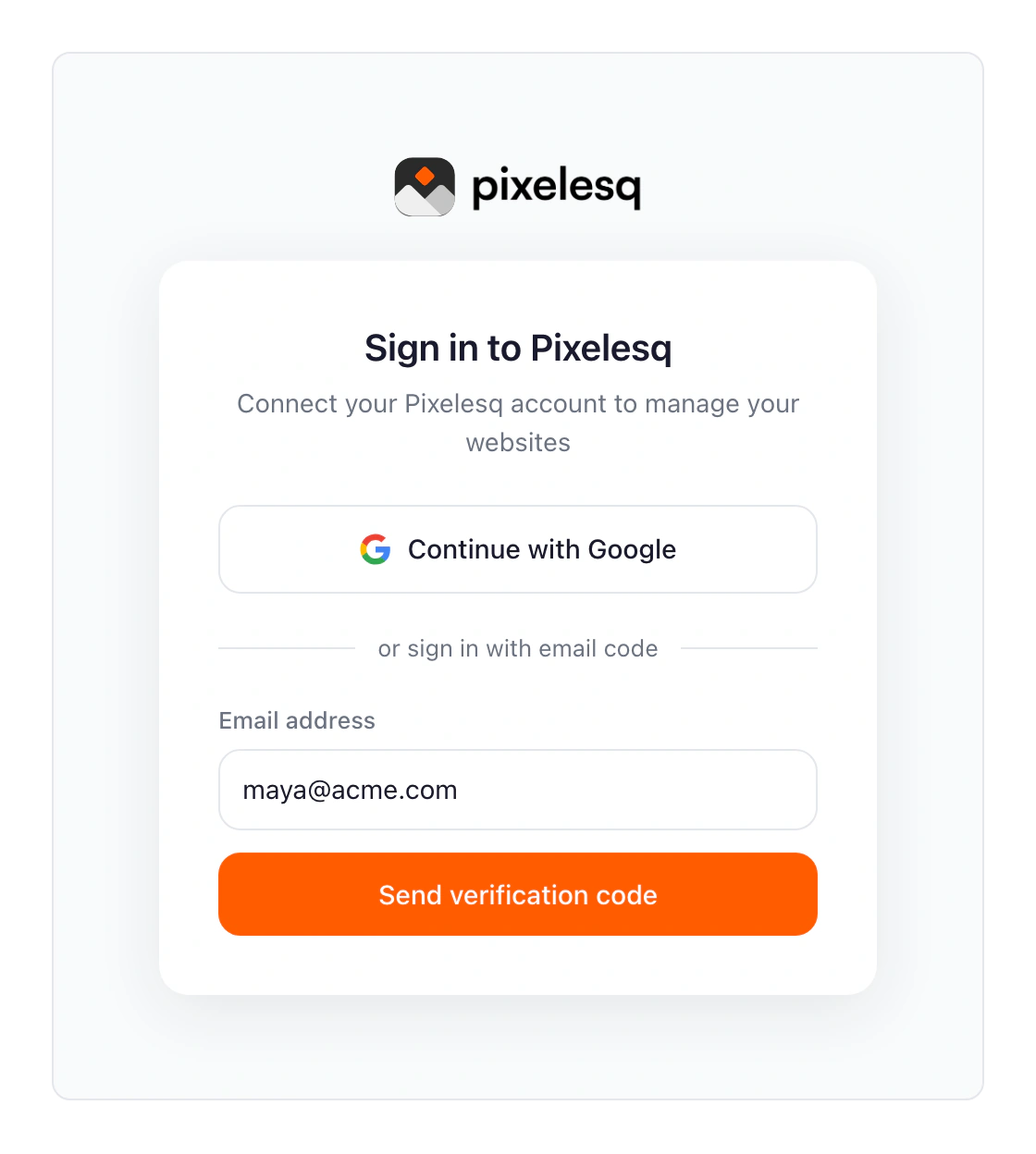
4. Sign in with Google, using the account you use for Pixelesq, or with your Pixelesq email and the six-digit code it sends.
5. Approve the permissions. When you have more than one project, Claude asks which one to work with.
Claude Code: run claude mcp add --transport http pixelesq https://mcp.pixelesq.app/mcp, then /mcp to sign in. The Pixelesq plugin adds the connector together with seven skills and four specialist agents: /plugin marketplace add pixelesq/pixelesq-skills, then /plugin install pixelesq@pixelesq.
Sign-in and permissions
The connector uses OAuth 2.1 with PKCE. Both sign-in methods need an existing Pixelesq account. Sign up at app.pixelesq.ai first if you do not have one.
Permissions are granted at sign-in: read projects, read content, write drafts, publish, and read analytics. A tool outside the grant answers with a message that asks you to reconnect with the missing permission.
How edits work
Every save changes a draft. The live site changes only through the publish tools, and Claude asks before publishing. A publish is bound to the revision you reviewed: if the draft changed since, the publish is refused and Claude reads the page again.
Saves merge field by field, so Claude only touches what you asked to change. A save against a stale version is refused instead of overwriting someone else's work; Claude reads again and reapplies your change.
What you can do
Pages and sections
Create pages, then build them from the catalog of section types with preview images. Read a page's sections, change one section at a time, insert, remove and reorder sections, connect a section to a collection so it lists entries, and roll a page back to an earlier revision. Publish, unpublish, duplicate, or delete pages.
Set SEO metadata: title, description, Open Graph image, indexing preference, and JSON-LD structured data, replaced whole or patched key by key.
Collections and entries
List collections and their field schemas, create collections and define their fields, and create, edit, duplicate, publish, or delete entries: blog posts, team members, case studies, products. Claude reads the schema first so the content it writes matches the fields.
Headers and footers
Read and edit partials, the reusable sections such as the header and footer, and publish them across every page.
SEO and Google Search Console
Requires Search Console to be connected in your Pixelesq dashboard. Search performance by query, page, device and country with period-over-period change; index status for one page or every page; URL inspection with crawl, robots and canonical detail.
Analytics
Site traffic over 7, 30, or 90 days: visits, pageviews, bounce rate, session duration, top pages, sources, devices, and locations. A separate view shows the traffic that AI assistants refer to your site.
Redirects, forms, and domains
List, create, update, and delete redirects. List forms and read their submissions. List custom domains and their verification state.
Images and theme
Browse the asset library, search stock photos and import them, or upload an image from the chat. Read the theme and change colors, fonts, spacing, radius, and appearance, as a draft or published at once.
Interactive views
Where the client supports them, Claude shows page lists, the section catalog, search performance, indexing status, traffic, the theme, and page outlines inline in the conversation.
Examples
Build a landing page
Prompt: "Create a landing page for my agency with a hero, our three services with icons, client testimonials, and a contact form."
Claude creates the page, picks section types from the catalog, writes the content from your project's brand context, and saves the page as a draft for you to review.
Change one thing
Prompt: "Change the hero title on the home page to 'Websites that write themselves'."
Claude reads the hero section, changes the title only, and offers to publish.
Audit search performance
Prompt: "Which pages are not indexed, and which queries sit between positions 5 and 20?"
Claude reads the index status of every page and the last 28 days of search performance, then proposes metadata changes and redirects for the pages that need them.
Write into a collection
Prompt: "Write a blog post about our new onboarding flow and publish it."
Claude reads the Blog collection's schema, writes the entry in your brand voice, sets its metadata, and publishes after you confirm.
Restyle the site
Prompt: "Make the accent color a deep green and switch the headings to Fraunces."
Claude reads the theme, changes the two variables, and leaves the change as a draft for you to review in the theme editor.
Tools reference
Claude sees 62 tools. The three AI image generation tools (generate_image, get_image_job, get_imagegen_quota) are not offered in Claude and remain available in other clients.
Projects
- list_projects, get_project: your projects and one project's settings and brand context (read)
- list_domains: custom domains and verification state (read)
- search_content: search pages, entries and collections (read)
Pages
- list_pages, get_page, get_page_content, get_page_revisions (read)
- create_page, duplicate_page, update_page_meta, save_page_content (write)
- publish_page, unpublish_page, delete_page (write)
- revert_page_revision, revert_page_revision_to_version: roll a page back (write)
Sections
- list_section_types, get_section_defaults, get_section_content (read)
- save_section_content, insert_section, remove_section, reorder_sections (write)
- bind_section_to_collection, unbind_section_from_collection: connect a section to a collection (write)
Collections and entries
- list_collections, get_collection, list_entries, get_entry (read)
- create_collection, update_collection_schema (write)
- create_entry, save_entry_content, update_entry, duplicate_entry, publish_entry, delete_entry (write)
Headers and footers
- list_partials, get_partial_content (read)
- save_partial_content, publish_partial, unpublish_partial (write)
SEO and analytics
- get_gsc_connection_status, get_search_performance, get_page_index_status, get_all_page_statuses, inspect_url (read)
- get_site_analytics, get_ai_referral_analytics (read)
Redirects and forms
- list_redirects (read); create_redirect, update_redirect, delete_redirect (write)
- list_forms, get_form_submissions (read)
Images and theme
- list_assets, search_stock_images (read)
- upload_asset, upload_image (write)
- get_theme (read); update_theme (write)
Best practices
Be specific. Instead of "create a page", describe the sections, the message, and the calls to action you want.
Start with a list. If you are not sure what projects, pages, or collections you have, ask Claude to list them first.
Review before publishing. Claude saves drafts; check them in your dashboard or ask Claude to show you the change, then ask it to publish.
Use follow-ups. Claude keeps the context of the conversation and can iterate on any page or entry.
Troubleshooting
"No Pixelesq account found": the email you signed in with does not match a Pixelesq account. Sign up at app.pixelesq.ai first, then reconnect.
Search Console tools answer "not connected": connect Google Search Console in your Pixelesq dashboard under Settings, Integrations, then ask again.
A save was refused as stale: the page changed since Claude last read it, for example in the editor. Ask Claude to read the page again and reapply the change.
Claude cannot publish: the publish permission was not granted at sign-in. Remove the connector and add it again, approving all permissions.
Content not on the live site: pages and entries are saved as drafts. Ask Claude to publish the page or entry.
For anything else, write to hello@pixelesq.com.