MiniMax H3 Max
MiniMax H3 Max is an AI video generation tool that turns images and text into videos. Create AI image-to-video and text-to-video clips from simple prompts.
Documentation
Use MiniMax H3 Max as your main AI video workspace: choose the model and starting input, generate a clip, preview the result, then move into the specialized text, image, sound, or model-control workflow your project needs.
Preview Your Video Before You Continue
Watch the full clip, then check whether the main idea, subject, composition, and selected format work for the purpose of the generation. Keep the result, download it when ready, or change one decision and create another version.
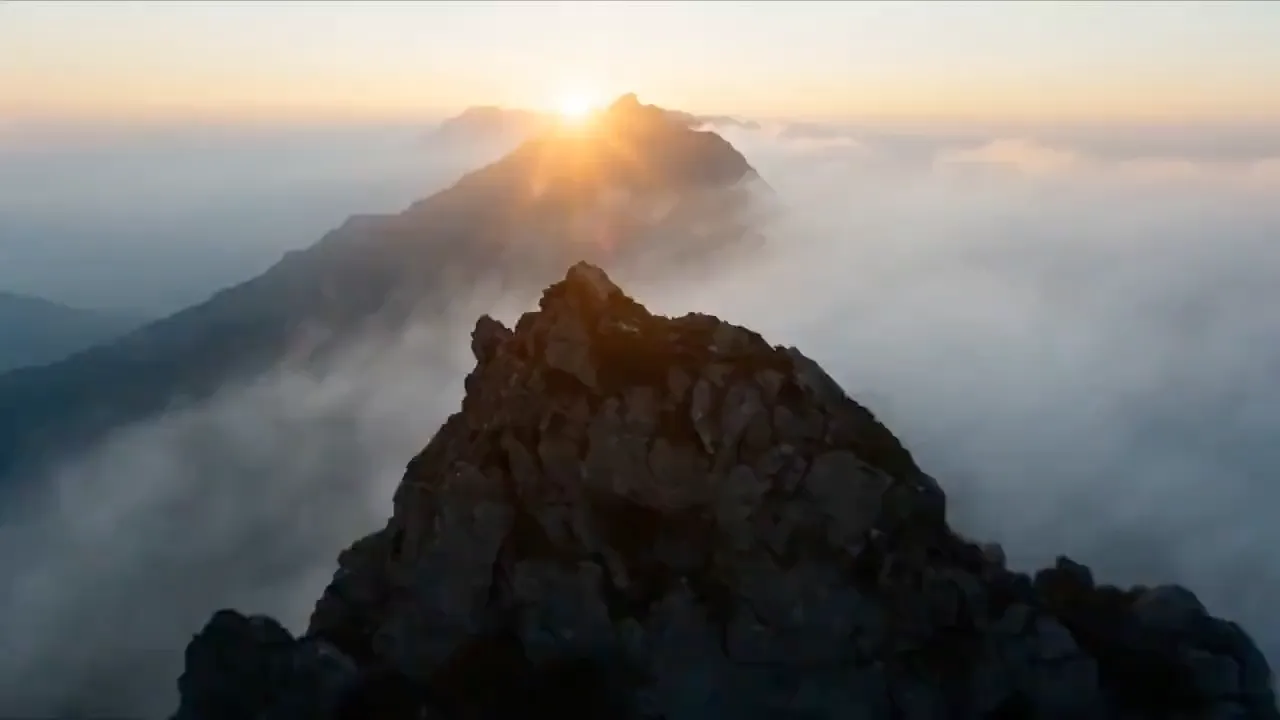
Cinematic landscape created with MiniMax H3 Max
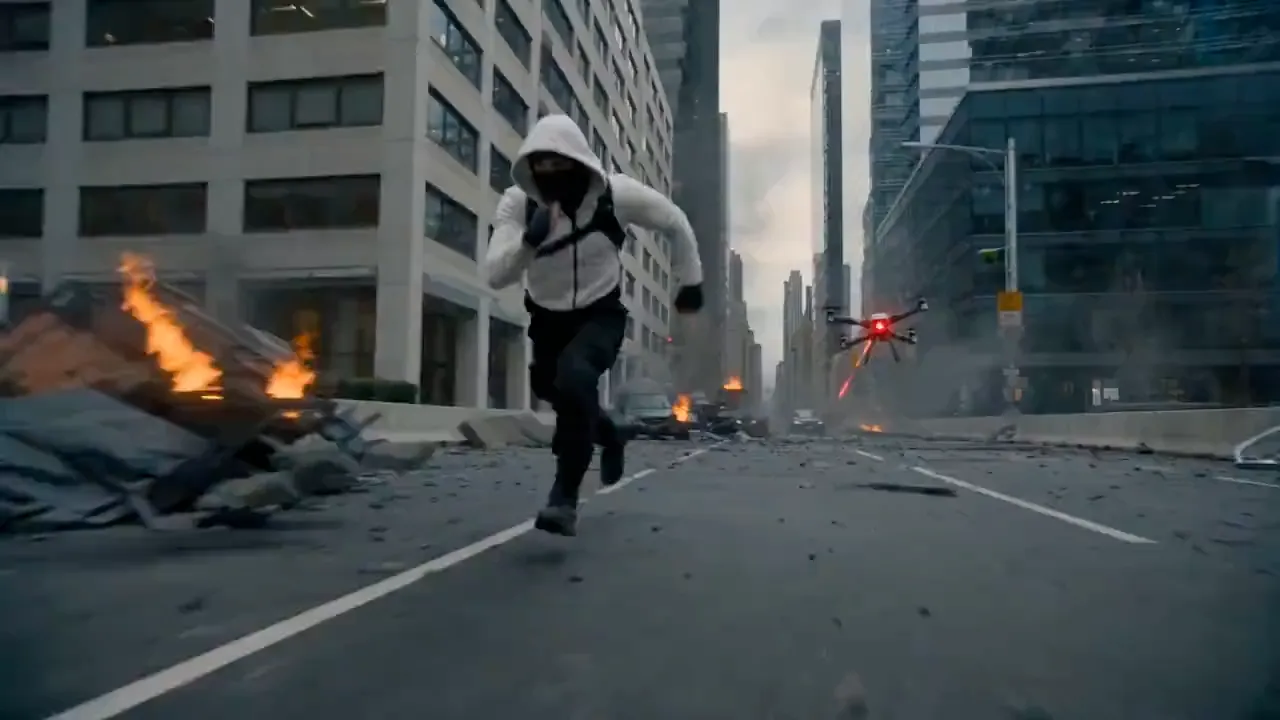
Vertical creative created with MiniMax H3 Max
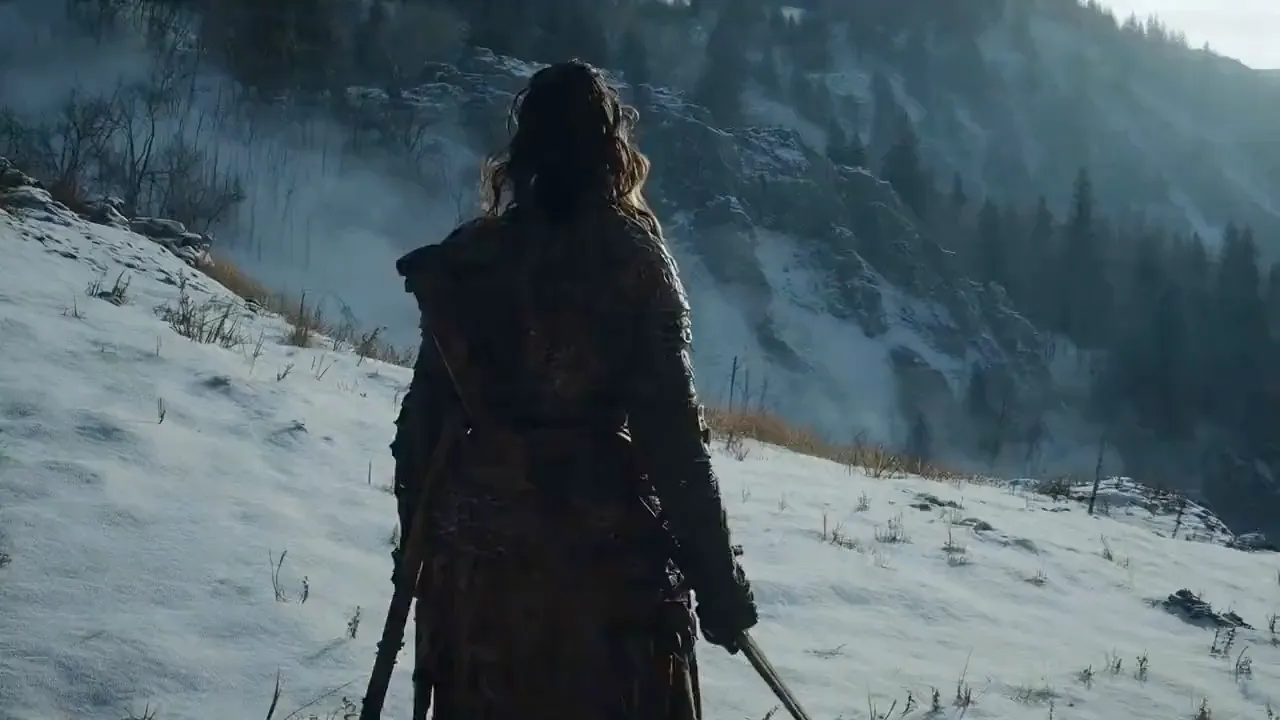
Character scene created with MiniMax H3 Max
Start with the Content You Already Have
Not every project begins from the same point. Sometimes the idea exists only as words. Sometimes a useful visual already exists.
MiniMax H3 Max supports both types of starting point through the shared generation workspace. If the visual direction is still open, begin from text. If the project already has a useful image, choose the image-led workflow instead.
The decision is simply about what material you have when the project begins. Explore detailed text-only creation in the dedicated text to video tool, or follow the starting-image workflow on the image to video page.
MiniMax H3 Max remains the main generation surface where both paths come together.
Choose the Right Format for Every Screen
A video is not created in isolation. Where it will eventually appear should influence how the result is prepared.
A wide composition may be appropriate for cinematic concepts, websites, presentations, or horizontal campaigns. A vertical composition may make more sense for mobile-first creative. A square frame can create a different balance for compact publishing environments.
MiniMax H3 Max allows supported output decisions to be made before the video is generated. That matters because composition is part of the creative result.
Generating inside the intended frame is usually more useful than creating a completely different composition and expecting a later crop to solve everything. The available output options keep that decision clear as part of the generation workflow.
Adjust the Setting That Matters Most
A first generation often reveals something that was difficult to know beforehand. Maybe the central idea works but the framing does not. Maybe the visual direction is strong but the project needs a simpler event. Maybe a different starting input would better support the concept.
MiniMax H3 Max makes another generation easy, but the goal should not be endless random variation. Choose one useful change. Generate again. Compare the results.
When the second version improves the specific problem you identified, the iteration has taught you something. That is a more productive use of MiniMax H3 Max than replacing the entire concept after every generation.
Create → Watch → Decide → Change → Create Again
Keep Your Key Video Settings in One Place
A useful AI video workspace should make the current generation easy to understand.
MiniMax H3 Max keeps the active model, source, creative input, available output controls, generation action, and preview close together. That reduces unnecessary setup. It also makes the relationship between the input and result easier to understand.
If the generated clip needs another version, the original setup remains visible. You can change the relevant decision and continue.
This is the homepage's main product value: a focused path from creative intent to a generated result.
For specialized workflows, explore the AI video generator with sound or the complete guide on how to use MiniMax H3 Max.
Generate a MiniMax H3 Max Video in Four Steps
01
Prepare the Input
Begin with the creative material appropriate for the project.
02
Choose the Output
Select the available format and generation options.
03
Generate
Use MiniMax H3 Max to create the video.
04
Preview and Continue
Watch the result, keep it when it works, or make a focused change before another generation.
Choose the Right Credit Pack for Your Next AI Video
Compare the available one-time credit packs and select the balance that fits your expected generation volume.
CREDIT PACK
Starter
A focused creative test run
$9.90 one-time
200 credits $0.050 per credit
First projects and quick tests
- Generate up to 8 videos at 25 credits each
- Access text-to-video and image-to-video workflows
- Create videos with native audio in supported modes
- Refine prompts and test different aspect ratios
- Failed or rejected generations are automatically refunded
- Credits never expire
MOST BALANCED
Creator
More room for ongoing ideas
$29.90 one-time
650 credits $0.046 per credit
Regular creative exploration
- Generate up to 26 videos at 25 credits each
- Use text, image, video, and audio references
- Access first- and last-frame generation
- Create more versions across formats, prompts, and assets
- Failed or rejected generations are automatically refunded
- Credits never expire
BEST VALUE
Studio
Built for higher generation volume
$99.90 one-time
2,500 credits $0.040 per credit
Larger project workloads
- Generate up to 100 videos at 25 credits each
- Get the lowest cost per credit
- Run more creative variations across assets and aspect ratios
- Use all available MiniMax H3 generation workflows
- Ideal for campaigns, product content, and production testing
- Failed or rejected generations are automatically refunded
- Credits never expire
MiniMax H3 Max Generator FAQ
MiniMax H3 Max can be used to create short AI video for campaigns, products, characters, cinematic concepts, social creative, visual pitches, and other projects where moving content is useful.
Select MiniMax H3 Max in the generator, choose the starting method, provide the required input, set the available output options, and select Generate Video.
Yes. Use the text-led workflow when the video begins from an idea rather than an existing visual. The dedicated text-to-video page provides more detail about that workflow.
Yes. Use the image-led workflow when you already have a visual starting point. The dedicated image-to-video page covers that process in detail.
H3 Max retains native synchronized audio-video capability. For workflows focused specifically on ambience, effects, dialogue, or music, use the dedicated AI video generator with sound page.
Yes. Review the first result, change the part of the setup that needs improvement, and generate another version.
Use the complete how to use MiniMax H3 Max guide for the step-by-step operating workflow.
Choose the available aspect ratio and output settings that fit the intended screen, then review the generated clip before publishing.
Change one meaningful decision at a time, such as the action, framing, source image, or camera direction, and compare the next version.
Open the pricing page to compare current credit packs, unit costs, and the balance that fits your planned generation volume.