Minimax H3
Minimax H3 AI Video Generator
Documentation
Create with MiniMax H3
Create Videos with MiniMax H3
Generate 4–15 second videos from text, a required first frame with an optional last frame, or multimodal references. Choose 768P or 2K output and customize your generation settings.
Creative starting points
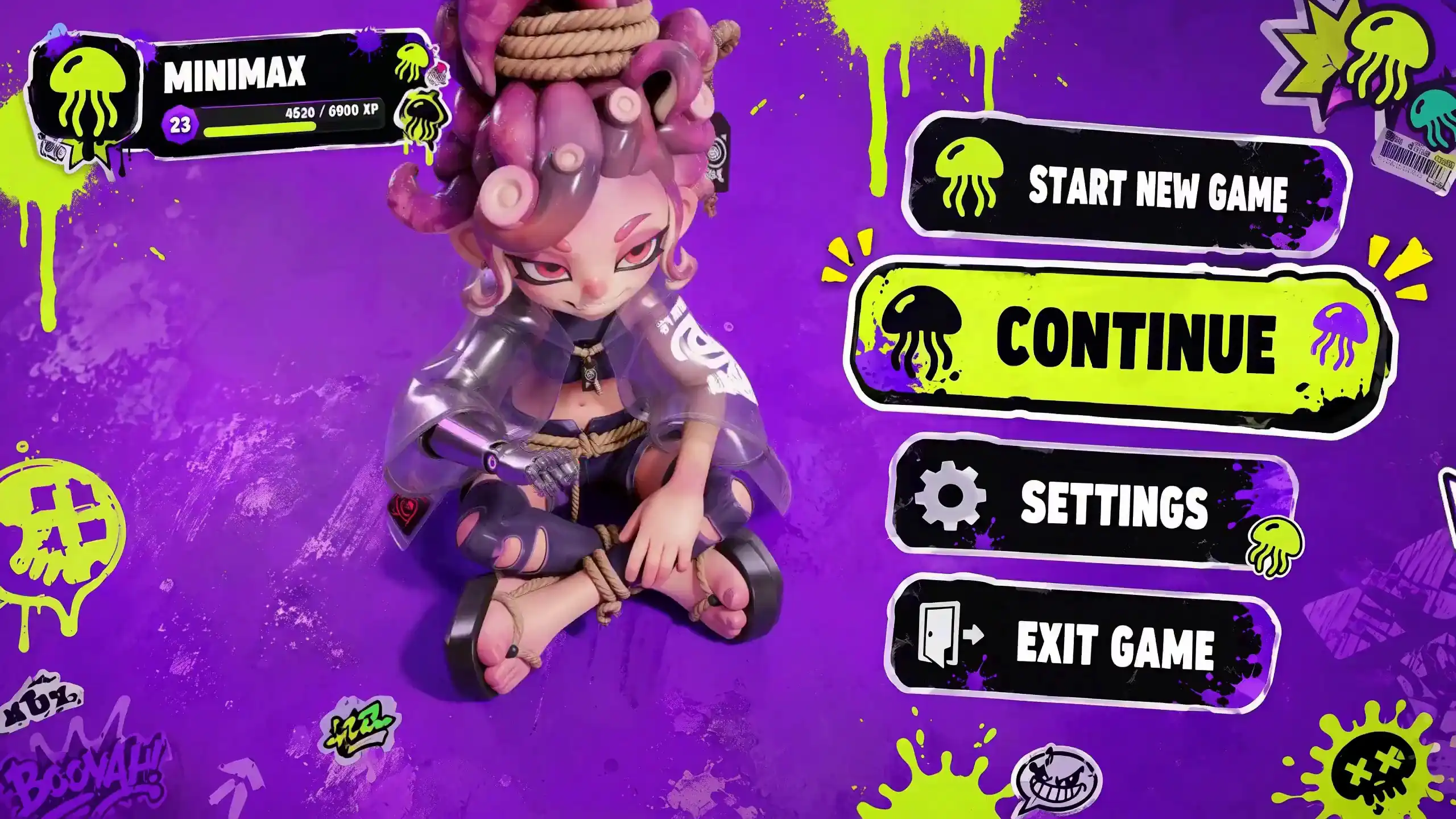
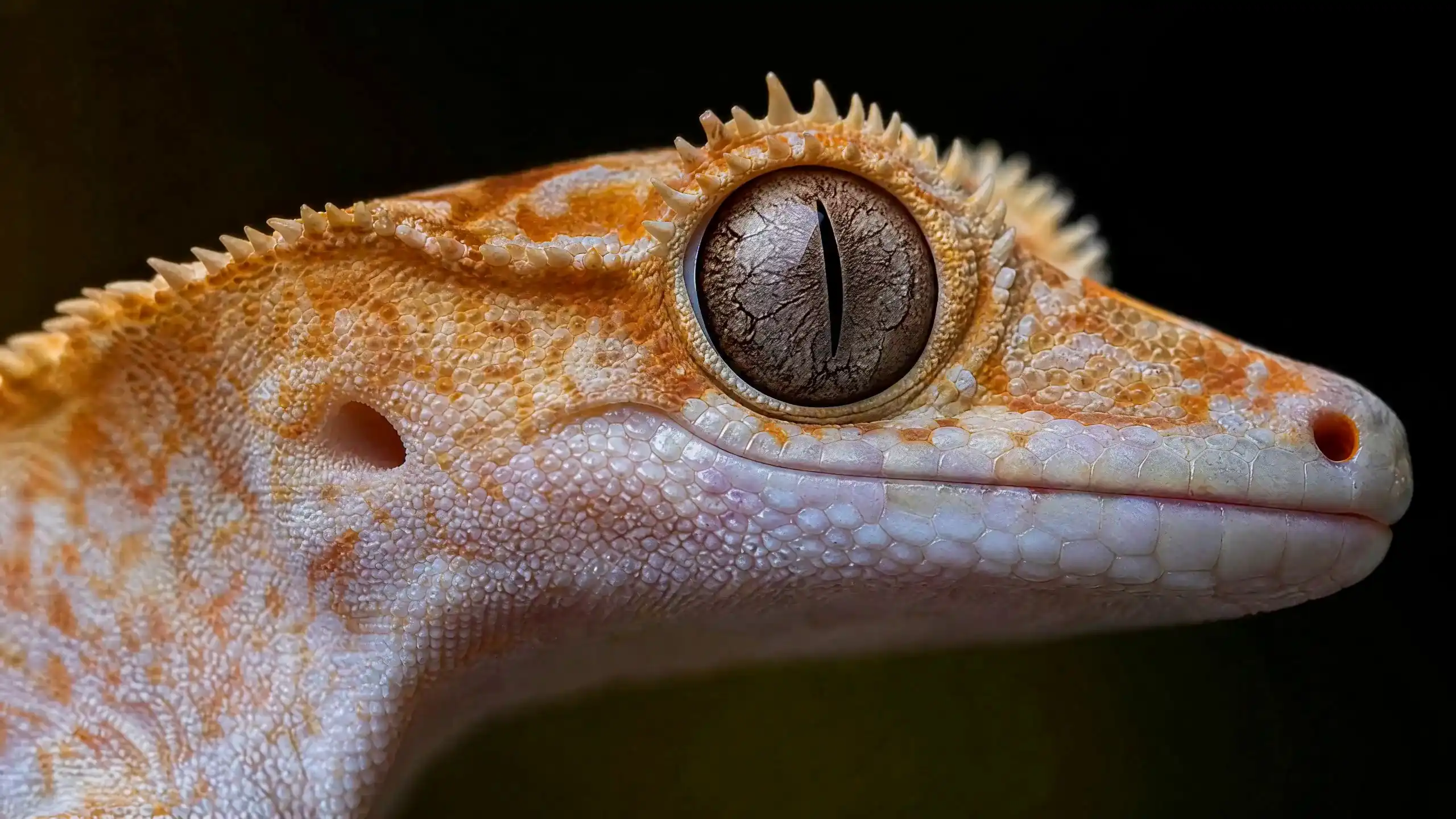
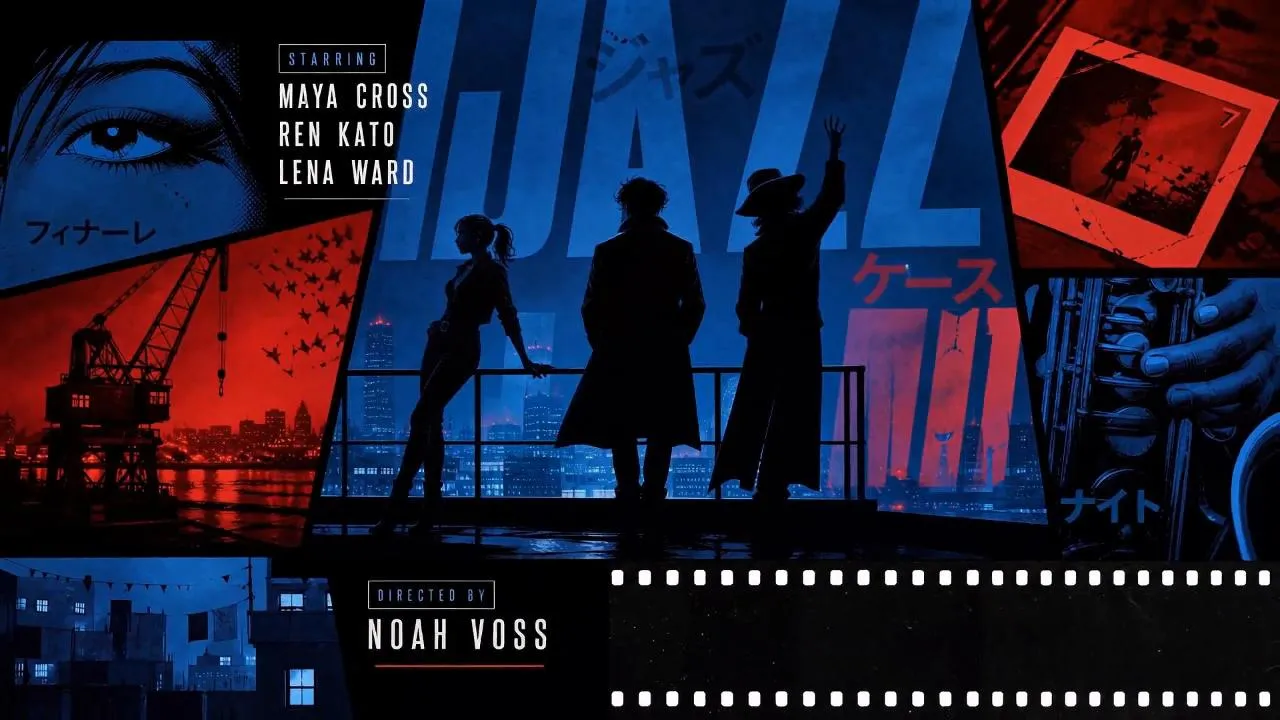
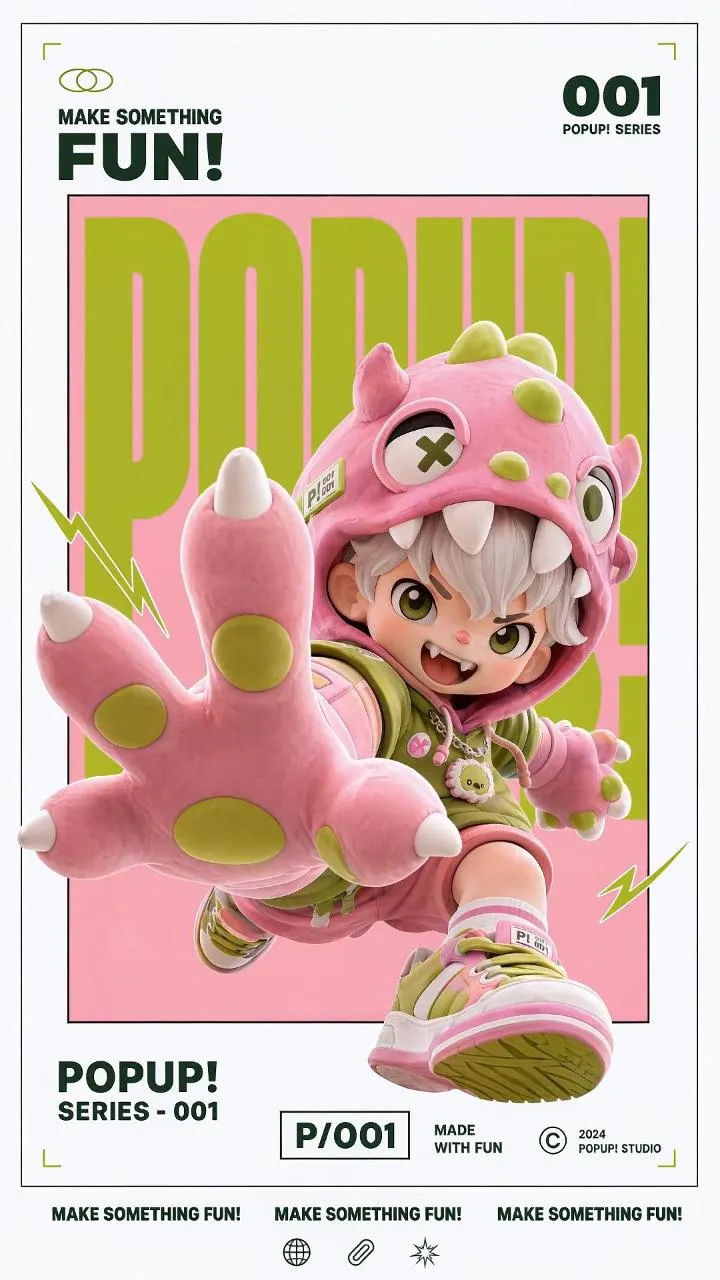
MiniMax H3 AI Video Generator Examples
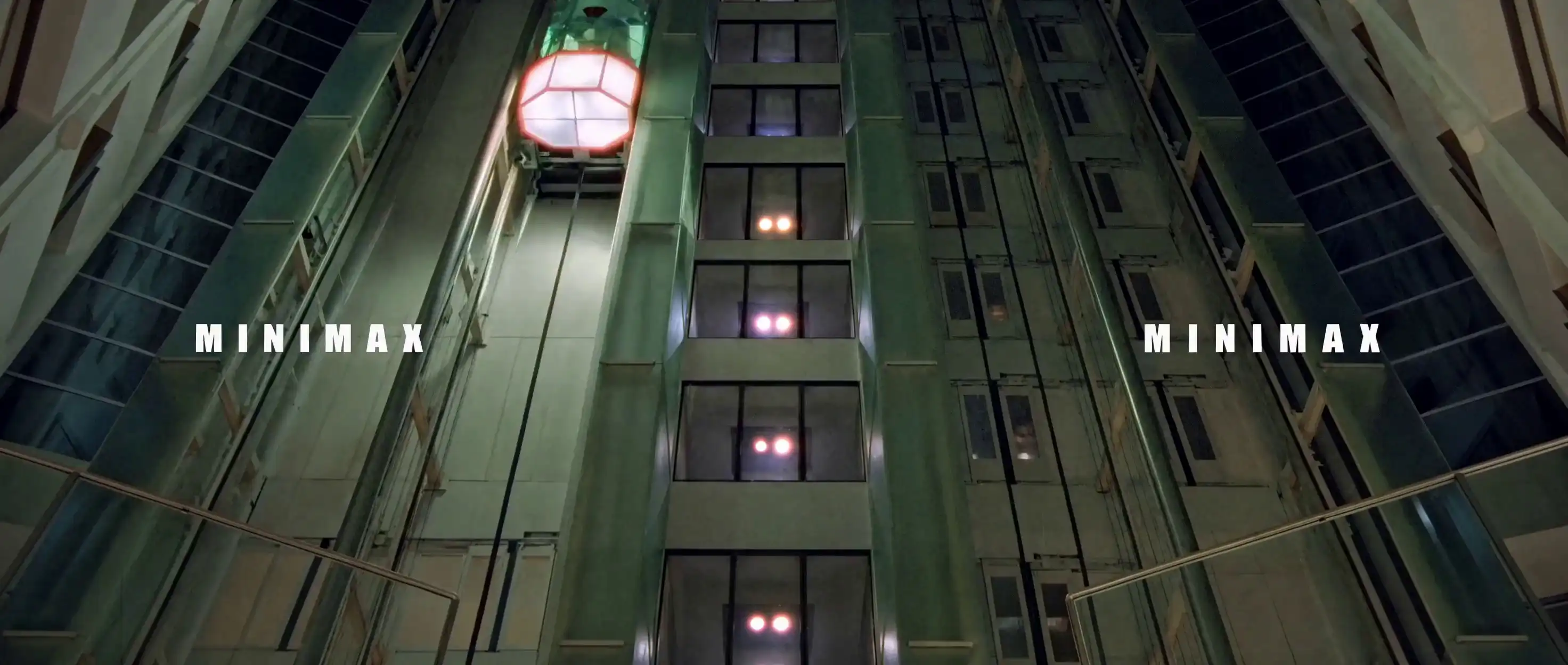
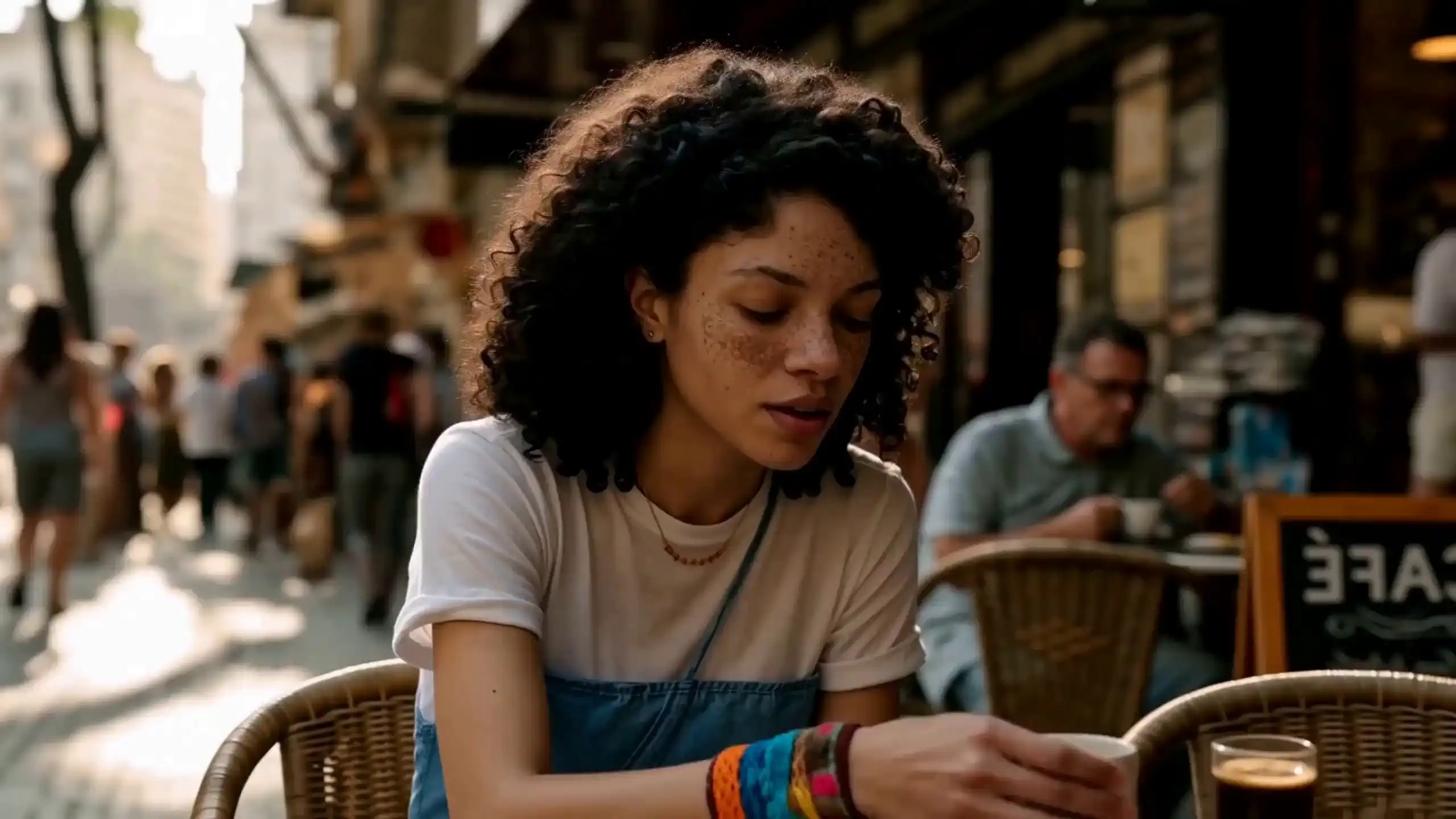
Watch MiniMax H3 AI video examples built from text prompts, frame controls, and multimodal references across ads, games, and creative work.
Flexible creative controls
Key Features of MiniMax H3
Explore MiniMax H3 features for text-to-video, first and last frame control, 2K output, reference media, motion, camera, and visual style.
Generate from Text
Describe the subject, action, setting, lighting, and camera movement. MiniMax H3 uses your prompt to generate a short video.
Set the Starting or Ending Frame
Upload a starting frame, an ending frame, or both. These images help guide how the video begins or ends.
Add Reference Media
Add supported images, video, or audio to provide more context for the subject, motion, camera movement, and visual style.
Guide Motion and Camera
Describe pans, zooms, tracking shots, static shots, and other camera directions in your prompt.
Create 4–15 Second Videos in Up to 2K
Choose a duration from 4 to 15 seconds and generate the final video in 768P or 2K.
Guide Subject and Style Details
References provide more context for important visual details. Results vary by source quality and scene complexity.
Four-step workflow
How to Use MiniMax H3 Online
Choose a generation workflow, add your prompt and reference media, then customize the settings and generate your video in up to 2K.
01
Create an Account
Create your account and use your starter credits to begin generating videos.
02
Choose a Workflow
Select text-to-video, image-to-video, frame-controlled, or reference-based generation.
03
Write a Prompt and Add References
Describe the video you want to create, then add frames or reference media when you need more control.
04
Generate and Download
Choose a 4–15 second duration and your preferred resolution. Review the credit estimate, generate your video, and download the result.
Example prompt: A silver watch rests on dark stone. Soft light moves across the surface as the camera slowly pushes forward. Premium product commercial style.
Choose the right input
Which Video Workflow Should You Use?
Compare MiniMax H3 workflows by the input you have and the level of control you need.
Workflow
What you provide
Good for
Text-to-Video
A written prompt
Exploring a new scene from scratch
First and Last Frame Video
A prompt and one or two frame images
Animating a still image or guiding a transition
Multimodal Reference Video
A prompt with supported images, video, or audio
Adding context for the subject, motion, camera, and visual style
Practical workflow guide
Best MiniMax H3 Workflows
After you choose an input mode, use these workflows to plan a cleaner video. Pick the job first. Then give MiniMax H3 one clear motion target.
Product Ad Workflow
Best for ecommerce and SaaS launches
- Use Image to Video when the product shape, color, or logo area must stay stable.
- Start with a clean product image, simple background, and one camera move.
- Ask for slow rotation, push-in, or light background motion. Avoid stacking actions.
- Review logos, labels, edges, and small text before publishing.
Character Motion Workflow
Best for game, anime, and creator concepts
- Use Image to Video when the face, outfit, or hairstyle must stay consistent.
- Describe one primary action such as a head turn, hair movement, walk cycle, or pose shift.
- Keep camera language simple: locked camera, gentle handheld, or slow push-in.
- Do not combine full-body motion, expression changes, and scene transitions in one short clip.
First and Last Frame Workflow
Best for planned transitions
- Use this when the opening and ending frame are both important.
- Write the prompt around the transition between the two frames.
- Keep the motion path clear: reveal, approach, open, transform, or settle.
- Use fewer scene details so MiniMax H3 can connect the frames cleanly.
Reference Media Workflow
Best for style, pacing, and camera direction
- Use references when text alone cannot explain the movement or look.
- Tell MiniMax H3 what to follow: style, camera, motion rhythm, lighting, or pacing.
- Do not ask one reference to control everything at once.
- If the result drifts, keep the strongest reference signal and regenerate.
Simple rule: start from an image when consistency matters. Start from text when the idea matters more than exact identity. Use first and last frames when the ending matters.
Real project workflows
MiniMax H3 Video Generator Use Cases
Use MiniMax H3 to explore product ads, social videos, film shots, game concepts, and motion design before committing to full production.
Review generated text, logos, packaging, faces, and other brand details before publishing or using the final video.
Plans and credits
Choose a MiniMax H3 Credit Pack
Create 4–15 second MiniMax H3 videos for 9 credits per second at 768P or 14 credits per second at 2K. Buy credits once—purchased credits never expire.
Starter
$9.90one time
370
Credits
Up to 5 five-second 2K videos
Creator
$29.90one time
1,300
Credits
Up to 18 five-second 2K videos
Business
$99.90one time
5,550
Credits
Up to 79 five-second 2K videos
Included with every credit pack
- One-time purchase, no subscription
- Purchased credits never expire
- Up to 2K video output
- Watermark-free downloads
Compare credit usage, billing details, and all available plans on the MiniMax H3 Pricing page.
Frequently asked questions
MiniMax H3 FAQ
Get answers about generating MiniMax H3 videos, choosing inputs and resolution, using reference media, and understanding credit usage.
What is MiniMax H3?
MiniMax H3 is a multimodal AI video generation model that supports text, image, first/last-frame, and reference-based workflows, with 768P or 2K output.
How do I use MiniMax H3 online?
Create an account and choose a workflow. Write a clear video prompt. Add supported reference media if needed, review the credit estimate, and generate your video.
Can MiniMax H3 create videos from text?
Yes. Enter a prompt that describes the subject, action, setting, lighting, and camera movement. MiniMax H3 uses it to generate a 2K video.
Can MiniMax H3 turn an image into a video?
Yes. Use an image as the first or last frame to guide the video, or use images as reference media in the Reference-to-Video workflow.
Can I use both a first frame and a last frame?
Yes. You can upload both frames. They help guide how the video begins and ends.
How long can a MiniMax H3 video be?
Choose a video length from 4 to 15 seconds.
Can MiniMax H3 generate 2K videos?
Yes. Choose 2K for higher-resolution output or 768P for a smaller video output in the current generator.
What can I use as reference media?
You can add supported images, videos, and audio files. Reference media provides more context for the subject, motion, camera movement, and visual style.
What image, video, and audio formats are supported?
Images: JPG, JPEG, PNG, WEBP, HEIC, and HEIF. Videos: MP4 and MOV. Audio: WAV and MP3.
Can I use audio as a reference?
Yes. Use reference audio with a text prompt, either on its own or alongside supported reference images or videos.
How many credits does MiniMax H3 use on this site?
On our platform, MiniMax H3 generation uses 9 credits per second at 768P or 14 credits per second at 2K. A five-second output uses 45 credits at 768P or 70 credits at 2K.
How are credits calculated when I upload a reference video?
Add the total reference video duration to the output duration, then multiply by the selected resolution rate. Three reference seconds plus a five-second output uses 72 credits at 768P or 112 credits at 2K.
How many free credits do I get when I sign up?
You get 50 credits when you create an account.
Is this the official MiniMax website?
No. This is an independent third-party video generator. It is not affiliated with, endorsed by, or operated by MiniMax.