MemoryRaven
Remote MCP server for MemoryRaven, a desktop memory layer for AI assistants. A small Windows app records your recent work context, and ChatGPT, Claude or another MCP client can ask what you were working on. Read-only context, OAuth sign-in, your computer is authorised in the browser.
Hosted MCP Server
npx add-mcp 'https://memoryraven.com/mcp'Installs into Claude Code, Codex, Cursor and more
Documentation
Set up MemoryRaven
ChatGPT server address https://memoryraven.com/mcp
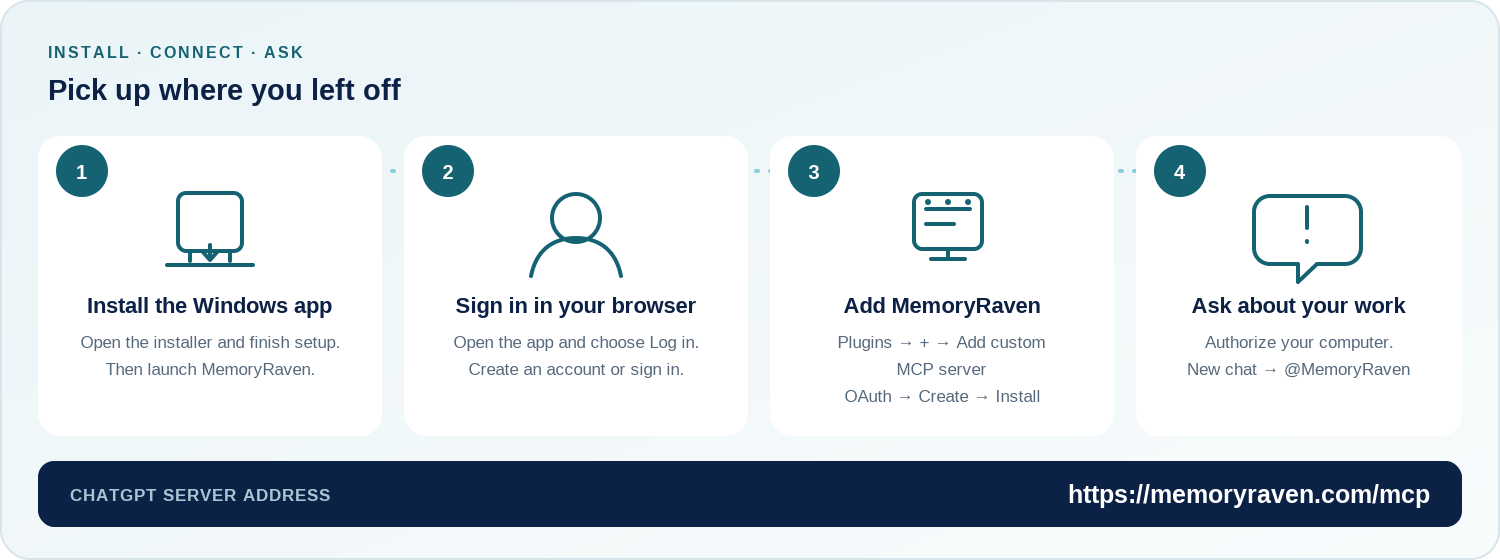
Four steps to install MemoryRaven, sign in, connect ChatGPT, and ask about recent work.
- Install MemoryRaven for Windows: download and open the installer, accept the licence, and finish setup.
- Open MemoryRaven and choose Log in. Create an account or sign in in your browser.
- In ChatGPT, open Plugins, select plus, then Add custom MCP server. Use https://memoryraven.com/mcp, choose OAuth, review the access details, and select Create.
- Install the plugin and authorize your computer in the browser. In a new chat, type @, select MemoryRaven, and ask what you were working on. Using Claude or another MCP client?
In Claude, open Customize → Connectors → + Add → Add custom connector, then use the server address above and sign in in your browser. For Team or Enterprise, an organization owner adds the connector first. Other clients should use their remote MCP or custom connector option with browser sign-in.