Napkin.AI MCP Server
MCP Server for dynamically generating infographics using Napkin.AI
Documentation



Disclaimer: This is an unofficial, community-maintained MCP server for Napkin AI. It is not affiliated with, endorsed by, or officially supported by Napkin AI or Second Layer, Inc. For official Napkin AI products and support, please visit napkin.ai.
API Compatibility: Tested with Napkin AI API v1.1.16. Newer API versions may introduce breaking changes.
An MCP (Model Context Protocol) server for generating infographics and visuals using the Napkin AI API. This server enables AI assistants like Claude to generate professional visuals from text content.
Features
- Visual Generation: Generate SVG, PNG, or PPT visuals from text content
- Multiple Visual Types: Mindmaps, flowcharts, timelines, comparisons, and more (see gallery)
- Async Handling: Automatic polling for Napkin AI's async generation
- Multi-Storage Support: Save generated visuals to:
- Local filesystem
- Amazon S3 (or S3-compatible services)
- Google Drive
- Slack
- Notion
- Telegram
- Discord
- Flexible Configuration: Environment variables or JSON config file
- Full TypeScript Support: Comprehensive type definitions with Zod validation
- Automatic Retries: Exponential backoff for transient failures (429, 5xx)
- Debug Logging: Set
NAPKIN_DEBUG=truefor troubleshooting - Dry-Run Mode: Validate requests without calling the API
- CLI Help: Run with
--helpfor usage information
Prerequisites
- Node.js 18.x or later
- A Napkin AI API key (currently in developer preview - contact api@napkin.ai)
Quick Start
Installation
npm install -g napkin-ai-mcp
Or use directly with npx:
npx napkin-ai-mcp
Get Your API Key
The Napkin AI API is currently in developer preview. To request access:
- Visit napkin.ai
- Contact api@napkin.ai for API access
Integration Guides
Claude Desktop
Add to your Claude Desktop configuration file:
macOS: ~/Library/Application Support/Claude/claude_desktop_config.json
Windows: %APPDATA%\Claude\claude_desktop_config.json
{
  "mcpServers": {
    "napkin-ai": {
      "command": "npx",
      "args": ["-y", "napkin-ai-mcp"],
      "env": {
        "NAPKIN_API_KEY": "your-api-key-here"
      }
    }
  }
}
With local storage enabled:
{
  "mcpServers": {
    "napkin-ai": {
      "command": "npx",
      "args": ["-y", "napkin-ai-mcp"],
      "env": {
        "NAPKIN_API_KEY": "your-api-key-here",
        "NAPKIN_STORAGE_TYPE": "local",
        "NAPKIN_STORAGE_LOCAL_DIR": "/Users/yourname/napkin-visuals"
      }
    }
  }
}
After updating the config, restart Claude Desktop.
Claude Code (CLI)
Add to your Claude Code MCP settings:
Global config: ~/.claude/settings.json
Project config: .claude/settings.json
{
  "mcpServers": {
    "napkin-ai": {
      "command": "npx",
      "args": ["-y", "napkin-ai-mcp"],
      "env": {
        "NAPKIN_API_KEY": "your-api-key-here",
        "NAPKIN_STORAGE_TYPE": "local",
        "NAPKIN_STORAGE_LOCAL_DIR": "./visuals"
      }
    }
  }
}
Or run the CLI command:
claude mcp add napkin-ai -- npx -y napkin-ai-mcp
Then set the environment variable:
export NAPKIN_API_KEY="your-api-key-here"
Cursor
Add to your Cursor MCP configuration:
File: ~/.cursor/mcp.json
{
  "mcpServers": {
    "napkin-ai": {
      "command": "npx",
      "args": ["-y", "napkin-ai-mcp"],
      "env": {
        "NAPKIN_API_KEY": "your-api-key-here",
        "NAPKIN_STORAGE_TYPE": "local",
        "NAPKIN_STORAGE_LOCAL_DIR": "./visuals"
      }
    }
  }
}
Windsurf
Add to your Windsurf MCP configuration:
File: ~/.windsurf/mcp.json
{
  "mcpServers": {
    "napkin-ai": {
      "command": "npx",
      "args": ["-y", "napkin-ai-mcp"],
      "env": {
        "NAPKIN_API_KEY": "your-api-key-here"
      }
    }
  }
}
VS Code with Continue
Add to your Continue configuration:
File: ~/.continue/config.json
{
  "experimental": {
    "modelContextProtocolServers": [
      {
        "transport": {
          "type": "stdio",
          "command": "npx",
          "args": ["-y", "napkin-ai-mcp"],
          "env": {
            "NAPKIN_API_KEY": "your-api-key-here"
          }
        }
      }
    ]
  }
}
Cline (VS Code Extension)
Add to your Cline MCP settings in VS Code:
- Open VS Code settings
- Search for "Cline MCP"
- Add the server configuration:
{
  "napkin-ai": {
    "command": "npx",
    "args": ["-y", "napkin-ai-mcp"],
    "env": {
      "NAPKIN_API_KEY": "your-api-key-here"
    }
  }
}
Available Tools
Once configured, your AI assistant will have access to these tools:
| Tool | Description |
|---|---|
generate_visual | Submit a visual generation request (async) |
check_status | Check the status of a generation request |
download_visual | Download a generated visual as base64 |
generate_and_wait | Generate and wait for completion |
generate_and_save | Generate and save to configured storage |
list_styles | Get information about available styles |
verify_api_key | Verify your API key is valid and working |
Example Prompts
Once configured, try these prompts with your AI assistant:
- "Create a mindmap visualising the key concepts of machine learning"
- "Generate a flowchart showing the user registration process"
- "Make a timeline of major events in the history of computing"
- "Create an infographic comparing REST vs GraphQL APIs"
Configuration
Environment Variables
| Variable | Description | Required |
|---|---|---|
NAPKIN_API_KEY | Napkin AI API key | Yes |
NAPKIN_API_BASE_URL | Custom API base URL | No |
NAPKIN_STORAGE_TYPE | Storage type: local, s3, google-drive, slack, notion, telegram, discord | No |
NAPKIN_POLLING_INTERVAL | Polling interval in ms (default: 2000) | No |
NAPKIN_MAX_WAIT_TIME | Max wait time in ms (default: 300000) | No |
Storage Configuration
Local Storage
Save visuals to a local directory:
NAPKIN_STORAGE_TYPE=local
NAPKIN_STORAGE_LOCAL_DIR=./output
Files are saved with the format: napkin-{request_id}-{index}-{color_mode}.{format}
Note for Claude Desktop users: Claude Desktop runs in a sandboxed environment and cannot access local filesystem paths. While files are saved successfully, Claude Desktop cannot display or open them directly. For Claude Desktop, consider using a cloud storage provider (S3, Google Drive, etc.) which returns accessible URLs. Claude Code has full filesystem access and works seamlessly with local storage.
Amazon S3
Save visuals to an S3 bucket (also works with S3-compatible services like MinIO, DigitalOcean Spaces, Cloudflare R2):
NAPKIN_STORAGE_TYPE=s3
NAPKIN_STORAGE_S3_BUCKET=my-bucket
NAPKIN_STORAGE_S3_REGION=eu-west-1
NAPKIN_STORAGE_S3_PREFIX=napkin-visuals/  # Optional path prefix
NAPKIN_STORAGE_S3_ENDPOINT=https://s3.example.com  # Optional, for S3-compatible services
AWS_ACCESS_KEY_ID=your-access-key
AWS_SECRET_ACCESS_KEY=your-secret-key
Required IAM permissions:
{
  "Version": "2012-10-17",
  "Statement": [
    {
      "Effect": "Allow",
      "Action": ["s3:PutObject", "s3:GetObject"],
      "Resource": "arn:aws:s3:::my-bucket/napkin-visuals/*"
    }
  ]
}
Google Drive
Save visuals to a Google Drive folder using a service account:
NAPKIN_STORAGE_TYPE=google-drive
NAPKIN_STORAGE_GDRIVE_FOLDER_ID=1ABC...xyz
NAPKIN_STORAGE_GDRIVE_CREDENTIALS=./service-account.json
Setup steps:
- Go to Google Cloud Console
- Create a new project or select an existing one
- Enable the Google Drive API
- Go to "IAM & Admin" → "Service Accounts" → "Create Service Account"
- Download the JSON key file and save as
service-account.json - Share your target Google Drive folder with the service account email (ends with
@*.iam.gserviceaccount.com) - Get the folder ID from the URL:
https://drive.google.com/drive/folders/{FOLDER_ID}
Slack
Upload visuals to a Slack channel:
NAPKIN_STORAGE_TYPE=slack
NAPKIN_STORAGE_SLACK_CHANNEL=C0123456789
NAPKIN_STORAGE_SLACK_TOKEN=xoxb-your-bot-token
Setup steps:
- Go to Slack API and create a new app
- Under "OAuth & Permissions", add these Bot Token Scopes:
files:write- Upload fileschat:write- Post messages (optional)
- Install the app to your workspace
- Copy the "Bot User OAuth Token" (starts with
xoxb-) - Get the channel ID: right-click a channel → "View channel details" → scroll to the bottom
Note: The bot must be invited to the channel with /invite @your-bot-name
Notion
Upload visuals to a Notion page:
NAPKIN_STORAGE_TYPE=notion
NAPKIN_STORAGE_NOTION_TOKEN=secret_abc123...
NAPKIN_STORAGE_NOTION_PAGE_ID=12345678-abcd-1234-abcd-123456789abc
NAPKIN_STORAGE_NOTION_DATABASE_ID=optional-db-id  # Optional
Setup steps:
- Go to Notion Integrations and create a new integration
- Copy the "Internal Integration Token" (starts with
secret_) - Open the target Notion page and click "..." → "Add connections" → select your integration
- Get the page ID from the URL:
https://notion.so/Page-Name-{PAGE_ID}(the 32-character ID at the end)
Note: Notion has file size limits. For large visuals, consider using S3 or Google Drive.
Telegram
Send visuals to a Telegram chat or channel:
NAPKIN_STORAGE_TYPE=telegram
NAPKIN_STORAGE_TELEGRAM_BOT_TOKEN=123456:ABC-DEF1234ghIkl-zyx57W2v1u123ew11
NAPKIN_STORAGE_TELEGRAM_CHAT_ID=-1001234567890
Setup steps:
- Message @BotFather on Telegram and create a new bot with
/newbot - Copy the bot token (format:
123456789:ABCdefGHIjklMNOpqrsTUVwxyz) - Add the bot to your group/channel as an admin (for channels) or member (for groups)
- Get the chat ID:
- For groups: Add @userinfobot to the group, it will show the chat ID
- For channels: Forward a message from the channel to @userinfobot
- For private chats: Send a message to your bot, then visit
https://api.telegram.org/bot<TOKEN>/getUpdates
Note: Channel IDs start with -100, group IDs are negative numbers, user IDs are positive.
Discord
Send visuals to a Discord channel via webhook:
NAPKIN_STORAGE_TYPE=discord
NAPKIN_STORAGE_DISCORD_WEBHOOK_URL=https://discord.com/api/webhooks/123456789/abcdef...
NAPKIN_STORAGE_DISCORD_USERNAME=Napkin AI  # Optional
Setup steps:
- Open Discord and go to the channel where you want to receive visuals
- Click the gear icon (Edit Channel) → Integrations → Webhooks → New Webhook
- Give it a name and optionally upload an avatar
- Click "Copy Webhook URL"
Note: No bot setup required - webhooks are the simplest way to post to Discord.
Default Visual Settings
NAPKIN_DEFAULT_FORMAT=svg       # svg, png, or ppt
NAPKIN_DEFAULT_LANGUAGE=en-GB   # BCP 47 language tag
NAPKIN_DEFAULT_COLOR_MODE=light # light, dark, or both
NAPKIN_DEFAULT_ORIENTATION=auto # auto, horizontal, vertical, or square
JSON Configuration
Create a config.json file:
{
  "napkinApiKey": "your-api-key",
  "storage": {
    "type": "local",
    "directory": "./visuals"
  },
  "defaults": {
    "format": "svg",
    "language": "en-GB",
    "color_mode": "light"
  }
}
Tool Parameters
generate_visual / generate_and_wait / generate_and_save
| Parameter | Type | Description |
|---|---|---|
content | string | Required. Text content to visualise |
format | string | Output format: svg, png, or ppt (default: svg) |
dry_run | boolean | Validate request without calling API (default: false) |
context | string | Additional context for generation (not shown in visual) |
language | string | BCP 47 language tag (e.g., en-GB). Default: en |
style_id | string | Napkin AI style identifier. See styles |
visual_id | string | Regenerate a specific visual layout with new content |
visual_ids | string[] | Array of visual IDs (length must match number_of_visuals) |
visual_query | string | Visual type: mindmap, flowchart, timeline, etc. |
visual_queries | string[] | Array of visual queries (length must match number_of_visuals) |
number_of_visuals | number | Variations to generate (1-4, default: 1) |
transparent_background | boolean | Use transparent background (default: false) |
color_mode | string | light, dark, or both (default: light) |
width | number | Width in pixels (PNG only, 100-10000) |
height | number | Height in pixels (PNG only, 100-10000) |
orientation | string | auto, horizontal, vertical, or square |
text_extraction_mode | string | auto, rewrite, or preserve (default: auto) |
sort_strategy | string | relevance, random, or variation (default: relevance) |
Note: visual_id/visual_ids and visual_query/visual_queries are mutually exclusive.
Example Output
Here are some examples of visuals generated using this MCP server. Each example shows the input text and the resulting visual.
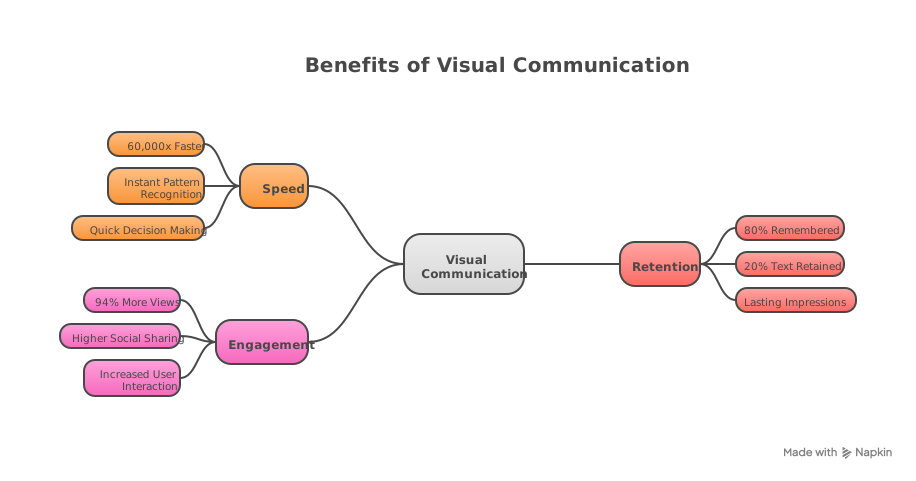
Mind Map
Input text:
# Benefits of Visual Communication

## Speed
- Processed 60,000x faster than text
- Instant pattern recognition

## Retention
- 80% of what we see is remembered
- Only 20% of text is retained

## Engagement
- 94% more views than text-only
- Higher social sharing rates
Parameters: format: "svg", visual_query: "mindmap", language: "en-GB"
View generated visual
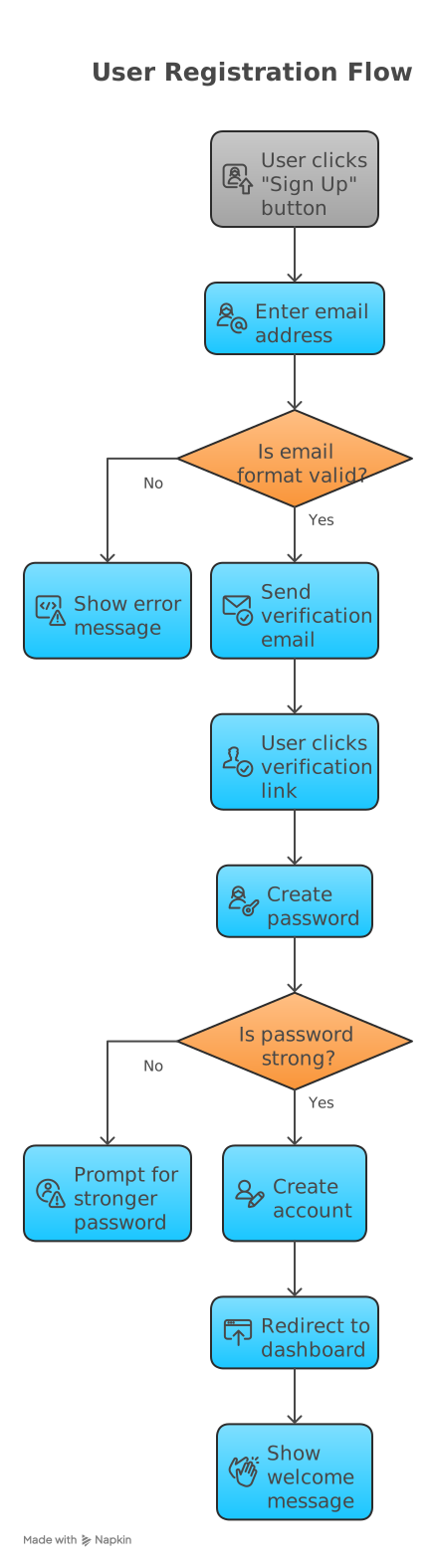
Flowchart
Input text:
# User Registration Flow

1. User clicks "Sign Up" button
2. Enter email address
3. System validates email format
4. If invalid, show error message
5. If valid, send verification email
6. User clicks verification link
7. Create password
8. Validate password strength
9. If strong, create account
10. Redirect to dashboard
Parameters: format: "svg", visual_query: "flowchart", language: "en-GB"
View generated visual
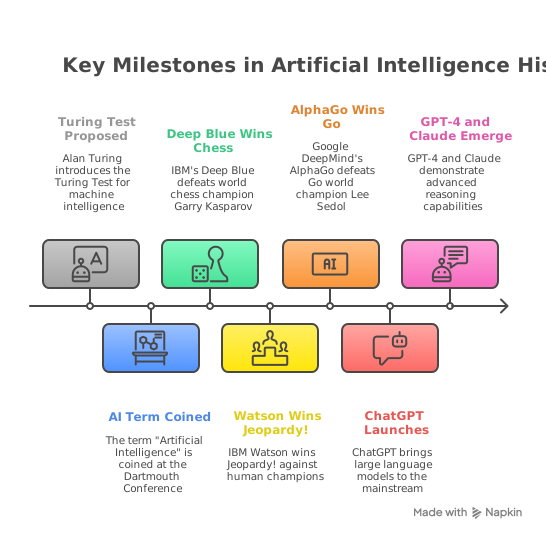
Timeline
Input text:
# History of Artificial Intelligence

## 1950
Alan Turing publishes "Computing Machinery and Intelligence"

## 1956
The term "Artificial Intelligence" is coined

## 1997
IBM's Deep Blue defeats world chess champion

## 2016
AlphaGo defeats Go world champion Lee Sedol

## 2022
ChatGPT launches, bringing LLMs to the mainstream
Parameters: format: "svg", visual_query: "timeline", language: "en-GB"
View generated visual
See more examples at the Napkin AI Gallery.
Visual Query Types
mindmap- Mind map visualisationsflowchart- Process flows and diagramstimeline- Chronological eventscomparison- Side-by-side comparisonshierarchy- Organisational structurescycle- Cyclical processeslist- Bulleted or numbered listsmatrix- Grid-based comparisons
Programmatic Usage
import { NapkinClient, createNapkinMcpServer } from "napkin-ai-mcp";

// Use the client directly
const client = new NapkinClient({
  apiKey: "your-api-key",
});

const result = await client.generateAndWait({
  format: "svg",
  content: "# My Visual\n\n- Point 1\n- Point 2",
  visual_query: "mindmap",
});

// Download the file using the URL from generated_files
if (result.generated_files && result.generated_files.length > 0) {
  const buffer = await client.downloadFile(result.generated_files[0].url);
  // buffer contains the SVG content
}
Development
# Clone the repository
git clone https://github.com/LouisChanCLY/napkin-ai-mcp.git
cd napkin-ai-mcp

# Install dependencies
npm install

# Run in development mode
npm run dev

# Run tests
npm test

# Build for production
npm run build
Troubleshooting
"NAPKIN_API_KEY is required"
Ensure you've set the NAPKIN_API_KEY environment variable in your MCP configuration.
"Storage not configured"
The generate_and_save tool requires storage configuration. Add one of the storage configurations above.
Visual generation times out
Increase NAPKIN_MAX_WAIT_TIME (default: 300000ms = 5 minutes).
Connection issues
- Ensure Node.js 18+ is installed
- Check your API key is valid
- Verify network connectivity to api.napkin.ai
API Reference
- Napkin AI Website
- Visual Gallery - See examples of generated visuals
- API Documentation
- Available Styles
- MCP Specification
Licence
MIT
Contributing
Contributions are welcome! Please read our Contributing Guide before submitting pull requests.