Knotpad
Project notes and tasks your AI assistant reads, works through and updates. Claude, ChatGPT, Claude Code and other MCP clients read the project, pick up a task, mark it done, and ask you with a decision card when they need your call. Free Windows app with a local server; Pro adds this remote server with OAuth sign-in.
Hosted MCP Server
npx add-mcp 'https://knotpad.app/mcp'Installs into Claude Code, Codex, Cursor and more
Documentation
An MCP server for your project notes and tasks
Every new chat starts from nothing. You paste the brief again, explain what was done yesterday, and the assistant still does not know which tasks are open or what you decided last week. If you use more than one assistant, each one knows something different.
Knotpad is a notes app with tasks, and it runs an MCP server. Connect the AI assistant you already use, and it reads your project, picks up a task, marks it done and writes down what it did. The next session, in the same assistant or another one, starts from that record.
What your assistant can do
| Job | How |
|---|---|
| Get its bearings | An overview of the workspace, with the notes that fit your request ranked first. It reads the ones it needs. |
| Work through tasks | It lists open tasks, claims one, moves it to In Progress, Review and Done, and can change a task's priority, dates or owner. |
| Write back | It adds its results to a note, starts a new note, and leaves a handover for the next session. |
| Ask you | When a choice is yours, it leaves a decision card in the note instead of guessing. |
| More | Meetings, templates and the Wiki are reachable the same way. |
Checkbox lines in a note are the tasks. You see the same work on a board, and so does every assistant you connect.
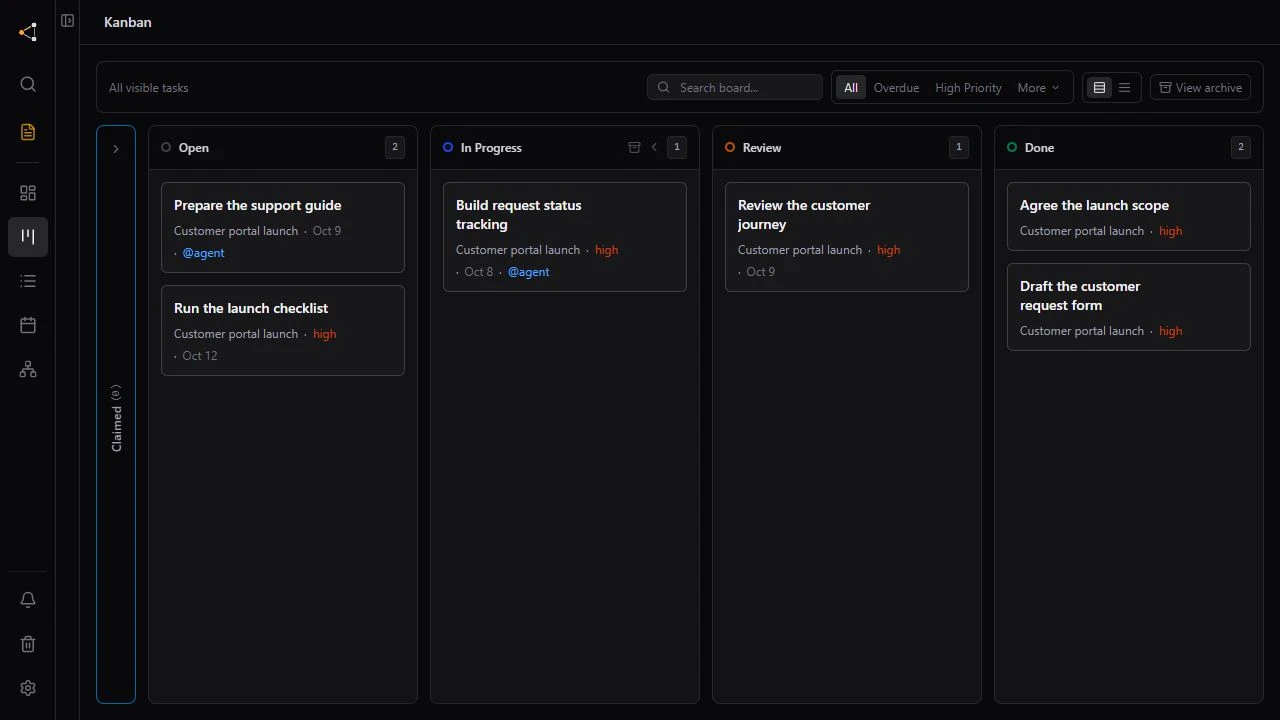
Tasks from your notes, on the board every assistant works from. Illustrative project.
When it needs your call
An assistant that has to guess picks something. Knotpad gives it another option: a decision card with the question, the options and its recommendation. You pick one in the note, and the next session reads your answer and carries on.
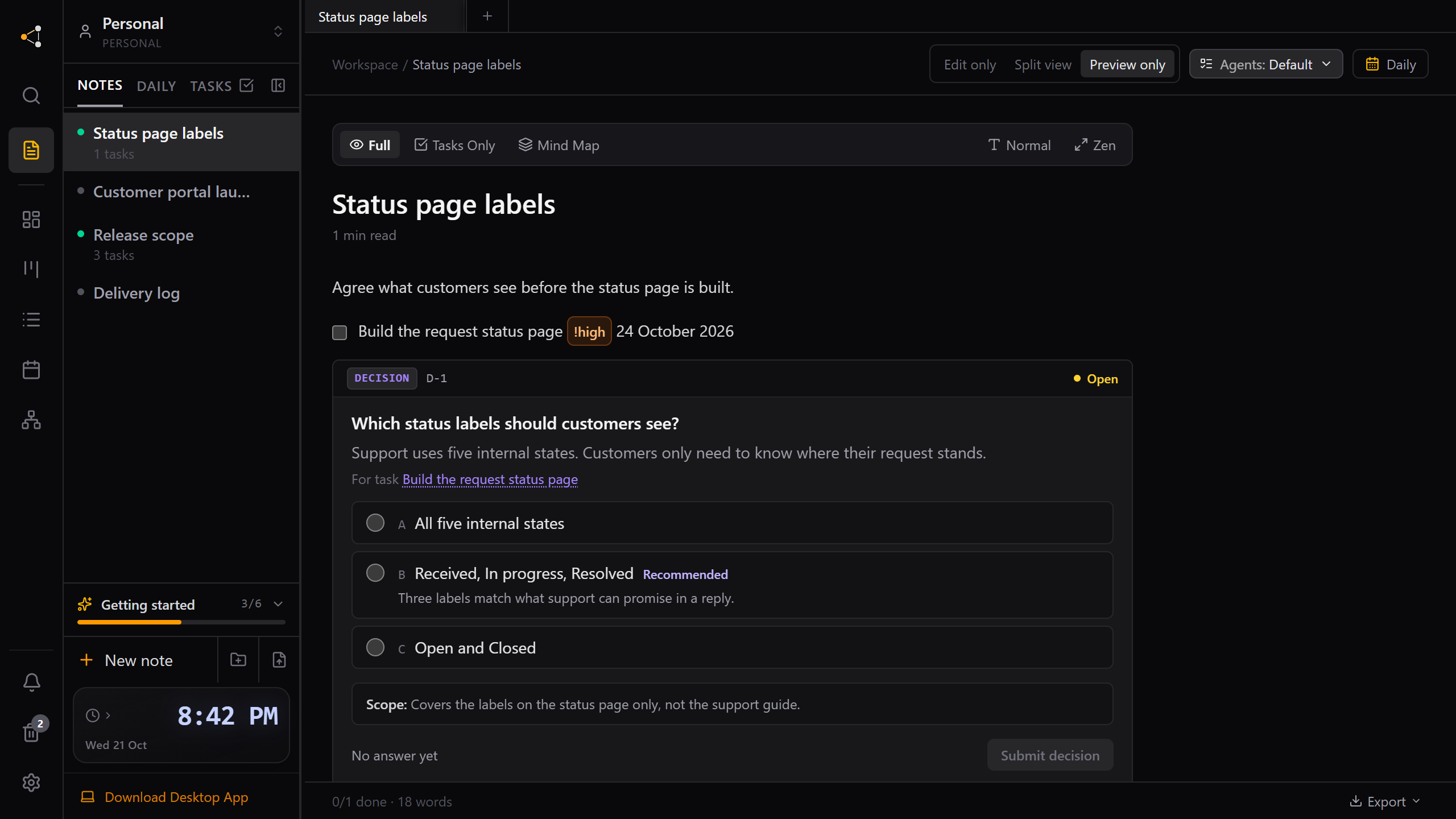
A decision card the assistant left for you. Illustrative project.
Connect your assistant
| Assistant (plan) | How to connect |
|---|---|
| Claude Desktop (Chat, Cowork and Code). Free | In the Knotpad app for Windows, open Settings, AI assistants and press Add to Claude Desktop. |
| Claude Code, Cursor, Codex, Antigravity on Windows. Free | Copy the setup prompt from Settings, AI assistants into the agent, restart it when it asks, then click Allow in Knotpad. |
| claude.ai and ChatGPT. Pro | Add https://knotpad.app/mcp as a custom connector, then sign in with your Knotpad account. |
| Claude Code, Cursor or Codex on any computer. Pro | Connect to https://knotpad.app/mcp and sign in when the browser opens. |
For Claude Code on a Mac or another computer, one command adds the cloud server for every project:
claude mcp add --transport http --scope user knotpad-cloud https://knotpad.app/mcp
Pro starts with 14 days free, without a card.
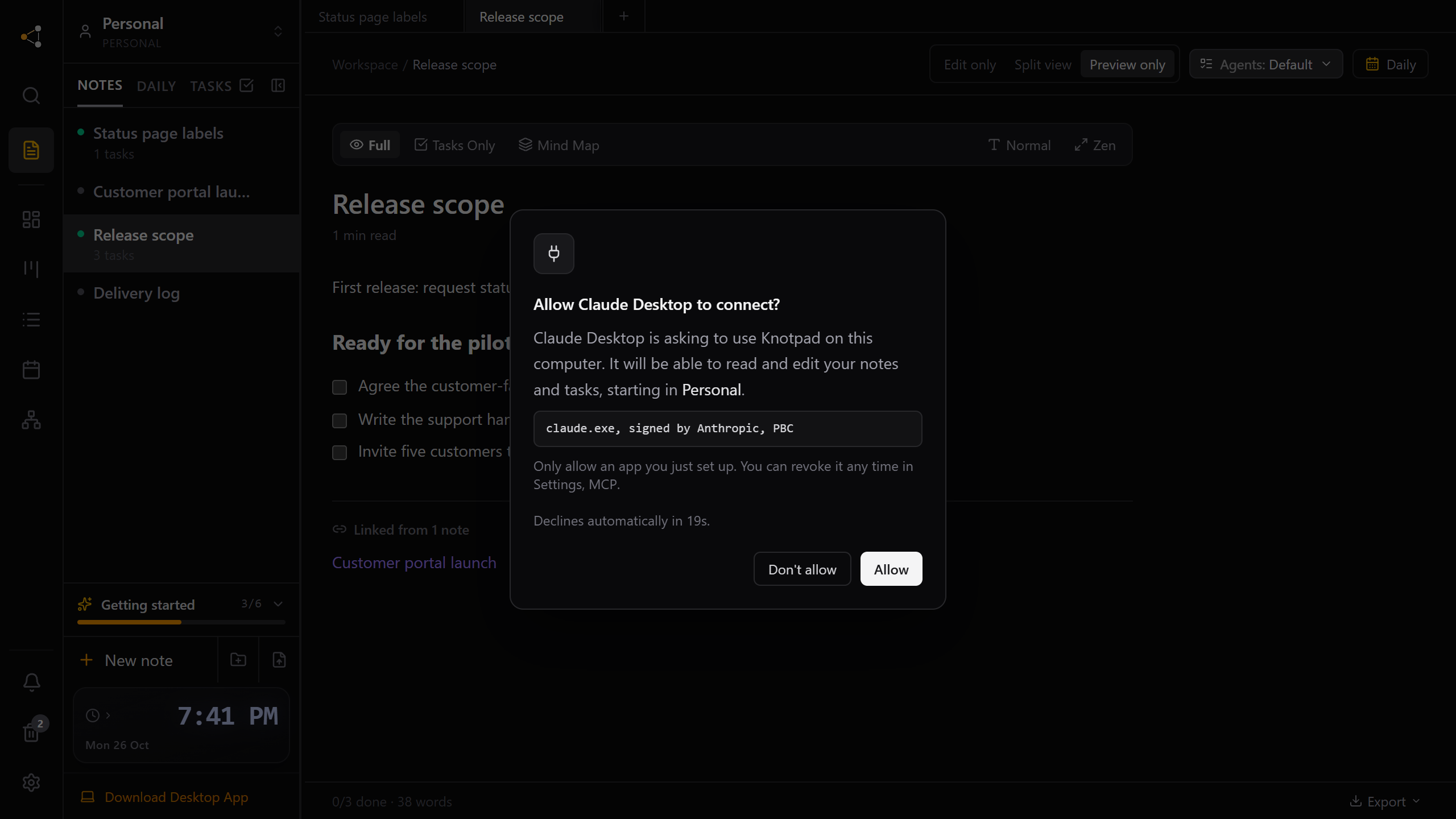
On Windows, each app asks once. Illustrative project.
No token to leak, no note rewritten
- No token on Windows. The desktop server has no password or key to paste. The first time an app connects, Knotpad asks you, and ties the approval to that program: its file, its Store package or the company that signed it. Browsers cannot connect at all.
- Sign-in for the cloud. claude.ai, ChatGPT and other remote clients sign in with your Knotpad account, so nothing secret sits in a config file.
- Adds, does not rewrite. By default an assistant can add to a note and update its tasks, but it cannot rewrite what you wrote. You allow Full edit note by note.
- Revoke any time. Settings, AI assistants lists every connected app, with when it last connected.
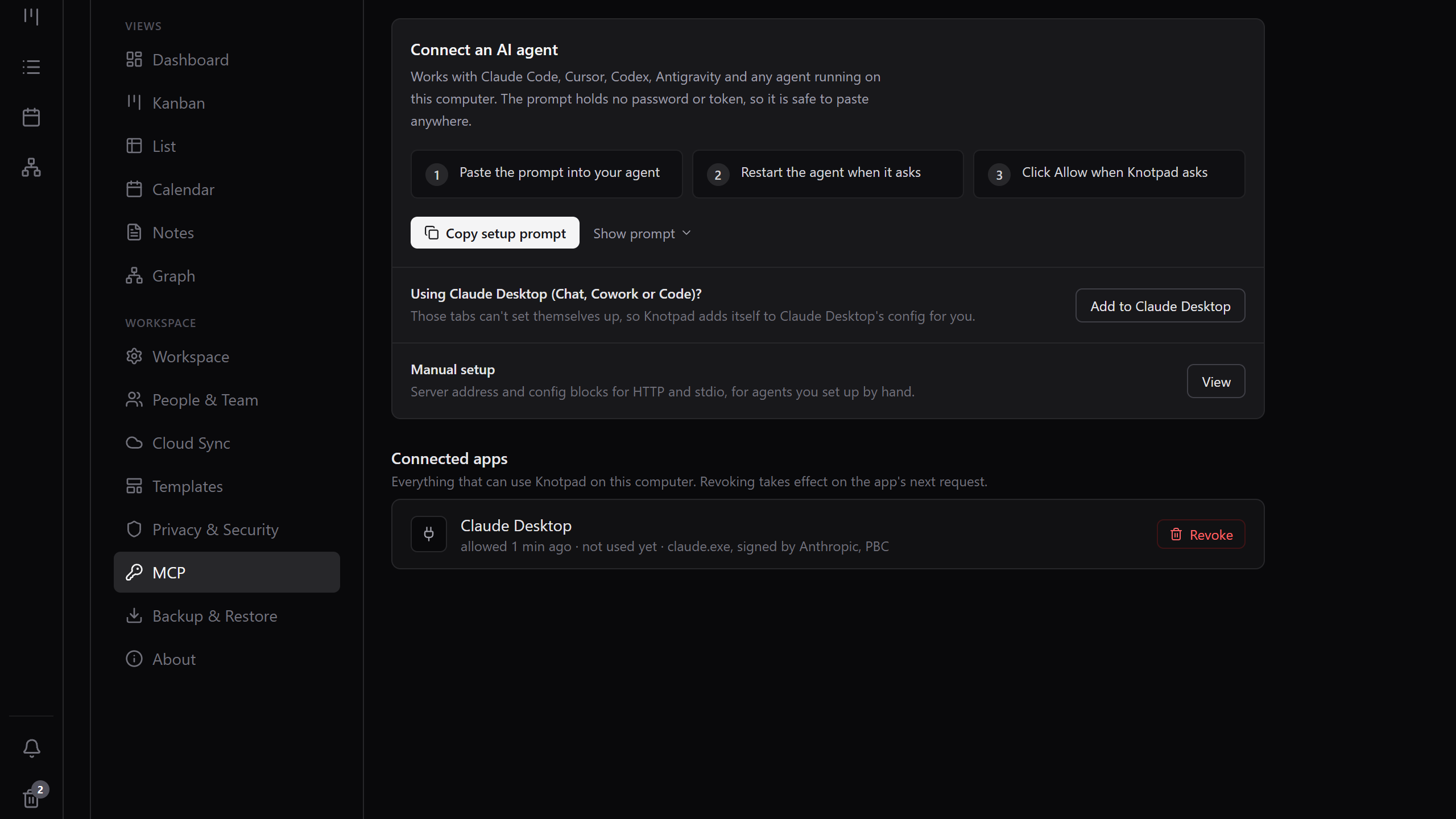
Every connected app, in one list. Illustrative project.
What it does not do
- It does not run the AI. You bring the assistant. Its plan, limits and terms are the AI service's.
- The desktop server is Windows only. On a Mac or Linux, use the cloud server with Pro.
- The cloud server needs a client with MCP sign-in. Most current assistants have it; some older clients only take a token, which Settings can create for scripts.
- It does not import chat history. An assistant knows what earlier sessions wrote down, so ask it to write back before you close the chat.
Download the free Windows app, or follow the step-by-step setup. Using more than one assistant? See ChatGPT and Claude memory alternatives for project work.