TodoNote MCP
Remote HTTP MCP server that lets compatible AI clients read TodoNote tasks and notes, create tasks, and update records with OAuth-granted permissions.
Hosted MCP Server
npx add-mcp 'https://web.todonote.app/api/mcp'Installs into Claude Code, Codex, Cursor and more
Documentation
To let AI continue existing work, use MCP to read your TodoNote tasks and notes. Find the work in progress, read its goal and current state, ask for the next step, and save the agreed work back. Your existing records become usable context.
Tasks supply goals, notes keep progress and evidence, and tags organize related records. The context you build while working can support AI too.
Before asking AI to continue, leave a clear stopping point in your task note: the current material, unfinished work, and the next action. That gives the AI and your future self the same place to resume.
Start with work that is already underway
The task “Prepare the version 1.8 release brief” already contains collected changes. Screenshots and download checks are not finished. The useful request is to work out what comes next.
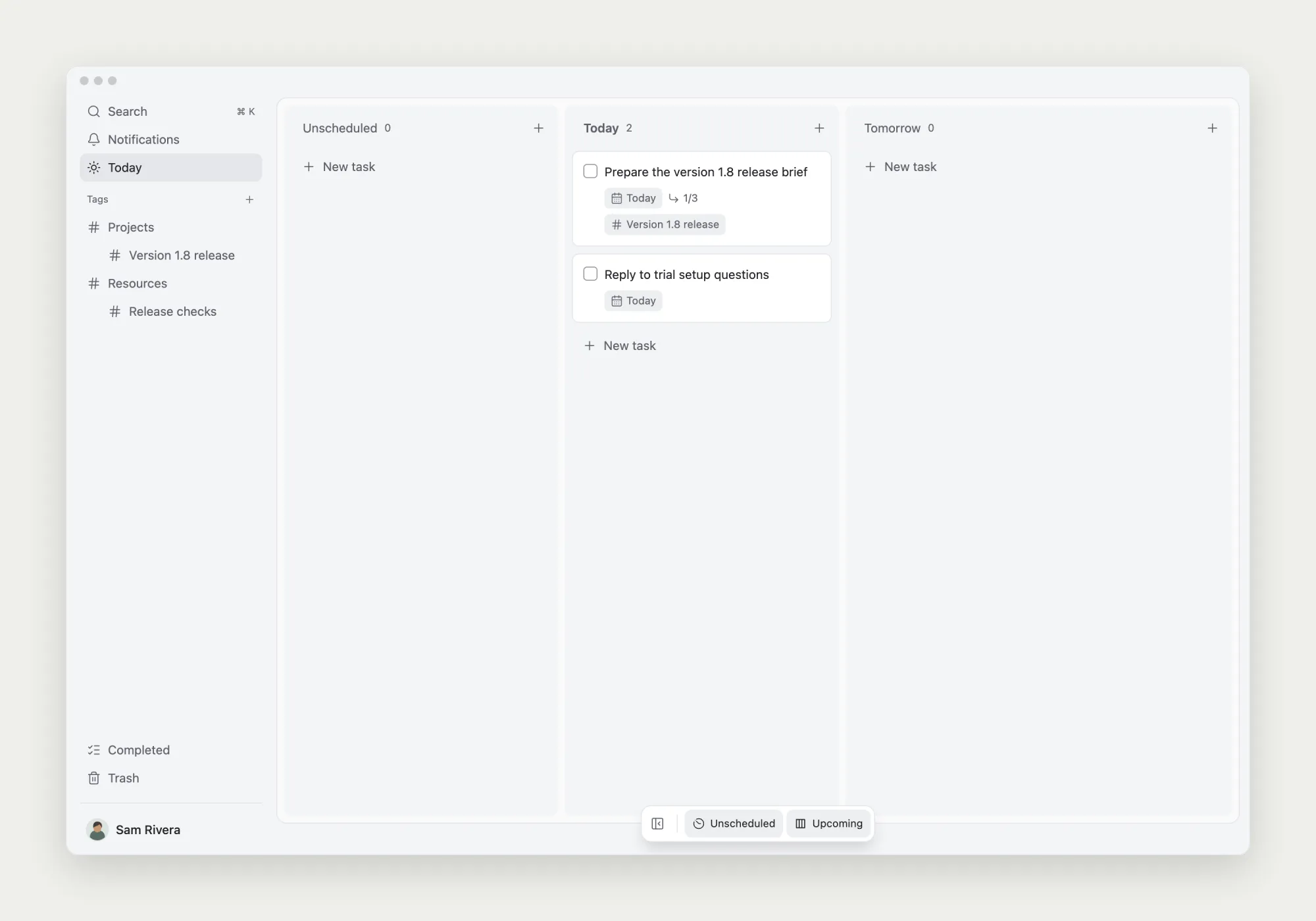
AI joins work that already has a goal and progress.
Under the release tag, the task note says that the Mac installation check is complete and the Windows download link is unverified. AI needs to read this progress, not just the task title.
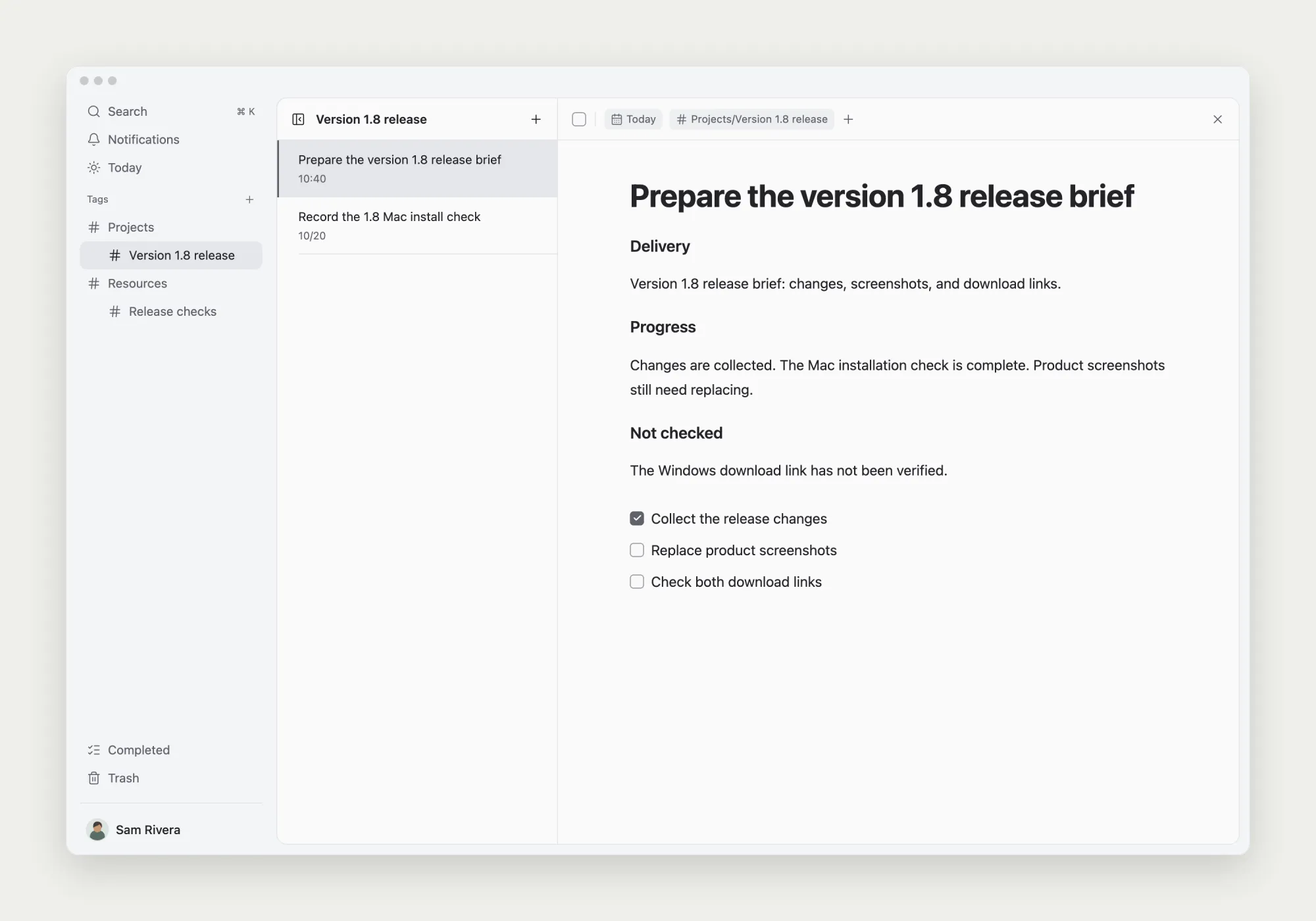
Tags group the release records. The selected task note supplies the actual working context.
Connect a compatible MCP client
In an AI client that supports remote HTTP MCP and OAuth, add this server:
https://web.todonote.app/api/mcp
Follow the client’s authorization flow, sign in to TodoNote, review the requested permissions, then check that tools are available. Reading needs read access; creating tasks or editing notes needs write access. Naming one task in a prompt does not narrow the connection’s granted access. See data access and security.
Find the task, then read its note
Find tasks with “version 1.8 release brief” in the title. If several match, let me choose. Read the selected task and its note, summarize completed and unfinished work, and suggest what to do next. Identify the source task. Do not change anything yet.
search_tasks matches task titles. get_task reads status, tags, and direct subtasks. get_task_document_markdown reads the note itself. Task search does not search all note bodies.
You can also use list_tags to find a topic, then filter list_tasks with tagId and read the relevant notes. Tags help locate context; reading the notes supplies its content.
For this release, a suggestion should follow from the unfinished screenshots and Windows check. A completed Mac check does not establish that both downloads have been verified. Review the source before choosing an action.
Save an agreed next step as work you can track
Create a separate task “Verify the Windows download link” and schedule it for today. In its note, ask me to check whether the release page links to the version 1.8 installer and record the time, target, and download result. Keep the original release task and note unchanged. Return the new task ID.
The client uses create_task with startDate, then writes instructions to the returned ID with set_task_document_markdown. Open the result in TodoNote and check both the task and its note.
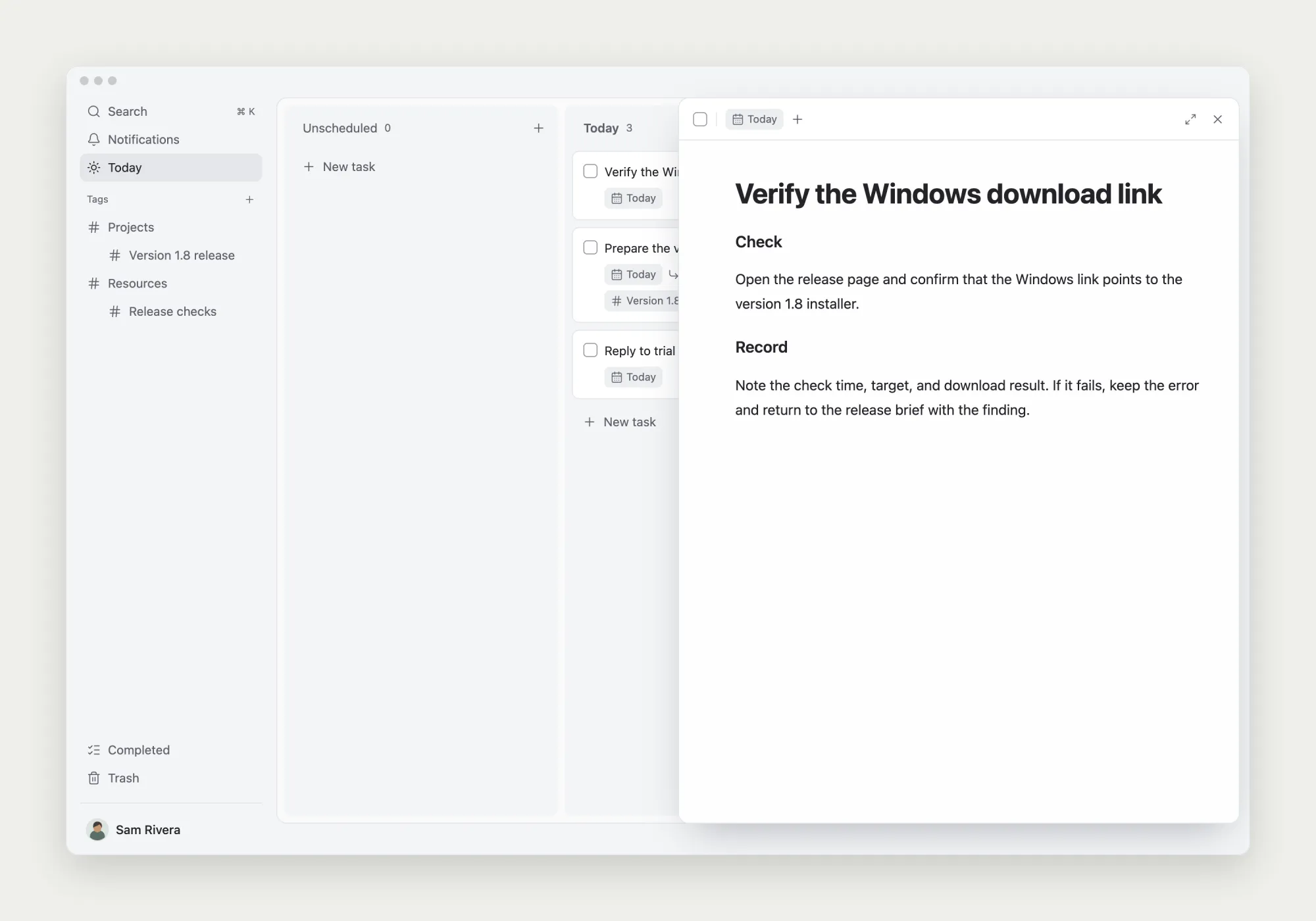
Turn an agreed next step into a task with enough detail to carry it out.
The note writer replaces the whole document. Read an existing note before changing it, preserve the relevant content, and include the new result. If a create request times out, look for the task before retrying so you do not duplicate it.
Keep adding the results of the work
After checking the download, record the actual result and complete the task. The next AI-assisted progress review then has new evidence to work from.
This extends Todo → Note through MCP: accumulated working context helps AI continue, and the new records make that context more useful for the next session.