Specify MCP
Connect coding agents to your team’s documents, decisions, and code context in Specify. Search and read workspace documentation through a remote MCP server, with read-only access by default and optional permission to create or edit documents.
Hosted MCP Server
npx add-mcp 'https://mcp.specify.app'Installs into Claude Code, Codex, Cursor and more
Documentation
Coding agents are capable, but they don't know your team. Specify runs as an MCP server so agents such as Claude Code, Codex, and Cursor can explore your team's docs, decisions, and code context directly.
What is MCP
MCP (Model Context Protocol) is an open standard for connecting AI agents to external tools and data. Because Specify provides an MCP server, any client that supports MCP can search and read your team's docs within the scope your workspace permissions allow.
What you can do
Search team docs
Agents find and read the docs they need from your workspace while they work.
Share the same context
The context your team leaves in Specify is exactly the context your agents read.
Write docs
If you allow write access, agents can create and edit docs.
Server details
| Item | Value |
|---|---|
| Server URL | https://mcp.specify.app |
| Transport | Streamable HTTP (JSON responses, no SSE sessions) |
| Authentication | Workspace MCP token (Bearer) or OAuth |
| Scopes | mcp:read (default), mcp:write (optional) |
| Server name | specify in every client |
The simplest way to get connection commands and tokens is from your workspace. When you choose a connection, access permission for that workspace is issued and the commands or config for each client are prepared for you.
Connection at a glance
- Open Connect editor in your workspace
Open the account menu at the bottom of the sidebar and select Skills & connectors to open the Tools & skills window. On the Connect editor tab, choose the client you use.
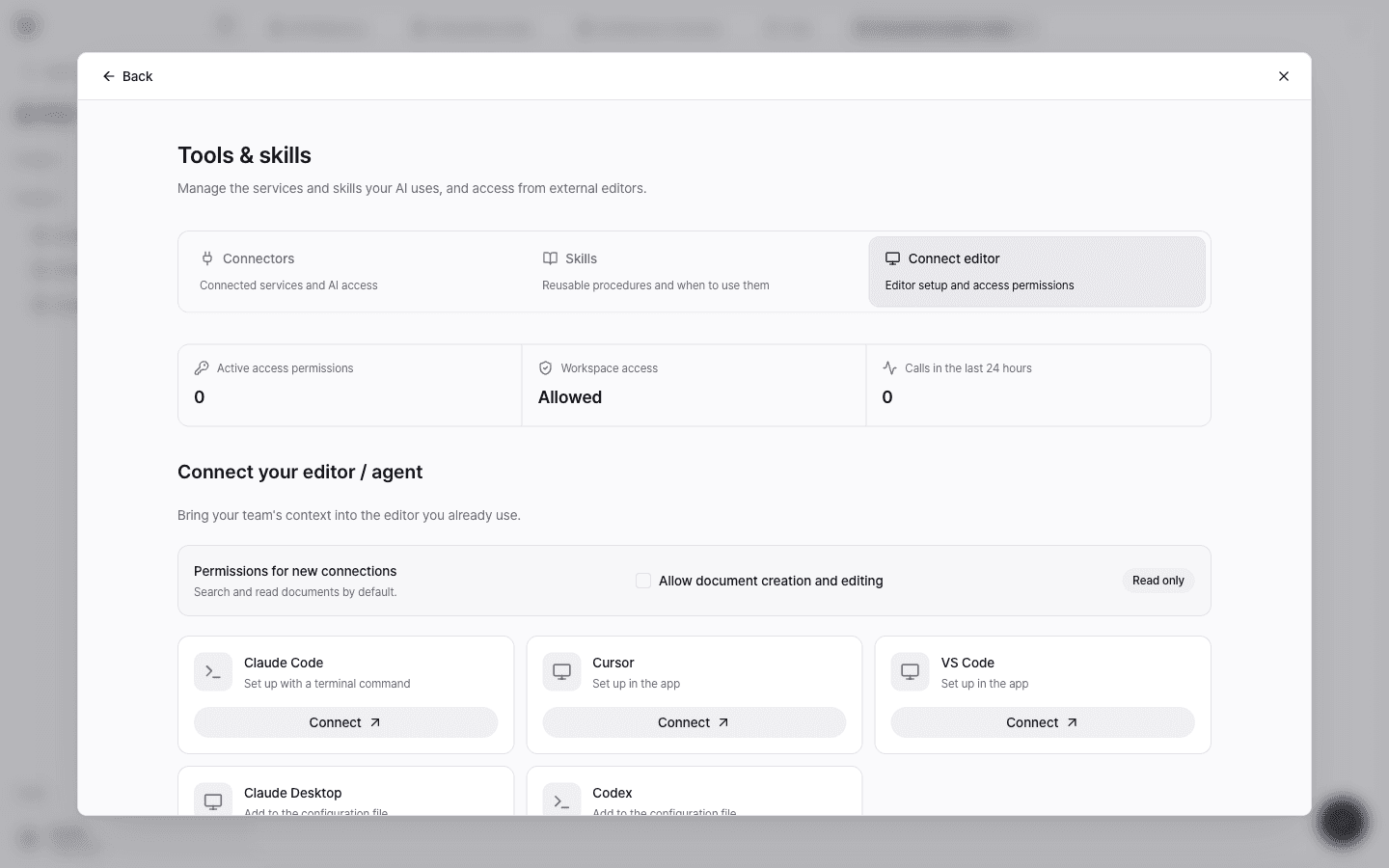 The Connect editor tab in the Tools & skills window with client connection cards
 - Choose a scope The default is read-only. If the agent needs to create or edit docs, check Allow document creation and editing.
- Apply the command or config Depending on the client, run a terminal command, paste a config, or open your editor with a deep link. For client-specific steps, see Connect editors and agents.
- Ask on top of your context Ask about decisions, docs, or code, and the agent answers from your team's actual context instead of generic guesses.
Next steps
[Connect planning changes to implementation
See how planners work in Specify while developers reread requirements through MCP to align implementation and tests.