qa-use
Provides comprehensive browser automation for QA testing capabilities.
Documentation
qa-use
QA automation CLI for browser testing and E2E test management.


Quick Start
# Install globally
npm install -g @desplega.ai/qa-use

# Or use with npx
npx @desplega.ai/qa-use setup
Getting Started
1. Setup
qa-use setup                    # Configure your API key
qa-use test init                # Initialize test directory with example
2. Create Your First Test
Create qa-tests/login.yaml:
name: Login Test
app_config: your-app-config-id
steps:
  - action: goto
    url: /login
  - action: fill
    target: email input
    value: test@example.com
  - action: click
    target: login button
  - action: to_be_visible
    target: dashboard
3. Run Tests
qa-use test run login           # Run single test
qa-use test run --all           # Run all tests
CLI Reference
Test Commands
| Command | Description |
|---|---|
qa-use test init | Initialize test directory with example |
qa-use test run <name> | Run a test by name |
qa-use test run --all | Run all tests in qa-tests/ |
qa-use test list | List local tests |
qa-use test list --cloud | List cloud tests |
qa-use test validate <name> | Validate test syntax |
qa-use test sync --push | Push local tests to cloud |
qa-use test sync --pull | Pull cloud tests to local |
qa-use test export <id> | Export cloud test to local file |
Run qa-use test --help for all options.
Filename suffix (≥ 2.17).
pullwrites one file per cloud test as${safe-name}-${short-id}.yaml, where${short-id}is the first 8 hex chars of the test UUID. Test names can collide within an org by design, so the suffix guarantees one local file per cloud row. If you upgrade from an earlier version, the nextpullwill write new suffixed files alongside any legacy un-suffixed file you had — qa-use prints a one-lineLegacy file: …notice per orphan and never auto-deletes. Inspect the legacy file'sid:field; remove it manually once you've confirmed it's not load-bearing.
Browser Commands
Interactive browser control for test development and debugging:
qa-use browser create                  # Start browser session
qa-use browser goto https://example.com
qa-use browser snapshot                # Get element refs like [ref=e3]
qa-use browser click e3                # Click by element ref
qa-use browser fill e5 "hello"         # Fill input field
qa-use browser run                     # Interactive REPL mode
| Command | Description |
|---|---|
qa-use browser create | Start browser session |
qa-use browser goto <url> | Navigate to URL |
qa-use browser snapshot | Get page element refs |
qa-use browser click <ref> | Click element by ref |
qa-use browser fill <ref> <value> | Fill input field |
qa-use browser screenshot <path> | Save screenshot |
qa-use browser run | Interactive REPL mode |
qa-use browser close | Close browser session |
qa-use browser status --list | List active sessions across processes |
Run qa-use browser --help for the full list of 29 browser commands.
Tunnel & Maintenance Commands
browser create auto-tunnels when your target is localhost and the API is remote. For standalone tunnels (or cross-process registry inspection) use qa-use tunnel:
qa-use tunnel start http://localhost:3000 --hold   # Hold a public tunnel
qa-use tunnel ls                                   # List active tunnels
qa-use tunnel status <target|hash>                 # Detail for one entry
qa-use tunnel close <target|hash>                  # Force-release a tunnel
qa-use doctor                                      # Reap stale sessions/tunnels
qa-use doctor --dry-run                            # Preview what would be reaped
| Command | Description |
|---|---|
qa-use tunnel ls | List active tunnels in the registry |
qa-use tunnel status <target> | Show detail for a single tunnel |
qa-use tunnel close <target> | Force-release a tunnel (kills detached holder) |
qa-use doctor | Reap stale sessions/tunnels (dead PIDs) |
Note:
qa-use tunnel *is the CLI-side cross-process tunnel registry, distinct fromqa-use mcp tunnelwhich is the MCP-mode persistent tunnel wrapper (see below).
API Commands
Dynamic API access powered by live OpenAPI (/api/v1/openapi.json) with local cache fallback.
qa-use api ls                             # List endpoints from live/cached OpenAPI
qa-use api /api/v1/tests                  # Call endpoint (method inferred)
qa-use api -X POST /api/v1/tests-actions/run --input body.json
qa-use api ls --refresh                   # Force refresh OpenAPI cache
qa-use api ls --offline                   # Use cached OpenAPI only
| Command | Description |
|---|---|
qa-use api ls | List /api/v1/* endpoints from OpenAPI |
qa-use api <path> | Send API request to endpoint |
qa-use api ... --refresh | Force OpenAPI spec refresh |
qa-use api ... --offline | Use cached spec without network |
If live spec fetch fails, qa-use falls back to the last cached spec and prints a stale-cache warning.
Checks and Check Schedules
Remote API checks and schedules are first-class CLI resources. They call the desplega.ai API directly; schedule runs are fully remote and do not create browser sessions.
qa-use check list --app-config <app-config-id> --q login
qa-use check info <check-id>

qa-use check create \
  --name "Auth token" \
  --app-config <app-config-id> \
  --config auth-check.json \
  --alias auth \
  --capture token=$.access_token

qa-use check-schedule create \
  --name "Claims chain" \
  --app-config <app-config-id> \
  --cron "*/15 * * * *" \
  --check <auth-check-id> \
  --check <claim-check-id>

qa-use check-schedule run <schedule-id> --var env=staging --var claim_id=123
qa-use check-schedule delete <schedule-id> --force
qa-use check delete <check-id> --force
There is no standalone qa-use check run <check-id> command yet because the public API currently exposes schedule runs, not individual check-run actions. Use qa-use docs checks for the full workflow and qa-use api info /api/v1/checks -X POST for the current check payload contract.
Setup Commands
| Command | Description |
|---|---|
qa-use setup | Interactive configuration (API key, base URL, etc.) |
qa-use info | Show current configuration |
qa-use install-deps | Install Playwright browsers |
Test Definition Format
Tests are YAML files with steps that describe user interactions:
name: Checkout Flow
app_config: your-app-id
variables:
  email: test@example.com
depends_on: login-test          # Optional dependency
steps:
  - action: goto
    url: /cart
  - action: click
    target: checkout button
  - action: fill
    target: email input
    value: $email
  - action: to_be_visible
    target: order confirmation
Supported actions:
| Category | Actions |
|---|---|
| Navigation | goto, go_back, go_forward, reload |
| Input | fill, type, click, hover, press, check, uncheck, select_option |
| Waiting | wait_for_selector, wait_for_timeout, wait_for_load_state |
| Assertions | to_be_visible, to_have_text, to_have_url, to_contain_text, to_be_checked |
| Advanced | ai_action, ai_assertion, extract_structured_data |
See SETUP.md for the complete test definition guide.
Configuration
Environment Variables
QA_USE_API_KEY=xxx              # Required: Your desplega.ai API key
QA_USE_REGION=us                # Optional: "us" or "auto" (default)
Config File
Alternatively, create a .qa-use.json in your project root or ~/.qa-use.json in your home directory:
{
  "$schema": "https://qa-use.dev/cli-schema.json",
  "api_key": "your-api-key-here",
  "region": "us"
}
Precedence (first wins):
- Environment variables
.qa-use.jsonin current directory~/.qa-use.jsonin home directory
| Variable | Description | Default |
|---|---|---|
QA_USE_API_KEY | API key for authentication | (required) |
QA_USE_API_URL | API endpoint | https://api.desplega.ai |
QA_USE_APP_URL | App URL | https://app.desplega.ai |
QA_USE_REGION | Region (us or auto) | auto |
QA_USE_DEFAULT_APP_CONFIG_ID | Default app config | (from API key) |
QA_USE_FORCE_HEADLESS | When truthy (1/true/yes/on), forces headless=true on every browser launch and errors on any explicit headful request (--no-headless, --headful, defaults.headless: false). | (unset) |
CI/CD Integration
Basic GitHub Actions
# .github/workflows/e2e.yml
name: E2E Tests

on: [push, pull_request]

jobs:
  e2e:
    runs-on: ubuntu-latest
    steps:
      - uses: actions/checkout@v4
      - uses: actions/setup-node@v4
        with:
          node-version: '20'

      - name: Run E2E Tests
        env:
          QA_USE_API_KEY: ${{ secrets.QA_USE_API_KEY }}
        run: |
          npm install -g @desplega.ai/qa-use
          qa-use test run --all --download

      - name: Upload Results
        if: always()
        uses: actions/upload-artifact@v4
        with:
          name: e2e-results
          path: /tmp/qa-use/downloads/
PR Verification with Claude Code
Use the qa-use plugin with Claude Code to automatically verify PRs:
# Add from the marketplace
claude plugin marketplace add desplega-ai/qa-use

# Then install the plugin
claude plugin install qa-use@desplega.ai

# Verify a feature works
/qa-use:verify "the login form accepts valid credentials"

# Verify PR changes
/qa-use:verify-pr
See SETUP.md for advanced CI workflows including AI-assisted test generation.
Claude Code Plugin
qa-use includes a Claude Code plugin for AI-assisted testing workflows:
# Add from the marketplace
claude plugin marketplace add desplega-ai/qa-use

# Then install the plugin
claude plugin install qa-use@desplega.ai

# Install the skill
npx skills add https://github.com/desplega-ai/qa-use --skill qa-use
Available skills:
| Skill | Description |
|---|---|
/qa-use:verify <description> | Verify a feature works through browser automation |
/qa-use:verify-pr | Verify PR changes with automated browser testing |
/qa-use:explore | Explore a web page interactively |
/qa-use:record | Record browser actions into a test definition |
/qa-use:test-run | Run E2E tests |
/qa-use:test-validate | Validate test syntax |
MCP Server
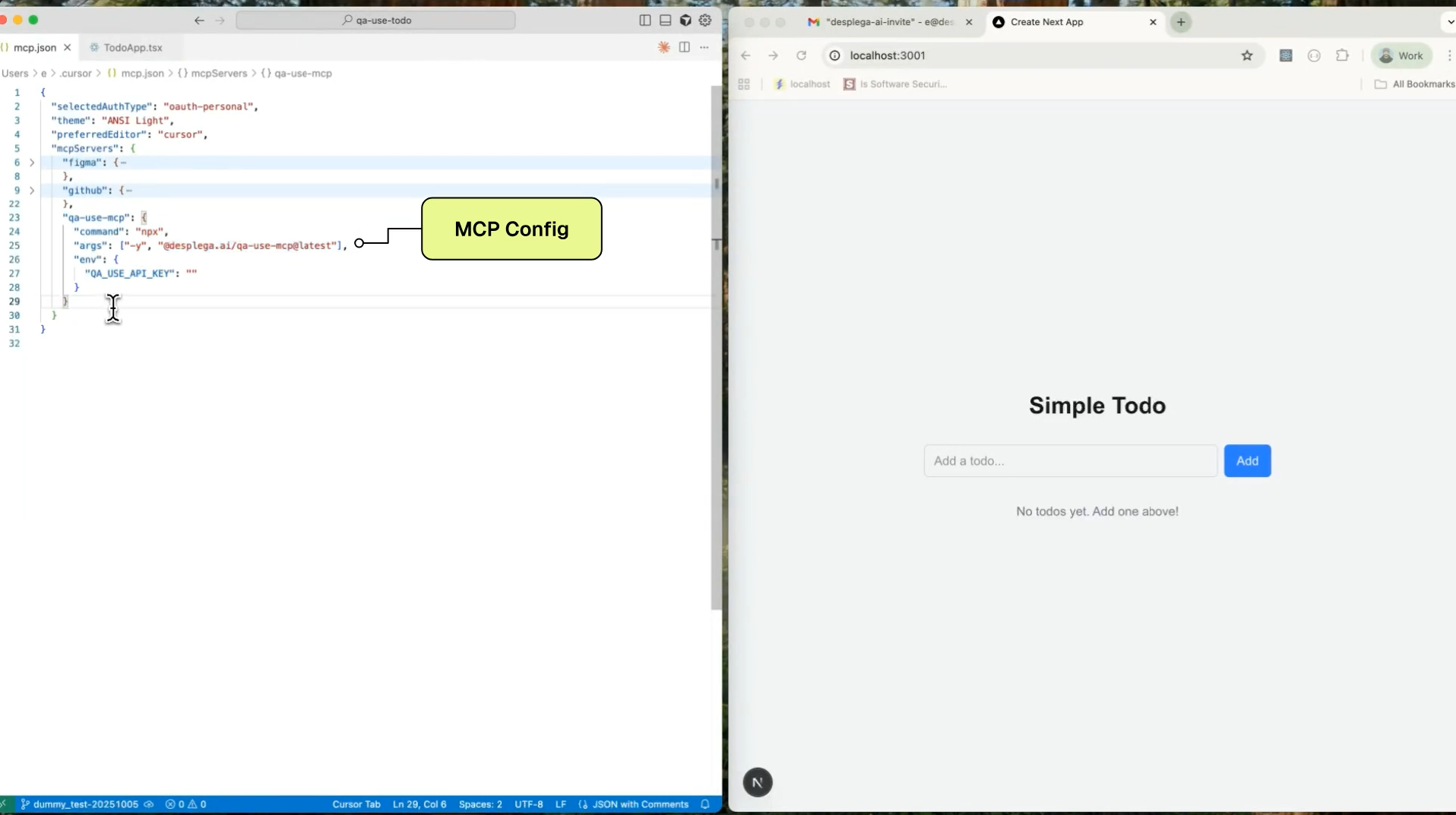
For AI assistant integration (Claude Desktop, VS Code Copilot, Cursor, etc.), qa-use includes an MCP server with full browser automation capabilities.
qa-use mcp                      # Start stdio server (default)
qa-use mcp --http               # Start HTTP/SSE server
qa-use mcp tunnel               # Start persistent tunnel mode
See MCP.md for complete MCP server documentation including:
- Client configurations for all major AI assistants
- HTTP transport mode for web integrations
- Tunnel mode for backend-initiated testing
- Full MCP tools reference
Development
git clone https://github.com/desplega-ai/qa-use.git
cd qa-use
bun install
bun run build
bun run dev
Note: This project uses bun as the package manager.
See CONTRIBUTING.md for development guidelines.
Documentation
- SETUP.md - Complete E2E test setup guide
- MCP.md - MCP server documentation
- CONTRIBUTING.md - Development guide
- CLAUDE.md - AI assistant onboarding
License
MIT