SnapStack
Capture any browser tab in one click and feed it to your MCP client — 100% local, no account, no telemetry.
Documentation








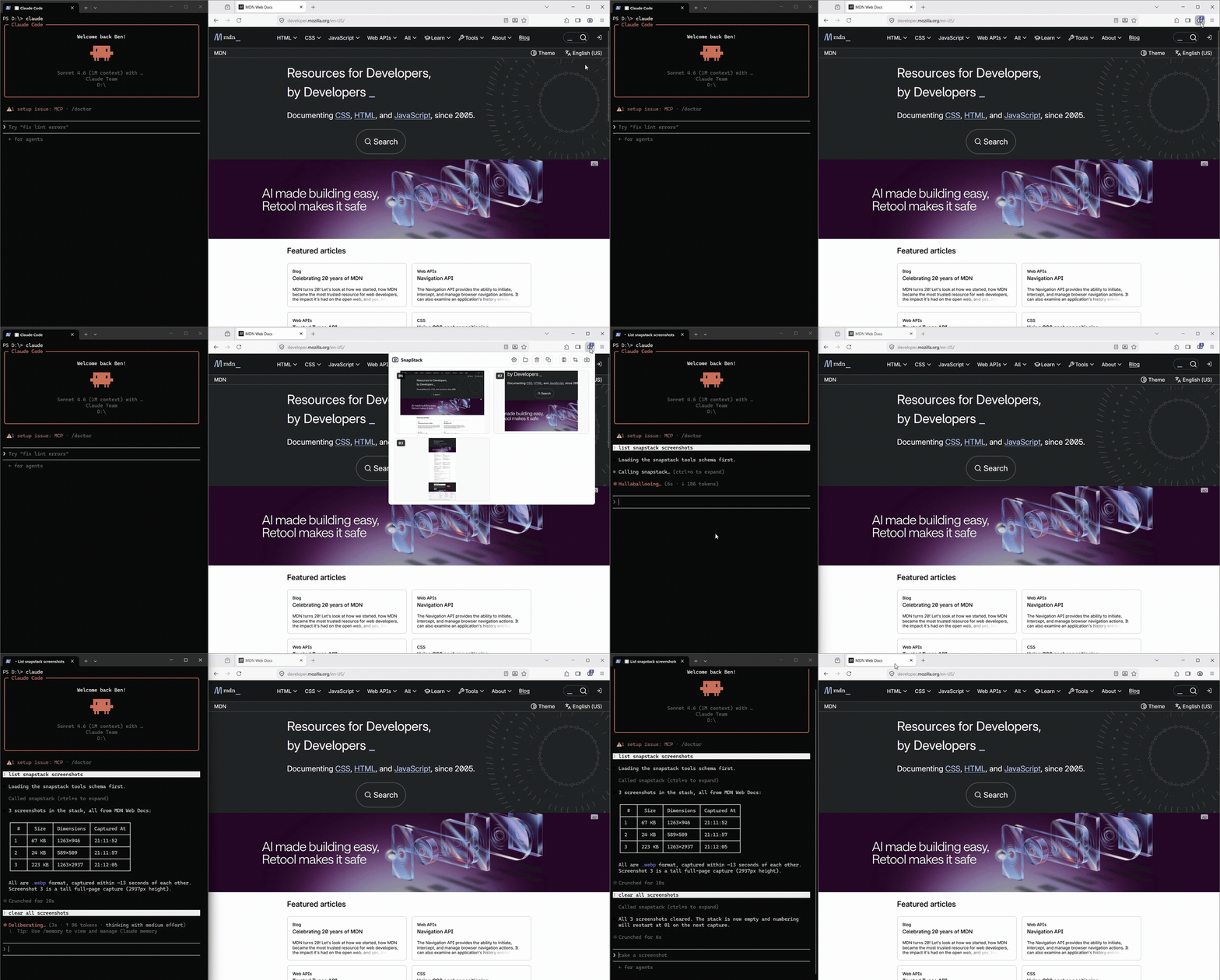
The SnapStack server is a single always-on Node process: it receives browser captures from the
extension, stacks them on disk, and serves them to any
MCP-capable LLM client over Streamable HTTP. It listens only on 127.0.0.1 — nothing ever leaves your machine.
New here? The full install + usage guide lives in the extension README: snapstack-extension. This page is the technical reference.
Architecture
One always-on process serves both the extension (capture) and your MCP client, decoupled by a folder on disk.
[MV3 extension]  --POST /push (bytes) ┐
                                      ▼
                              [SnapStack server - 127.0.0.1:4123]
                                 ├─ writes           →  stack on disk
                                 └─ MCP /mcp (HTTP)  ←  MCP client
- Capture — the extension encodes the shot as WebP (PNG fallback), downscales it, and POSTs it here.
- Stack — one image file (
.webp/.png) plus a twin.json(url, title, timestamp, dimensions) per capture, namedNN <timestamp>: a stable two-digit number (assigned in capture order, restarts at01when the stack empties) plus a timestamp, under~/.snapstack/. - Retrieval —
get_screenshotsreturns a JSON manifest (number, absolute path, dimensions, metadata — no image bytes); the client reads only the files it needs, by path. Deletion is a separate, explicitclear_screenshotsstep. Retrieval never deletes.
Requirements
- Node.js ≥ 18 (tested on Node 20). No git needed at runtime.
- An MCP-capable LLM client speaking the HTTP (Streamable HTTP) or stdio transport.
- The snapstack-extension loaded in your browser.
Install & run
On Windows, use an Administrator terminal, otherwise the global npm install and the scheduled-task registration may get rejected.
The server ships on npm and installation is straightforward on macOS, Linux and Windows:
- Install globally:
npm i -g snapstack-server - Enable background service:
snapstack enable
SnapStack auto-starts on login, restarts on crash, and updates itself on each launch.
To check its status or if an update is available, simply run snapstack in your terminal.
Available commands:
snapstack                            # status report: service + server health, update check
snapstack start | stop | restart     # control the running service (this session)
snapstack update                     # update the CLI (npm i -g) + restart the server on the latest
snapstack run                        # run the daemon in the foreground (no auto-start)
The daemon self-updates on each (re)start/login; the global CLI (the snapstack command) does not.
Run snapstack update to bring both to the latest in one go.
The full end-to-end walkthrough (idiomatic install paths, MCP client registration, the extension) is in the extension README.
MCP
SnapStack speaks two MCP transports over the same on-disk stack — pick whichever your client supports:
// HTTP (server already running) — register http://127.0.0.1:4123/mcp; copy deploy/mcp.json
{ "type": "http", "url": "http://127.0.0.1:4123/mcp" }
// stdio (the client spawns the process)
{ "command": "npx", "args": ["-y", "-p", "snapstack-server", "snapstack", "mcp"] }
The HTTP /mcp endpoint is stateless (a fresh server + transport per request); the stdio front-end
(snapstack mcp) is spawned on demand and reads the same ~/.snapstack stack.
Capture intake (/push) always stays in the running server, independent of either MCP front-end.
Exposed tools
| Tool | Description |
|---|---|
get_screenshots | Lists pending captures as a JSON manifest (stable number, absolute path, dimensions, metadata) — no image bytes, no deletion. Pass numbers (e.g. [1,3]) to list only those. |
clear_screenshots | Deletes captures. Pass numbers to delete specific ones; omit to clear the whole stack. Numbering restarts at 01 once empty. |
count_screenshots | Number of pending captures, without retrieving them. |
get_screenshots and count_screenshots are read-only; only clear_screenshots is destructive.
Configuration
Environment variables (infrastructure)
| Variable | Default | Purpose |
|---|---|---|
SNAPSTACK_DIR | ~/.snapstack | Stack folder. |
SNAPSTACK_PORT | 4123 | Listening port (always on 127.0.0.1). |
Capture policy (shared across your browsers)
The encoding/capture settings are owned by the server and stored in ~/.snapstack/config.json, so a single
edit applies to every browser running the extension. They are edited from the extension's options page — not
an environment variable — and fetched by the extension before each capture.
| Key | Default | Meaning |
|---|---|---|
format | webp | Image format: webp, png or jpg. |
quality | 0.85 | Lossy quality (0–1; the extension UI shows it as a percentage). |
maxWidth | 1568 | Downscale captures wider than this to this width in px (0 = no resize). |
maxSlices | 50 | Full-page capture: hard cap on stitched slices. |
Two endpoints back it: GET /config returns the effective policy; POST /config validates and replaces it (host- +
CORS-guarded like every capture route). The file is a non-image, so a stack clear never touches it; deleting it just
restores the defaults above.
Troubleshooting
- Capture server not started message in the extension: run
snapstack start(orsnapstack runin the foreground), or check the auto-start withsnapstack. Test:curl http://127.0.0.1:4123/health. - Port already in use (
EADDRINUSE): setSNAPSTACK_PORTto another value. snapstack: command not foundafter switching Node version (nvm, fnm, volta, Laravel Herd, nvm-windows):npm i -gdrops thesnapstackcommand in the global bin of the Node version that was active at install time only, so switching versions hides it. This is how npm globals work, not a SnapStack bug — the background service is unaffected and keeps capturing; only the CLI command disappears. Fix: re-runnpm i -g snapstack-serverunder the current Node version (or switch back to the one used at install).- The client doesn't see the tools: the server must run before the MCP client starts; check the config
(
type: "http", correct URL). Direct test:curl http://127.0.0.1:4123/count. - Inspect the stack:
ls ~/.snapstack(image files + human-readable.json).
Support
- A question or an idea? → GitHub Discussions
- Found a bug? → open an issue
License
MIT — see LICENSE.