VivaDialog MCP
Читайте и управляйте единым почтовым ящиком VivaDialog из вашего AI-клиента: беседы в Facebook, Instagram, Threads, Telegram, электронной почте и YouTube, аналитика и автоматизации.
Размещённый MCP-сервер
npx add-mcp 'https://api.vivadialog.com/mcp'Устанавливается в Claude Code, Codex, Cursor и другие
Документация
VivaDialog MCP is live.
Connect ChatGPT, Claude, Grok, Cursor, or another AI app that supports MCP to your VivaDialog workspace. Ask it what came into your Unified inbox, reply to customers, or turn an automation on, without leaving the chat.
MCP server
https://api.vivadialog.com/mcp
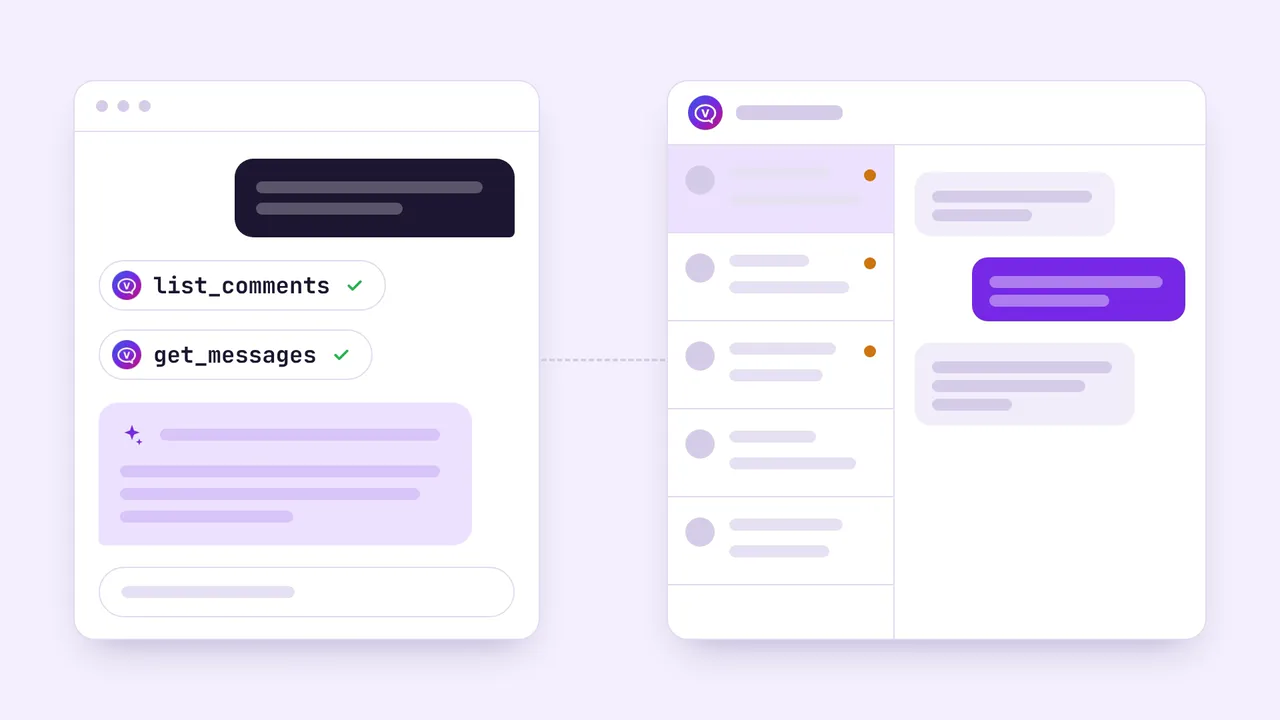
- You Which Instagram comments from today still have no reply?
- Read your Unified inbox with VivaDialog (list_comments)
- AI app Three from today are still waiting. Two ask for the price, one asks about shipping. Want me to draft replies for you to check?
An example. The real answer comes from your own inbox.
What it is
MCP (Model Context Protocol) is an open standard that lets AI apps use tools from other services. VivaDialog runs an official MCP server, so the AI app you already use can work in your workspace: Channels, the Unified inbox, Contacts, Automations, usage, and inbox analytics. It is one more way into the same command center, with the same rules as the dashboard.
AI app
- ChatGPT
- Claude
- Cursor
- Claude Code
MCP server
api.vivadialog.com/mcp
VivaDialog
- Unified inbox
- Channels
- Contacts
- Automations
What your AI app can read
-
Unified inbox
comments and conversations from your connected Channels, the messages in a conversation, internal notes, tags, and reminders waiting to go out.list_commentslist_conversationsget_messageslist_noteslist_tagslist_follow_ups -
Channels
which Channels are connected and their status.list_channels -
Contacts
your contacts, their stages, and saved segments.list_contactslist_segments -
Automations
your rules and flows, and how each one is set up. It can also test a rule against a sample message, or run a flow through a sample conversation (flows come with Growth and higher), without sending or saving anything.list_rulesget_ruletest_rulelist_flowsget_flowsimulate_flow -
Plan and usage
your plan, its limits, and how much of this period's conversations and AI replies you have used.get_planget_usage -
Analytics
inbox analytics for the period you ask about.get_inbox_analytics -
Your team
the Users in the workspace.list_members
You can ask in plain language, for example: "Which Instagram comments from today still have no reply?" or "How many AI replies do we have left this month?"
What your AI app can do
When you connect an app, Read-only is on. To let it do more, turn Read-only off and switch on only what you want. There are four groups, and each one starts switched off:
To let it only read, leave Read-only on. The Connected apps list in Settings then marks the app Read-only. It can never change billing, Users, Channels, or settings.
An app can send up to 20 messages and make up to 60 other changes a minute in a workspace. If you connected an app before write access opened, it can only read: connect it again to choose what else it may do.
Channels
- Threads
- Telegram
- YouTubeRead-only
Facebook, Instagram, Threads, Telegram, and email, plus YouTube comments, which your AI app can read but not answer (replies to YouTube comments are written on YouTube). Reading YouTube comments needs an add-on seat. WhatsApp and TikTok are not supported yet. Website chat conversations are not available to AI apps.
Connect in a few clicks
- Add
https://api.vivadialog.com/mcpas a remote MCP server in your AI app. - Your AI app opens the VivaDialog login. Log in with your VivaDialog account.
- Pick the workspace, switch on what the app may do, and click Allow access.
Only owners and admins of a workspace can approve an app.
Choose your AI app
ChatGPT
- In Settings > Apps & Connectors > Advanced, turn on Developer mode. Click Create, paste the server address, and choose OAuth.
- Log in to VivaDialog when asked.
- Pick the workspace, switch on what the app may do, and click Allow access.
Claude
- Open Customize > Connectors, click + Add, then Add custom connector, and paste the server address.
- Log in to VivaDialog when asked.
- Pick the workspace, switch on what the app may do, and click Allow access.
Gemini
- In Gemini on the web, open Connected Apps, choose Connect to an MCP server, and paste the server address. Leave Client ID and Client secret under Additional settings empty.
- Click Next and log in to VivaDialog when asked.
- Pick the workspace, switch on what the app may do, and click Allow access. Back in Gemini, click Connect.
Grok
- Open Connectors and add VivaDialog with the server address.
- Log in to VivaDialog when asked.
- Pick the workspace, switch on what the app may do, and click Allow access.
Perplexity
- Open Settings > Connectors, click + Custom connector, choose Remote, and paste the server address.
- Choose OAuth, leave Client ID and Client secret empty, choose Streamable HTTP, then log in to VivaDialog when asked.
- Pick the workspace, switch on what the app may do, and click Allow access.
Cursor
- Open Settings > Tools & MCP and add the server to
mcp.json:{"mcpServers":{"vivadialog":{"url":"https://api.vivadialog.com/mcp"}}}. - Click Login next to the server and log in to VivaDialog.
- Pick the workspace, switch on what the app may do, and click Allow access.
VS Code
- Add a remote MCP server with the server address in the app's MCP settings.
- Log in to VivaDialog when asked.
- Pick the workspace, switch on what the app may do, and click Allow access.
Antigravity
- Add a remote MCP server with the server address in the app's MCP settings.
- Log in to VivaDialog when asked.
- Pick the workspace, switch on what the app may do, and click Allow access.
Claude Code
- Run
claude mcp add --transport http vivadialog https://api.vivadialog.com/mcp. - In Claude Code, run
/mcp, choose vivadialog, and log in to VivaDialog. - Pick the workspace, switch on what the app may do, and click Allow access.
Gemini CLI
- Run
gemini mcp add --transport http vivadialog https://api.vivadialog.com/mcp. - Start Gemini CLI and log in to VivaDialog in the browser window it opens. If no window opens, run
/mcp auth vivadialog. - Pick the workspace, switch on what the app may do, and click Allow access.
Codex
- Add a remote MCP server with the server address in the app's MCP settings.
- Log in to VivaDialog when asked.
- Pick the workspace, switch on what the app may do, and click Allow access.
ChatGPT uses its Developer mode. On Claude Team and Enterprise plans, an organization owner adds the connector under Organization settings > Connectors, and each member then clicks Connect. Connectors added in Claude also work in Claude Desktop.
Disconnect an app: open Settings, go to Developer, and click Disconnect next to the app under Connected apps. It loses access right away.
For developers and CLI tools
The server speaks MCP over Streamable HTTP at https://api.vivadialog.com/mcp. Besides the login flow, it accepts a VivaDialog API key with HTTP Basic auth: the access key (it starts with rpk_) as the username and the secret as the password. With an API key, the server is read-only; changes need the login flow. See API keys and the Public API.
Command-line tools such as Claude Code and Gemini CLI can use the same login flow, so they can make changes too. Use an API key only for scripts that read.
FAQ
What is VivaDialog MCP, and which AI apps can connect?
It is VivaDialog's official MCP server at https://api.vivadialog.com/mcp. MCP (Model Context Protocol) is an open standard that lets AI apps use tools from other services. This page has setup steps for ChatGPT, Claude, Gemini, Grok, and Perplexity on the web, for Cursor, VS Code, and Antigravity on the desktop, and for Claude Code, Gemini CLI, and Codex as CLI tools. Another AI app that supports MCP can connect with the same server address.
Can my AI app send replies to customers?
Yes, if an owner or admin allows it. When you connect an app, Read-only is on and the app can only read. To let it do more, turn Read-only off and switch on only the groups you want: Send replies to customers, Organize the inbox, Manage contacts, and Manage automations. Each group starts switched off. Replies are sent for real from your Channels and count toward your monthly conversations. An app can send up to 20 messages and make up to 60 other changes a minute in a workspace. It can never change billing, Users, Channels, or settings. An app connected with an API key instead of the login can only read.
Does my inbox content go to the AI app's provider?
Yes, the part your AI app reads. When you ask your AI app something, the data VivaDialog returns goes to that app and its provider and is handled under that provider's terms and privacy policy. AI apps you connect through MCP are chosen by you and are not VivaDialog's sub-processors. The app can read the Unified inbox (comments, conversations and their messages, internal notes, tags, and reminders waiting to go out), which Channels are connected, Contacts with their stages and saved segments, Automations, your plan and usage, inbox analytics, and the Users in the workspace. VivaDialog does not keep tokens or message text in its logs, and the record of what an app changed in the last 90 days never stores message or note text.
Which workspaces can connect an AI app?
Workspaces on an active paid plan: Starter, Growth, Pro, or Premium. Only owners and admins of the workspace can approve an app. Such a workspace can read and, with the groups you switch on, make changes. A workspace that paid before and is now read-only can still read, but not make changes. The free trial and dormant workspaces can't connect AI apps. Each workspace and app can make up to 100 requests a minute. A connection belongs to one workspace and one person, and it stops working if that person is no longer an owner or admin of the workspace.
How do I disconnect an AI app?
Open Settings, go to Developer, and click Disconnect next to the app under Connected apps. It loses access right away. Log out on all devices in Settings also disconnects every AI app you approved, and so does changing or resetting your password.